A dead pixel is a single point on your screen that stays black no matter what you display — white page, blue sky, or solid red. That definition matches the question most people type first: what is a dead pixel. This guide explains what that black speck means, how a dead subpixel or cluster of dead pixels differs, how to spot it in about a minute, when a lone dot can still be “normal” under factory policy, and when a line of dark pixels is a different problem entirely.
What Is a Dead Pixel: Why It Happens and How to Tell
What Is a Dead Pixel
A dead pixel is one addressable point on an LCD or OLED panel that has permanently stopped emitting or transmitting light. Against a white field it looks like a pinprick of black. Against black it nearly vanishes. It does not move with the mouse, does not change when you switch apps, and does not appear in a screenshot taken of the desktop image — because the framebuffer is fine; the panel cell is not.
Each full-color pixel is built from three subpixels (red, green, blue), each gated by its own microscopic thin-film transistor on LCD, or driven as its own organic emitter on OLED. When the control path for all three channels fails dark, you see a classic dead pixel. When only one channel fails dark, you see a dead subpixel — a subtler tinted speck that still counts as a pixel defect in warranty language.
People searching what is a dead pixel usually want three answers in one sitting: a plain-language definition, a way to confirm the speck is hardware, and a yes/no on whether software can save it. The short version: black on every color → dead; fixed red/green/blue → stuck; bright white on black → hot; software rarely fixes the first. If you only remember one sentence from this page, make it that classification — almost every wrong fix video on the internet starts by calling a stuck pixel “dead.”
Dust, lint, and smudges also create false alarms. Wipe the glass with a clean microfiber cloth, then recheck on solid white. A real dead pixel stays put after cleaning; dust moves or disappears.

Dead Pixel vs Stuck Pixel vs Hot Pixel vs Bright Spot
Mislabeling the defect wastes time. Repair communities and ISO-style fault types draw a clean line:
| Defect | What you see | Best test field | Software hope |
|---|---|---|---|
| Dead pixel | Black dot on bright colors | Solid white | Almost none |
| Dead subpixel | Tiny tinted speck (one channel off) | Complementary solid color | Almost none |
| Stuck pixel | Fixed red, green, or blue glow | Solid black | Sometimes (color cycling) |
| Hot pixel | Bright white speck | Solid black | Sometimes |
| Bright spot / pressure glow | Soft patch larger than one pixel | Dark scenes | No — different defect class |
Rule of thumb used across pixel-test sites: stay black on white, red, green, and blue → dead. Hold one color → stuck. Blaze white on black → hot. Soft glow bigger than a pinprick → backlight or pressure damage, covered in LCD bright spots and LCD spot damage, not this page.
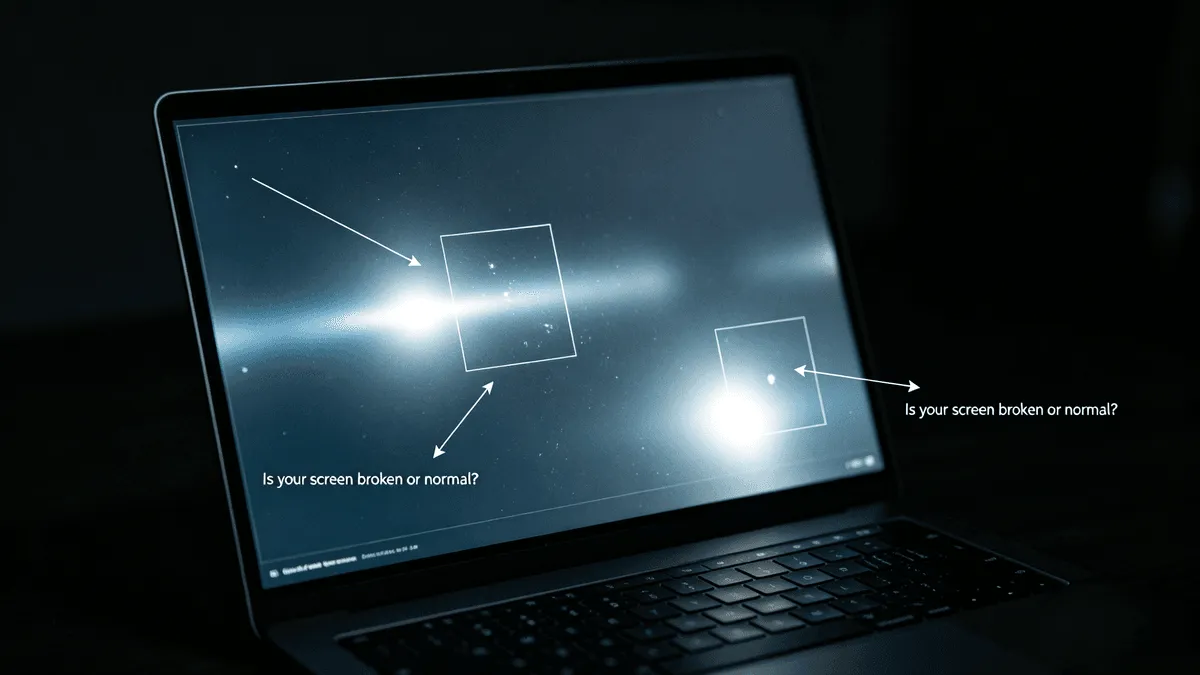
Dead pixel line is not the same article
Queries like dead pixel line, line of dead pixels on monitor, and horizontal dead pixel line describe a streak of failed cells — usually a gate/source driver, flex cable, or column failure. That is a line fault wearing dead-pixel language. If your defect is a continuous vertical or horizontal streak, jump to black line or laptop screen lines instead of treating it as dozens of independent dead pixels.
How to Spot Dead Pixels in About 60 Seconds
How to spot dead pixels is a top practical intent after the definition query. You do not need a shop tool.
- Dim the room and clean the glass so dust does not impersonate a defect.
- Open a fullscreen solid white field. Scan slowly for black pinpricks.
- Cycle red, green, and blue. A true dead pixel stays dark on all of them.
- Open solid black. Dead pixels hide; stuck and hot pixels light up.
- Note the location (for example “upper third, left of center”) and take a phone photo of the panel showing the solid color — screenshots will not capture a panel-only defect.
The Screen Test Tool runs those fullscreen colors in any modern browser. Use it on a new laptop the day you unbox it: dead pixels on laptop and dead pixel on laptop screen claims are much easier inside a retailer return window than six months later under manufacturer ISO thresholds. Zooming with a magnifier is optional; warranty policies usually care about defects visible at a normal viewing distance, not microscopic anomalies you can only see under a loupe.
Quick readouts
| Observation | Likely label | Next step |
|---|---|---|
| Black speck on white; gone on black | Dead pixel | Document; check policy |
| Colored speck on black | Stuck pixel | Optional color-cycling; then policy |
| White speck on black | Hot pixel | Document — often stricter warranty rules |
| Soft glowing patch | Bright spot / pressure | Spot-damage guides |
| Continuous dark streak | Line / driver fault | Line guides |
Is a Dead Pixel Normal — and What About Clusters?
Is dead pixel normal? For many consumer panels, a lone dark pixel can fall inside the manufacturer’s allowed ISO-style fault budget. Older ISO 13406-2 language and today’s ISO 9241-307 pixel-fault classes still shape how brands write policies. In plain terms, Class II panels — still common in the wild — may allow a small number of always-on (type 1 / hot), always-off (type 2 / dead), and subpixel (type 3) faults per million pixels before the unit is considered out of tolerance. Exact caps differ by standard edition and brand table; never assume “one black dot always means free replacement.”
A cluster of dead pixels or dead pixel cluster is different. Standards and warranty desks treat several defects packed into a small area as more serious than the same count scattered across the panel, because clusters are obvious in everyday use. If you see a tight group of black dots, count them carefully, photograph the cluster on white, and read your brand’s cluster language before you accept “Class II allows two dark pixels” as the whole answer.
Premium lines sometimes advertise zero bright-pixel tolerance (Dell’s Premium Panel Exchange is a well-known example of a stricter bright-pixel stance). Dark-pixel rules are often looser. Always open the PDF or support article for your model — laptop tables and monitor tables are not interchangeable.
Illustrative Class II style thinking (per-million caps vary by document — verify against your brand):
| Fault flavour | Everyday name | Why policies care |
|---|---|---|
| Type 1 always bright | Hot pixel | Very visible on dark video |
| Type 2 always dark | Dead pixel | Visible on white / bright UI |
| Type 3 subpixel | Stuck or dead subpixel | Most common; count rules differ |
| Cluster | Several faults close together | Often stricter than scattered singles |
What Causes a Dead Pixel
Manufacturers rarely publish failure rates, but field reports and repair literature converge on the same mechanisms.
Manufacturing and early-life TFT faults
Contaminants, deposition defects, or fill flaws at fabrication can leave a transistor that never switches correctly. Those pixels are often present from first power-on — another reason to run a white-field test before the return window closes. Factory inspection catches many defects, not all; a single dark cell on a 2-million-pixel Full HD panel is easy to miss on a quick line check.
Threshold drift and heat
TFT threshold voltage can drift with heat and high brightness. After years of peak backlight use, a cell that used to switch cleanly may stay off. This is why a panel can “grow” a dead pixel with no drop or spill. Leaving a laptop or monitor at 100% brightness for long stretches is not guaranteed to kill pixels, but it is the stress pattern repair techs associate with late-life dark cells.
Pressure and impact
Closing a laptop on a pen, squeezing the lid in a bag, or a sharp tap can crack the transistor grid. Pressure damage more often creates clusters or soft bright spots than a perfect single black pinprick — but both appear in real cases. If the speck appeared the same day you crushed the lid, photograph everything before wiping the glass; pressure marks and true dead pixels need different warranty stories.
OLED emitter death vs LCD transistor death
On LCD, the classic story is a failed TFT leaving the liquid crystal blocking the backlight. On OLED, gradual emitter wear usually shows as brightness loss or color shift first; a sudden true black dead pixel is more often localized damage. Visually both read as “black dot,” so the solid-color test still decides the label before you argue physics. An LCD dead pixel and an OLED dead pixel share the user-facing definition even when the microscopic failure differs.
Dead Pixels on Laptop Screens
Dead pixels on laptop, laptop dead pixel, and what causes dead pixels on laptop are the device fork of the same definition. The test is identical, but the stakes differ:
- External-monitor comparison does not disprove a laptop dead pixel — the defect lives in the built-in panel, so only that panel shows it.
- Lid pressure and hinge flex create more mechanical risk than a desk monitor.
- Warranty tables for notebooks often list separate bright vs dark subpixel caps by resolution (HD vs FHD vs QHD counts scale with pixel total).
If the laptop shows a line of black cells that shifts with lid angle, treat it as a cable/line fault (laptop screen lines territory), not as a sprinkle of independent dead pixels. Searches such as dead pixel line on laptop screen should follow that path.
Can Dead Pixels Be Fixed?
Are dead pixels fixable? For a confirmed dead pixel — black on every solid color — software pixel fixers are the wrong tool. Those apps rapidly cycle colors to nudge a stuck liquid-crystal state; they cannot repair a failed transistor or a dead OLED emitter.
Do dead pixels go away? Occasionally a defect that looked dead was actually a stubborn stuck pixel and recovers after hours of cycling or a few power cycles. If nothing changes after a careful solid-color confirmation over a couple of days, plan as if it is permanent.
Options that actually change hardware reality:
- Retailer return / exchange inside the purchase window (strongest path).
- Manufacturer warranty if your count, type, and cluster status exceed the published table.
- Paid panel replacement when out of policy and the speck bothers you enough.
Rough cost orientation (labour and parts vary widely by region and model):
| Device | Typical path | Ballpark if paying out of pocket |
|---|---|---|
| New monitor / laptop in return window | Exchange | $0 if accepted |
| In-warranty panel under policy | Manufacturer repair/replace | $0–deductible |
| Out-of-warranty laptop panel | Shop replacement | Often large fraction of device value |
| Out-of-warranty desktop monitor | Panel or whole unit | Frequently “replace the monitor” |
Massage tricks and “rub the screen” folklore risk more pressure damage. Skip them on modern glossy panels.
How to Document a Dead Pixel for Warranty or Return
- Run white / RGB / black fullscreen and write down type counts (dead, stuck, hot, cluster yes/no).
- Photograph the panel (not a screenshot) with the revealing color filling the frame; include a second wider shot that shows where the speck sits on the bezel.
- Note model, serial, purchase date, and the exact policy paragraph you believe applies.
- Contact retailer first if still inside their window; manufacturer second.
A clear inventory (“one type-2 dead pixel at upper-left; no cluster”) reads better than “my screen has dots.” Keep copies of the photos and the policy PDF you cited — support chats reset context constantly.
Testing a new device on day one
Before you install stickers and peel films casually, spend two minutes on solid white and solid black. Catching a dead pixel cluster or a bright hot pixel during the retailer’s no-questions window is worth more than any later essay about ISO Class II. Removable protective films can hide or create temporary marks — retest after the film is off if something looks wrong.
Prevention Tips
You cannot guarantee zero defects, but you can reduce avoidable damage:
- Do not store pens, earbuds, or paperclips between keyboard and display.
- Avoid extreme lid angles and one-handed twist when opening the screen.
- Keep peak brightness reasonable for long idle periods.
- Recheck with a white field after any drop or bag crush before assuming “it is fine.”
- Re-run the Screen Test Tool after major travel if the laptop lived at the bottom of a backpack.
What Search Data Shows About Dead-Pixel Intent
On screenissues.com’s /en/dead-pixel URL, recent Search Console rows (28-day final data) are extremely head-heavy:
| Theme | Example queries | What to optimize for |
|---|---|---|
| Definition | what is a dead pixel (~1387 impressions on this URL) | Plain definition in title, H1, opening, FAQ #1 |
| Subpixel / cluster | dead subpixel, cluster of dead pixels, dead pixel cluster | Explicit subsections + FAQ |
| Spot / test | how to spot dead pixels, lcd deadpixel test | 60-second procedure + Screen Test CTA |
| Normal / fixable | is dead pixel normal, are dead pixels fixable, do dead pixels go away | Policy honesty + no false software hope |
| Laptop | dead pixels on laptop, laptop dead pixel | Device fork without diluting the definition |
Sitewide, dead pixel line variants carry meaningful impressions but usually attach to line pages. This rewrite keeps a short disambiguation and points those readers out, so the dead-pixel page can win the definition query without pretending to be a line-repair guide. CTR on what is a dead pixel was near zero at roughly position 10 — classic “ranked without a matching snippet,” which is why the opening sentence states the definition before any repair pitch. Snippet-friendly clarity also helps humans: the reader who lands here from that query should see the black-on-every-color rule within the first screenful.
Related Guides
- Black line on screen — when dark defects form a streak
- Laptop screen lines — hinge and column failures on notebooks
- Display spots — spot-shaped defects beyond single pixels
- Black spot — larger dark regions
- Screen Test Tool — fullscreen color fields for spotting defects
Conclusion
What is a dead pixel? A permanently dark point caused by a failed drive path or emitter — black on every solid color, invisible in screenshots, almost never revived by apps. Spot it with white and RGB fields, label stuck and hot pixels correctly, treat clusters and warranty tables seriously, and send line-shaped “dead pixel” searches to line guides. When you finish reading, run the online screen test on solid white and solid black so you know whether that speck is dead, stuck, hot — or just dust.