Free Screen Test Tool
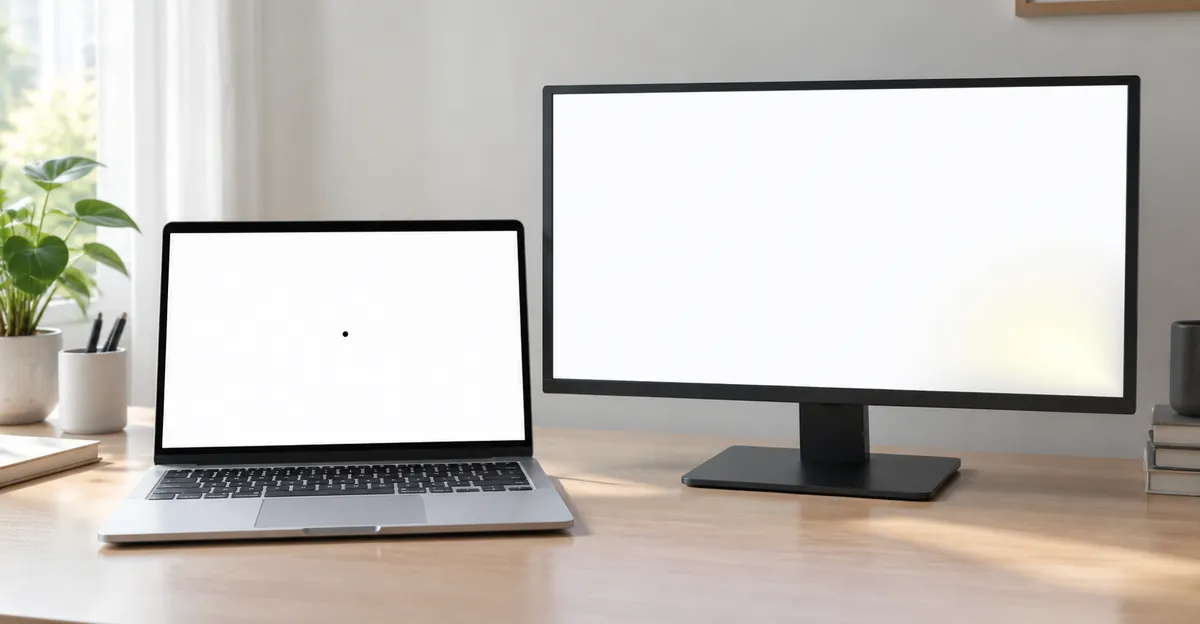
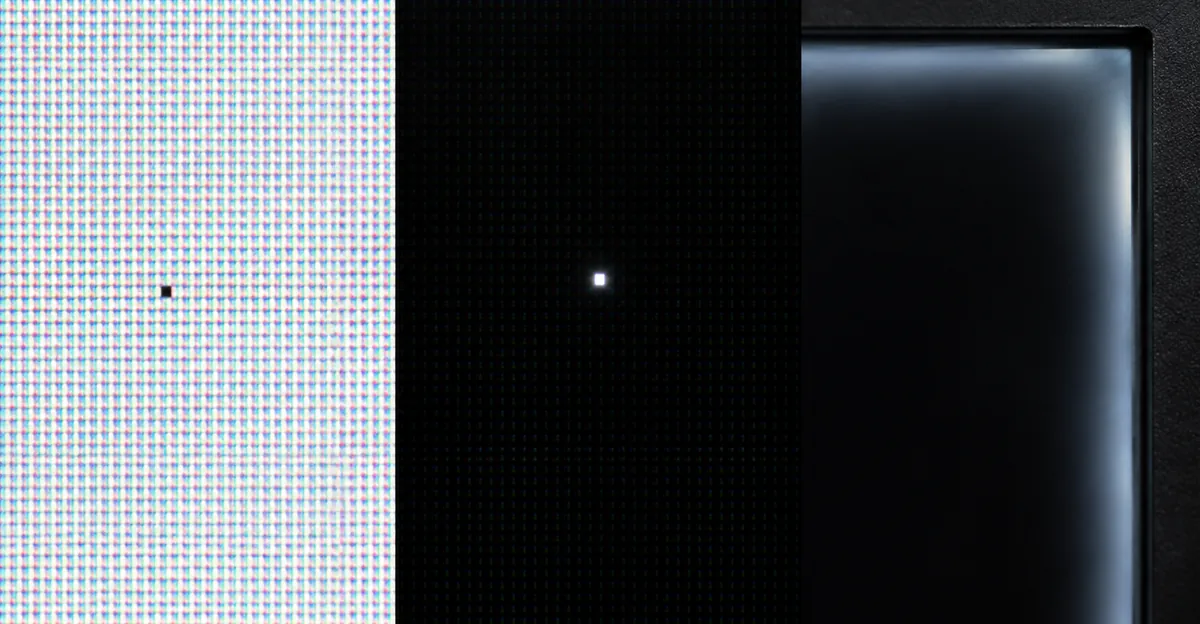
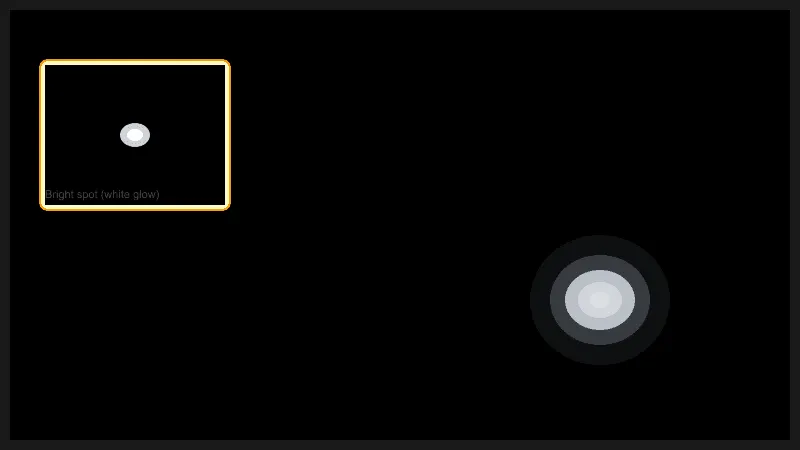
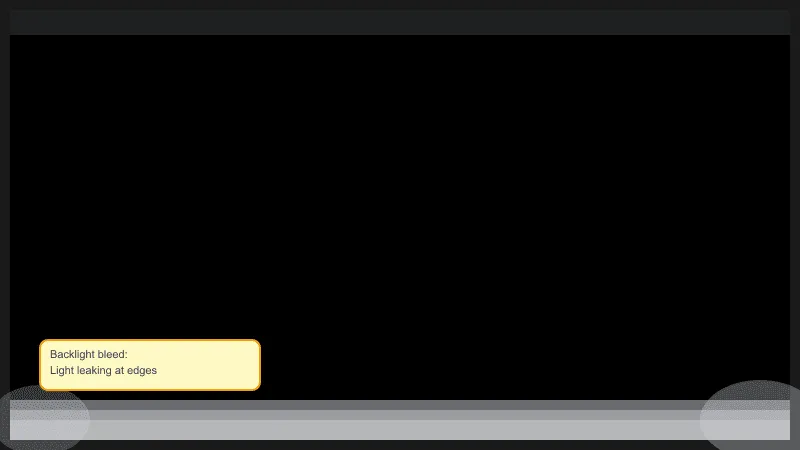
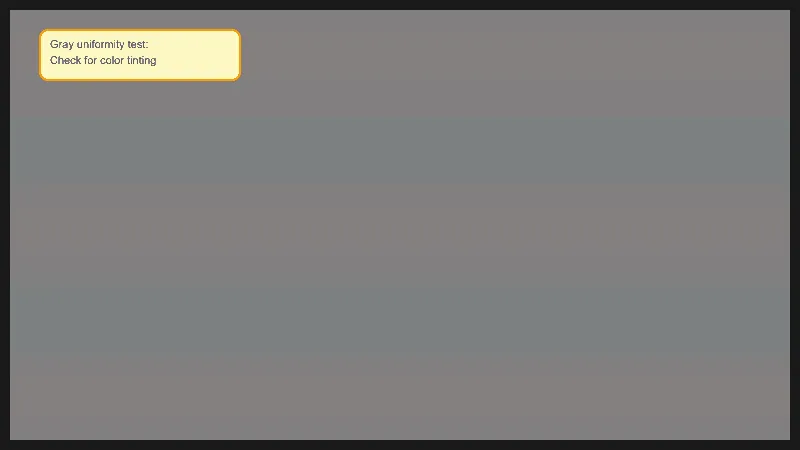
A dead pixel is a pixel on your screen that has stopped working and remains permanently dark. A bright spot, on the other hand, is an area that glows even when it should be black. Backlight bleed is light leaking from the edges of an LCD screen, while screen burn-in leaves ghost images on the display. This free screen test tool helps you detect all of these issues in one test sequence: pure solid colors (white, black, red, green, blue, and gray) to expose dead pixels and bright spots; color gradients (red, green, and blue) to reveal banding, color tinting, and uniformity issues; test patterns (horizontal lines, vertical lines, grid, checkerboard, and RGB stripes) to find pixel rows, columns, or subpixel failures; and a motion blur test to evaluate your display's response time. By cycling through each test, you can quickly identify whether your display has any defects. Use this tool on laptops, monitors, tablets, or smartphones to get a clear picture of your screen's health. Click the preview card to auto-cycle through every test hands-free, so you can step back and inspect your screen from a distance. Whether you just bought a new device or want to check an existing one before returning it, this tool gives you an immediate and reliable diagnosis.
How to Use This Tool
- 1
Click the preview card to start a fullscreen auto-cycle through every test. Close any applications or windows you do not want visible during the test.
- 2
Use the "Next" and "Previous" buttons or the left and right arrow keys on your keyboard to cycle through each color. Press Space to advance one step.
- 3
Look carefully at each solid color screen for any dark spots, bright spots, lines, color tinting, or uneven brightness. Do not rush — spend a few seconds on each color.
- 4
Use the test-image brightness slider at the bottom of the fullscreen view to dim the on-screen test image toward black. This changes only the webpage test image, not your device’s hardware brightness. At lower test-image brightness, backlight bleed and uniformity issues become much more visible.
Solid Colors
White
Look for any dark spots, lines, or uneven brightness on a pure white screen.
← → Arrow keys to navigate | Space to advance | ESC to exit fullscreen
What to Look for on Each Color
Each test color reveals a different type of screen defect. Understanding what each color exposes helps you pinpoint the exact issue with your display.
Solid Colors
White
Look for any dark spots, lines, or uneven brightness on a pure white screen.
Black
Check for bright spots, stuck pixels, or light leakage bleeding through dark areas.
Red
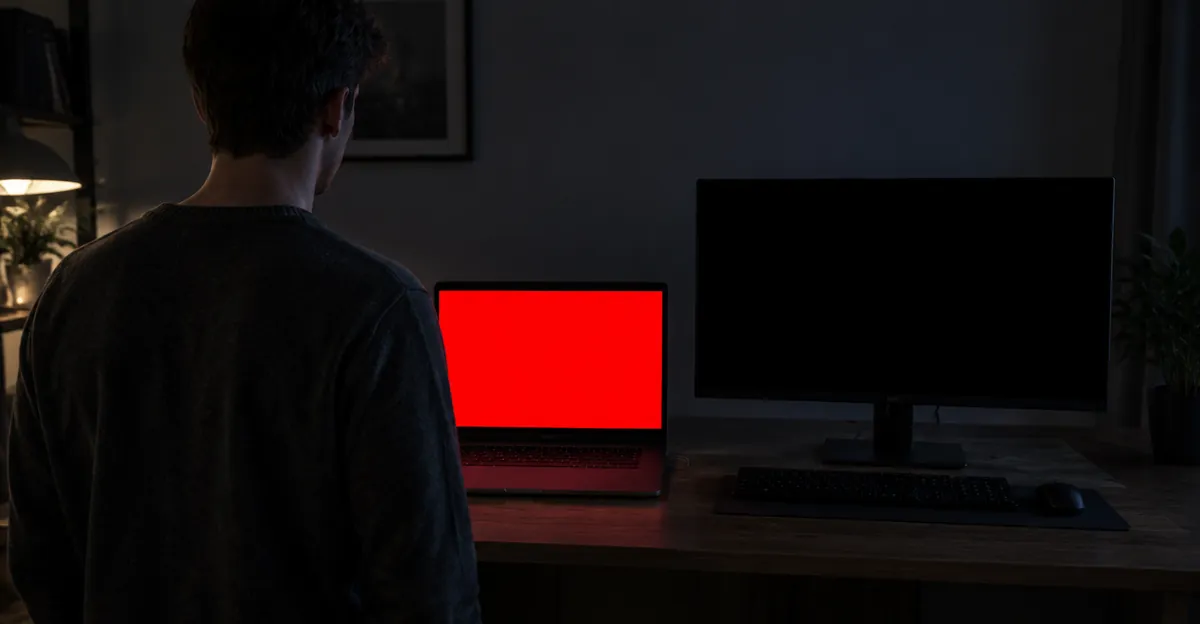
Dead pixels may appear as tiny dark dots against the red background.
Green
Examine the entire screen for any abnormal bright or dark regions.
Blue
Blue helps reveal backlight unevenness and color uniformity issues.
Gray
Gray tests for subtle banding, uniformity problems, and faint bright spots.
Gradients
Red Gradient
Red gradient from dark to bright reveals color filter defects and uniformity issues in the red channel.
Green Gradient
Green gradient exposes panel uniformity issues and subpixel degradation in the green channel.
Blue Gradient
Blue gradient reveals backlight unevenness and blue channel defects more clearly than white.
Patterns
Horizontal Lines
Horizontal lines help detect dead pixel rows and uneven backlight across horizontal sections.
Vertical Lines
Vertical lines reveal dead pixel columns and gate driver issues in the vertical direction.
Grid
Grid pattern combines horizontal and vertical lines to catch any line defects across the full display.
Checkerboard
Checkerboard alternates black and white — look for any stuck or missing pixels in the grid.
RGB Stripes
RGB vertical stripes expose subpixel failures and color filter defects across individual color channels.
Motion Test
Motion Blur Test
Watch the moving block — any ghosting or trailing shadow indicates slow pixel response time. Ideal panels show a crisp, sharp block with no trail.
Common Screen Defects
These example images show how various defects appear on your screen.
Frequently Asked Questions
How do I know if I have a dead pixel?
What is the difference between a dead pixel and a bright spot?
Can a dead pixel be fixed?
What causes backlight bleed and how do I spot it?
How many dead pixels are acceptable on a new screen?
What causes black or green lines on my screen?
Why is my screen showing an orange or tinted color?
What is the difference between screen burn-in and image retention?
Find screen issues? Learn how to fix them.
Back to Article