White spots on screen are a common display issue that can appear on any device — from smartphones to laptops to desktop monitors. Whether you noticed a small bright dot on your MacBook, a glowing patch on your monitor, or white spots appearing on your phone screen, this guide will help you understand what causes white spots, how to diagnose them, and what options you have.
White Spots on Screen: Causes, Test, and Fix Guide
What Are White Spots on a Screen
A white spot on screen is an area that appears brighter than the surrounding pixels. Unlike dead pixels (which are permanently dark), white spots glow or look washed out compared to the rest of the display. They can range from tiny pinpoints to larger cloudy patches.
White spots can appear on any screen type: laptops, desktop monitors, tablets, and smartphones. You might notice them as:
- A small bright dot on your MacBook screen that stands out against dark backgrounds
- A glowing patch in the corner of your monitor that is most visible at high brightness
- White spots on your phone screen that appeared after sitting on the device
- Uneven brightness across your laptop display that creates a visible white area
Not Sure What Type of Spot You Have
Before diving deeper, let us help you narrow down exactly what you are dealing with. The right diagnosis depends on what your spot looks like:
|| If your spot looks like... | It is most likely... | Learn more | ||---|---|---| || A small bright dot that never changes | Stuck Pixel | Stuck Pixel Guide | || A large glowing patch | Backlight Issue | LCD Bright Spots | || A white spot on your phone | Pressure Damage | Mobile White Spots | || A permanently dark spot | Dead Pixel | Dead Pixel Guide |
This page focuses specifically on white spots — areas that appear brighter than surrounding pixels.
Common Causes of White Spots on Screen
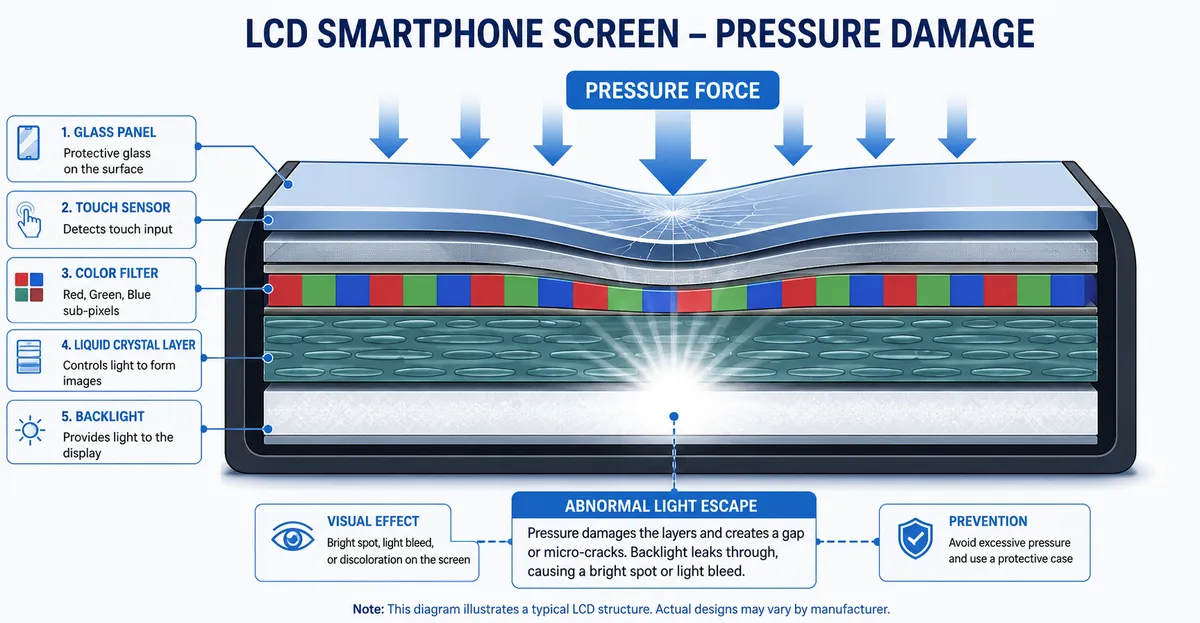
Understanding what causes white spots helps you determine the best course of action.
Pressure Damage
Physical pressure is one of the most common causes of white spots on screen. When strong or sustained pressure is applied to the display, it can damage the internal layers, particularly the backlight layer on LCD panels. The damaged area may fail to block light properly, resulting in a permanent bright spot.
Pressure damage commonly occurs when:
- Closing a laptop with an object on the keyboard
- Sitting on your phone or placing heavy objects on top
- Accidentally pressing too hard on the screen
- Carrying devices in tight spaces with other objects
Backlight Bleeding
On LCD screens, white spots are frequently caused by uneven backlight distribution. The backlight panel sits behind the display and illuminates all pixels from behind. If the adhesive or diffuser layer degrades, or if pressure has affected a specific area, light can concentrate in one spot and create a visible white or bright patch.
Backlight bleeding typically appears as a glowing or cloudy area rather than a sharp dot. It is most noticeable on dark backgrounds and often worsens at higher brightness levels.
Stuck Pixels
A white spot that appears as a small, bright dot that never changes color might be a stuck pixel rather than a backlight issue. Stuck pixels are individual pixels that are stuck on a single color (often white or bright red/green/blue). Unlike dead pixels (which produce no light), stuck pixels are producing light but cannot change.
Stuck pixels can sometimes be fixed with pixel-fixing software that cycles through colors rapidly, applying rapid electrical signals to the stuck pixel.
LCD Defects
White spots can also appear due to manufacturing defects or aging of the display components. Over time, the adhesives, diffusers, and light guides inside a screen can deteriorate, leading to localized areas of abnormal brightness.
In some cases, white spots are caused by delamination — when the layers of the display begin to separate, causing light to scatter in unexpected ways.
What Does Your White Spot Look Like
This is the most important question for diagnosis. The appearance of your white spot tells you exactly what type of issue you are dealing with.
Small Bright Dot
If your white spot is a small, precise dot (typically 1 pixel or a few pixels wide), it is most likely a stuck pixel. The dot will remain exactly the same size regardless of the screen content and will not change position.
Learn more about stuck pixels and how to fix them
Large Glowing Patch
If your white spot is larger and appears as a cloudy or glowing area, especially on dark backgrounds, it is most likely a backlight issue. These patches often have irregular edges and may be more visible at certain brightness levels.
Learn more about LCD bright spots and backlight issues
White Spot on Phone
If you have white spots on your phone screen, especially after the device was dropped or sat upon, it is most likely physical pressure damage to the display. Phone screens are particularly vulnerable to pressure damage due to their thin profiles.
Learn more about mobile white spots and phone screen damage
White Spots on Different Devices
White spots can appear on any screen type. Here is what you need to know for specific devices.
White Spot on iPhone Screen
iPhone screens can develop white spots from physical pressure, backlight issues, or (rarely) stuck pixels. iPhone displays are OLED on newer models, so white spots on iPhones may have different causes than on LCD screens. If you notice white spots on your iPhone, check our mobile white spots guide for device-specific advice.
White Spot on MacBook Screen
MacBook screens are particularly susceptible to white spots due to their thin profiles and the way they close. White spots on MacBook screens are commonly caused by pressure from closing the laptop with objects on the keyboard, or from physical impacts. Apple has specific warranty policies — check if your Mac is still under warranty if you have white spots.
White Spot on Lenovo Laptop Screen
Lenovo laptops can develop white spots for the same reasons as other brands: pressure damage, backlight issues, or pixel problems. Whether you have a ThinkPad, IdeaPad, or Legion series, white spots can appear at any time. Use the screen test tool to narrow down the cause.
White Spot on HP Laptop Screen
HP laptops can develop white spots from dead pixels, physical damage, or backlight issues. HP screens are found in various models from Pavilion to EliteBook series, and each can potentially develop these defects. Check if your HP laptop is under warranty for potential free repair.
White Spots on Monitor
Desktop computer monitors are not immune to white spots. External monitors can develop backlight bleeding, stuck pixels, or pressure marks just like laptops. A white spot on your monitor may be more noticeable due to the larger screen size. If your monitor is under warranty, contact the manufacturer for repair options.
How Manufacturers Define Acceptable Defect Thresholds
Most display manufacturers do not guarantee a defect-free panel. They publish a written pixel policy that specifies how many dead, bright, or stuck sub-pixels a panel can have and still be considered within specification. Understanding these thresholds tells you whether a single white spot already qualifies for warranty replacement — or whether you are expected to live with it.
The reference framework many manufacturers use is ISO 13406-2, an ergonomic standard for flat-panel displays. It defines four panel classes. Class I is defect-free; Class II allows a small number of defects per million pixels; Class III and Class IV allow progressively more. As of 2007, most consumer monitors on the market are sold as Class II. Under Class II, a panel with about 2 million pixels (a typical 1080p display) can carry up to 2 hot pixels, 2 fully dead pixels, and 5 stuck sub-pixels before the manufacturer is contractually obligated to replace it. A single white spot, in isolation, almost always falls below that threshold (Ars Technica — Nintendo dead pixels).
Manufacturers do not publish exact failure rates, but repair communities such as iFixit and Reddit frequently report that policies vary widely by brand:
- Dell follows ISO 9241-307 Class II on standard monitors, where one isolated dead pixel is usually not enough for replacement. On UltraSharp and other professional models enrolled in the Premium Panel Exchange, even one bright pixel qualifies for replacement — but the policy distinguishes between bright pixels and dead pixels, and dark dead pixels are not covered under PPG unless they accumulate (Dell Display Pixel Guidelines).
- HP historically maintains stricter specifications than the basic ISO Class II requirement. HP pixel-defect documentation for flat-panel monitors states that no full-pixel defects are ever permitted on HP panels, and no double sub-pixel defects, and no sub-pixel defects spaced closer than 15 mm. The HP specification effectively means most HP displays meet or exceed ISO Class I even though they are marketed as Class II (HP L1908w — Understanding pixel defects).
- Lenovo, Acer, and ASUS generally follow ISO Class II on consumer monitors. Some Lenovo product lines add vendor-specific overlays, but the base allowance is similar.
- Apple does not publish a public pixel policy. In practice, support communities report that Apple typically replaces a MacBook or iMac display only when the defect count is visible enough to interfere with normal use or when a single defect sits in the central viewing area.
Because the rules differ by product line, the safest move is to check your specific model’s support page before assuming you have a claim. If you are still inside the retailer’s return window — typically 14 to 30 days — that path is faster than a manufacturer warranty claim and applies regardless of pixel count (Dead Pixel Warranty Guide).
OLED vs LCD White Spots: Differences That Matter
White spots look similar across both panel types, but the underlying failure modes are not the same. Knowing whether your device uses LCD or OLED changes which fixes are even worth trying.
On an LCD panel, a white spot is almost always one of three things: a single stuck pixel, a localized backlight failure, or pressure damage to the diffuser sheet. LCDs need a backlight because each pixel is only a colored shutter; when the thin-film transistor controlling a pixel fails, the liquid crystal defaults to its open position and the backlight passes through fully in that one spot, producing a bright, pixel-exact white dot. When a section of the LED backlight fails instead, the bright area is larger and shaped like the dead LED zone. When the diffuser sheet is compressed by pressure, the area looks bruise-like, cloudy, and often shifts slightly with viewing angle (CDTech — White Spots on LCD).
On an OLED panel, every pixel is its own light source. There is no backlight, so the failure modes are different. An OLED white spot is almost always either a fully stuck organic emitter, localized pixel aging, or physical damage to the front glass. Stuck pixels on OLED tend to appear in a single bright color rather than pure white, because the organic material degrades unevenly. Truly stuck OLED pixels — where the emitter or its driver circuit has locked fully on — are rarer on OLED than on LCD, but when they occur they look identical to LCD stuck pixels: a permanent bright dot, visible on every background (TechShali — How to Fix White Spots on Mobile Screen).
The practical implications:
- The viewing-angle test only works on LCD. Gently tilt the screen while displaying a black background. If the white spot shifts shape or fades with angle, you are looking at diffuser compression. On OLED, the spot stays exactly the same regardless of angle.
- Pixel-fixing apps are slightly more useful on OLED. Rapid color cycling can occasionally recover stuck sub-pixels on OLED because the stuck state is not always a complete physical failure. On LCD, the transistor has either failed or it has not — software cannot revive a failed transistor.
- OLED white spots rarely spread into patches. LCD white spots from diffuser compression can grow over time as more of the optical stack relaxes or delaminates. OLED white spots tend to stay isolated unless the underlying defect is a manufacturing issue that affects a region.
- Burn-in is an OLED-only risk that does not produce white spots. Burn-in appears as a faint but fixed image of a static UI element — a taskbar, a navigation bar, a channel logo. It is the opposite symptom of a stuck pixel: the area is permanently bright only in a specific shape, not permanently bright everywhere.
If you are not sure which panel technology your device uses, the device model number and year are usually enough. iPhones from the X onward, all modern Apple Watch models, most flagship Samsung Galaxy phones, and most OLED TVs from LG, Sony, and Panasonic use OLED or AMOLED. Most laptops and most desktop monitors still ship with LCD (IPS, VA, or TN) panels, although premium laptop lines (Dell XPS OLED, Lenovo ThinkPad with OLED option, Razer Blade, ASUS ZenBook with OLED) increasingly offer OLED.
Repair Cost Ranges by Device Type
Knowing the realistic price band for repair helps you decide whether to claim warranty, pay for third-party repair, or live with the spot. These ranges are pulled from public repair-shop pricing pages, manufacturer service estimates, and consumer repair guides published in 2026; they reflect out-of-warranty costs in the absence of an active Premium Panel Exchange, AppleCare+, or accidental-damage coverage.
MacBook (Apple)
Apple does not perform component-level screen repairs — it replaces the entire display assembly. Out of warranty at an Apple Store, a MacBook screen repair typically costs between $450 and $1,100 USD (£400–£900 GBP, $459–$799 CAD), depending on model. MacBook Air M1/M2/M3 sits on the lower end ($450–$650); MacBook Pro 14-inch and 16-inch with Liquid Retina XDR sit on the upper end ($699–$1,100+). AppleCare+ caps the cost at a flat excess fee of roughly $99 USD or £79 GBP per incident. Independent repair shops typically charge 30–50% less than Apple, ranging from $200 to $750 USD depending on tier (iPhone Repair 4 Less — MacBook Screen Repair Cost, All Pro Computer Services).
Windows Laptops (Dell, HP, Lenovo, ASUS, Acer)
Manufacturer out-of-warranty service for a full display assembly on a mainstream laptop typically costs $200 to $450 USD. Premium lines (Dell XPS, HP Spectre, Lenovo ThinkPad X1 Carbon) run higher, $350 to $700. Third-party shops in major markets (US, UK, EU) commonly charge $120 to $300 for an equivalent replacement. On older laptops where the panel is sold as a standalone part, an experienced technician can replace only the LCD and reuse the existing housing for $80 to $200 USD (Laptop Cost — How Much Does It Cost to Fix a Cracked Laptop Screen, BadgerLayer — Laptop Repair Cost).
External Desktop Monitors
Most consumer monitors are not worth repairing once the warranty has expired. A replacement 24-inch 1080p IPS monitor costs less than a typical third-party repair quote. Premium monitors (Dell UltraSharp, LG UltraFine, ASUS ProArt, EIZO) are worth repairing through the manufacturer’s service channel because the panel alone costs more than a comparable new consumer display. Repair quotes on these models run $250 to $600 USD depending on panel size and whether the backlight assembly or the full LCD must be replaced.
Phones and Tablets
iPhone screen replacements at an Apple Store or authorized provider cost $199 to $379 USD depending on model. AppleCare+ reduces each screen incident to a flat $29 fee (Apple — iPhone Screen Replacement, Apple Headlines — Apple Store Screen Repair). Samsung Galaxy screen replacements run $199 to $449 USD for flagship models at Samsung authorized service, with newer S26 series pricing $20–$35 higher than the S25 lineup (Samsung US — Cracked Screen Repair, Samsung Canada — Out of Warranty Pricing). Independent shops typically charge $100 to $200 less. On phones, a white spot is rarely a single stuck pixel — most are pressure damage from a drop or a localized LCD failure under the glass. The repair path usually replaces the entire front assembly.
Budget Guidance
A useful rule of thumb: if the repair quote is more than 50% of the device’s current resale value, replacement is usually the better financial decision. For a $1,000 laptop with a $500 screen quote, replacement of the device may be more cost-effective. For a $2,500 MacBook Pro with a $700 Apple quote, repair is almost always worth it.
How to Document the Spot for a Warranty Claim
The first hour after noticing a white spot matters more than you might think. A few quick actions help establish whether the issue is going to worsen or stay stable, and they create the documentation you need if you file a warranty or insurance claim.
Step 1: Run the screen test immediately. Open the screen test tool and cycle through solid white, red, green, blue, and black. Photograph each color with the spot clearly visible. These photos become your baseline for tracking whether the spot spreads over time.
Step 2: Check for pressure marks versus backlight issues. If the spot is larger than a few pixels, run your finger (gently) along the edges of the spot. Pressure damage has a soft, fuzzy border where the diffuser layer has been compressed. Stuck pixels have a sharp, well-defined boundary at exactly one pixel.
Step 3: Document everything. Note the spot's location, approximate diameter, and the date you first noticed it. Record whether it appears on every color background or only on light backgrounds. This information is essential if you decide to file a warranty claim or seek repair.
Step 4: Stop pressing on the screen. If the spot is from pressure damage, additional pressure will not fix it — it will make the affected area larger. Avoid cleaning with pressure, closing the lid with objects on the keyboard, or stacking items on top of the device.
Step 5: Photograph the spot under multiple angles. Use a smartphone camera and capture the same spot from straight-on, slightly left, and slightly right. Pressure marks and backlight patches often change shape as the viewing angle changes; stuck pixels do not. Angle photographs are extremely useful evidence when filing a warranty or insurance claim, because they help a remote support technician tell the defect types apart without seeing the panel in person.
Step 6: Capture the serial number and proof of purchase. Locate your device serial number through Settings → General → About (Apple), through HP Support Assistant (HP), or by reading the sticker under the battery on most Windows laptops. Save the original receipt, the box, and any warranty card in a single folder so they are ready to attach when you contact support. Repair communities such as iFixit and Reddit frequently report that claims with photos, serials, and receipts are approved faster than claims without documentation.
Quick Diagnosis
Use this quick checklist to narrow down your white spot issue:
If your white spot...
- Does not move or change → Hardware issue (likely permanent)
- Changes color occasionally → Stuck pixel (may be fixable)
- Appeared after pressure or impact → Physical damage (likely permanent)
- Is larger at higher brightness → Backlight bleed (may improve at lower brightness)
- Has irregular, cloudy edges → Backlight or delamination issue
- Is a sharp, tiny dot → Stuck pixel
How to Test for White Spots
The most effective way to detect and diagnose white spots is using a screen test tool with solid color backgrounds:
- Open the Screen Test Tool on your device
- Display solid white background — white spots will be clearly visible as brighter areas
- Display solid black background — backlight issues may become more visible as glowing patches
- Display solid red, green, and blue backgrounds — stuck pixels may appear as a single bright dot in one of these colors
- Increase your screen brightness — faint white spots become more visible
Look for areas that remain permanently brighter than surrounding pixels. Document the location and approximate size of any white spots you find — this information is useful for warranty claims or repair discussions.
Can White Spots Be Fixed
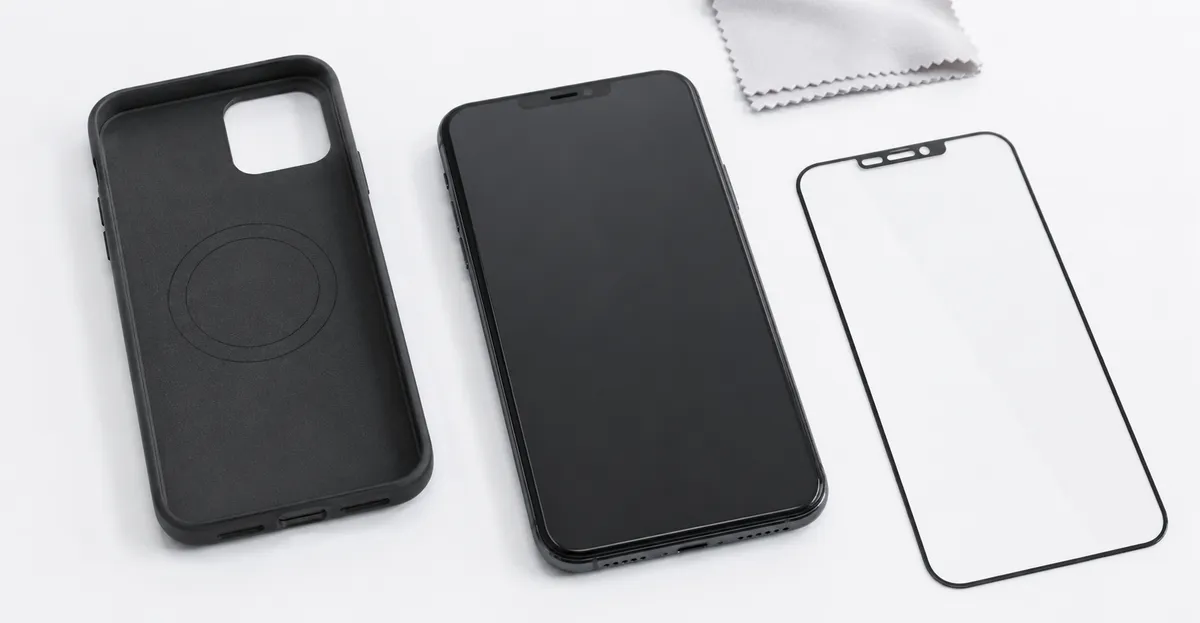
Whether white spots can be fixed depends on their cause. Here is a breakdown of possible fixes and when professional repair is necessary.
What Might Work
- Pixel-fixing apps: These tools cycle through colors rapidly and can sometimes revive stuck pixels by applying rapid electrical signals. Their effectiveness varies and they only work on stuck pixels, not dead pixels or hardware damage.
- Lower brightness: For backlight bleed, reducing screen brightness can sometimes make white spots less noticeable
- Professional repair: If your device is under warranty, contact the manufacturer
What Does Not Work
- Screen massage: There is no scientific evidence that applying pressure fixes white spots. In fact, pressure risks causing additional damage.
- Software updates: White spots caused by hardware issues cannot be fixed through software
- External cleaning: White spots caused by internal damage will not be fixed by cleaning the screen surface
When Repair Is Needed
If the white spot is caused by pressure damage, backlight bleeding, or internal component failure, the only reliable solution is screen replacement. Consider professional repair or replacement when:
- The white spot is in your primary viewing area
- The spot is growing or spreading over time
- The device is still under warranty
- The spot appeared after physical damage and may worsen
How to Prevent White Spots
Prevention is the best strategy for protecting your screen:
- Avoid putting pressure on your screen — do not press hard when cleaning
- Close your laptop gently and ensure nothing is on the keyboard
- Use a protective case for your phone and tablet
- Handle your devices carefully to avoid impacts
- Test new devices before the return window expires
- Avoid sitting on your phone or placing heavy objects on top of it
Related Screen Issues
White spots are just one type of screen issue. Understanding the differences helps you find the right solution:
- Dead Pixel: Learn more about permanently dark pixels and how to test for them
- White Spot LCD: White spots specifically on LCD monitors and laptops
- LCD Bright Spots: Bright glowing areas from backlight issues
- Mobile White Spots: White spots on phone and tablet screens
- LCD Spot Damage: Physical damage to the display panel
- Black Spots: Permanently dark areas on your screen
- Screen Test Tool: Test your screen to diagnose spots and defects
See also: Blue Spots on Screen — blue-tinted screen spots caused by sub-pixel transistor failure, a lesser-known defect distinct from white spots and dead pixels.
See also: Green Line on Screen — persistent green lines across your screen, a related display defect to white spots caused by similar hardware failures.
- Orange Screen on Laptop: Persistent orange tint on your display — cable, calibration, or hardware issue
Also see: White Line on Screen: Persistent white lines across your screen — similar causes to white spots but appearing as lines rather than localized patches of damage.
Real-World Case Study: HP Pavilion Pressure Spot
A common report from repair communities such as iFixit and Reddit involves an HP Pavilion owner who closed their laptop with a USB-C hub cable resting between the keyboard and lid. Within days, a glowing patch appeared in the upper-left quadrant of the screen. The spot did not respond to a screen test on black, red, green, or blue backgrounds — confirming it was pressure damage rather than a stuck pixel or backlight defect. Because the affected area tracked directly with pressure, panel replacement was the only fix. Replacing the panel cost roughly $80 for parts through a third-party supplier, compared with $200-300 at an authorized service center. The lesson is straightforward: a momentary decision to close the lid on a foreign object caused permanent damage worth a year of careful handling.
Conclusion
White spots on screen can mean different things: pressure damage, backlight bleed, stuck pixels, or LCD defects. The key to finding a solution is correctly identifying what type of white spot you have. Use the screen test tool to narrow down the cause, and check the relevant guide for your specific situation. While some white spots (like stuck pixels) may be fixable with software, most are permanent hardware issues that require professional repair or screen replacement. If your device is under warranty, contact the manufacturer for the best solution. Prevention is always better than cure — handle your devices carefully to avoid pressure damage and protect your screens from impacts.