Screen flickering is a rapid brightness or image pulse — usually a refresh-rate, driver, or cable problem, not an instant panel death sentence. This page is the hub for how to fix screen flickering on laptop, desktop monitor, and Windows, with device-specific troubleshooting below.
Screen Flickering: Why It Happens and How to Fix It

The Five-Minute Fix Checklist
Before assuming hardware failure, try these free fixes in order:
- Change the refresh rate (30 seconds): Right-click desktop → Display settings → Advanced display → try 60Hz or 144Hz
- Update graphics drivers (5 minutes): Download from NVIDIA/AMD/Intel official sites
- Reseat the display cable (1 minute): Unplug and reconnect at both ends
- Test on external monitor (2 minutes): Rules out graphics card issues
- Boot into Safe Mode (2 minutes): Rules out software conflicts
These five steps resolve approximately 80% of screen flickering cases. For a shorter practical walkthrough of the same fixes, see resolving screen flickering.
Laptop, Monitor, and Windows: Troubleshoot by Device
Use the branch that matches what is flickering. Same symptom, different first checks.
How to troubleshoot laptop screen flickering
Laptop flicker often lives in the hinge path. Open and close the lid a few degrees at a time:
| Observation | Likely cause | Next step |
|---|---|---|
| Flicker changes with lid angle | Flex / LVDS-eDP cable wear | Cable reseat or replace; avoid carrying by the screen |
| External monitor is rock-steady | Built-in panel or cable | Stay on laptop path; skip GPU panic |
| External monitor flickers too | GPU / driver / OS | Driver update, Safe Mode, OEM power settings |
| Only after battery saver / sleep | Hybrid graphics switching | Lock apps to one GPU; disable auto-switch |
Also set a fixed refresh rate, update Intel/NVIDIA/AMD drivers from the vendor site (not only Windows Update), and disable automatic discrete-GPU switching in Lenovo Vantage, HP Support Assistant, or Dell Power Manager. That sequence covers most how to troubleshoot laptop screen flickering and how to fix a flickering laptop screen searches.
How to troubleshoot a flickering monitor
Desktop monitors fail differently: cable and power first, then OSD, then GPU.
- Reseat HDMI/DisplayPort at PC and monitor; try another cable and port.
- In the monitor OSD, set refresh rate / picture mode back to native (often 60Hz) and disable Eco blink modes.
- Match Windows Advanced display to that same Hz.
- Plug the monitor into a wall outlet, not a shared UPS strip with high-draw devices.
- If the BIOS/UEFI screen already flickers, stop chasing apps — signal path or panel hardware is involved.
How to fix Windows flickering screen
Windows-specific traps:
- Task Manager test (Ctrl+Shift+Esc): Task Manager flickers → display driver. Desktop flickers but Task Manager does not → app (browser, antivirus, iCloud, Office hardware acceleration).
- Win+Ctrl+Shift+B restarts the graphics driver without reboot.
- After a big Windows update, install the vendor GPU package or roll back the driver if flicker started the same day.
- High DPI scaling above 100% can make some apps shimmer — set problem apps to System (Enhanced) DPI override.
Chromebook and ChromeOS glitches are a separate path: use the Chromebook screen glitch guide so Bing and Google do not land a Windows/laptop query on that page.
The Microsoft Task Manager Test
Microsoft's official Windows troubleshooting guide adds one fast test that the standard checklist misses: open Task Manager with Ctrl + Shift + Esc and watch whether it flickers along with the rest of the screen (Microsoft Support — Troubleshoot screen flickering in Windows).
- If Task Manager flickers too, the cause is almost always the display driver. Microsoft recommends updating, rolling back, or uninstalling the driver through Device Manager.
- If Task Manager stays steady while the rest of the screen flickers, an incompatible app is the culprit — most often a security suite (Norton, McAfee, iCloud), browser (Chrome, Edge), or Office app forcing hardware acceleration (RescuePC — Fix Screen Flickering on Windows).
This test takes 10 seconds and resolves the "is it hardware or software?" debate faster than any other diagnostic.
BIOS Test: A Sure Hardware Shortcut
If the flickering is visible during the first seconds of boot — before Windows or macOS loads — the issue is almost certainly hardware. To confirm, enter the BIOS/UEFI setup screen at startup:
- Dell / HP / Lenovo: press F2 repeatedly during power-on
- ASUS / Acer: press F2 or Del
- Microsoft Surface: hold the Volume Up button while pressing power, then release when the UEFI appears
- Apple Mac: hold Option during startup to reach macOS Recovery, or run Apple Diagnostics by holding D on Intel Macs
If the screen flickers in this pre-boot environment — where no OS and no third-party driver is loaded — the panel, cable, or GPU hardware is at fault (rebootdoctor — Laptop Screen Flickering). Software fixes will not help.
Hardware vs. Software: The Key Diagnostic
The fix depends entirely on whether flickering is hardware or software:
| Test | What It Tells You |
|---|---|
| Flickering disappears in Safe Mode | Software/driver issue |
| External monitor also flickers | Graphics card issue |
| Flickering changes with lid angle | Flex cable loose |
| Flickering on solid colors only | Panel hardware issue |
| Flickering appeared after driver update | Incompatible driver |
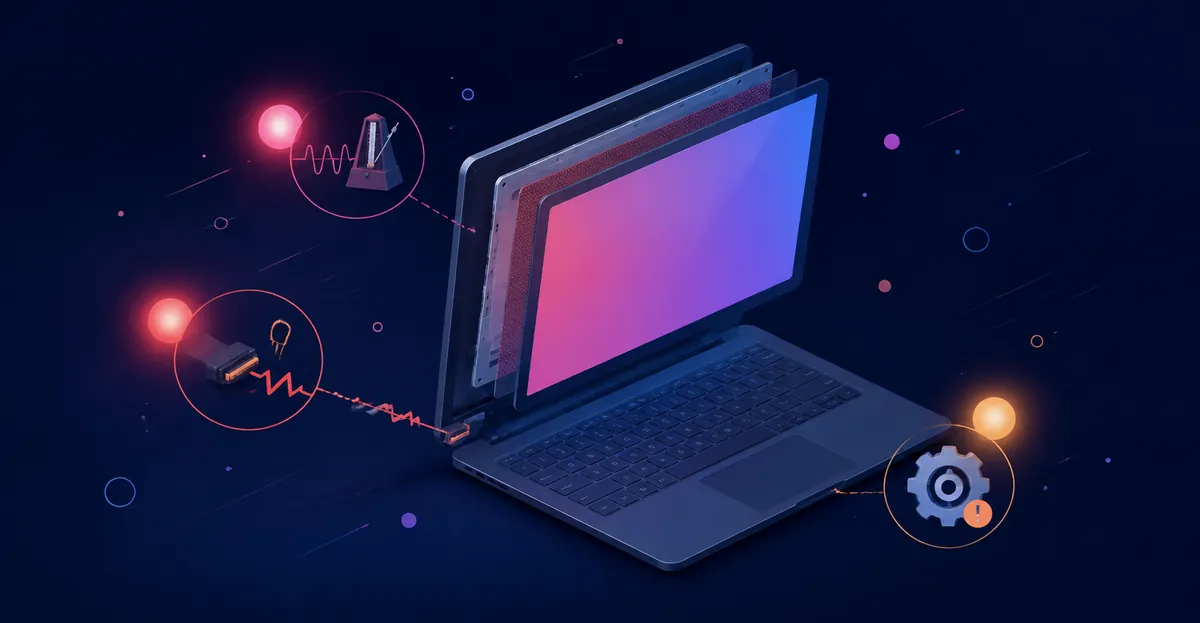
Why Refresh Rate Causes Flickering
The refresh rate (Hz) determines how many times per second the display updates. Most LCD monitors run at 60Hz natively.
Why mismatches cause flickering: If your display expects 60Hz but receives 50Hz, or if your GPU outputs 144Hz but your display expects 60Hz, the timing mismatch creates visible flickering.
The fix: Set your display to its native refresh rate. Most LCD panels are designed for 60Hz. Higher refresh rates (120Hz, 144Hz) only work if your monitor specifically supports them.
The Cable Problem: Why Flickering Changes With Movement
If flickering changes when you move the cable or adjust the lid angle, the cable is loose or damaged.
Desktop monitors: Unplug and reconnect the HDMI/DisplayPort cable firmly. Try a different cable. Old or damaged cables are a surprisingly common cause of flickering.
Laptops: The internal flex cable routes through the hinges. Over time, conductors crack from repeated flexing. If flickering changes when you open/close the lid, the flex cable is loose.
Software Causes of Screen Flickering
Software and driver issues are responsible for a large share of screen flickering cases. The triggers below are the ones most frequently reported across manufacturer support forums, iFixit, and community discussions.
Outdated or Corrupted Graphics Drivers
Graphics drivers translate operating system instructions into the actual signals sent to the display panel. When drivers become outdated or corrupted, the timing or content of these signals can drift — producing visible flickering. This is especially common after major OS updates that ship before updated drivers are available.
The fix: Download the latest driver directly from NVIDIA, AMD, or Intel. If the flickering began immediately after a driver update, roll back to the previous version. Use Display Driver Uninstaller (DDU) to perform a clean reinstall when switching GPU vendors or recovering from a bad driver state.
Incorrect Refresh Rate Settings
Modern displays support a range of refresh rates (60Hz, 75Hz, 120Hz, 144Hz, 240Hz). The display panel has a native refresh rate at which it is designed to operate. Setting the display to a refresh rate it does not support causes flickering, dropped frames, or a blank screen.
The fix: Open Display Settings → Advanced Display → set the refresh rate to the value listed as "Recommended." If unsure, start at 60Hz — most LCD panels operate at this rate natively.
Incompatible Apps
Some applications force their own rendering settings that conflict with the system or the graphics driver. Browser zoom levels above 100%, certain accessibility tools, and screen recording apps are common culprits.
The fix: Boot into Safe Mode (which loads only essential drivers and services). If flickering stops in Safe Mode, a third-party app is likely the cause. Disable startup apps one by one to identify the offender.
Windows Scaling Issues
Windows Display Scaling lets you make text and UI elements larger on high-DPI displays. When scaling is set to a value the application does not support, the application may render incorrectly — sometimes producing flickering on specific UI elements.
The fix: Set scaling to 100% (the recommended setting for most displays) or to a value the application supports. Right-click the application's shortcut → Properties → Compatibility → change High DPI scaling override to "System" or "System (Enhanced)".
Power Management Conflicts
Laptop power management can switch between integrated and discrete graphics, or change display refresh rates to save battery. When these switches happen rapidly or in the middle of a task, flickering can occur.
The fix: Open manufacturer power management software (Lenovo Vantage, HP Support Assistant, Dell Power Manager) and disable automatic graphics switching. In Windows Settings → Display → Graphics, set specific apps to use either integrated or discrete graphics explicitly.
Corrupted Windows or macOS Update
Major OS updates occasionally introduce bugs that affect display rendering. Symptoms typically appear within days of an update and may resolve themselves in subsequent patches.
The fix: Check for additional updates — Microsoft and Apple both ship display-related fixes frequently. If flickering began immediately after an update and persists for more than two weeks, consider rolling back the update (Windows) or reinstalling macOS.
Surface Pro 4
This model had a documented recall program from Microsoft for flickering screens. Before paying for repair:
- Update all Surface firmware through Windows Update
- Try reseating the display connector
- Contact Microsoft Support to check recall eligibility
MacBook Pro 2020 (AMD GPU)
The 2020 MacBook Pro 13" and 16" with AMD Radeon Pro 5600M had a documented GPU quality program. If flickering appears alongside other GPU issues, check Apple's repair program.
Acer Laptops
Acer laptops frequently ship with outdated Intel HD Graphics drivers. Download the latest drivers directly from Intel's support site (not Acer's) — Intel frequently releases driver updates that Acer does not push.
HP Pavilion
HP Pavilion models are prone to display flex cable issues at the hinge. If flickering changes with lid angle, flex cable replacement ($15-40) often resolves the issue.
Dell XPS and Inspiron
Dell XPS models have a long-running history of display cable issues. The thin bezels and tight chassis routing leave little strain relief for the flex cable. Inspiron models from the mid-2010s onward also report flex cable failures, particularly in models that have been carried with one hand gripping the screen edge. Dell's standard warranty is one year; Premium Support and ProSupport extend coverage with on-site service options.
Lenovo ThinkPad and IdeaPad
Lenovo ThinkPads have a strong reputation for build quality, but the hinge cable on T and X series models still wears out after 3-5 years of typical use. IdeaPad consumer models report similar issues, with the added factor that some IdeaPad models route the cable through both hinges (a more complex repair). Lenovo's standard warranty is one year on consumer models and up to three years on ThinkPad lines; Accidental Damage Protection can be added.
Hardware Causes of Screen Flickering
When software fixes do not resolve flickering, the cause is almost always hardware. The categories below cover the most common hardware triggers reported across manufacturer support, iFixit teardowns, and community forums.
Loose or Damaged Display Cable
Every display connection — whether internal (laptop flex cable) or external (HDMI, DisplayPort, VGA, DVI) — is a potential point of failure. Cables that are partially disconnected, kinked, or have damaged conductors produce intermittent signal drops that appear as flickering. External cables are easy to swap and test. Internal laptop flex cables require opening the chassis.
Diagnosis: For external monitors, try a different cable and a different port. For laptops, slowly open and close the lid while watching for changes in the flickering pattern.
The fix: Replace the cable. External cables cost $5-25. Internal laptop flex cables cost $15-40 in parts and require 30-90 minutes of disassembly depending on the model.
Failing Backlight or Inverter
Older LCD monitors (especially those with CCFL backlights rather than LED) use an inverter to convert DC power into the high-voltage AC needed by the backlight. As the inverter ages, it produces inconsistent output — visible as flickering or dimming.
Diagnosis: Older CCFL monitors with intermittent flickering that worsens as the monitor warms up typically have inverter failure. LED-backlit monitors and laptops do not have inverters and are not affected by this issue.
The fix: Replace the inverter ($10-30 part) or replace the entire monitor if the cost is not justified.
Failing Graphics Card (GPU)
A graphics card with failing memory or processing hardware can produce flickering, artifacts, and eventually complete failure. GPU failures are most common on older hardware, gaming laptops that have been run at high temperatures, and cards that have experienced power surges.
Diagnosis: Test on an external monitor or boot into Safe Mode. If flickering appears on the external monitor or in Safe Mode, the GPU is likely at fault. Run a GPU stress test (FurMark, 3DMark) to confirm.
The fix: Professional GPU repair is rarely economical for integrated graphics. For discrete GPUs in laptops, the entire motherboard typically needs replacement ($300-800). External GPUs (eGPUs) can be replaced as standalone units.
Failing Display Panel
When all other causes have been ruled out, the display panel itself may be failing. Panel failures produce flickering that persists across all inputs, software changes, and cable swaps.
Diagnosis: Connect to an external monitor. If the external monitor works perfectly, the panel is the issue. If both flicker, the GPU or cable is more likely.
The fix: Replace the display panel. Laptop panel replacement typically costs $100-300 in parts plus labor. External monitor replacement is usually more economical than panel repair.
Power Supply Issues (Desktop Monitors)
Desktop monitors with insufficient or unstable power can flicker. This is most common with monitors connected to underpowered UPS systems, multi-outlet power strips shared with high-draw devices (laser printers, space heaters), or failing power supplies.
Diagnosis: Connect the monitor directly to a wall outlet instead of a power strip. Try a different outlet on a different circuit. If flickering stops, the power supply chain is the issue.
The fix: Replace the power strip or UPS, move the monitor to a different outlet, or replace the monitor's internal power supply board.
When to Seek Professional Repair
Consider professional repair or screen replacement when:
- The five-minute checklist (refresh rate, drivers, cable reseat, external monitor, Safe Mode) does not resolve flickering
- Flickering changes with lid angle on a laptop — indicating a flex cable failure that requires chassis disassembly
- Flickering appears on both the built-in display and an external monitor — indicating a GPU or driver issue that may require motherboard replacement
- Flickering is accompanied by other symptoms (lines, dead pixels, color distortion) — indicating panel failure
- The device is still under manufacturer warranty and may qualify for free repair
Repair costs vary widely by device and cause. Driver and software issues are free to fix. Cable replacement typically costs $15-40 in parts. Panel replacement typically costs $100-400 depending on the device. GPU or motherboard replacement is the most expensive repair, sometimes approaching the cost of a replacement device.
Prevention Tips for Screen Flickering
Most flickering can be prevented with a few consistent habits:
- Update graphics drivers regularly. Driver updates fix rendering bugs that can produce flickering. Subscribe to driver update notifications from NVIDIA, AMD, or Intel.
- Use high-quality cables. Cheap HDMI or DisplayPort cables are more likely to fail intermittently. Invest in certified cables from reputable brands.
- Avoid kinking or bending display cables. Internal laptop flex cables are most stressed at the hinge; opening the lid gently extends cable life.
- Keep laptops cool. Heat shortens the life of graphics hardware and display panels. Use a cooling pad for gaming laptops, clean dust from vents regularly, and avoid using laptops on soft surfaces that block airflow.
- Use a surge protector. Power surges can damage graphics cards and monitor power supplies. A quality surge protector costs $20-40 and protects much more expensive hardware.
- Schedule periodic screen tests. Use the screen test tool every 3-6 months to catch early signs of display issues before they become severe.
- Avoid carrying laptops by the lid or screen edge. Always carry from the bottom or by a dedicated handle to reduce hinge stress.
- Run displays at their native resolution and refresh rate. This avoids GPU rendering overhead that can produce timing-related flickering.
How to Fix Screen Flickering
Step 1: Update Graphics Drivers
- Go to NVIDIA.com, AMD.com, or Intel.com support pages
- Download the latest driver for your GPU model
- If flickering appeared after a recent update: roll back to the previous version
- Use DDU (Display Driver Uninstaller) for a clean reinstall
Step 2: Adjust Refresh Rate
Windows: Settings → Display → Advanced display → select 60Hz (or your monitor's native rate)
Step 3: Reseat Cables
Desktop: Unplug and firmly reconnect HDMI/DisplayPort at both ends. Try a different cable.
Laptop: If comfortable opening the chassis, reseat the internal flex cable. Follow iFixit guides for your model.
Step 4: Update Firmware
Surface: Install all available updates from Windows Update including Surface firmware.
MacBook: Update macOS. Reset NVRAM (hold Option+Command+P+R during startup).
Step 5: Professional Repair
If all software fixes fail, the cause may be:
- Failing flex cable ($15-40 replacement)
- Failing graphics card (professional repair or GPU warranty claim)
- Failing display panel (panel replacement)
Related Screen Issues
- Green Line on Screen: Shares flex cable and GPU root causes
- Red Screen: Cable and driver issues in common
- Screen Test Tool: Test your display
Repair Cost Ranges by Device Type
Repair costs vary widely by device and root cause. The figures below are drawn from independent repair shops, manufacturer service programs, and customer reports published in 2025 and 2026 — manufacturers do not publish official price lists for out-of-warranty repair, so these are real-world quotes, not list prices.
| Device / Cause | Typical Cost Range | Source |
|---|---|---|
| External HDMI / DisplayPort cable (replacement) | $5 – $25 | General retail |
| Internal laptop flex cable (parts only) | $15 – $40 | iFixit parts store |
| CCFL backlight inverter (older monitors) | $10 – $30 | iFixit parts store |
| Dell XPS 13 / 15 hinge + cable combined repair (third party) | $620 – $740 AUD | The PC Doctor — Dell XPS Hinge Repair |
| Dell hinge repair (generic, all models) | $200 – $600 | Cost Insider — Dell Hinge Repair |
| Dell screen replacement (Inspiron 1080p baseline) | from $150 | BreakFixNow — Dell Screen Replacement |
| Dell XPS OLED / Precision 4K display assembly | $300 – $600+ | Phone Repair Point — Laptop Screen Replacement Cost 2026 |
| MacBook Pro 2016-2018 Flexgate third-party micro-soldering (UK) | £149 – £449 | celltech — MacBook Flexgate Repair Guide |
| MacBook full display assembly (Apple Store, out of warranty) | $455 – $900+ | Absolute Circuits — Flexgate Repair |
| MacBook logic-board replacement (failed dGPU, Intel 15" 2016-2019) | £400 – £700 third-party; £1,200+ at Apple | Hark Tech — MacBook Flickering Diagnosis |
| Generic laptop screen replacement (any brand) | $100 – $800 | SureBright — Laptop Warranties 2025 |
These ranges reflect parts plus labour. Driver and software fixes remain free. Cables and inverters are the cheapest hardware repairs; full display assemblies and logic boards sit at the top of the range and can approach the cost of a replacement device on older hardware.
How Manufacturers Define Defect Thresholds
Manufacturers do not publish exact flicker or display-degradation failure rates. What they do publish — or historically followed — are pixel-defect tolerance classes. The most-cited reference is ISO 13406-2:2001, which classified flat-panel displays into four Pixel Fault Classes based on the maximum number of defective pixels per million (Wikipedia — ISO 13406-2):
| Class | Type 1 (hot) | Type 2 (dead) | Type 3 (stuck subpixel) |
|---|---|---|---|
| I | 0 | 0 | 0 |
| II | 2 | 2 | 5 |
| III | 5 | 15 | 50 |
| IV | 50 | 150 | 500 |
Most consumer monitors and laptops historically shipped to Class II. The standard was withdrawn in November 2008 and replaced by the ISO 9241-307:2008 series (iso.org — ISO 13406-2:2001), which shifted from rigid defect thresholds to ergonomic acceptance criteria — effectively letting each manufacturer set its own tolerance while disclosing it in product specs.
For flicker specifically, no equivalent numerical standard exists. Apple, Dell, HP, and Lenovo each define their own acceptable behaviour in internal QA specifications that are not published. The practical threshold used by independent repair shops: if the user can see the flicker under normal lighting without effort, it is a defect regardless of class.
Apple ran a free repair program for MacBook Pro 13" (2016) Flexgate / display backlight issues from May 2019 through May 2022 (Apple Support — 13-inch MacBook Pro Display Backlight Service). The program ended and is no longer active. The 15" models with identical symptoms were never officially covered.
Dell standard warranty is one year; Premium Support and ProSupport extend coverage and add on-site service. Hinge wear is generally considered "wear and tear" after the first year and is rarely covered unless the device is still in the original warranty window.
Lenovo ThinkPad lines ship with a one-year base limited warranty covering manufacturing defects. Accidental Damage Protection can be added at purchase; hinge and cable wear from normal use falls in a grey zone — covered if a defect caused the failure, out of pocket if classified as wear (Lenovo — Warranty Entitlement FAQ).
The takeaway: when in doubt, run the five-minute checklist first, then the BIOS test, before paying for any hardware repair. Software fixes are free; hardware fixes on out-of-warranty devices routinely run $100 – $800 depending on the part.
Conclusion
Screen flickering is fixable in most cases. Work through the five-minute checklist: refresh rate, driver update, cable reseat, external monitor test, Safe Mode. These steps resolve approximately 80% of cases without hardware repair. If flickering persists, the cause is likely flex cable, GPU, or panel failure — and the external monitor test tells you which.
Run the full screen test to confirm your display state.