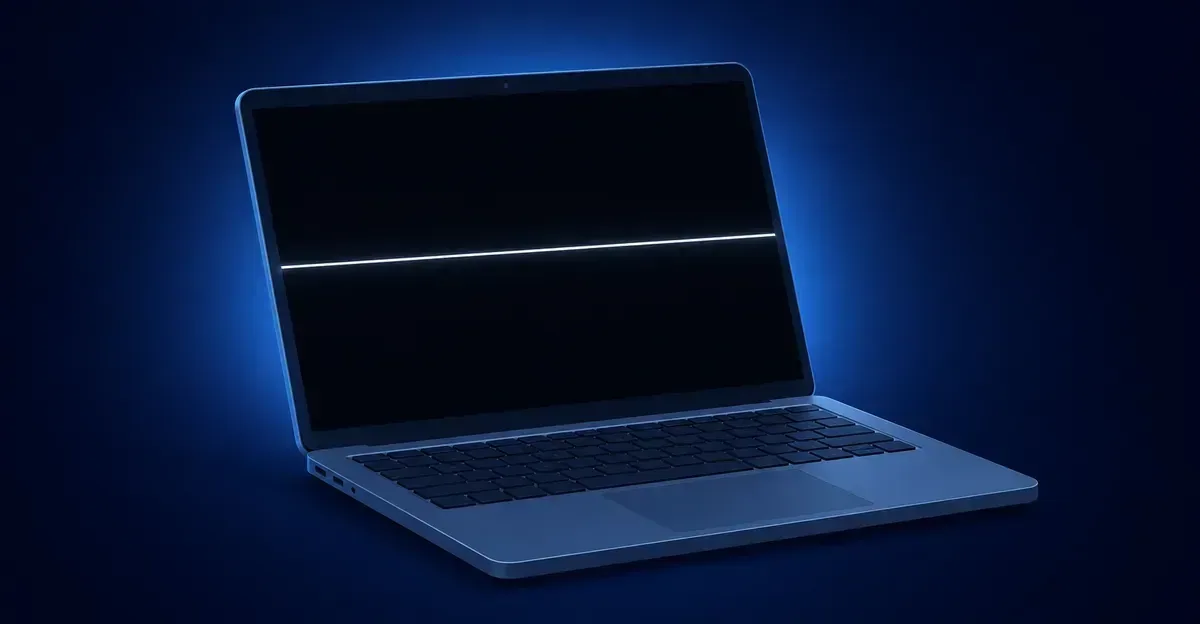
Searching how to remove white line in screen usually means a bright streak that stays lit on dark backgrounds. Most cases come from flex cable damage, T-con board failures, or stuck pixel rows — and many can be fixed without replacing the whole panel. This guide shows how to remove a white line on screen step by step on laptop, monitor, or phone.
How to Remove a White Line on Screen: Causes & Fixes
Why You Have a White Line on Your Screen
A white line on screen is a persistent bright strip of pixels that remains lit regardless of the content displayed. Unlike dead pixel lines (which appear black because those pixels produce no light), a white line means the pixels in that line are stuck in the "on" state — either at full white or at maximum brightness for a specific color channel.
White lines can appear:
- Horizontally across the middle, top, or bottom of the screen
- Vertically down one or both sides
- As a single thin line or multiple parallel lines
- On laptops, monitors, smartphones, and tablets
The key characteristic is that the line never disappears — it remains visible on all backgrounds and content.
The most common root causes are stuck sub-pixel rows (pixels stuck on), flex cable damage in laptops, and T-Con board failure in external monitors. Each has a different fix path.
White Line vs Black Line vs Green Line — What's the Difference
Before diving deeper, it helps to distinguish white lines from other common line defects:
| Line Type | Appearance | Cause | Pixel State |
|---|---|---|---|
| White line | Bright glowing strip | Stuck sub-pixel row, T-con failure, flex cable | Pixels stuck ON |
| Black line | Permanently dark strip | Dead pixel row, gate driver failure | Pixels stuck OFF |
| Green line | Permanently green strip | Stuck green sub-pixel column | Green pixels stuck ON |
| Colored line | Persistent color strip | Stuck sub-pixel row for that channel | Single color channel stuck ON |
White lines, black lines, and colored lines can all share the same root causes — ribbon cable damage, T-Con failures, and panel circuit issues can manifest as any type of line depending on which circuit pathway fails.
Quick identification tip: A line visible on a solid white background that looks bright and glowing is likely a white line (stuck-on sub-pixels). A line visible on a solid white background that looks dark and black is a dead pixel line (no light output). Green lines show a distinct green tint regardless of background color.
Stuck Sub-Pixel Row: The Most Common Cause
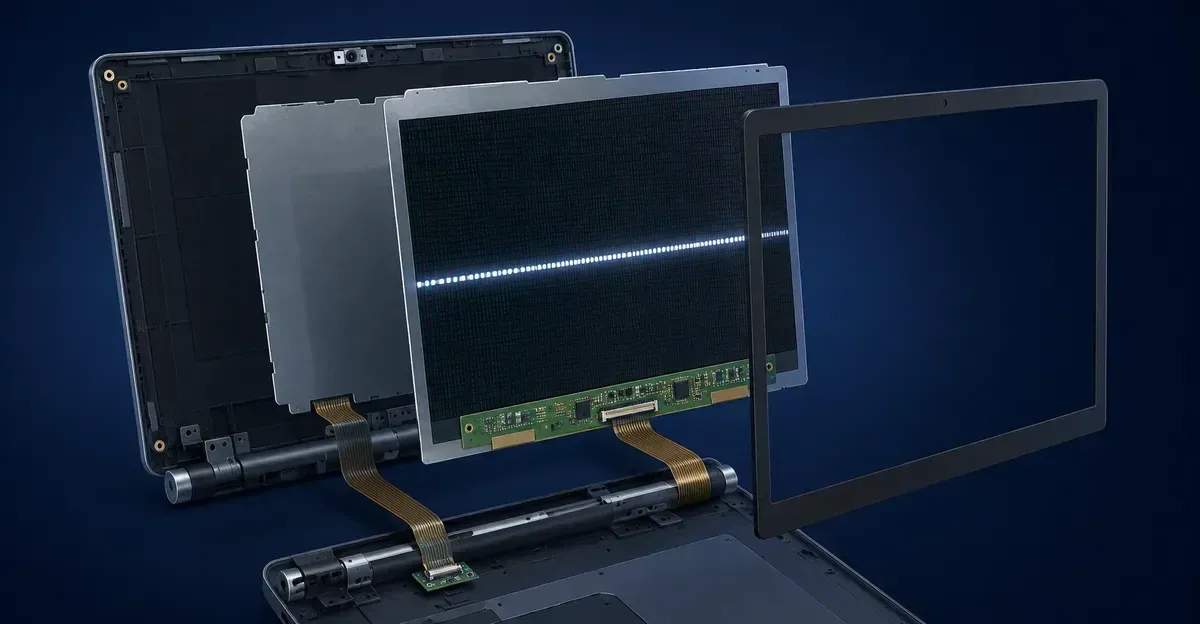
The most common cause of a white line is a stuck sub-pixel row — an entire row of pixels where all sub-pixels (red, green, and blue) are stuck in the "on" position at maximum brightness. When all three sub-pixel channels are stuck on, the result is a bright white line.
How it happens: Each LCD pixel contains three sub-pixels. Each sub-pixel has a transistor that controls how much light passes through it. When the transistor controlling an entire row of pixels fails in the "open" position, all sub-pixels in that row stay permanently lit — producing a white line.
Why rows instead of columns? White lines are more likely to appear horizontally because the row driver circuits in most LCD panels are more prone to failure than column drivers. This is the opposite of vertical colored lines, which typically point to column driver failures.
Can it be fixed? It depends. If the stuck row is caused by a temporary transistor malfunction (uncommon but possible), pixel-fixing applications that rapidly cycle through colours may sometimes release it. However, most white lines from stuck sub-pixel rows are permanent hardware failures requiring panel replacement.
The Hinge Problem: Why Laptop Flex Cables Always Break First
Laptop screens are particularly prone to white lines because the display flex cable passes through the hinge and experiences constant mechanical stress.
Every time you open and close your laptop lid, the flex cable bends. Over months and years, micro-cracks develop in the internal traces that carry signals to each pixel row. When specific traces fail, the signal to corresponding pixel rows becomes corrupted — which can manifest as a white line.
The telltale sign of flex cable damage: The white line flickers, shifts, or disappears when you open or close the lid at different angles. This is the single most reliable indicator that your issue is the flex cable and not the panel itself.
Why white lines from flex cable damage? When a flex cable trace fails, it typically affects the entire signal path for a row of pixels. Without the proper colour control signals reaching those pixels, they can default to maximum brightness — producing a white line.
Other signs of flex cable wear:
- The line appeared gradually over weeks or months, not suddenly
- It is located near the top or bottom edge of the screen
- It worsens when the lid is at certain angles
- The laptop is more than two years old
Before replacing the entire panel, try flex cable reseating or replacement. Replacement flex cables for most laptop models cost $10–$30 and are one of the most accessible DIY repairs.
Step-by-Step Fix (Diagnosis First, Then Repair)
Follow this sequence based on what you observed:
Step 1 — Rule out software first:
- Update or roll back your graphics drivers
- Restart your computer and test again
- If the line persists, move to hardware diagnosis
Step 2 — Laptop lid flex test:
- Open and close the lid slowly while viewing a white background
- If the line flickers, shifts, or changes: flex cable issue → reseat or replace the cable
- If the line stays perfectly fixed: panel or T-Con issue → proceed to Step 3
Step 3 — External monitor test (laptops only):
- Connect your laptop to an external monitor
- If the external monitor shows no white line: internal panel or cable issue
- If the external monitor also shows a line: GPU or driver issue
Step 4 — For fixed white lines (panel or T-Con):
- External monitor: replace the T-Con board ($15–$50 for most models)
- Laptop: reseat internal ribbon cables first, then replace flex cable, then panel if needed
What does not work:
- Pixel-fixing apps — these work on individual stuck pixels, not whole rows of stuck sub-pixels
- Restarting or resetting — hardware faults do not resolve through software
- Screen massage — no scientific evidence it repairs stuck pixel rows

External Monitor Repair: T-Con Board Replacement for Under $50
White lines on external monitors most commonly point to T-Con board failure. The T-Con (timing controller) board translates the input video signal into the correct voltage signals for each pixel row on the LCD panel. When the row driver circuits on the T-Con board fail, an entire row of pixels can default to maximum brightness — producing a white line.
How to identify T-Con failure on external monitors:
- The white line is perfectly straight and horizontal
- The line stays in exactly the same position regardless of what is displayed
- The line does not flicker or change when you move the monitor
- The line appears on all inputs (HDMI, DisplayPort, USB-C)
- A different computer produces the same white line
T-Con board replacement cost guide:
| Monitor Size | T-Con Board Cost | Labour (if professional) |
|---|---|---|
| 22–24" | $15–$25 | $30–$50 extra |
| 27–32" | $20–$40 | $40–$70 extra |
| 32"+ / 4K | $30–$60 | $50–$100 extra |
Before ordering a replacement board: Open the monitor casing and photograph the existing T-Con board. The board model number is printed on the label — search for it on eBay or Amazon to find an exact match.
Important: T-Con boards are model-specific. You need the exact replacement for your monitor model. Generic T-Con boards may not work correctly even if they physically fit.
Real Case: A HP Pavilion User's $20 Fix vs $200 Replacement
A HP Pavilion owner reported a thin horizontal white line across the middle of the screen that had appeared gradually over three months. The line was visible on all backgrounds and did not flicker when the lid moved.
Initial assumption: Panel failure requiring $150–$200 replacement.
Diagnosis steps taken:
- Connected laptop to external monitor — external monitor showed no line. Confirmed internal panel or cable issue.
- Gently flexed the lid at various angles — line stayed perfectly fixed. Ruled out flex cable.
- Opened the laptop bezel and inspected internal ribbon cables — found a cable partially unseated from the panel connector.
- Reseated the cable firmly, reassembled the laptop.
Result: The white line disappeared completely.
Total cost: $0 — the fix was free because the cable was simply loose.
Key takeaway: Before spending $150–$200 on a replacement panel, always check that all internal ribbon cables are firmly seated. Cable connectors can loosen over time from normal laptop use, and a loose connection can manifest as a white line that looks exactly like a failing panel.
When a White Line Means Your Panel Is Dying
Some white lines indicate that the display panel itself is failing and cannot be repaired — only replaced. Here is how to tell the difference:
Panel failure signs (replace the panel):
- The white line appeared suddenly without any trigger (lid movement, cable movement)
- The line is perfectly straight, thin, and in a consistent position
- New white lines are appearing or the existing line is growing wider
- The line is visible on all inputs and all computers
- The laptop screen flickers or goes completely dark intermittently
Cable or T-Con failure signs (repair, not replace):
- The line flickers with lid movement or cable manipulation
- The line changes when you flex the screen
- The line appeared after moving the monitor or laptop
- Reseating cables resolves the issue
If your panel is dying:
- Check if your device is still under warranty — manufacturer panel replacements can be free
- Compare the cost of professional panel replacement against the device's current value
- For older laptops (3+ years), consider whether repair costs justify keeping the device
- For MacBooks and premium laptops, professional repair is strongly recommended over DIY
Related Screen Issues
White lines share root causes with several other display defects:
- Dead Pixel: Individual permanently dark pixels — distinct from lines
- Dead Line of Pixels: An entire line of dead pixels — directly relevant if your white line is expanding
- Black Line: Permanently dark lines across the screen — the opposite of white lines
- Green Line: Persistent green lines across your screen — similar root causes
- Horizontal LCD lines: A row electrode failure — white lines often run this way
- Vertical LCD lines: A column stuck on or off from top to bottom
- LCD Bright Spots: Bright glowing areas — related to backlight and panel issues
- Screen Test Tool: Test your screen to diagnose and track white lines
See also: Red Screen: Persistent red tint on your display — cable, calibration, or hardware issue causing the blue colour channel to be lost.
Also see: Orange Screen: Persistent orange tint on your display — cable, calibration, or hardware issue.
See also: Screen Flickering: Screen flickering and white lines often share the same root causes — flex cable damage and panel circuit failures can manifest as either problem.
See also: Pink Screen: A persistent pink or purple tint on your display — like red and orange screens, this indicates a missing or reduced blue colour channel.
Technical Deep Dive: Row Driver Circuits and Horizontal Line Defects
Understanding why white lines appear horizontally rather than vertically requires a look at how LCD panel row drivers work.
How LCD Row Drivers Function
Every LCD pixel sits at the intersection of a row wire and a column wire. The row driver (also called the gate driver) activates each horizontal row of pixels in sequence, one row at a time, thousands of times per second.
When the row driver activates row 100, every pixel in row 100 receives the color voltage signal from its corresponding column driver. The pixel then displays the correct color for that fraction of a second before the next row activates.
The row driver failure scenario:
When a row driver circuit fails, it typically fails in a way that leaves a row permanently activated. All sub-pixels in that row receive maximum voltage, which makes them output their maximum brightness. Since all three sub-pixel channels (red, green, blue) are at maximum, the result is a bright white horizontal line.
Why Horizontal Lines Are More Common Than Vertical Lines
Horizontal white lines are more common than vertical white lines because:
- Row driver circuits are under more mechanical stress — they run along the edges of the panel where flex cables and connectors attach
- Heat concentration — row driver circuits generate heat during operation, and heat accumulates at the panel edges
- Physical vulnerability — the edges of the display are where the panel is most susceptible to pressure damage
- Circuit architecture — in most LCD panels, row drivers are integrated into the panel glass itself (GIP - Gate in Panel technology), making them more vulnerable to manufacturing defects
The Difference Between Row Driver Failure and Stuck Sub-Pixel Rows
While both produce horizontal white lines, the underlying cause differs:
Row driver failure:
- The entire row driver circuit for one row has failed
- All pixels in that row are stuck on at maximum brightness
- The line is exactly one pixel row thick (but may appear wider due to light bleed)
- This is a panel-level failure requiring panel replacement
Stuck sub-pixel row:
- The transistors for all three sub-pixels in a row of pixels have failed in the "on" position
- The line may be exactly one pixel row thick
- This can sometimes be caused by cable or T-Con issues affecting a single row
- More targeted repairs may be possible
Diagnosing Row Driver vs T-Con vs Cable Issues
| Symptom | Likely Cause |
|---|---|
| Single thin white horizontal line, never changes | Row driver circuit failure (panel) |
| Multiple horizontal lines appearing together | T-Con board failure |
| Line flickers with lid movement or cable movement | Cable connection issue |
| Line changes when you switch resolutions | T-Con or scaler issue |
| Line visible only at certain refresh rates | T-Con timing issue |
Real Case: Multiple White Lines on a 5-Year-Old Gaming Monitor
A user reported three parallel horizontal white lines appearing on their ASUS gaming monitor after five years of daily use. The lines appeared gradually over six months.
Initial symptoms:
- First line appeared near the top of the screen
- Second line appeared in the middle after two months
- Third line appeared near the bottom after four months
Diagnosis process:
- Tested with different computers — lines persisted on all inputs
- Tested with different cables — lines still appeared
- Opened the monitor — T-Con board showed visible damage (capacitors bulging)
- Replaced the T-Con board — all three lines disappeared
Root cause: The T-Con board had degraded over five years. Multiple row driver circuits on the board failed in sequence, producing the three parallel white lines. This is a common failure mode for ageing T-Con boards — one failure does not always mean only one line will appear.
Cost: $35 for a replacement T-Con board + $0 labour (DIY repair)
Lesson: When multiple lines appear on an older monitor, the T-Con board is usually the culprit. Replacing the board can eliminate all lines at once.
Prevention: Protecting Your Screen From White Lines
While not all white lines are preventable, these practices reduce your risk.
For Laptops: Managing Hinge Stress
The hinge area is the primary vulnerability for laptop white lines:
Opening and closing habits:
- Open and close by the centre of the lid, not by the corners
- Do not force the lid open if it meets resistance
- Avoid extreme opening angles beyond 135 degrees
- Do not use the lid to carry the laptop
Hinge maintenance:
- Keep the hinge area clean — dust and debris accelerate wear
- If the hinge feels stiff, a small amount of lubricant (used sparingly) can help
- Listen for unusual sounds from the hinge — grinding or popping indicates wear
Transport protection:
- Always use a padded sleeve or bag
- Do not place heavy objects on top of the laptop
- Avoid holding the laptop by the screen
For External Monitors: Environmental Care
Placement:
- Avoid direct sunlight — UV degrades plastic components and ribbon cables
- Maintain airflow around the monitor — do not block ventilation grilles
- Keep away from heat sources (heaters, other electronics)
- Avoid high humidity environments
Cabling:
- Route cables without tight bends
- Avoid pulling or straining cables
- Use cable clips to keep connections stable
- Check cable connections periodically
Power management:
- Use a surge protector — power spikes can damage internal circuits
- Avoid turning the monitor on and off frequently — power cycling stresses components
- Let the monitor rest if it becomes unusually hot
General Maintenance
Regular inspection:
- Check your screen monthly with a uniform color test
- Photograph the screen under white and dark backgrounds for comparison
- Note any changes in line thickness or brightness
Early action:
- A single faint line may indicate an intermittent issue
- Reseat cables proactively if you notice any display instability
- Monitor for spreading — multiple lines appearing means the underlying issue is progressing
When White Lines Mean More Serious Problems
White lines can sometimes indicate broader system issues that require attention beyond the display.
Intermittent Lines and System Instability
If white lines appear and disappear unpredictably:
- Check your graphics drivers for conflicts
- Monitor GPU temperatures — overheating can cause intermittent signal corruption
- Test with a different GPU if possible
- Check power supply voltages — unstable power affects display signals
Lines Accompanied by Flickering
White lines combined with screen flickering often indicate:
- Failing capacitors on the T-Con board or power supply
- Loose ribbon cable connections
- Degrading flex cable traces
- GPU signal corruption
These symptoms warrant professional diagnosis, especially on external monitors where capacitor failure can be a fire hazard if left unchecked.
Complete Screen Failure Warning Signs
White lines that precede complete screen failure:
- Lines that suddenly multiply or spread rapidly
- Screen flickering before going dark
- Colour shifts accompanying the white line
- Lines that cause the screen to go completely dark temporarily
If you experience these symptoms, back up your data immediately and plan for repair or replacement.
Related Screen Issues
White lines can sometimes be confused with other display problems. Learn more about related issues:
- Black Screen With White Line: When the screen goes black with a white line visible — laptop flex cable, T-con board, or driver diagnosis
- White Line on a Black Screen: A bright stripe you can still see against a picture — panel column vs cable vs driver
- LCD Line: General LCD line diagnosis and repair
- Black Line on Screen: The opposite defect — when pixels are stuck "off" instead of "on"
- Monitor White Lines: White lines specific to external LCD monitors
- Horizontal Lines on Laptop Screen: Horizontal line issues across laptop brands
- Vertical Lines on Laptop Screen: Vertical line issues including white vertical lines
Conclusion
White lines on screen are most commonly caused by stuck sub-pixel rows, flex cable damage in laptops, or T-Con board failures in external monitors. Start with the lid flex test to determine whether your issue is cable-related (often free to fix) or panel-related (may require replacement). Always reseat cables before assuming the panel is dead. Use the screen test tool to confirm the line type and track whether it is spreading. Check your warranty before paying for panel replacement.