Horizontal Lines on Phone Screen Android: Read the Stripe
Horizontal lines on a phone screen Android are stripes that stay on the same rows while you scroll, open apps, and change wallpapers. The phrase covers a thin white bar, a green cut, a pink band, and a stack of faint lines, and those marks do not share one repair. Android lines on screen are usually the panel or the cable that feeds it. A line the phone is drawing is the exception, and it is the exception worth ten minutes before you price a display.
This page is the Android sort. It shows what a sideways stripe means versus a top-to-bottom green cut, which screenshot result ends the software path, and what to carry when a shop or a warranty desk asks whether the glass was hit. White horizontal lines have a deeper page. A green line that is really an AMOLED column fault gets a short exit here, not a second encyclopedia. Spots that sit in one place without crossing the glass are a different fault.
What Android Lines on Screen Actually Are
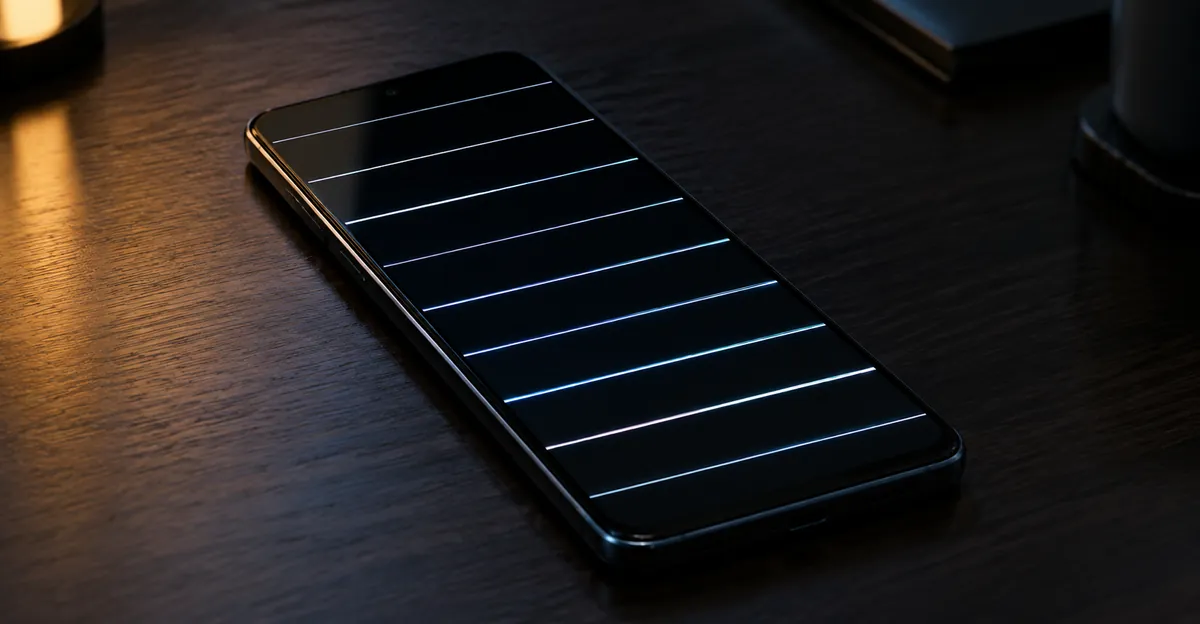
A line crosses the picture. A spot does not. If the mark is a blotch the size of a fingertip and it never reaches the bezel, you are in spot territory, and the spots on a phone screen guide is the better sort. Android lines on screen run edge to edge, or they start at a crack and travel until the signal dies. They stay put when you scroll. They do not wipe off. That already separates them from a smudge, a protector bubble, and a night-light tint.
Persistence is the other split. Screen flickering that comes and goes with brightness or with a charger is a different complaint. A line that is there on the lock screen, the home screen, and a full-white page is a row or a column that is not getting a clean signal. Color is a clue, not a diagnosis. Black, white, green, and pink can all be the same broken path wearing a different failed subpixel.
Panel type changes the physics, and the brand name is not a shortcut. Many recent Android phones use OLED or AMOLED. Many older and budget phones still use LCD. The same company sells both. An LCD is lit from behind. An OLED makes light in each pixel. iFixit's Samsung lines guide notes that green subpixels on those OLED panels are generally lined up in columns, so a small electrical break often shows up as a green or purple vertical line. A horizontal stripe is more often a row-driver or flex problem than that column story. Look up the exact model and read whether the spec says OLED, AMOLED, or LCD before you interpret the color.
The check that cleaning writeups raise and then leave thin is the panel-off look. iFixit tells owners to confirm the lines disappear when the screen is off, because a protector can trap grit or add a visual edge that looks like a line. A fault inside the module is there only when the panel is on. People pay for display assemblies they did not need because nobody looked with the panel dark and the film peeled off. Do that look before you open a color chart.
A line is not a spot
Use this field map before you pick a fix. It is a triage, not a lab certificate. Run it at high brightness in a dim room after the case is off and after a third-party protector is off.
| What you see | Clearest check | Working label | Honest next step |
|---|---|---|---|
| Stripe from side to side on every app | Screenshot on another device | Row, cable, or panel | Follow the screenshot split below |
| Stripe from top to bottom, often green or purple | Same screenshot | OLED column or vertical flex | Panel path, not a setting |
| Mark only inside one app | Force-stop that app | Drawn overlay | Update or remove the app |
| Edge that vanishes with the panel off | Power off, tilt under a lamp | Protector or surface film | Refit the film |
| Soft blotch that does not cross the glass | Black and white fields | Spot, not a line | Leave this page |
A single stuck or dead pixel is a dot, not a stripe. If the fault is one speck that holds a color or stays black, the dead pixel page is the right test, and a short color cycle is the only low-risk experiment. A line is a shared path. Cycling colors at it for an hour does not reconnect a row. Mixing those two jobs is how people flash a video at a broken panel and then conclude that "nothing software works," which was true for a reason they never named.
Horizontal Lines on an Android Screen
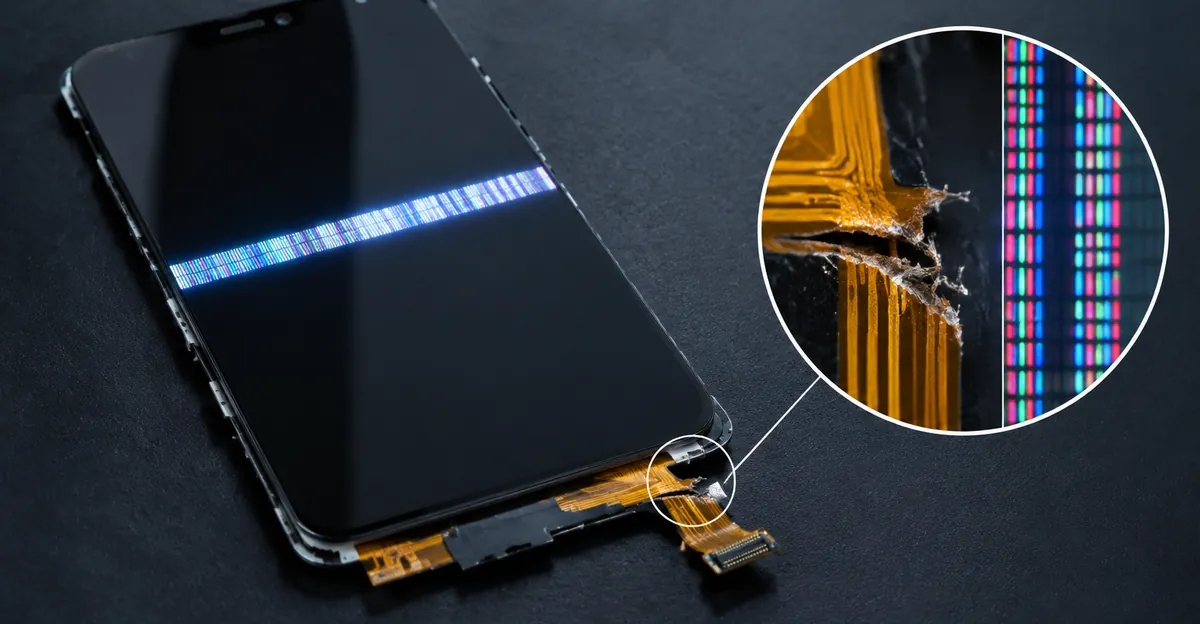
Horizontal lines on an Android screen run left to right. One thin line, several parallel lines, or a wide band across part of the height are the same family. Guides that title themselves around horizontal lines and then tell you only to replace the screen skip the split that decides whether a cable reseat is even plausible. Orientation is that split.
A horizontal line means a row is wrong. The pixels in that band share a gate line or a segment of the flex that feeds rows. A drop, a bend, a swollen battery pushing from behind, or a loose display connector can corrupt that path. Beebom's Android horizontal-line guide treats a loose display connector and internal panel damage as the common hardware pair, and it treats a line that is already on the boot logo as hardware you should not spend an afternoon resetting. Android Authority's lines article is blunter. For most owners, vertical or horizontal lines mean the display assembly is physically damaged, and a restart only rules software out. It is not a cure.
A vertical line means a column is wrong. On Samsung OLED panels, iFixit points at the column layout of green subpixels. Minor damage breaks specific columns and the eye reads green or purple. That is why a green line on a Galaxy phone is so often top to bottom even when the owner searched for horizontal lines. If your stripe is vertical and green, do not force this page's horizontal story onto it. The repair is still usually a display assembly. The evidence and the warranty conversation change, which is the Samsung section below.
Color rides on top of orientation. A white horizontal line is often a row stuck bright. That pattern has its own page on white horizontal lines, including cable and panel behavior that is not Android-only. A black horizontal line is a row stuck dark. A green or pink horizontal line can still be a row fault on an LCD, or a partial failure that looks sideways because several neighboring columns died in a band. Do not diagnose from a forum photo of a different model.
Why the stripe runs sideways
Heat and liquid sit next to drops, and they are not the same bill. Asurion lists overheating, moisture, impact, loose connections, and the occasional software glitch as the set behind Android lines. Water damage can corrode a connector and draw a line days later. A phone that got wet needs drying and a shop, not a cache wipe. A phone that lined up after a hot update needs the screenshot test before anyone argues that the update caused it. Android Authority's green-line writeup notes that updates heat the phone, and that heat can accelerate a weak bond, but the line itself is still hardware. A later patch might ship for a rare rendering bug. It will not heal a cracked row.
Foldables add a hinge path the slab phones do not have. The flex that crosses the hinge is bent on every open and close. A new horizontal or vertical line that starts at the fold, grows after a few days of normal folding, and is missing from a screenshot is cable fatigue, not a launcher theme. Stop folding it flat to "test" the line. Each extra fold is another chance to tear the conductor the shop was going to reseat. A case that forces the hinge past its stop does the same job more slowly.
The Screenshot That Splits Software From the Panel
Take the screenshot while the line is on screen. Send it to a laptop or another phone. Open it there. This is the test Beebom, iFixit, and the Pixel lines guide all use, and it is the test most five-fix articles mention and then abandon.
If the line is in the screenshot, the phone drew it into the image. The GPU, a compositor bug, or an app overlay is in play. Software is not common. iFixit says a Pixel developing lines from software is rare but possible, and the same caution appears on the Samsung page. Rare is not never. This is the only branch where Safe Mode, an update, and a last-resort reset can change the outcome.
If the screenshot is clean and the phone still shows the line, the system painted a good frame and the panel failed to show it. No app uninstall will repair that. Android Authority says nothing an owner can do in software fixes a damaged display, aside from the edge case of a custom ROM with experimental graphics drivers. Stock Android is not that edge case. If you are on a stock build, a clean screenshot ends the settings hunt.
If the line is on the boot logo or the recovery screen, before Android finishes booting, skip the software list. The boot animation is not your launcher and not a third-party app. Beebom treats lines on the boot logo as hardware. A factory reset at that point deletes photos to prove a conclusion you already have.
When a reset will not help
Safe Mode is a scalpel, not a ritual. It loads Android without third-party apps. Use it only when the line appears in the screenshot or only inside one or two apps. If the line vanishes in Safe Mode, remove recent apps one at a time after a normal boot. If the line is still there in Safe Mode and it was also in the screenshot, a reset is the last software test, and only after a backup. If the line was never in the screenshot, Safe Mode and a reset are theater.
An external display is the other test people quote without saying when it earns the cable. Connect USB-C video or a cast only when the screenshot is dirty, or when you already know the panel image is wrong and a shop is asking whether the board is involved. Lines on the phone and a clean external screen point at the display assembly. Lines on both point at graphics or the board. iFixit's Pixel guide leaves a faulty motherboard as the leftover cause when the display path has been ruled out. That is a shop finding, not a kitchen-table one. Do not open the phone to check the cable because a guide said connectors can loosen. Reseating a display flex is a repair-bench job. A slip tears the cable you were hoping to save.
| Result | What it means | What to stop doing |
|---|---|---|
| Line is in the screenshot | The phone drew it | Do not buy a panel yet |
| Screenshot is clean | Panel or cable | Do not factory reset |
| Line is on the boot logo | Hardware, before apps | Do not chase app updates |
| Only one app | Overlay or that app | Do not replace the screen first |
| Clean on an external display | Phone display path | Do not blame the board yet |
| Same line on an external display | Graphics or board | Do not pay for a panel only |
Read the table in order. Owners lose money when they start at the bottom. A clean screenshot already answered the board question for a typical horizontal line. You do not need a dongle to confirm what the image file showed. Spend the dongle when the file is dirty and you are about to pay for a panel that will not change a GPU fault. Spend it when a quote mentions the motherboard and you want a second opinion you can see yourself. Skip it when the boot logo is striped and the screenshot is clean. That pair is the display assembly until a technician proves otherwise.
What the Short Checks Actually Decide
The shared advice on ranking pages is a short list. Restart once. Confirm you are on the current system update. Boot Safe Mode if the screenshot says software. Let a hot phone cool on a hard surface. Those steps are a filter. They are not a repair chapter, and stretching them into ten numbered tricks is how people wipe a phone that needed a panel quote.
A restart is worth one try because a stuck frame can mimic a line for a minute. Android Authority is explicit that the restart rules a software glitch out. If the stripe returns before you unlock the phone, you have your answer. Updating Android is worth doing when the line is in the screenshot, because a bad compositor build is the rare case a later patch actually clears. Updating will not push a broken row back into line. If the line showed up in the hour after an update and the screenshot is clean, the update is a heat and timing clue for the shop, not a reason to roll your data back.
Cooling is the check Asurion adds and then leaves hanging. A hot phone can stress display circuitry. Take the case off, stop charging, and leave it on a table, not in a fridge and not in a blast of compressed air. If the line fades as the phone cools and returns when you game, you still have a hardware fault that heat is exposing. You have not found a setting. Keep the brightness reasonable and stop the session that cooks the chassis. Book the inspection anyway if the line is visible at room temperature on a flat white page.
What not to do to the glass
Do not press the stripe. Pressure is a cause, and more pressure spreads row damage. Do not freeze the phone. Do not run a pixel-fixer video for an hour. A stuck subpixel is a dot. A line is thousands of pixels sharing a broken path. Flashing colors will not reconnect it.
Do not bring a flame to the bottom edge. Android Authority's green-line guide calls out viral clips that hold a lighter or a candle near the panel. There is no guarantee it changes the line, and an older battery that has swollen is more likely to vent. That warning applies to white lines and horizontal lines too. Heat from a lighter is not a calibration.
A cache wipe from recovery is optional only on the software branch, and only if you already know which menu entry wipes cache without wiping the user. It is not gentler than a reset in any way that matters if you clear photos by mistake. Read the recovery labels on your model before you tap. When the labels are ambiguous, stop. A shop can tell a panel fault without that wipe. Write down what you already observed, because the next person to touch the phone should not have to rediscover the screenshot result.
Green Line, White Lines, and a Samsung Phone
Search demand splits by color even when the physics overlaps. How to fix a green line on an Android phone screen is mostly a vertical AMOLED story. Android Authority describes a thin green band from the top of the glass to the bottom, present on the home screen, the lock screen, and Always On Display. The phone still works on either side of it. The common thread in the reports they reviewed is an AMOLED panel, not a single brand, and not a single software version. LCD phones are largely absent from that green-line pattern. The site's working guess is a loose, damaged, or defective display connector or flex that then damages the panel for good. More green lines, or pink and white joining them, is the usual progression. A flicker that lasts a minute is the rare version.
How to fix white lines on a phone screen Android is the horizontal bright-row case. Treat a single white hairline that survives a screenshot as a row or flex fault, then use the white-line page for the pattern library. A white line that is only a reflection with the panel off goes back to the protector check. Do not buy a green-line narrative for a white horizontal bar, and do not buy a white-line narrative for a vertical green cut.
How to fix a green line on an Android phone screen Samsung is the same hardware fault with a louder service history. Channel NewsAsia reported in November 2024 that the Consumer Association of Singapore saw line complaints more than double, 31 as of 14 November versus 14 in all of 2023 and four in 2022. Of 49 complaints over three years, all but one named Samsung. The other named OnePlus. CASE said people also reported pink or white lines, and that many vertical green lines showed up after a software update. Samsung's statement to CNA was to use an authorised service centre. Media reports cited the Galaxy S21 series, especially the Ultra and the FE, and SamMobile had also logged the A73, M21, S22 series, and Z Flip 3. That is a cluster, not a complete list. Android Authority has logged the same green line on OnePlus, Oppo, realme, vivo, Xiaomi, Motorola, Nothing, Huawei, and some iPhones. A Galaxy owner is not uniquely cursed. A Galaxy owner does have more public repair arguments to walk into.
A free-panel window is not a global promise
CNA, citing Android Authority, said phones still under warranty with no visible external or liquid damage are the cases most likely to be repaired without a bill. Android Authority adds the usual term, about one year, and often two years in the EU, and it says a phone past that window is commonly quoted around 10 to 30 percent of the selling price for a display swap. Some makers, including Samsung, have told service channels to help green-line owners even out of warranty, but those assists are case by case and often unpublished. OnePlus has publicly offered a lifetime screen warranty against the issue in India. Contributors on Samsung Members have described an India window for selected S21, S22, and S23 phones within three years of purchase, with 30 September 2025 attached to parts of that conversation, and a later anecdote that a second failure after one free swap was refused. Android Police described the India program as regional and time-limited. None of that is a coupon you can demand everywhere. Ask the authorised centre for your country, your model, and today's date. Bring the invoice. Expect a no if the glass, the frame, or a liquid indicator says the phone was hurt.
The practical Samsung sequence is short. Restart once. If the line remains and the screenshot is clean, stop uninstalling apps. Book the authorised centre if the phone is under warranty or if a local green-line assist might still exist. Ask whether a prior screen swap already used a one-time courtesy. A third-party display fitted earlier can end the conversation even when the new line looks like the same defect. Do not delay a clearly spreading line for a patch note that has not named your build.
Repair Evidence, Cost, and When to Stop Using the Phone
Once the screenshot is clean, the decision is money and risk, not another setting. Android Authority's horizontal-line piece says the service centre will usually call it a display-assembly failure, and on some models the board is in the quote too. Ask that question before you approve a panel only. A phone that also fails to output a clean image over USB-C is the one where a panel-only quote is incomplete.
Cost is a band. Use the 10 to 30 percent of selling price figure as a sanity check for an out-of-warranty AMOLED swap, not as an invoice. A budget LCD is cheaper. A foldable is not. Get two written quotes, one authorised and one independent, and ask which quote includes the frame and the battery if the display is fused to them. Back up the phone while the picture is still readable enough to tap. If a shop fitted a screen last month, that shop is the first call, not a second shop that will blame a part it did not sell.
Warranty desks deny claims for reasons that feel unfair and are still consistent. Visible damage, even unrelated, is the usual disqualifier in the Android Authority warranty section. A triggered liquid indicator is the other. A third-party opening is the third. Manufacturing-defect language applies when the chassis is clean, the phone is inside the term, and the line appeared with no drop you are willing to describe. You will not win that argument from memory a week later.
What to photograph before you book
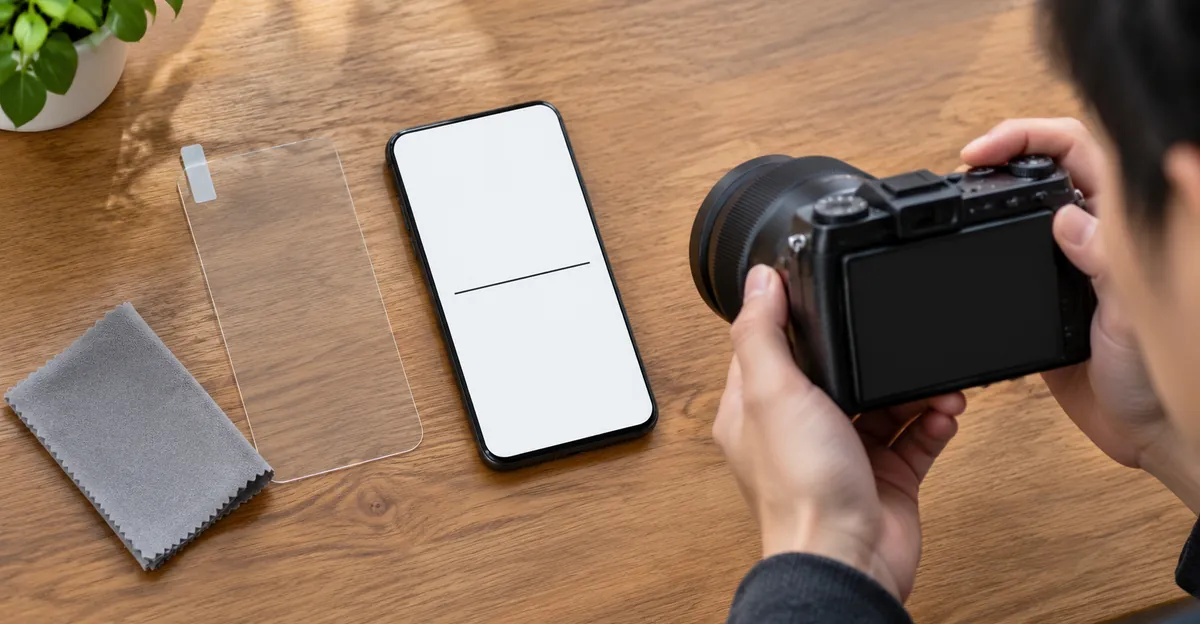
Carry a packet the ranking pages never specify. Photograph the panel off, then solid white, black, and gray, with a second camera so the line is in the photo even though it is missing from a screenshot. Include the boot logo if the line is there. Photograph the frame and the back so the absence of cracks is on record. Note the model, the serial or IMEI, the purchase date, and whether a case was on. Write one line of history. Dropped, sat on, soaked, updated, or none of those. That packet is how a defect claim stays distinct from accidental damage.
Keep using the phone when the line is single, stable, the chassis is cool and unmarked, touch works on both sides of the stripe, and you can still read what you need. Stop when new lines appear over days, color blooms beside the stripe, touch dies in a band, the frame lifts, the phone gets hot at idle, or it was wet. A spreading AMOLED line is the pattern Android Authority describes, and waiting does not make the quote kinder. Do not fold a foldable flat against a new line in the hinge path. Do not leave it on a charger overnight if the back is already warm.
A case with a lip, and a pocket that is not your back pocket, prevent more new damage than any display setting. They do not heal a row that is already open. Delaying a software update until you can install it while the phone is cool is the only precaution the CNA piece could pass along, and the sources there were honest that it is not a guarantee. If the line is already on the glass, prevention talk is over. The remaining job is evidence, a quote, and a decision to repair or replace the phone.
Conclusion
Horizontal lines on a phone screen Android are a row, a cable, or a panel until a screenshot proves the phone drew the stripe. A vertical green cut on an AMOLED phone is the column version of the same hardware family, not a setting you missed. Restart once. Trust a clean screenshot and a boot-logo line. Spend Safe Mode and a backup-backed reset only when the line is inside the image file.
Document the glass, compare a second photo in a week if you are still deciding, and treat heat, liquid, and a lifting frame as a stop. When you need flat white, black, gray, and primary colors without hunting for images, open the free Screen Test tool and save the photos before you talk to a shop.
Sources
- Screenshot test, connector faults, boot-logo lines, and color notes: Beebom Gadgets
- Display replacement, restart as a rule-out, and board involvement: Android Authority
- AMOLED green line, update heat, flame warning, and the 10 to 30 percent quote: Android Authority
- OLED column layout, protector check, and cable damage: iFixit
- Pixel screenshot branch and motherboard leftover: iFixit
- Safe Mode, heat, and moisture among Android line causes: Asurion
- CASE complaint counts and Samsung service advice: Channel NewsAsia