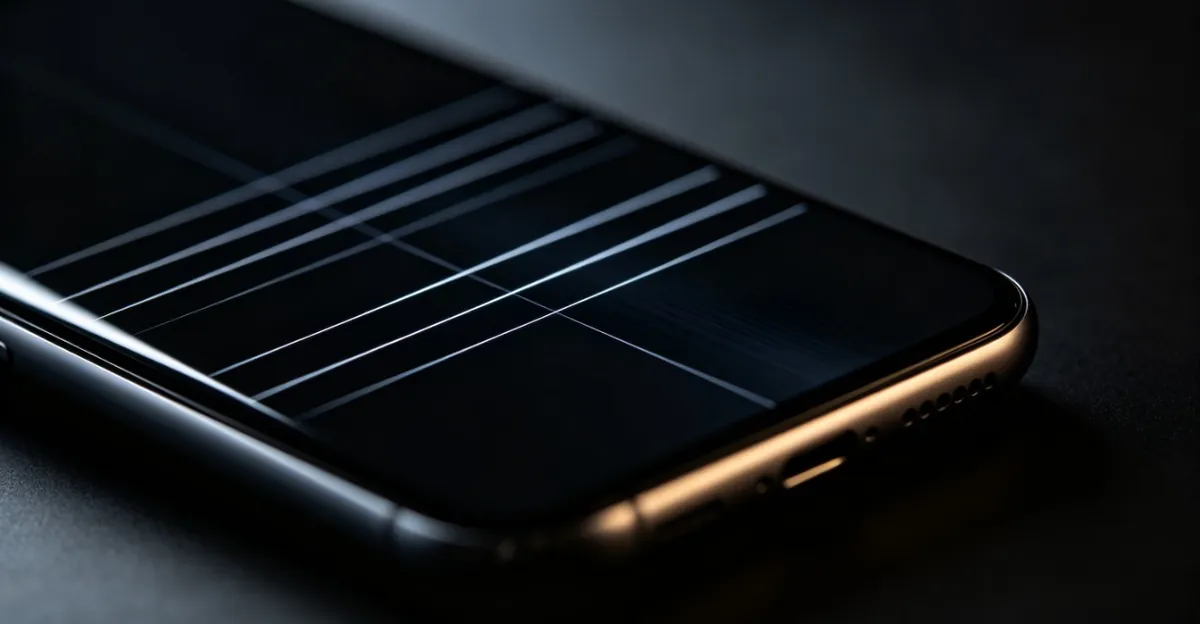
White horizontal lines on your phone screen appear as thin bright stripes running left to right across the display. They can range from subtle barely-visible lines to prominent bands that make the screen difficult to use. This guide covers the causes, diagnosis, and solutions for white horizontal lines on both iPhone and Android phones.
White Horizontal Lines on Phone Screen: Causes and Fixes
What Are White Horizontal Lines on a Phone Screen
White horizontal lines are display artifacts where one or more rows of pixels display brighter than the surrounding area, creating a visible stripe effect. Unlike dead pixels (which are permanently dark) or bright spots (which are localized glowing areas), horizontal lines affect an entire row of pixels.
These lines are almost always a symptom of a signal transmission problem 鈥?the pixels in the affected row are receiving incorrect data from the display driver, whether due to a software glitch, a loose cable connection, or physical damage to the display panel.
Most Common Causes of White Horizontal Lines
Software and Display Driver Issues
The most fixable cause of white horizontal lines is a software or display driver problem. When the phone's operating system or display driver malfunctions, it can send incorrect signals to certain pixel rows, creating horizontal lines.
Software causes include:
- Display driver crash: The display driver can freeze or crash, causing visual artifacts
- App conflicts: Certain apps with aggressive graphics can trigger display glitches
- OS update bugs: A faulty or incomplete OS update can corrupt display settings
- Firmware issues: Display firmware corruption affects how the screen processes signals
Software-related lines often appear suddenly after an update, when installing a new app, or during heavy graphics use. They may be accompanied by screen flickering or color distortion.
Loose or Damaged Display Cable Connection
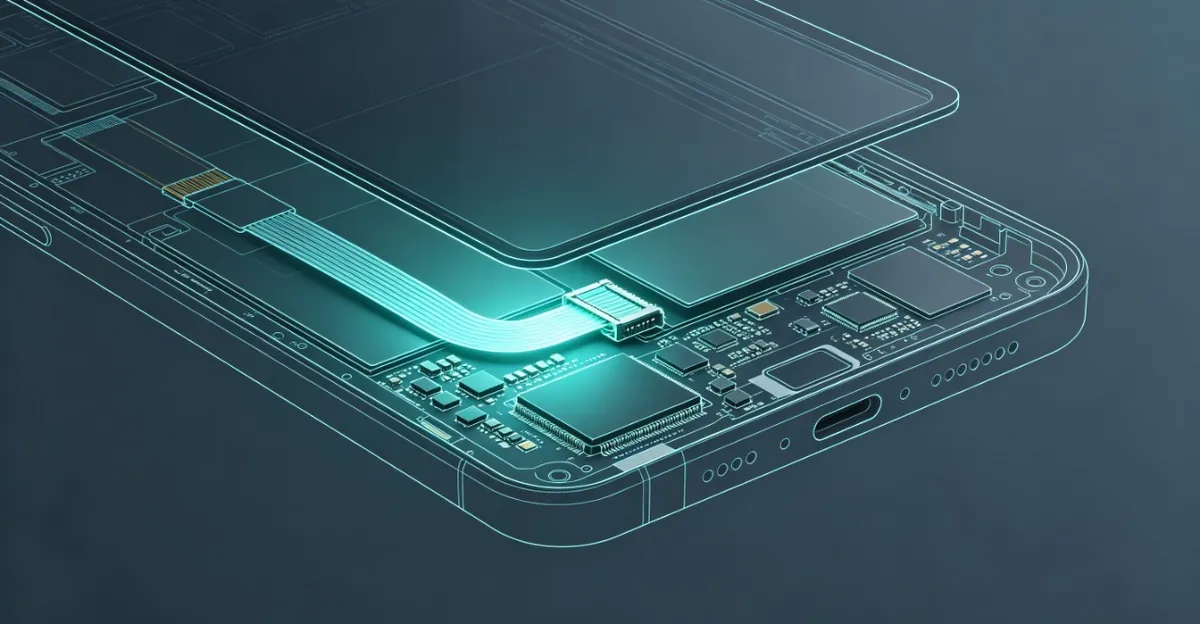
Inside your phone, the display connects to the motherboard through a flex cable (also called a ribbon cable). If this connection becomes loose 鈥?from a drop, from repeated opening, or during a repair 鈥?the signal to certain pixel rows can be interrupted. This is similar to display cable issues in laptops.
Cable-related lines:
- May change in visibility when you press gently on the screen
- Can appear and disappear intermittently
- Often worsen over time as the connection degrades further
- May be accompanied by touch responsiveness issues
Physical Damage to the Display Panel
Dropping your phone or applying significant pressure can damage the internal display layers. This damage can manifest as white horizontal lines in several ways:
- The display glass may have microscopic cracks affecting the pixel matrix
- The liquid crystal layer may have been disturbed
- The polarizer film may be damaged in a specific area
- The display driver chip may have been affected by the impact
Physical damage lines typically appear immediately after a drop or impact event and do not change over time.
OLED Panel Issues
On OLED phone screens, white horizontal lines can appear due to:
- Pixel circuit failure: Individual pixel circuits that control specific rows can fail
- Driver chip issues: The display driver IC (integrated circuit) can malfunction
- Burn-in progression: In rare cases, severe burn-in can create line-like artifacts
OLED lines are less common than LCD lines but tend to be permanent once they appear.
Battery Aging and Power Supply Issues
A degraded phone battery can cause white horizontal lines on the screen through voltage instability. As lithium-ion batteries age, their internal resistance increases. When the phone performs processor-intensive tasks, it draws significant current. Passing this current through increased battery resistance creates voltage drops that can momentarily starve the display panel of stable power.
How Battery Problems Cause Display Lines
The display panel requires consistent voltage to maintain proper pixel control. When battery voltage dips below the display driver's operating threshold, certain pixel rows may receive insufficient power, manifesting as white horizontal lines across the screen. This differs from complete shutdowns 鈥?the voltage drop affects display circuits while the phone itself remains powered.
Signs that battery aging is causing white horizontal lines on your phone screen:
- Lines appear or intensify during heavy app use or gaming
- Lines disappear or improve when the phone is plugged into a charger
- Your battery health shows capacity below 80% (check Settings > Battery > Battery Health on iPhone)
- The phone has unexpected shutdowns when battery shows 20-40% remaining
- Lines appeared gradually over months, not immediately after a drop
If you notice white horizontal lines that come and go based on power demand, check your battery health before replacing the screen. On iPhone, iOS 11.3 and later provides battery health metrics under Settings > Battery > Battery Health & Charging. Android users can check with third-party apps like AccuBattery or through manufacturer-specific battery diagnostics.
A battery replacement costs $50-90 at most repair shops and may resolve display line issues without needing screen replacement 鈥?if voltage instability is the root cause.
Liquid Damage and Corrosion
Water or liquid entering your phone creates multiple pathways for white horizontal lines to appear. Even phones with IP67 or IP68 water resistance can develop water damage if the seals have degraded, if there are existing cracks, or if the phone was submerged beyond its rated depth or duration.
How Liquid Causes Display Lines
Moisture that reaches internal components triggers two damage mechanisms:
Immediate electrical disruption: Water conducts electricity and can short circuit the display flex cable connection or the display driver chip on the motherboard. This creates instant signal interruption to specific pixel rows, causing white horizontal lines on the phone screen.
Progressive corrosion: Even after the phone appears dry, residual moisture causes oxidation on metal contacts. Corrosion on the display flex cable connector creates intermittent connection failures. Unlike impact damage, corrosion-related lines often start faint and worsen over days or weeks as oxidation spreads.
Identifying Liquid Damage
Most phones have Liquid Contact Indicators (LCIs) 鈥?small stickers that change color when exposed to water. Check these locations:
- iPhone: LCI in the SIM card tray (visible when tray is removed) 鈥?white/silver when dry, red/pink when wet
- Samsung Galaxy: LCI inside the SIM/SD card slot or USB-C port 鈥?white when dry, red when wet
- Other Android: Check SIM tray, charging port, or headphone jack (if present)
If you see white horizontal lines on your phone screen after liquid exposure:
- Power off immediately to prevent short circuits
- Do not attempt to charge the phone
- Remove SIM card and case to allow airflow
- Place in a dry environment for 48-72 hours (silica gel packets help; rice is less effective and can leave debris)
- Do not use heat 鈥?hair dryers or ovens can warp components
Liquid damage requires professional cleaning. A repair technician can disassemble the phone, clean corrosion with isopropyl alcohol and ultrasonic cleaning, and assess whether the display panel or flex cable sustained permanent damage. Corrosion cleaning costs $40-100. If the display panel itself was damaged by liquid infiltration, screen replacement will be necessary.
Early intervention matters 鈥?fresh liquid damage is more recoverable than week-old corrosion that has compromised multiple connection points.
Temperature-Related Display Issues
Extreme temperatures 鈥?both hot and cold 鈥?can cause white horizontal lines on phone screens through thermal stress on display components. Temperature-related lines differ from permanent damage in that they often disappear when the phone returns to normal operating temperature.
Cold Temperature Effects
When a phone is exposed to temperatures below 32掳F (0掳C), the liquid crystal layer in LCD displays thickens and becomes sluggish. OLED displays are less affected by cold but can still exhibit reduced response times. This manifests as:
- Faint white horizontal lines that appear in cold conditions
- Slower screen response and ghosting
- Lines that fade as the phone warms up
If white horizontal lines on your phone screen appear only in cold weather and disappear indoors, the display is experiencing temporary cold-induced viscosity changes. This is not permanent damage. Avoid using the phone until it reaches room temperature 鈥?rapid warming (like placing it near a heater) can cause condensation inside the sealed display assembly, leading to moisture damage.
Heat and Overheating Damage
Sustained high temperatures can permanently damage display components. Phones generate heat during charging, gaming, or prolonged camera use. When internal temperature exceeds 140掳F (60掳C), display issues can emerge:
- Solder joints connecting the display driver to the flex cable can weaken
- Adhesive bonds between display layers can delaminate
- The display driver IC can throttle or malfunction under thermal stress
Heat-related white horizontal lines typically persist after the phone cools 鈥?unlike cold-temperature lines that are reversible. If lines appeared after your phone became unusually hot, the thermal event may have damaged display components.
Testing for Temperature Sensitivity
If you suspect temperature is causing white horizontal lines:
- Note the ambient temperature when lines appear
- Allow the phone to reach room temperature (68-72掳F / 20-22掳C)
- Test whether lines persist at normal temperature
- If lines disappear, the issue is temperature-induced reversible changes
- If lines remain, thermal stress has caused permanent damage
Prevent temperature-related display issues by avoiding direct sunlight, removing cases during intensive use to improve heat dissipation, and never leaving your phone in a parked car during summer or winter extremes.
Manufacturing Defects and Batch Issues
Some white horizontal lines on phone screens stem from manufacturing defects rather than user-caused damage. These defects typically surface within the first year of ownership and may qualify for free replacement under warranty or service programs.
Known iPhone Display Module Defects
Apple has acknowledged display module issues affecting specific iPhone models. The iPhone X and iPhone 11 both had service programs for display problems, including unresponsive or partially unresponsive displays and unexpected behaviors. While these programs have ended, they confirm that certain production batches shipped with defective display assemblies.
If white horizontal lines appeared on your iPhone without any drop or liquid exposure, check whether your model and serial number fall within a known defect batch. Visit Apple's Service Programs page or contact Apple Support with your serial number (Settings > General > About). Even if the official program has ended, Apple may offer out-of-warranty replacement at reduced cost for known manufacturing issues.
Samsung OLED Panel Defects
Samsung OLED displays 鈥?used in Galaxy S and Note series and supplied to other manufacturers including Apple for iPhone X and later 鈥?can develop line defects from:
- Pixel circuit inconsistencies: Manufacturing variations in thin-film transistor layers can cause specific pixel rows to fail prematurely
- Driver IC bonding defects: The chip-on-film connection between the OLED panel and driver IC can have microscopic voids that degrade over time, eventually causing signal loss to pixel rows
These defects typically manifest within 12-18 months of regular use. If white horizontal lines on your Samsung phone screen appeared without physical cause, document the issue with photos and contact Samsung Support. In-warranty devices qualify for free replacement; out-of-warranty devices may receive discounted service if the issue is confirmed as a manufacturing defect.
Identifying Manufacturing Defects vs. Damage
Manufacturing defect indicators:
- Lines appeared with no preceding drop, pressure, or liquid event
- Phone is less than 2 years old
- Lines appeared suddenly during normal use
- No physical damage visible on device exterior
- Other users report identical issues on same model (search "[phone model] white horizontal lines")
If multiple users of the same phone model report identical line patterns in the same screen location, a manufacturing defect is more likely than coincidental user damage. Before paying for screen replacement, research whether your model has known display issues.
How to Diagnose White Horizontal Lines
Step 1: Restart Your Phone
Before anything else, rule out a software glitch:
- Power off the phone completely
- Wait 30 seconds
- Power it back on
- Observe whether the lines persist
If the lines disappeared, they were software-related. If they persist, move to Step 2.
Step 2: Check for Patterns
Observe the lines carefully:
- Do they appear on all screens or only in certain apps?
- Do they change when you adjust screen brightness?
- Do they flicker or stay stable?
- Are they visible on the lock screen before unlocking?
- Do they change when you press gently on the screen edges?
This information helps determine whether the issue is software, cable, or panel-related.
Step 3: Safe Mode Test (Android)
Boot into Safe Mode to rule out app conflicts:
- Press and hold the Power button
- Long-press "Power off" until you see Safe Mode option
- Tap Safe Mode
- Observe whether the lines appear in Safe Mode
If lines disappear in Safe Mode, a third-party app is causing the issue. Uninstall recently installed apps one by one to identify the culprit.
Step 4: External Display Test
Connect your phone to an external monitor or TV. If the same white horizontal lines appear on the external display, the phone's graphics processor is at fault. If the external display is normal, the issue is in your phone's internal display assembly.
Step 5: Test With Full-Screen Colors
Use the Screen Test Tool to display pure white, black, and color screens. Note how the lines appear:
- On white: lines may be less visible
- On black: lines appear as bright white stripes
- On colors: lines may shift in intensity or color
Step 6: Battery Health Check
If lines appear intermittently or worsen during heavy use, check battery health:
iPhone: Settings > Battery > Battery Health & Charging. If Maximum Capacity is below 80% or if you see "Peak Performance Capability" throttling warning, battery voltage instability may be contributing to display issues.
Android: Use AccuBattery app or manufacturer-specific diagnostics (Samsung Members app for Galaxy phones). Look for capacity degradation or unexpected voltage drops.
If battery health is severely degraded and lines correlate with high power demand, consider battery replacement before screen replacement.
Step 7: Liquid Indicator Check
Check Liquid Contact Indicators if you suspect moisture exposure:
- Power off phone
- Remove SIM card tray
- Inspect LCI sticker color (white/silver = dry, red/pink = liquid exposure)
- Check USB port and headphone jack for corrosion (green or white residue on metal contacts)
If LCI is triggered or you see corrosion, professional cleaning is needed before determining whether the display itself is damaged.
How to Fix White Horizontal Lines
Fix 1: Software Update
- Go to Settings > System > Software Update (Android) or Settings > General > Software Update (iPhone)
- Download and install any available updates
- Restart the phone
- Test again with the screen test tool
Fix 2: Factory Reset (Last Software Resort)
If updates did not help and software is suspected:
- Back up all data to cloud or computer
- Go to Settings > System > Reset Options > Erase All Data (Android) or Settings > General > Reset > Erase All Content and Settings (iPhone)
- Set up as a new device (do not restore from backup during testing)
- Test whether lines appear on the fresh installation
If lines do not appear on a fresh installation, the issue was software-related. You can selectively restore from backup to identify which app or setting caused the problem.
Fix 3: Battery Replacement
If diagnostics point to battery-related voltage instability:
- Check battery health metrics
- Schedule battery replacement at authorized service center or reputable repair shop
- Cost: $50-90 for most phone models
- Test display after battery replacement before committing to screen replacement
Battery replacement takes 30-60 minutes and may resolve display lines without the cost of screen replacement.
Fix 4: Professional Liquid Damage Cleaning
For liquid-exposed phones:
- Professional disassembly and ultrasonic cleaning to remove corrosion
- Isopropyl alcohol treatment of flex cable connectors
- Inspection for permanent component damage
- Cost: $40-100 for cleaning service
If display panel itself sustained liquid infiltration damage, screen replacement will follow cleaning.
Fix 5: Professional Cable Reseating
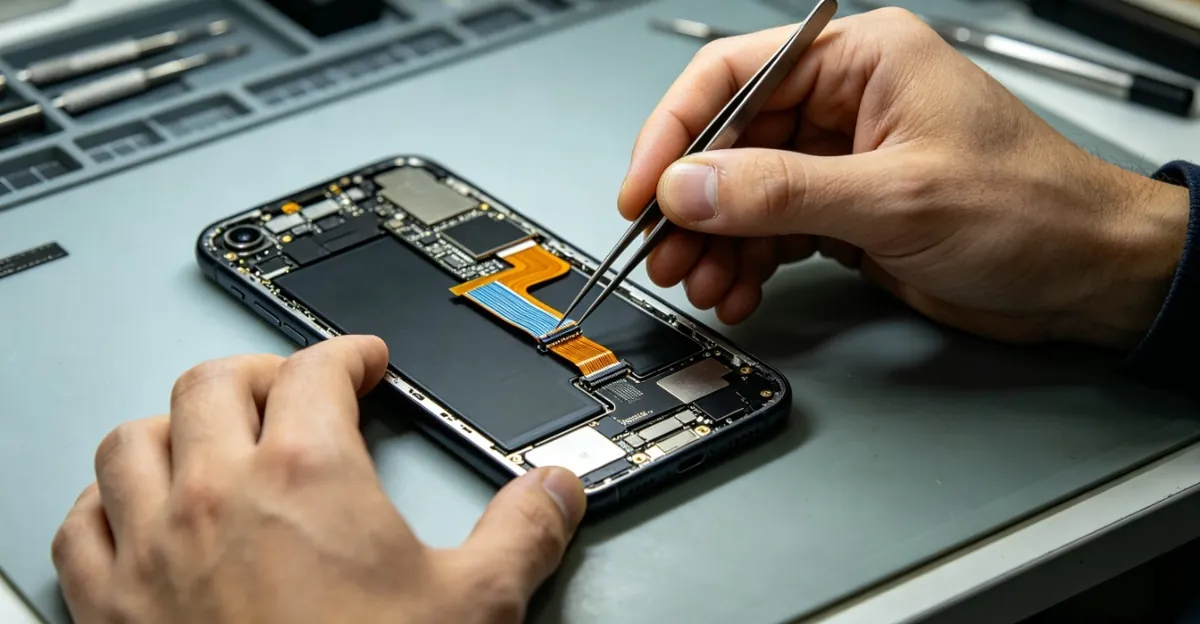
If the lines persist through software troubleshooting, a professional can:
- Open the phone carefully
- Disconnect and reconnect the display flex cables
- Inspect for any signs of cable damage
- Reassemble and test
This costs $30-80 at most repair shops and takes 20-30 minutes.
Fix 6: Screen Replacement
For permanent physical damage to the display panel:
- Third-party screen replacement: $40-150 depending on phone model
- Manufacturer service: $100-400 depending on model
For iPhone models with white line issues after drops, Apple Store or Apple Authorized Service Provider repairs use genuine parts and maintain warranty integrity.
When Hardware Repair Is Needed
Seek professional repair when lines appeared after physical impact, lines persist through software troubleshooting and factory reset, pressing gently on the screen changes the lines (cable issue), touch responsiveness is affected alongside the lines, or battery replacement did not resolve lines correlated with power demand.
Prevention Tips
- Always use a protective case with shock absorption
- Apply a tempered glass screen protector
- Avoid dropping your phone 鈥?use both hands
- Do not sit on your phone or place heavy objects on it
- Keep software updated to avoid driver-related issues
- Handle with care during physical activities
- Avoid extreme temperatures 鈥?do not leave phone in parked car
- Keep phone away from water even if rated water-resistant
- Monitor battery health and replace when capacity drops below 80%
- Avoid prolonged high-temperature activities (gaming while charging, direct sunlight)
Related Guides
- White Spots on Mobile Screen: Related bright spot issues on phone displays
- Android Screen Lines: Specific guide for Android phone line problems
- Mobile Screen Issues: General guide to mobile display problems
- Screen Flickering: Flickering issues often related to display problems
- Water Damage: Liquid damage diagnosis and repair guide
- Screen Test Tool: Free online tool to test your phone display
- Dead Pixel Diagnosis: Distinguish dead pixels from line issues
Conclusion
White horizontal lines on a phone screen have multiple root causes beyond simple physical damage. Battery aging can create voltage instability that affects display power delivery. Liquid exposure causes both immediate electrical disruption and progressive corrosion. Temperature extremes 鈥?particularly cold 鈥?can produce reversible display changes, while heat can cause permanent thermal damage. Manufacturing defects in certain iPhone and Samsung models explain lines that appear without user-caused damage. The diagnostic process now includes battery health checks and liquid indicator inspection alongside the traditional restart and external display tests. Accurate diagnosis determines whether a battery replacement, corrosion cleaning, cable reseating, or full screen replacement is the appropriate fix. Addressing the root cause 鈥?rather than assuming all lines require screen replacement 鈥?saves money and prevents recurrence.