Water damage on a screen looks different from every other defect in this guide, because the cause and the symptom are usually separated by time. A spill happens on Monday, the panel looks fine on Tuesday, and by Friday there is a dark patch near the bottom edge that was never there before. This guide covers what liquid actually does to LCD, LED, and OLED panels, the visible signs to watch for, what each manufacturer does and does not cover, and the realistic repair and replacement paths on MacBook, Windows laptops, external monitors, and phones.
Water Damage on Screens: Causes, Signs, and Fixes
A water damaged screen is a display that has been exposed to liquid — coffee, water, soft drinks, rain, seawater, or condensation — and now shows visible defects that were not there before the exposure. Unlike dead pixels or black spots, which usually appear from a single hardware failure, water damage tends to develop progressively over hours, days, or even weeks as corrosion spreads under the glass.
Liquid damage can affect any screen type:
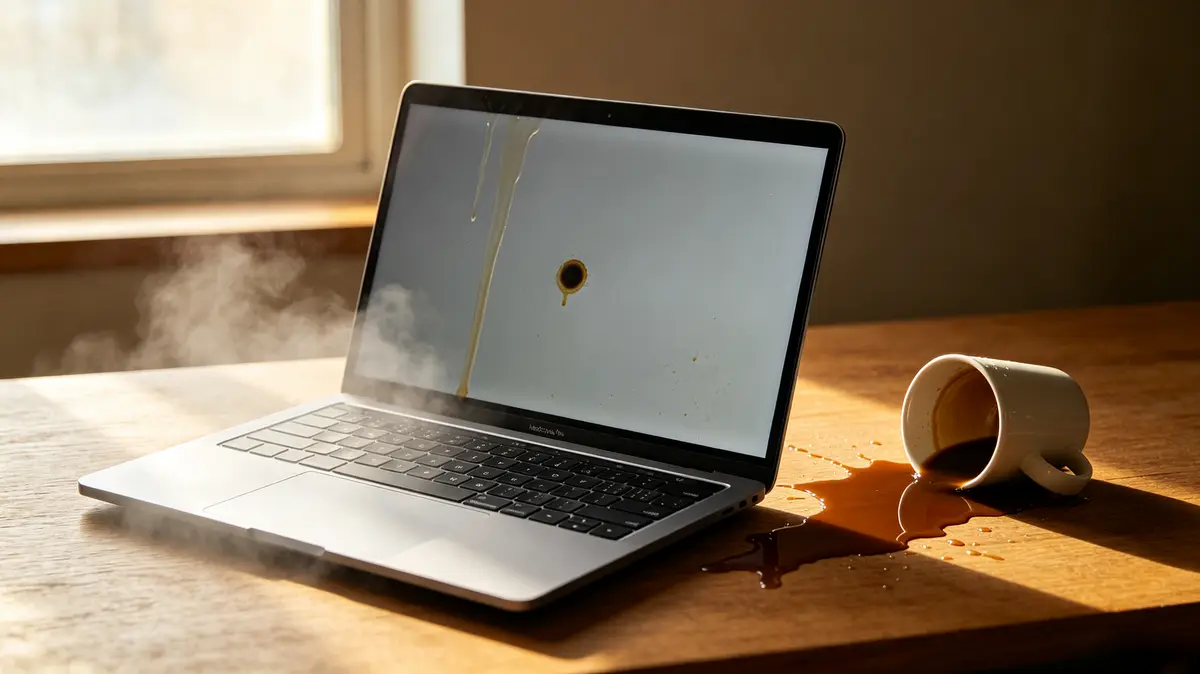
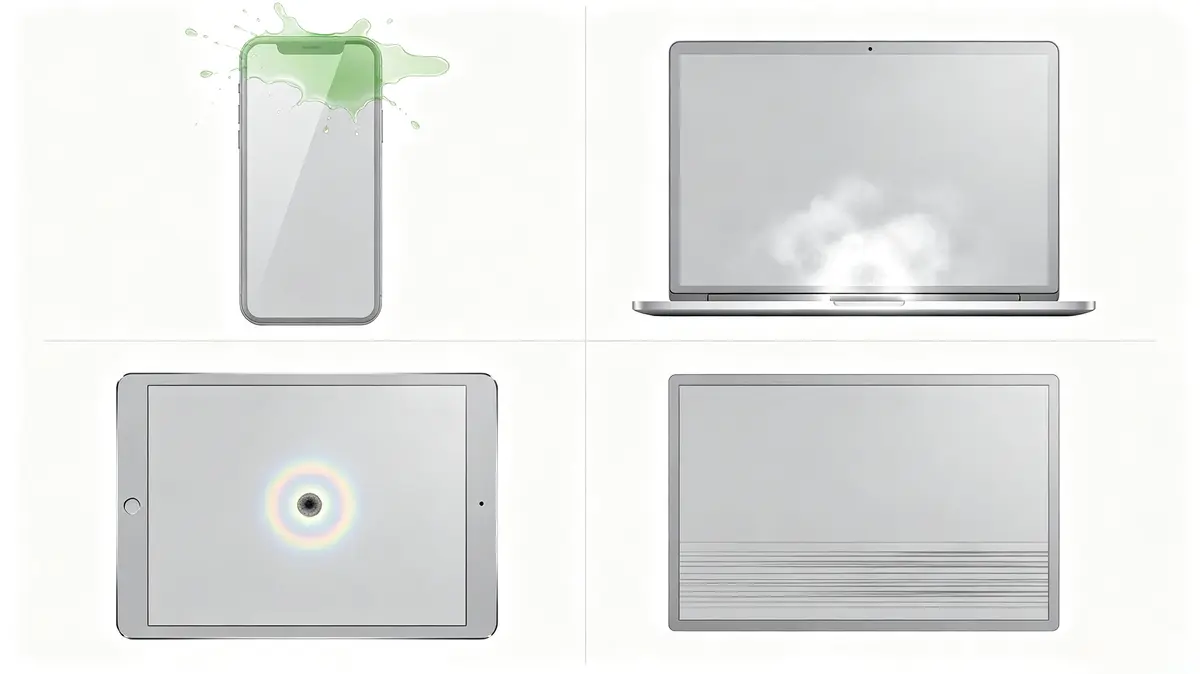
- A MacBook screen that develops foggy patches, vertical streaks, or backlight bleed near the bottom edge after a spill
- A Windows laptop (Dell, HP, Lenovo, ASUS, Acer) that shows pressure-shaped dark zones or color shifts after moisture enters through the keyboard
- An external LCD or LED monitor with bright halos, dim patches, or condensation trapped behind the panel
- An iPhone or Android phone with a small dark spot, a green or purple tint, or a completely unresponsive display after submersion
The unifying thread is timing: the defect appears after the liquid event, not before it.
What Water Damage Looks Like on a Display
Water damage on a screen rarely looks like a single clean defect. It almost always appears as a cluster of symptoms that map to specific internal layers. Recognizing the pattern is the fastest way to confirm the cause before you pay for a screen replacement that may not solve the underlying problem.
The most common visible signs are:
- Foggy or hazy patches behind the glass that do not move when you press on the screen
- Vertical streaks or bands running top to bottom, often brightest at the edge where liquid entered
- Dark patches at the bottom edge of a laptop screen, frequently paired with a sticky or unresponsive keyboard
- Bright halos or cloud-like bloom around the edges of the panel, especially on dark backgrounds
- A single small dark dot or line that grows over several days rather than appearing fully formed
- Discoloration: white, pink, purple, or green tints concentrated near a corner or seam
- Trapped condensation visible between the cover glass and the LCD, sometimes with visible droplets
These symptoms overlap with LCD spot damage, bright spots, and even stuck pixels, but the diagnostic shortcut is timing and history. If the screen was flawless before a spill and degraded within hours or days after, the failure mode is water damage.
How Liquid Damages LCD, LED, and OLED Panels
The physics of water damage depends on the panel type. LCD, LED-backlit LCD, and OLED each react to liquid differently, which is why the same spill can produce a recoverable fog patch on one device and a permanently dead zone on another.
LCD (and LED-backlit LCD)
An LCD panel is a stack of layers: a backlight, a light guide, a lower polarizer, a thin-film-transistor (TFT) glass substrate, a liquid crystal layer, a color filter glass, and an upper polarizer. A 2026 engineering reference from Kadi Display documents that polarizer films are multilayer composites using dichroic stretching technology, and that they are specifically liable to fail in hygrothermal (heat + moisture) environments. A polarizer that absorbs moisture delaminates, scatters light, and produces the cloudy or rainbow-tinted patches that are the signature symptom of water damage on a laptop screen.
Liquid reaching the TFT substrate is worse. The TFT grid controls each pixel through microscopic transistors. Once moisture corrodes those transistors, they fail open or short, producing permanent dark dots, lines, or clusters that no software can revive. The same source notes that cell-gap variation as small as 0.1 to 0.2 micrometers is enough to produce visible brightness unevenness — and liquid entering the cell gap can easily exceed that.
OLED
On an OLED panel, every pixel is its own light source; there is no backlight and no separate liquid crystal layer. The failure modes are simpler but no less permanent. When moisture reaches the organic emissive layer, it either kills the emitter (producing a permanently dark pixel) or damages the thin-film encapsulation (producing a slowly expanding patch that looks like a bruise under the glass). OLED panels do not fog the way LCDs do, because there is no polarizer stack to scatter light.
LED (the marketing term)
When a monitor is sold as "LED," it almost always means an LED-backlit LCD — the same stack as above, with LEDs replacing the older CCFL tubes. The damage patterns are therefore identical to LCD, with one addition: a punctured or waterlogged LED driver board can take out an entire row of LEDs, producing a dark band that runs all the way across the panel.
The practical takeaway from the engineering data: an LCD polarizer can survive a quick splash if dried before moisture penetrates, but TFT and OLED damage is permanent from the moment the corrosion begins.
MacBook and MacBook Pro Screen Water Damage
Water damage on a MacBook screen is one of the most searched display issues on the site, and one of the most expensive to fix. Apple's official support page (support.apple.com/en-us/102249) states plainly that "damage to Mac computers and accessories due to liquid exposure is not covered by the Apple One (1) Year Limited Warranty or the AppleCare Protection Plan." The same page confirms that current Mac laptops include Liquid Contact Indicators (LCIs) — small stickers that turn red on contact with water — and that an AppleCare plan for Mac adds unlimited accidental damage protection subject to a service fee plus tax.
What the LCI means
Apple's iPhone LCI documentation (support.apple.com/en-us/109350) describes the indicator in detail: "An LCI will activate when it contacts water or a liquid containing water. The indicator's color is normally white or silver, but when it contacts water or a liquid containing water, it will turn fully red." Apple explicitly notes that "an LCI won't activate because of humidity and temperature changes that are within the product's environmental requirements" — so a red LCI is genuine liquid contact, not just a humid day.
On a MacBook, the LCI is located inside the case (typically visible through the bottom case or near the port openings) and is checked by an Apple Genius or Authorized Service Provider during intake. A red LCI does not, by itself, prove the device failed because of liquid, but it shifts the conversation from "warranty repair" to "out-of-warranty or AppleCare+ incident."
Visible signs on MacBook
MacBook water damage tends to follow a recognizable pattern:
- Fog or condensation under the glass, often concentrated at the bottom edge where the hinge lets moisture in
- Vertical streaks running top to bottom from the entry point
- A bright band at the bottom edge where the backlight diffuser has been displaced by liquid
- Pink, purple, or green tints that move or fade as the panel warms up and cools down
- Slowly growing dark patches over days as corrosion spreads under the polarizer
Repair paths and cost
Apple does not perform component-level screen repairs; it replaces the entire display assembly. Apple Community repair threads from MacBook owners consistently report out-of-warranty MacBook screen replacement costs between $450 and $1,100 USD depending on model. MacBook Air sits at the lower end; MacBook Pro 14-inch and 16-inch with Liquid Retina XDR sit at the upper end. AppleCare+ caps liquid damage at a flat excess fee that has historically been $299 for screen-only damage and $999 for other severe damage. Independent repair shops typically charge 30 to 50 percent less than Apple, ranging from $200 to $750 USD, and some shops can replace only the LCD panel while keeping the housing, which can save another 40 to 60 percent.
Laptop (Windows and Chromebook) Screen Water Damage
On a Windows or Chromebook laptop, water damage behaves much like MacBook damage at the panel level, but the warranty path is different. Dell's official support page on damages not covered by Dell Basic Support (dell.com/support/kbdoc/000332239) lists cracked glass, internal cracked glass, black spots from broken substrate, LCD surface abrasion, liquid spillage, vertical lines from LCD damage, and pressure marks all under the "Examples of Non-Covered Damage" heading. The same page confirms that Dell's "Accidental Damage coverage can be purchased on any Dell system under active warranty to cover accidental damage like the examples in this article. Intentional damage is not covered by any Dell service plan."
Dell, HP, and Lenovo all sell Accidental Damage Service as an add-on. The Dell Accidental Damage Service description sheet confirms it "covers damage due to accidental drops, spills, power surges, and breakages," and notes that there are "no additional fees or surcharges" beyond the agreement premium. Whether the add-on is worth it depends on your environment and how long you keep devices, but for a laptop used in a kitchen, a coffee shop, or on a factory floor, it often pays for itself with a single incident.
Visible signs on Windows laptops
The damage pattern depends heavily on how the liquid entered:
- A spill through the keyboard usually produces a dark patch at the bottom of the screen, often paired with sticky or unresponsive keys
- A splash on the lid typically produces a single cloudy spot that mirrors the splash pattern
- Humidity or condensation over days can fog the entire panel uniformly and may clear after a slow powered-off dry-out
- A drop into water (rare for a laptop, more common for a Chromebook carried in a backpack during rain) usually takes out the whole panel
Repair paths and cost
Windows laptops are far cheaper to repair than MacBooks because the panels are sold as standalone parts. Out-of-warranty manufacturer service for a full display assembly typically runs $200 to $450 USD on mainstream consumer models and $350 to $700 on premium lines (Dell XPS, HP Spectre, Lenovo ThinkPad X1 Carbon). Independent shops commonly charge $120 to $300 for an equivalent replacement. On older laptops where the panel is sold as a standalone part, an experienced technician can replace only the LCD and reuse the existing housing for $80 to $200 USD — a meaningful saving when the rest of the laptop still works fine.
A loose display cable can mimic a dead-pixel panel after a spill, because water at the hinge disrupts the eDP connection. The fix is reseating or replacing the cable ($50 to $150 USD), not the screen. Always request a written diagnostic before authorizing a full panel replacement.
External Monitor and LCD/LED Display Water Damage
External desktop monitors are physically less vulnerable to spills than laptops, but they fail in similar ways. A monitor in a kitchen, on a bar counter, or in an industrial setting can absorb moisture through the ventilation slots or through direct splash on the bezel. The damage pattern is almost always either a polarizer issue (fog, rainbow tint, hazy patches) or a backlight issue (dark bands, dim zones, bright halos).
For consumer 24-inch 1080p IPS monitors, repair is rarely economic once the warranty has expired — a brand-new equivalent monitor often costs less than a third-party repair quote. The economics flip for premium panels. A Dell UltraSharp, ASUS ProArt, LG UltraFine, or EIZO monitor has a panel that costs more than the entire replacement consumer display, so going through the manufacturer's service channel is almost always the right call. Repair quotes on premium monitors typically run $250 to $600 USD depending on panel size and whether the backlight assembly or the full LCD must be replaced.
Industrial LCDs are documented in detail in Kadi Display's engineering reference, which covers image retention, mura, spot damage, backlight aging, polarizer degradation, and optical bonding delamination. The takeaway that matters for water damage is that industrial panels are built to survive a wider temperature range and longer duty cycle than consumer monitors, but their polarizer films and optical bonding adhesives still fail when exposed to direct liquid. A factory-floor monitor hit by a pressure-washer wash needs the same response as a consumer monitor hit by a spilled drink: power off, dry slowly, and decide whether repair or replacement is cheaper.
iPhone and Android Screen Water Damage
Phones are the most frequently water-damaged electronics in any household, because they go everywhere — kitchen, bathroom, pool, toilet. Apple's iPhone support page on liquid damage (support.apple.com/en-us/109350) makes the same core point as the Mac page: liquid damage is not covered by the standard one-year warranty, but most iPhones built after 2006 ship with an LCI that turns red on contact with water. Modern iPhones (iPhone 7 and newer) carry IP67 or IP68 ingress ratings, but those ratings cover brief submersion in fresh water; they do not cover salt water, chlorinated pool water, soapy water, or any liquid under pressure.
What to do in the first 60 seconds
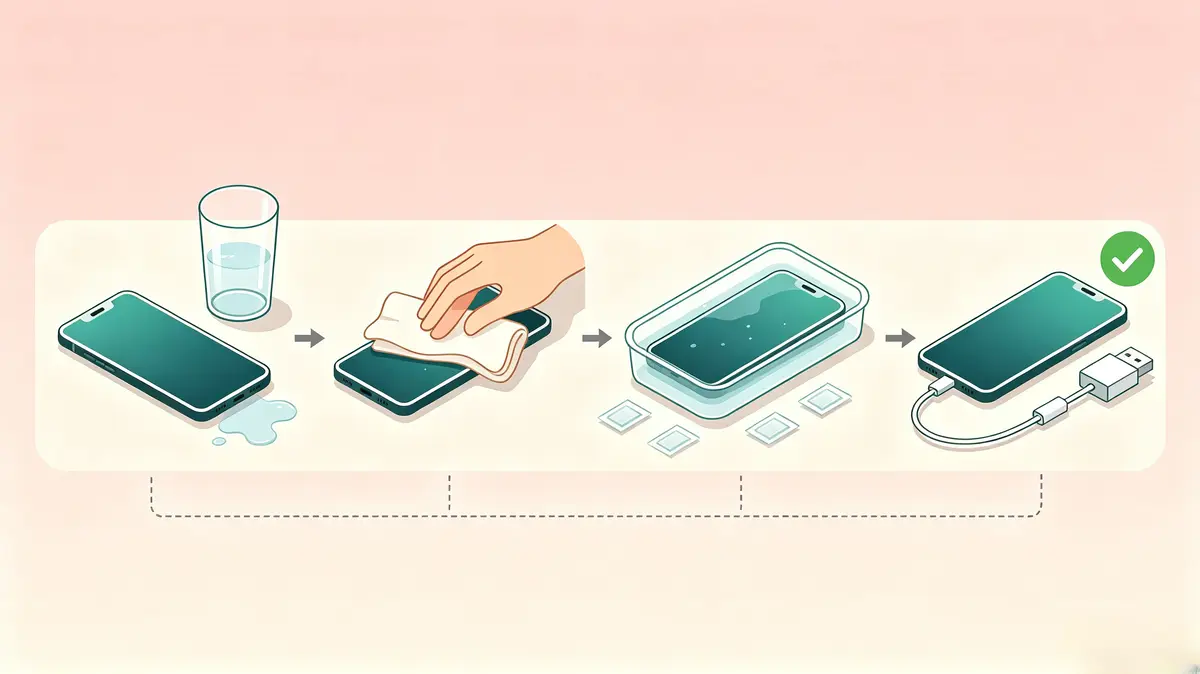
If the phone is still on, power it off. Do not plug it in to "see if it still works." Do not open any app. Water and electricity together produce corrosion; the longer the phone is powered while wet, the more corrosion forms on the logic board. Remove the case, the SIM card, and any memory card. Wipe the exterior with a soft, lint-free cloth.
The silica gel protocol
Prizm Institute's rice-vs-silica testing found that silica gel packets absorb moisture several times faster than rice and leave no dust in the ports. The recommended protocol is to seal the phone in an airtight container surrounded by silica gel packets for at least 24 to 48 hours. Patience matters more than quantity. Do not bury the phone in rice or silica gel — leave airflow around it so the moisture has somewhere to migrate.
What not to do
Heat is the enemy. Prizm Institute explicitly warns against hair dryers, heaters, ovens, and direct sunlight, because heat warps adhesives, weakens seals, and pushes water deeper into the device. Rice is a slow desiccant at best and can leave starch dust in the charging port and speaker grilles. External drying does not reverse internal corrosion that has already started; once corrosion sets in, the only fix is professional disassembly, cleaning with isopropyl alcohol, and replacement of damaged components.
When professional repair is required
A phone that was fully submerged, in salt water, in a chlorinated pool, or in a sugary drink (soda, coffee, wine) needs professional cleaning regardless of how well it dries. Salt and sugar leave residues that continue to corrode the logic board for weeks after the phone appears to work. Apple Authorized Service Providers charge $199 to $329 USD for iPhone screen replacement depending on model; logic-board-level repair for liquid damage runs higher and is often uneconomical for older devices.
Diagnosing Severity and Repair Cost
Severity matters more than cause when deciding what to do. A quick splash on the lid that produces a small fog patch is a very different repair decision from a full keyboard soak that produces a growing dark band at the bottom of the screen. Use the following decision tree.
Step 1: Confirm it is water damage
If the screen was perfect before the spill and degraded after, water damage is the most likely cause. If the screen has always had the issue, the cause is probably something else — a dead pixel, LCD spot damage, or a backlight failure unrelated to liquid.
Step 2: Determine which layers were affected
- Fog only, no visible defects when powered off: probably trapped moisture in the cover glass adhesive. Power off for 48 to 72 hours and re-test.
- Single cloudy patch mirroring a splash: polarizer damage, usually permanent. Panel replacement required for cosmetic fix.
- Vertical streaks or growing dark patch: TFT or backlight damage. Panel replacement required.
- No image at all, but backlight glows: T-CON board or eDP cable failure, not the panel. Cheaper repair.
- No image, no backlight: logic board or power supply failure. Likely total loss unless caught immediately.
Step 3: Get a written diagnostic
Before authorizing any panel replacement, request a written diagnostic from the repair shop. A loose eDP cable or a corroded T-CON board can mimic a dead panel and costs a fraction of the price to fix. Reputable shops will perform this diagnostic for free or a small fee before quoting the full repair.
Step 4: Compare repair cost to replacement value
A useful rule of thumb: if the repair quote is more than 50 percent of the device's current resale value, replacement is usually the better financial decision. For a $1,000 laptop with a $500 screen quote, replacement may be more cost-effective. For a $2,500 MacBook Pro with a $700 Apple quote, repair is almost always worth it.
Prevention and What Not to Do
Prevention is dramatically cheaper than repair. A keyboard cover on a MacBook used at a desk costs $15 to $30 and stops almost all spill damage. A waterproof case on a phone used near water costs $20 to $50 and turns a warranty-voiding event into a non-event. A monitor placed away from a kitchen sink or coffee machine avoids the most common failure mode entirely.
What not to do:
- Do not use a hair dryer on a wet screen or device. Heat warps the polarizer, softens adhesive, and pushes moisture deeper.
- Do not bury a wet phone in rice. Rice is a slow desiccant and leaves starch residue in ports.
- Do not put a wet device in a freezer. The expansion of freezing water can crack the LCD glass.
- Do not charge a wet device. Water and a charging circuit together produce rapid corrosion.
- Do not assume "water resistant" means "water proof." IP67 and IP68 ratings cover brief immersion in fresh water only, not salt water, chlorinated water, or soapy water.
- Do not delay a decision. Corrosion begins within minutes and continues for weeks. The faster the device is powered off and dried, the more likely it is to survive.
Real-World Case Study: MacBook Air M1 Liquid Coffee Spill
Repair communities on iFixit and Reddit frequently report an issue affecting MacBook Air M1 and M2 units after a coffee spill on the keyboard: a dark patch appears near the bottom edge of the screen within 24 to 72 hours, often paired with unresponsive keys. The cause is liquid wicking up the display cable channel from the keyboard area and reaching the backlight diffuser before the user has time to power off.
Owners typically first notice a faint gray cloud at the bottom of the screen the morning after the spill. By the end of the week, the cloud has hardened into a dark band that obscures roughly the bottom fifth of the display. Because the damage is in the backlight layer rather than the LCD matrix itself, the only fix is a complete display assembly replacement. AppleCare+ covers the repair with a flat service fee; out of warranty, third-party panel replacement runs roughly $200 to $400 USD depending on the supplier. The case study reinforces the most common prevention message: never set an open drink next to a closed laptop, because the gap between the keyboard and the screen is the most common entry point.
Repair Cost Reference by Device Tier
The figures below consolidate the data points cited above and typical third-party shop pricing reported across 2026. They are out-of-warranty ranges for screen-only liquid damage in the absence of an active Accidental Damage, AppleCare+, or Premium Panel service plan.
| Device Tier | Out-of-Warranty Screen Replacement (USD) | With Accidental Damage Coverage |
|---|---|---|
| MacBook Air M1 / M2 / M3 | $450 – $579 | Flat excess (~$99 – $299) |
| MacBook Pro 13" M2 / M3 | $499 – $799 | Flat excess (~$99 – $299) |
| MacBook Pro 14" / 16" M3 / M4 Pro or Max | $699 – $1,100+ | Flat excess (~$99 – $299) |
| Windows laptop (Dell, HP, Lenovo mainstream) | $200 – $450 | Often covered (varies by plan) |
| Windows laptop (Dell XPS, HP Spectre, ThinkPad X1) | $350 – $700 | Often covered (varies by plan) |
| External consumer monitor 24" 1080p | Replacement usually cheaper than repair | N/A |
| Premium monitor (Dell UltraSharp, ASUS ProArt, EIZO) | $250 – $600 | Usually covered |
| iPhone 14 / 15 / 16 screen | $199 – $329 (Apple Authorized) | AppleCare+ flat fee |
| Samsung Galaxy S flagship screen | $219 – $289 (Samsung Authorized) | Samsung Care+ flat fee |
The right column reflects the practical reality: most manufacturer accidental damage plans convert a $500 to $1,000 unexpected repair into a $99 to $299 flat fee, and for users who carry devices into spill-prone environments the plans typically pay for themselves within the first incident.
Related Guides
Water damage is one timing-based failure mode in a much larger family of LCD, OLED, and display-circuit defects. Use these related guides to rule out other causes and choose the right fix.
- Dead Pixels on Screen: A stuck or dead pixel that shows up after a spill is almost always TFT corrosion, not a normal pixel defect.
- Black Spots on Screen: A growing dark patch after a spill is a different failure mode than a single black spot — usually polarizer damage, not the LCD matrix.
- LCD Spot Damage: Physical panel damage from pressure or impact that looks similar to a moisture-initiated patch — worth ruling out before authorizing a replacement.
- Bright Spots on Screen: Backlight bleed and polarizer fog produce bright halos that are the most common companion to water damage.
- Black Line on Screen: A horizontal or vertical dark band at the bottom of a laptop screen often traces back to a hinge or eDP-cable wet-out, not the panel itself.
- Screen Flickering: Intermittent dimming and instability that can follow a liquid spill on the logic board, even when the panel looks fine.
- White Spot LCD: The reverse case — light spots caused by sub-pixel transistor issues rather than liquid ingress.
See also: Screen Test Tool — the free browser-based screen test that cycles solid colors for dead-pixel, stuck-pixel, and cluster diagnostics after drying.
Conclusion
Water damage on a screen is a timing problem more than a repair problem. The defect you see hours or days after a spill is the end of a corrosion chain that started the moment liquid touched the device. The fastest, cheapest response — power off, dry the exterior, leave it alone for 48 to 72 hours, then get a written diagnostic before authorizing any panel replacement — applies to every device tier from a $200 Chromebook to a $3,000 MacBook Pro.
If the device is under manufacturer warranty or covered by an accidental damage add-on, contact the manufacturer immediately; a red LCI does not, by itself, prove the device failed because of liquid, but it shifts the conversation. If the device is out of warranty, compare the cost of repair against the cost of replacement using the rule of thumb that repair above 50 percent of resale value rarely makes sense. And if you are reading this before a spill, buy a $20 keyboard cover and a $30 waterproof phone case — both are cheaper than a single diagnostic fee.
Use the screen test tool to confirm whether your screen is still showing dead pixels, stuck pixels, or backlight defects after drying, and to document the panel's condition over time. Photographs taken now become evidence later if you need to file an accidental damage claim.