Why Does My Computer Screen Go Black
A computer screen going black is a lost picture, not a single disease. The panel may have been switched off on a timer, the graphics driver may have reset, the backlight may have died while the image is still there, or the cable may have dropped the signal. This guide splits those four paths in minutes, then walks Windows, laptops, and desktop monitors through the cheapest tests first. You will know whether to change a power setting, reseat HDMI, roll back a driver, or stop buying panels.
What a Computer Screen Going Black Means
Why does my computer screen go black is the search people type when the entire image disappears. Microsoft Support treats that appearance as a blank screen and splits it by when it happens: a blank screen with a cursor (stalled process or driver), a blank screen at login (wrong output or a damaged profile), a blank screen after an update (incompatible driver), and a blank screen with a blinking cursor (UEFI cannot find a boot device). Those four situations look identical from across the room. They are not the same repair.
The first split is whether the computer is still running. Fans, keyboard lights, a power LED, and Caps Lock toggling mean the chassis is alive. A fully dead tower with no LED and no fan is a power or motherboard path, not a display path. HP’s laptop black-screen guide makes the same cut: the display is not working, Windows is running but not rendering, or a recent update broke the driver. Timing tells you which bucket you are in.
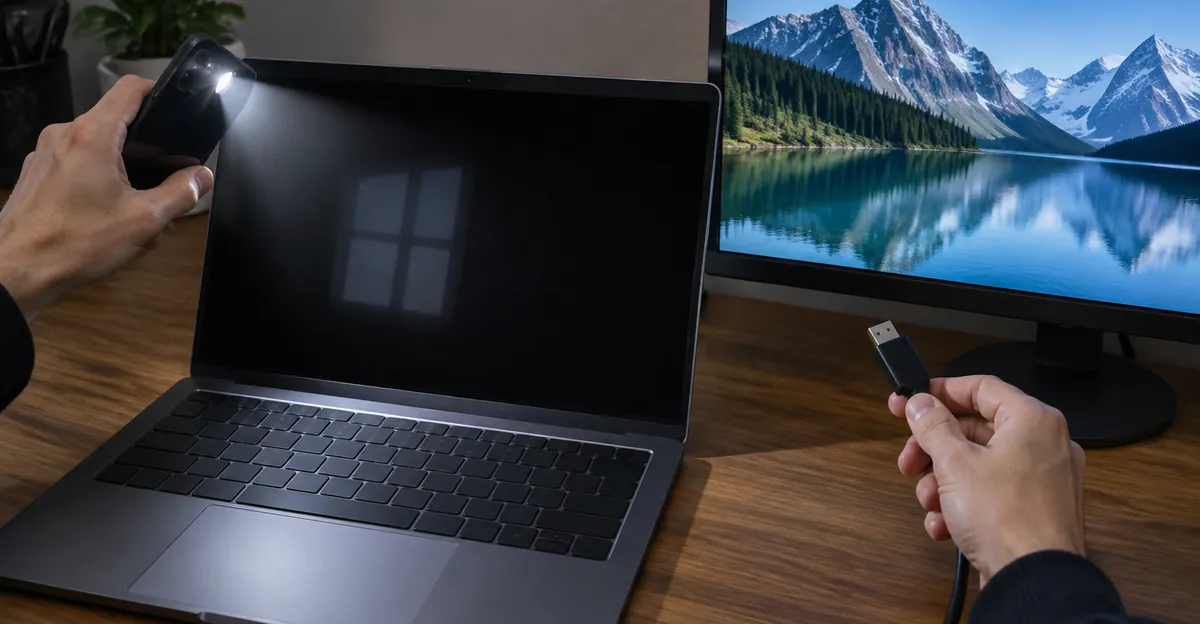
The second split is whether any image exists in the dark. Shine a phone flashlight at a shallow angle on a laptop lid. Repair shops (Vision Computers, Pro-LCDs, LaptopFixing) use this as the backlight test. A faint desktop, login box, or taskbar means the LCD matrix still has signal and only the lighting path failed. A completely empty panel with a working external monitor means the internal screen or its eDP cable. Nothing on any output means the GPU or earlier in the chain.
The third split is duration. A blackout that returns after you wiggle the mouse is a timeout. A one-second flicker with a Windows toast about the display driver is TDR. A blackout that stays until you power-cycle is output mode, Explorer, or hardware. Do not skip this split. People replace $150 panels for a 3-minute screen-off timer.
Table: Full black vs lookalikes on this site
| Pattern | What you see | First test | This site’s matching guide |
|---|---|---|---|
| Full black, wakes on mouse | Entire panel dark, PC still running | Raise screen-off timeout | This page |
| Full black, recovers in 1–2 s | Flicker, then desktop | Event Viewer for TDR | This page |
| Faint image under flashlight | Ghost desktop, no backlight | External monitor + flashlight | This page |
| Exactly half the panel dead | One half black or white, other half normal | Screenshot vs external display | Half black screen |
| Black field with a bright line | Dark content plus a stuck-on row or column | Solid black in Screen Test | Black screen with white line |
| Image present but flashing | Picture never fully gone | Refresh rate and driver | Screen flickering |
A half-black panel is a T-con or ribbon failure, not a sleep setting. A white line on an otherwise dark field is stuck-on pixels, not a GPU hang. Keep those pages for those patterns. This article stays on a fully black computer display.
Why Does My Computer Screen Keep Going Black
If the picture vanishes on a schedule and comes back when you touch the mouse or tap a key, why does my computer screen keep going black is a power-policy question. Microsoft shortened Windows 11 defaults to cut idle energy. On modern standby devices, screen-off is 3 minutes on battery and 5 minutes plugged in. S3 devices use 3 minutes on battery and 5 minutes plugged in for the screen, with sleep later than that. Users who never noticed a 10-minute timeout now think the panel failed.
Change the timer before you open the case. Settings > System > Power & battery > Screen, sleep, & hibernate timeouts. Set Turn my screen off after higher for both battery and plugged in. Set Make my device sleep after separately. Screen-off is not sleep. Screen-off blacks the panel and leaves Windows running. Sleep parks the session. Mixing them up wastes an afternoon on GPU drivers.
Locking the PC uses a second timer. Microsoft documents that a locked console turns the display off after 60 seconds by design (KB 2835052). The Settings slider for an unlocked idle session does not control that lock timeout. The hidden setting is Console lock display off timeout (VIDEOCONLOCK). An admin command powercfg.exe -attributes SUB_VIDEO 8EC4B3A5-6868-48c2-BE75-4F3044BE88A7 -ATTRIB_HIDE exposes it under advanced power options. If your screen keeps going black one minute after Win + L, you found the lock timeout, not a dying inverter.
Laptops add lid and dock behavior. Closing the lid can sleep, hibernate, shut down, or do nothing. A magnetic lid sensor that sticks, or a dock that thinks an external monitor is still the only display, produces a loop: open the lid, black panel, move the mouse, nothing, close again. Microsoft Q&A threads on post-lid wake describe Windows running behind a black lid. Disable Fast Startup (Control Panel > Power Options > Choose what the power buttons do) when wake-from-lid is the only time the screen stays black. Fast Startup writes a hybrid hibernation image. A driver that changed between shutdown and the next boot can come up with no picture.
Overheating can mimic a timer. The panel goes black, fans roar, then the image returns after a cool-down. That is thermal throttling or a GPU hang, not Windows energy policy. If keep-going-black events cluster after 20 minutes of a game and never happen on the desktop, skip the timeout slider and jump to the random TDR section.
OEM utilities override Windows. Lenovo Vantage, Dell Power Manager, and HP Command Center have been reported to reset screen-off times after a reboot. If your timeout will not stick, check those apps or run powercfg -restoredefaultschemes as a last policy reset, then set the timer again.
Why Does My Screen Go Black on My Computer
Why does my screen go black on my computer is the cause list, not the schedule. The same black rectangle can be a cable, a driver, a power brick, or a panel. The useful move is to match one extra clue to one cause.
Microsoft’s first hardware step is physical: HDMI, DisplayPort, or VGA seated at both ends, a different cable, a different monitor, and on a laptop, disconnect every external display so Windows is not rendering to a dock you unplugged. HP adds Windows + P to cycle PC screen only / Duplicate / Extend / Second screen only. A laptop that “went black” after you unplugged a TV is often still in Second screen only.
Graphics driver faults sit next. A hung GPU looks like a freeze, then a black frame, then a recovered desktop. Microsoft’s TDR design resets the adapter so you do not have to hold the power button. After recovery you may see “Display driver stopped responding and has recovered.” Event Viewer logs that toast. Safe Mode is the branch when the black screen never returns: third-party miniport drivers do not load, so a clean desktop in Safe Mode is a driver or overlay, not a cracked LCD.
Power delivery is the quiet one. A tired power strip, a GPU power cable that is not fully home, or a laptop charger that browns out under load will drop the picture without a Windows error. Whizz Computer’s random-blank guide starts with the strip and the wall outlet for that reason. Swap the strip before you buy a video card.
Table: Clue to cause for a black computer screen
| Extra clue | Likely cause | Cheap next step |
|---|---|---|
| Wakes on mouse, same interval every time | Screen-off or lock timeout | Power & battery timeouts |
| Flicker plus driver recovered toast | TDR / GPU hang | Win + Ctrl + Shift + B, then clean driver |
| Started after Windows Update | Bad display driver | Safe Mode, roll back driver |
| Cursor visible, no desktop | Explorer crash | Ctrl + Shift + Esc, restart explorer.exe |
| Blinking cursor, never reaches logo | Boot device / UEFI | Microsoft blank-screen boot path |
| Faint image with flashlight | Backlight / fuse / LED driver | External monitor, then panel lighting repair |
| External monitor works, lid stays black | Internal panel or eDP cable | Lid flex test, cable reseat |
| No image anywhere, no POST | PSU, RAM, GPU, board | Power drain, one-stick RAM, known-good PSU |
| Only after closing the lid | Lid sensor / Fast Startup | Lid action + disable Fast Startup |
| Only while gaming | Heat, overclock, TDR | Stock clocks, dust, Event Viewer |
Do not treat “the screen is black” as a panel diagnosis. The panel is one row in that table. Most rows are free to test.
Brand notes from support and repair write-ups stay specific. Dell and Sony laptops are repeatedly called out for backlight fuses that blow if the LVDS/eDP cable is reseated with the battery still connected (LaptopScreen.com). ASUS and generic Windows laptops share the same flashlight-plus-external-monitor tree (Vision Computers). HP documents the two-key graphics reset and the projection shortcut as first-line laptop fixes. Use the OEM page for your model after the generic tree, not instead of it.
Why Does My Computer Go Black Screen
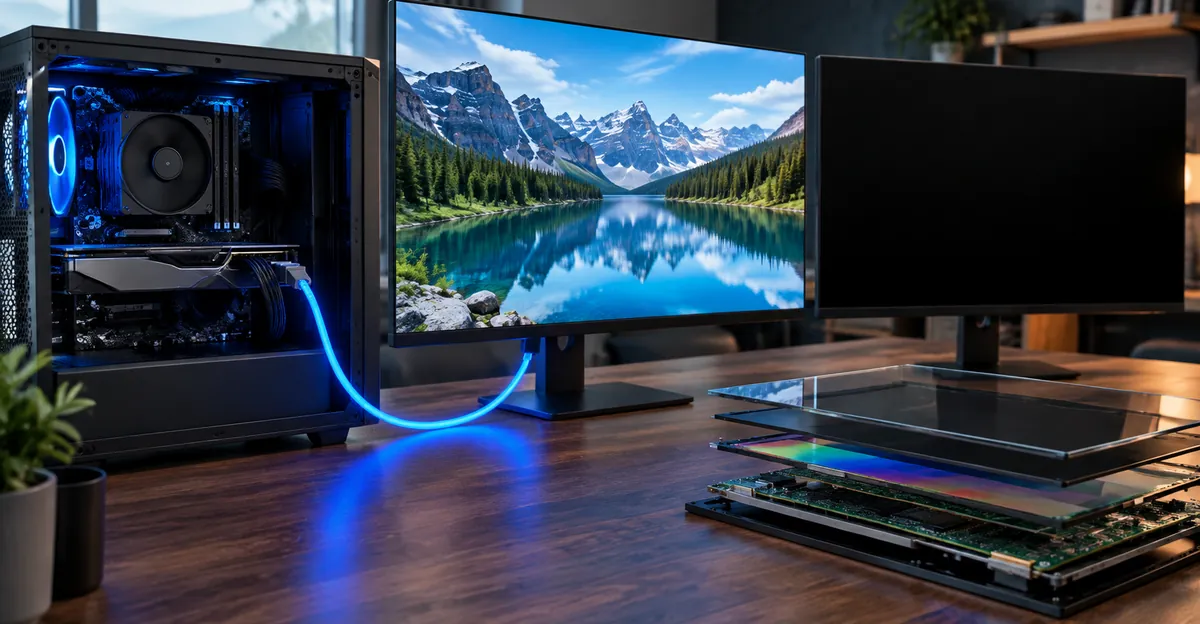
People type why does my computer go black screen when they cannot tell if the machine died. Separate “computer” from “screen” with signals that do not need a picture.
Power LED on, fans spinning, disk activity, Caps Lock LED toggling: the computer is running. The screen path is broken or blanked. Power LED off, no fans after a button press: treat it as a power supply or board fault. A desktop that clicks or tries to start then dies is more PSU than LCD.
On a laptop, keyboard backlight and charging LED are the same split. A machine that plays startup chimes or shows Caps Lock with a black lid is not “dead.” HP and Microsoft both tell you to reset the graphics driver with Windows + Ctrl + Shift + B and listen for a beep or watch for a flicker. If you hear the beep, Windows received the keystroke. The GPU reset. If the panel stays black after that beep, move to cables and an external display, not a new motherboard.
External monitor is the cheap courtroom. HDMI or USB-C into a TV. Image on the TV and black on the laptop lid: internal display path. Image on neither: GPU, RAM, firmware, or a Windows profile that never draws a desktop. Image on the lid and not the TV: the TV input, cable, or HDCP, which is not this article.
BIOS or UEFI is the software-versus-hardware gate. Restart and enter firmware (Del, F2, Esc, depending on brand). A visible firmware menu on the same panel means the LCD and GPU output work before Windows. A black panel in firmware that lights up on a second monitor means Windows is innocent. A black panel everywhere including firmware is hardware.
Cursor-only black is a special Windows case. Microsoft’s sign-in black-screen guide says explorer.exe or userinit.exe failed to draw the shell. Ctrl + Alt + Del, Task Manager, restart Windows Explorer, or File > Run new task > explorer.exe. If the Shell registry value under Winlogon is not explorer.exe, restore it. That is not a monitor failure.
When the whole computer truly dies—no LED, no fan, no USB power—stop following display steps. That is a PSU, battery, or board job. This page stays on “the box is alive and the picture is gone.”
Why Does My Computer Screen Go Black Randomly
Why does my computer screen go black randomly points at a drop that is not on a clock. The picture vanishes for a beat, then returns, or it vanishes in the middle of a game and Windows recovers. That pattern is TDR, a loose digital cable, heat, or a power dip.
Windows Timeout Detection and Recovery watches the GPU scheduler inside Dxgkrnl.sys. If a DMA buffer does not complete within the default two seconds, the OS treats the GPU as frozen, calls the miniport’s reset, purges video memory, and redraws the desktop. Microsoft’s own wording: the only intended visible artifact is a flicker, plus the informational message “Display driver stopped responding and has recovered,” logged in Event Viewer. Well-written Direct3D 9Ex/10+ apps survive. Older titles may stay black until you relaunch them.
Recovery is not infinite. Microsoft documents that five or more GPU hangs (0x117 live dumps) inside one minute can bug-check the machine on the next hang. Users describe this as a random black screen that “finally” blue-screens. Event Viewer is the record. Look for the recovered-driver message, nvlddmkm.sys (NVIDIA), atikmdag.sys (AMD), or igdkmd64.sys (Intel). Those names tell you which vendor’s installer to use. Do not use a third-party driver booster.
Cables mimic TDR. A DisplayPort plug that sits a millimeter out will drop the link, the monitor goes black, then HDCP renegotiates and the picture returns. No driver toast appears. Wiggle the cable while the desktop is up. If the screen blanks in sync with the wiggle, replace the cable before you DDU the GPU. The same test applies to USB-C docks.
Heat and power sit under random because they only fail under load. Microsoft’s VIDEO_TDR_FAILURE notes list overclocks, bad memory timings, insufficient cooling, and insufficient system power as hardware reasons the GPU misses the two-second window. 9to5Windows and SolveTechToday walk the same list for Windows 11: stock clocks, dust, a PSU that cannot feed a new card, then a clean driver. If random blackouts happen only after 10 minutes in a shader-heavy game and never on the desktop, you are not looking at a sleep timer.
Overlays add noise. Discord, GeForce Experience, RGB suites, and Citrix clients have all been named in black-screen-after-login write-ups (Reboot Doctor). A clean boot that stops the random blanks is an overlay or startup app, not a panel.
Chromebooks are a side path. If the machine is a Chromebook, not Windows, lid-flex and panel faults dominate and the Windows TDR story does not apply. Use the Chromebook screen glitch guide instead of this page’s driver steps.
A dying GPU can present as random blacks and later as colored corruption. If random blanks start pairing with sparkles or a rainbow screen of death, treat the GPU as hardware after one clean driver pass, not after ten.
Fixes to Try in Order Before You Replace Hardware
Work cheap to expensive. Stop when the blackouts stop. Do not skip the first row because it feels too simple.
1. Confirm the box is alive. Power LED, fans, Caps Lock. If none, this is not a screen article.
2. Wake and reset the GPU. Press Windows + Ctrl + Shift + B. Microsoft and HP both list this first. A beep or flicker means the reset ran. Move the mouse. If the picture returns and stays, you had a hung driver, not a dead LCD.
3. Cycle projection. Windows + P, then arrow and Enter through PC screen only. Laptops that last used a TV get stuck on Second screen only.
4. Kill the timeout. Settings > System > Power & battery. Raise screen-off for battery and plugged in. If it only happens after Win + L, expose the console lock timeout with powercfg as above.
5. Cursor-only desktop. Ctrl + Shift + Esc. Restart Windows Explorer. Run explorer.exe if it is missing.
6. Reseat video. Unplug HDMI or DisplayPort at both ends. Try another cable and another port. On a laptop, unplug docks and USB-C adapters so only the lid remains.
7. Second display. Known-good monitor or TV. Record which panel shows an image. That single fact splits GPU from lid.
8. Flashlight on a laptop. Shallow angle, lights off in the room. Ghost image: backlight path. No ghost, external works: internal panel or cable.
9. Safe Mode. Hold power 10 seconds, repeat until Recovery, Troubleshoot > Advanced options > Startup Settings > Restart, F5 for Safe Mode with Networking (Microsoft’s blank-screen sequence). Clean desktop in Safe Mode: roll back or clean-install the display adapter in Device Manager. Use the GPU vendor’s package, not Windows Update, if the problem started after an optional driver.
10. Fast Startup and lid. Disable Fast Startup. Set lid close to Sleep or Do nothing and test open/close ten times. Microsoft Q&A treats this as the lid-wake black screen pair.
11. Event Viewer. Application and System logs around the blackout. TDR message: clean driver, stock clocks, dust, PSU. No message and a wiggle-sensitive cable: replace the cable.
12. Firmware menu. If firmware is visible on the same panel, Windows is the remaining suspect. If firmware is black on the lid and visible on HDMI, the internal display path is the remaining suspect.
Only after those twelve do you price a T-con, eDP cable, backlight fuse, panel, or GPU. Opening a laptop with the battery still connected is how backlight fuses blow (LaptopScreen.com). Disconnect power and battery first.
If the picture is actually present and you only need a uniform field to see whether the panel is lighting at all, open the free Screen Test on a second device or after the image returns, and drive a full-screen white then black. White proves backlight. Black shows whether a faint glow or a stuck line is hiding in the “black screen” complaint. Do not run Screen Test as a substitute for the flashlight test when the laptop will not light at all.
When a Black Screen Is Hardware and What Repair Costs
Hardware is the remainder after timeouts, projection mode, Explorer, cables, Safe Mode, and Fast Startup have failed. The remainder still has a split.
Backlight-only failure (flashlight ghost, external monitor optional) is lighting. On post-2012 LED lids the LEDs live in the panel, so shops replace the assembly more often than they swap a CCFL inverter. A blown motherboard backlight fuse is cheaper if you can find and replace it, and more expensive if a shop has to diagnose a shorted cable. LaptopScreen.com’s fuse article exists because people reseat cables hot and then blame the new panel.
Internal cable failure (lid angle changes the blackout, external monitor fine) is an eDP or LVDS replacement. The same hinge-flex story appears in our half black screen guide for split panels. Full black that comes and goes with the hinge is the same cable wearing through every conductor instead of one half.
GPU failure (black on every output, artifacts before the black, TDR that survives a clean driver) is a card or solder job. Desktop cards reseat and RMA. Laptop GPUs are usually board-level. Pair this with rainbow or sparkle symptoms before you pay for a panel.
PSU and RAM (no POST, no image anywhere, random full-system blacks) are not display parts. One-stick RAM and a known-good supply are still cheaper than a screen.
Table: Repair versus replace once software is ruled out
| Fault after tests | Typical parts path | When to replace the device instead |
|---|---|---|
| Timeout / lock / projection | Settings only | Never a hardware buy |
| GPU driver / TDR recovered | Free driver package | If TDR continues on a second card, the board or PSU is next |
| HDMI / DP cable | Cable, often under $20 | If every cable fails, the port or GPU output |
| Laptop eDP cable | Shop cable swap, often far below a panel | If the lid is already cracked, replace the assembly once |
| Backlight fuse | Fuse or board repair | If the shop cannot isolate the short |
| Laptop panel / backlight | Display assembly | When the laptop value is near the panel quote |
| Desktop monitor T-con | Board swap on some models | When T-con is unavailable, buy a new monitor |
| Discrete GPU | Card RMA or replacement | Laptop soldered GPU: compare to a new machine |
Warranty first. Opening a lid can void it. Manufacturer support will ask for the same external-monitor and Safe Mode results you already have if you ran the list in order.
Conclusion
A computer screen going black is a category, not a verdict. Timeouts keep going black on a clock. TDR goes black randomly and often recovers with a driver message. Backlight failure still shows a ghost under a flashlight. No-signal failure fails the external monitor. Half-panel and line defects belong on other pages on this site.
Run the twelve-step order once. Write down whether Windows + Ctrl + Shift + B beeped, whether a second display worked, and whether a flashlight showed a ghost. Those three notes decide between a power slider, a cable, a driver, and a shop. When the panel is lighting again, confirm uniformity with Screen Test on solid white and black so you do not confuse a recovered timeout with a dying backlight.
Sources
- Microsoft Support, Troubleshooting blank screens in Windows: https://support.microsoft.com/en-us/windows/troubleshooting-blank-screens-in-windows-51ef7b96-47cb-b454-fcab-fac643784457
- Microsoft Support, Power settings in Windows 11: https://support.microsoft.com/en-us/windows/power-settings-in-windows-11-0d6a2b6b-2e87-4611-9980-ac9ea2175734
- Microsoft Learn, WDDM Timeout Detection and Recovery: https://learn.microsoft.com/en-us/windows-hardware/drivers/display/timeout-detection-and-recovery
- Microsoft Learn, Monitor powers off when computer is locked (KB 2835052): https://learn.microsoft.com/en-us/troubleshoot/windows-client/shell-experience/monitor-powers-off-when-pc-locked
- Microsoft Learn, Black screen after you sign in: https://learn.microsoft.com/en-us/troubleshoot/windows-client/shell-experience/scenario-guide-black-screen-after-sign-in
- HP, Laptop black screen fixes: https://www.hp.com/hk-en/tech-takes/desktops/troubleshooting/how-to-fix-computer-black-screen.html
- Vision Computers, flashlight backlight test: https://www.visioncomputers.com/asus-laptop-black-screen-running
- Pro-LCDs, diagnose a faulty laptop screen: https://www.pro-lcds.com/en/content/diagnose-faulty-laptop-screen
- LaptopScreen.com, backlight fuse: https://www.laptopscreen.com/English/section/Articles/1245259090/Backlight%20failure%20due%20to%20blown%20fuse/