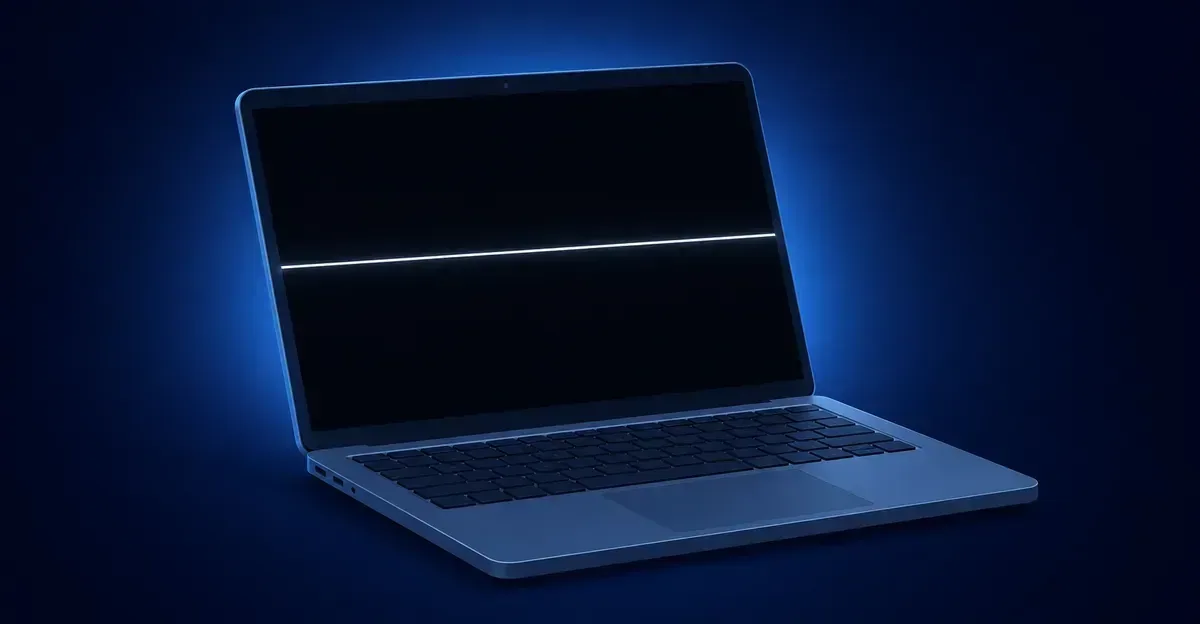
A black screen with white line (also searched as black screen and white line) means a row or column of pixels is stuck fully on against a dark background. In most cases the cause is a loose display cable, a failing T-con board, or a driver problem — all diagnosable in minutes, often without replacing the panel. This guide walks through the tests and cheapest fixes first for laptop and monitor.
Black Screen With White Line: Why It Happens
What Is a Black Screen With a White Line
A black screen with a white line is a display defect where one or more rows (horizontal) or columns (vertical) of pixels stay lit white even when the rest of the display is showing black content. The line is most visible on dark backgrounds, in dark mode, in movie scenes, and during boot when the screen first shows a black background with the manufacturer logo.
The technical cause is that the affected pixels are stuck in the "on" state. In a working LCD panel, each pixel's thin-film transistor (TFT) switches on and off thousands of times per second to display the correct color. When the controlling transistor, the connecting cable, or the T-con (timing controller) board fails in a way that holds the line open, those pixels display white continuously.
The same defect appears under several names in search results and on forums:
| Symptom wording | What it actually means |
|---|---|
| Black screen with a white line | Same defect — line visible against a dark or black background |
| White line on black background | Same defect, viewed during a black scene or in dark mode |
| Bright white streak across dark display | Same defect, more vivid (e.g. on OLED or high-brightness panels) |
| White line that appears when screen goes black | Same defect, intermittent when display refreshes |
A white line is the opposite of a black line. A black line means the affected pixels are stuck "off" (dead pixel row, ribbon cable break). A white line means the affected pixels are stuck "on" (sub-pixel failure, T-con sending the wrong signal, or driver pushing the row to full white).
Most Common Causes of a Black Screen With a White Line
The eight most common triggers, in roughly the order repair communities see them:
1. Loose or Damaged Display Cable (Laptop and Monitor)
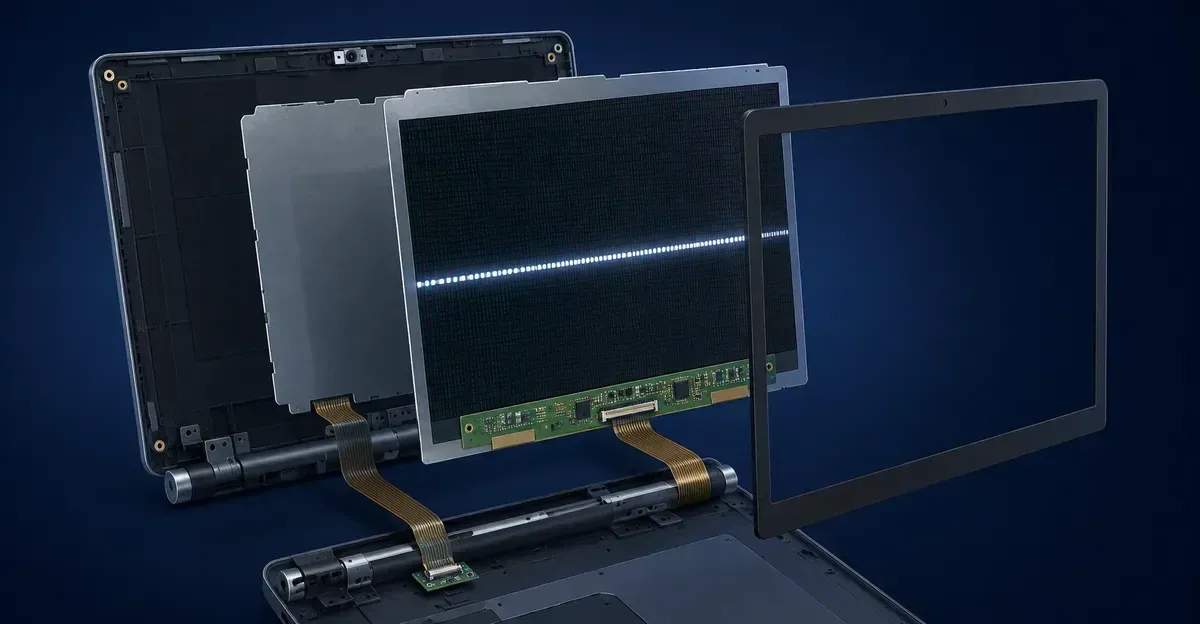
The single most common cause. In laptops the display panel connects to the motherboard through a thin flex cable that runs through the hinge. In external monitors the panel connects to the T-con board through a similar ribbon cable inside the case.
Every time the lid opens or closes, the cable flexes. After enough cycles, the copper traces develop micro-cracks. A cracked trace can no longer carry the right voltage to the affected pixel row, so the row sits at the panel's "on" state and shows as a white line.
This is the most common cause on Dell, HP, Lenovo, and MacBook models that have been used for 1-3 years. It is also the most common cause on external monitors after the unit has been moved or bumped.
2. T-Con Board Failure (External Monitor, Some Laptops)
The T-con (timing controller) board generates the precise voltage signals that drive each pixel row and column. When the T-con degrades — usually from heat, capacitor aging, or a power surge — it can send a stuck-high signal to one or more rows or columns. The result is a bright white line on a black screen.
T-con failures are particularly common in monitors that are 3+ years old or run hot. They are also common on budget TV panels used as computer monitors.
3. Stuck Sub-Pixel Row in the Panel
A single thin-film transistor (TFT) failing in the "on" position will keep one sub-pixel lit. When an entire row of those transistors fails simultaneously, the result is a white line on a black screen.
Unlike a cable or T-con issue, a stuck sub-pixel row in the panel glass does not respond to software fixes, reseating, or driver updates. It requires panel replacement — but it is also the least common of the three hardware causes, so always rule out cables and the T-con first.
4. Graphics Driver Issue (Software)
Corrupted, outdated, or buggy graphics drivers can produce white lines on a black screen. Driver-related lines typically:
- Appear after a recent driver update
- Are not visible in BIOS
- May shift position between reboots
- Sometimes clear after a clean driver reinstall using Display Driver Uninstaller (DDU)
Driver-related white lines are more common on NVIDIA and AMD discrete GPUs than on integrated Intel graphics, because the discrete driver packages are more complex.
5. Loose or Faulty External Video Cable (Monitor)
If you are seeing the white line on an external monitor, the cable between the PC and the monitor is a top suspect. A loose HDMI, DisplayPort, or VGA connector — or a damaged cable — can produce vertical or horizontal artifacts that look exactly like panel failures. The fix is to firmly reseat the cable at both ends, or try a different cable.
6. Physical Impact or Pressure Damage
Dropping the device, closing the laptop lid with a pen on the keyboard, or carrying a monitor face-down in a tight bag can crack the LCD or OLED panel internally. Internal cracks often appear as bright lines because the damaged area can no longer control the affected pixels and they default to the "on" state.
Impact damage is irreversible and requires panel replacement.
7. Boot-Time Driver or OS Corruption (Laptop)
On Windows laptops, a corrupted boot file or a failed Windows update can cause the screen to show a black background with a thin white line during the early boot phase. The user reports the laptop as "broken", but the panel is actually fine — the operating system is failing to initialize the display.
This is especially common after major Windows 10 / Windows 11 feature updates, and after unexpected shutdowns. Error codes like 0xc000000f are typical companions.
8. Power Surge or Electrical Damage
A power surge through the charger or a lightning strike near the building can damage the panel driver electronics or the GPU. The result is often a permanent white line on a black background, sometimes alongside other artifacts. Surge protectors prevent most of these cases.
How to Diagnose a Black Screen With a White Line
Run these four tests in order. They take about 5 minutes and identify the cause with high confidence.
Step 1: External Monitor Test
- Connect the laptop or PC to an external monitor or TV via HDMI or DisplayPort
- Press the display projection key (Windows:
Win + P, Mac:System Settings > Displays) - Set the mode to Duplicate so the same image is on both screens
- Look at the external display
| Result on external monitor | Most likely cause |
|---|---|
| White line is also visible | GPU, video cable, or driver — not the panel |
| External display is clean | Panel, flex cable, or T-con board is the issue |
Step 2: BIOS / UEFI Test
- Restart the laptop or PC
- Immediately press
F2,F10,Del, orEscto enter BIOS (varies by manufacturer; Lenovo ThinkPad usesF1, Mac does not have a user-accessible BIOS) - Look at the BIOS screen carefully
| Result in BIOS | Most likely cause |
|---|---|
| White line is visible | Hardware — panel, cable, or T-con. Drivers are not loaded at this stage. |
| Line not visible in BIOS | Software — driver, Windows, or macOS is producing the artifact |
Step 3: Screenshot Test (Laptop)
- Press
Windows + Print Screen(Windows) orCmd + Shift + 3(Mac) - Open the screenshot file in your Pictures folder
- Look at the image carefully
| Result in screenshot | Most likely cause |
|---|---|
| White line appears in the screenshot | GPU or driver is the source — the line is generated before the panel |
| White line does NOT appear in the screenshot | The panel itself is producing the line — cable, T-con, or panel hardware |
Step 4: Safe Mode Test (Windows)
- Restart and hold
Shiftwhile clicking Restart - Choose Troubleshoot > Advanced options > Startup Settings > Restart
- Press
4for Safe Mode (or5for Safe Mode with Networking) - Observe the line
| Result in Safe Mode | Most likely cause |
|---|---|
| Line disappears | Driver or third-party software conflict |
| Line stays | Hardware — panel, cable, or T-con |
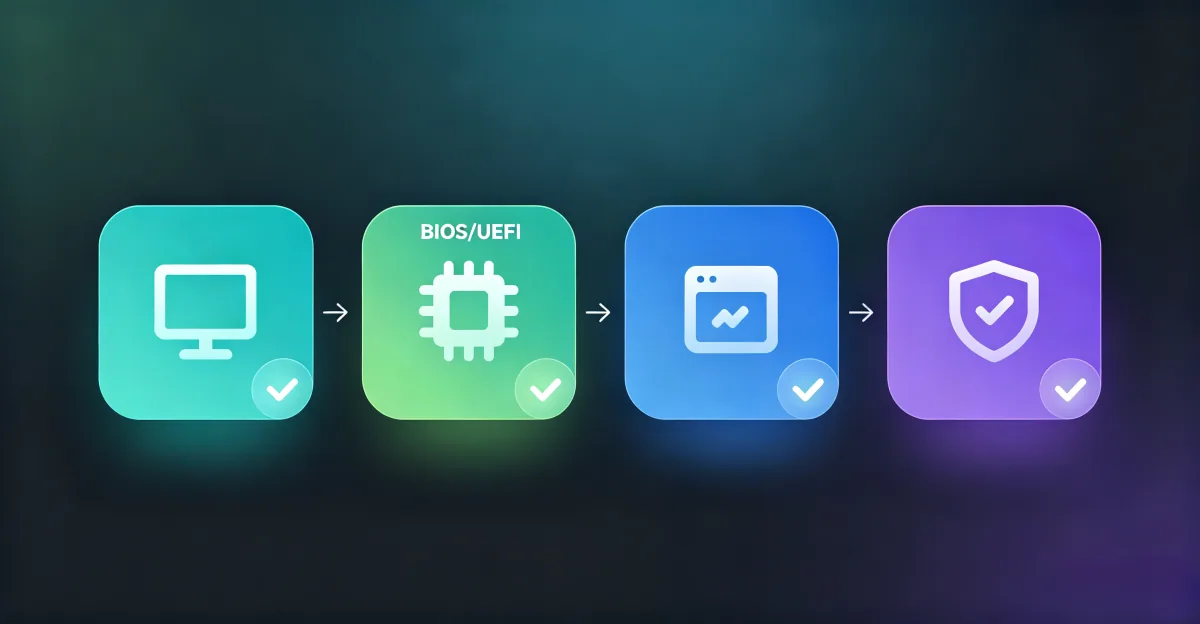
Once the four tests are done, you will know which category the issue falls into and can skip to the matching fix below.
How to Fix a Black Screen With a White Line
Fix 1: Reseat the Display Cable (Laptop — Hardware)
When the diagnosis points to a flex cable (line changes with lid angle, clean external monitor, clean BIOS on some models):
- Power off completely and unplug the charger
- Ground yourself by touching a metal surface
- Remove the back cover or keyboard bezel (model-specific — check the manufacturer's service manual or iFixit for your model)
- Locate the display ribbon cable (often labeled LVDS or eDP) where it connects to the motherboard
- Open the connector latch, pull the cable out gently, then reinsert it firmly and close the latch
- Repeat for the panel-side connector
- Reassemble and test
Reseating alone fixes the issue in a large share of cases. If the cable shows visible damage (kinks, dark marks), replace it with a $10-40 part.
Fix 2: Replace the T-Con Board (External Monitor — Hardware)
When the diagnosis points to the T-con (clean external source, line in BIOS, monitor is 2+ years old):
- Unplug the monitor and let it sit for 5 minutes to discharge the capacitors
- Open the case (usually screws on the back, sometimes hidden under the stand)
- Locate the T-con board (small PCB connected to the panel via a flat ribbon)
- Photograph the cable connections, then disconnect them
- Unscrew the T-con, remove it, and install the replacement
- Reconnect the cables exactly as photographed
- Reassemble and test
T-con replacement boards for common monitor models cost $25-80 and are available from panel-parts suppliers. Search by your monitor's model number + "T-con board".
Fix 3: Update or Roll Back the Graphics Driver (Software)
- Open Device Manager (Windows) or System Information > Software Update (macOS)
- Expand Display adapters, right-click your GPU, and choose Update driver
- If the line appeared immediately after a driver update, choose Properties > Driver > Roll Back Driver
- If neither works, download the latest driver from the GPU manufacturer's site (Intel, NVIDIA, AMD) and install it
- For stubborn driver issues, use Display Driver Uninstaller (DDU) in Safe Mode to fully remove the old driver, then install the new one
Fix 4: Fix Boot-Time White Line (Windows)
If the line only appears during the Windows boot logo and disappears once the desktop loads, you likely have a corrupted boot file:
- Create a Windows installation USB on another PC
- Boot the affected PC from the USB
- Choose Repair your computer > Troubleshoot > Command Prompt
- Run:
bootrec /fixmbr,bootrec /fixboot,bootrec /rebuildbcd - Restart
Error code 0xc000000f and similar are typical companions to this issue and are usually resolved by rebuilding the boot configuration.
Fix 5: Replace the Video Cable (External Monitor)
When the issue is on an external monitor and reseating did not help:
- Try a different HDMI, DisplayPort, or VGA cable — preferably a known-good cable
- Try a different port on the PC if available
- If the monitor has both HDMI and DisplayPort, switch inputs to see if the line follows the cable or the input
A $8-15 cable is one of the cheapest possible fixes and is worth trying before any internal work.
Fix 6: Reset NVRAM / PRAM and SMC (Mac)
On a Mac, software fixes sometimes resolve display artifacts:
- Shut down completely
- Power on and immediately hold
Option + Command + P + Rfor 20 seconds (NVRAM reset) - On Intel Macs with the T2 chip, also reset the SMC: shut down, hold
Shift + Control + Option + Powerfor 10 seconds - On Apple Silicon Macs, just shut down and wait 30 seconds
Fix 7: Replace the Panel (Last Resort)
If all of the above fail, the panel glass itself has a stuck sub-pixel row. Replace the LCD or OLED panel:
- Laptop panel replacement: $50-200 for the part, plus $80-150 labor. Many user-reported repairs for 14-17 inch laptop panels land in the $60-150 range for parts.
- External monitor panel replacement: $80-300 for the part, often comparable to the cost of a new monitor at the budget end.
If repair cost approaches 50% of the device's replacement value, replacement is usually the better financial decision.
When Hardware Repair Is Needed
Seek professional repair when the line is present in BIOS, the line does not change with lid movement on a laptop, the line persists across an external monitor too, the device is still under manufacturer warranty, or the device is an Apple product potentially covered by a Quality Program.
If the laptop is under AppleCare+ or a manufacturer extended warranty, contact support before opening the device — opening it yourself usually voids the warranty. The repair is typically free if the failure is not accidental.
Prevention Tips
To reduce the chance of a black screen with a white line developing in the future:
- Open and close the laptop lid with two hands, gripping the center of the edge to distribute hinge stress evenly
- Never close the laptop with a pen, USB drive, or other object on the keyboard
- Use a padded laptop bag and avoid stacking heavy items on top of the bag
- Place monitors on stable surfaces away from edges, and never carry a monitor face-down
- Use a surge protector or UPS between the wall outlet and the monitor or laptop charger
- Keep graphics drivers up to date through the GPU manufacturer's official site, not third-party utilities
- Avoid prolonged static bright images on OLED screens — use a screen saver or auto-hide taskbar
Related Guides
- White Line on Screen: Hub page for all white-line issues across laptop, monitor, and phone
- LCD Line: General LCD line diagnosis and repair
- Black Line on Screen: The opposite defect — when pixels are stuck "off" instead of "on"
- Monitor White Lines: White lines specific to external LCD monitors
- Horizontal Lines on Laptop Screen: Horizontal line issues across laptop brands
- Vertical Lines on Laptop Screen: Vertical line issues including white vertical lines
- Screen Test Tool: Free browser-based tool to display solid black, white, and color backgrounds for diagnosis
Conclusion
A black screen with a white line is most often caused by a loose or damaged display cable, a failing T-con board, a driver issue, or a stuck sub-pixel row in the panel. Run the four-test diagnosis (external monitor, BIOS, screenshot, Safe Mode) to identify the category, then apply the cheapest matching fix first — driver update, cable reseat, or T-con replacement — before paying for a panel replacement. For laptops still under warranty, contact the manufacturer before opening the device. For external monitors, a $25-80 T-con board is the most cost-effective repair for displays that are 2+ years old.