A glitching Chromebook screen can turn an otherwise reliable device into a frustrating experience. Whether your display is flickering, showing strange colors, displaying horizontal lines, or acting unresponsive, this guide covers every common cause and proven fix. We walk you through diagnosis steps you can do at home, software solutions that resolve most cases, and clear guidance on when hardware repair is necessary.
How to Fix a Glitching Chromebook Screen: Complete Guide
What Is a Chromebook Screen Glitch
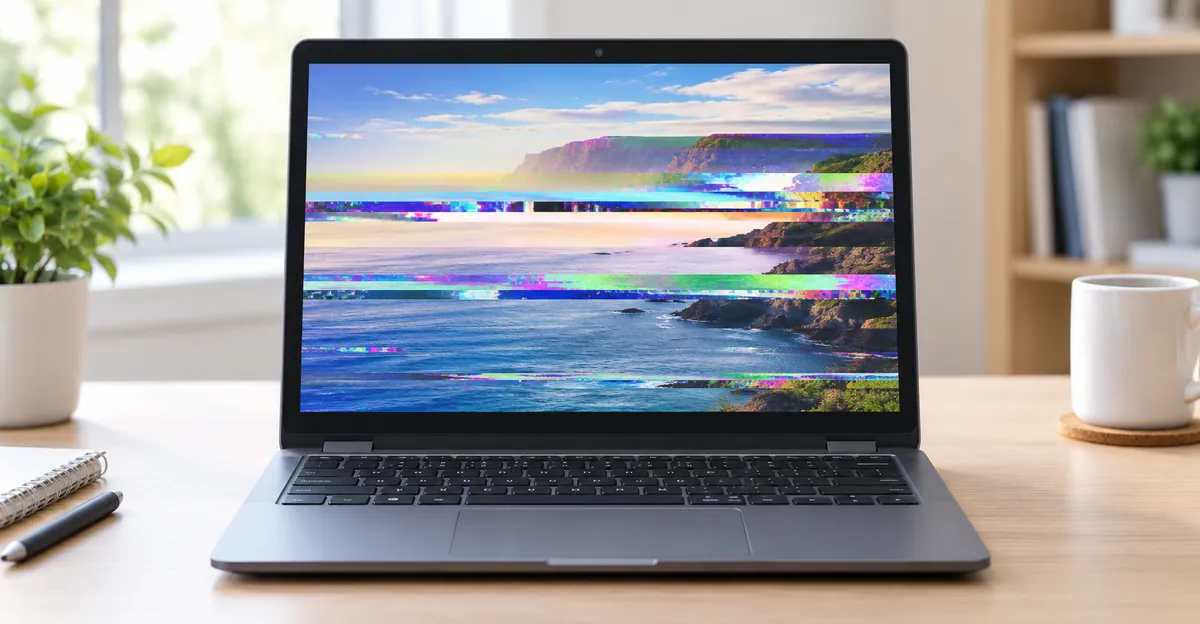
A Chromebook screen glitch refers to any abnormal behavior in your display output. This includes flickering brightness, color distortions, horizontal or vertical lines, screen freezing, delayed response, or sections of the display that fail to update correctly. Unlike a completely dead screen where nothing displays, a glitching screen still produces an image but with visual errors.
Screen glitches on Chromebooks typically fall into two categories: software-related issues that can be resolved without opening the device, and hardware problems that require repair or component replacement. Distinguishing between the two is the first step to finding the right solution.
If you notice small dots that remain dark regardless of the displayed content, it may be a dead pixel issue. Learn more about dead pixel diagnosis
Common Symptoms of a Glitching Chromebook Screen
Identifying the specific symptom helps narrow down the cause:
- Flickering: The screen brightness rapidly alternates or the image strobes. This often indicates software driver issues or backlight problems.
- Horizontal or vertical lines: Colored or black lines running across the screen. These typically point to cable connection issues or panel failure.
- Color distortion: The screen shows wrong colors, a purple or green tint, or washed-out images. This can be caused by driver corruption or cable problems.
- Freezing or lagging: The display updates slowly or freezes momentarily before recovering. Usually a software or memory issue.
- Backlight bleeding: Bright spots or uneven lighting at the edges of the screen. This is a hardware issue with the backlight assembly.
- Sections not updating: Parts of the screen appear stuck on the previous image while the rest continues normally. This points to panel or timing controller issues.
- Screen tearing: The image appears split or misaligned during scrolling or motion. This is typically caused by a mismatch between the display refresh rate and the graphics card output.
- Inverted or rotated display: The screen orientation flips unexpectedly, often triggered by an accidental key combination or a software conflict.
Most Common Causes of Chromebook Screen Glitches
Understanding what causes your screen to glitch helps you apply the right fix. The causes fall into three main areas: software, cables, and hardware failure.
Chrome OS Software Issues
The most frequent cause of Chromebook screen glitches is software-related. Chrome OS manages display output through graphics drivers and window compositing. When these components encounter errors, visual glitches appear on screen.
Common software causes include:
- Outdated Chrome OS: Running an older version of Chrome OS can cause compatibility issues with the display hardware, leading to flickering or color problems. Google releases regular updates that include display driver improvements alongside new features.
- Problematic extensions: Certain Chrome extensions can interfere with hardware acceleration and cause display artifacts. This is particularly common with screen capture, ad blocking, and accessibility extensions that hook into the rendering pipeline.
- Corrupted display drivers: If the display driver becomes corrupted from a failed update or system interruption, glitches can appear until the driver is reinstalled. Chrome OS integrates display drivers into the operating system, so a full update reinstalls them automatically.
- Insufficient memory: Running too many tabs or heavy web applications can cause the system to struggle with display rendering, leading to freezing or lagging. Memory pressure affects the compositor's ability to refresh the screen smoothly.
- Power management conflicts: Aggressive power saving settings can cause the backlight to behave erratically, producing flickering or brightness fluctuations. Some third-party power management tools can conflict with Chrome OS's built-in backlight controls.
- Chrome Flags instability: Experimental browser features accessed through
chrome://flagscan introduce display instability, artifacts, or flickering even when hardware acceleration appears normal. Flags are testing features not intended for daily use.
Display Cable and Connection Problems
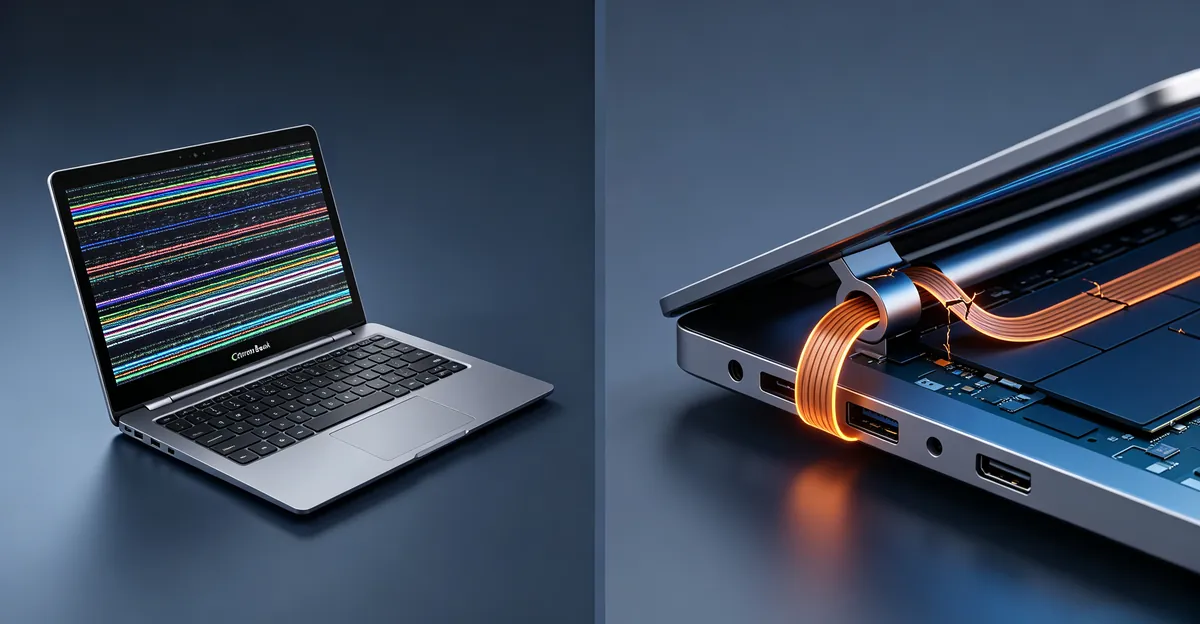
Chromebooks use a flex cable to connect the display panel to the motherboard. This cable passes through the hinge and experiences constant mechanical stress. Over time, it can develop connection issues.
Cable-related causes include:
- Loose connector: The cable connector at either end can become slightly loose from normal use, causing intermittent signal loss and flickering. This is one of the most common causes of lid-angle-dependent flickering.
- Flex cable wear: The flex cable contains delicate traces that can crack from repeated hinge movement. Cracked traces cause lines or flickering that worsens over time. In K-12 fleet environments where devices are opened and closed dozens of times daily, flex cable wear is the leading cause of display failure, appearing years ahead of schedule compared to consumer use patterns.
- Damaged cable sheath: Physical damage to the cable outer sheath can expose internal wires to short circuits or electromagnetic interference.
- Hinge alignment issues: If the hinge is misaligned, it can put unusual stress on the cable or pinch it, affecting signal quality. This can happen gradually from normal wear or more suddenly from a drop or impact.
The clearest sign that a flex cable is failing is display behavior that changes with lid position. A screen that flickers when the lid moves past a certain angle and stabilizes when held still is almost never a display panel problem. The panel itself is functioning normally; the cable feeding its signal is compromised at the flex point. A quick external monitor test showing a clean image confirms the panel is working and the signal path from the motherboard to the display is interrupted.
Display Panel and Backlight Hardware Issues
Less commonly, the display panel itself or its backlight assembly is the source of the problem.
Hardware causes include:
- Aging backlight: CCFL backlights (in older Chromebooks) and LED backlights can develop uneven light output as they age, causing bright spots or flickering. LED backlights typically last longer but can still fail prematurely from heat exposure.
- Panel degradation: The LCD panel's internal circuits can degrade over time, causing dead zones, lines, or color problems. Physical pressure on the screen from closing the lid on objects accelerates this degradation.
- Physical damage: Cracks from drops, pressure marks from closing the lid on objects, or liquid damage can all cause persistent glitches. Even hairline cracks can produce visible lines across the display.
- Timing controller failure: The T-con board that drives the panel can fail, causing lines, color problems, or complete display failure. This component translates the digital signal from the motherboard into the voltage signals the panel needs.
- Motherboard component failure: In rare cases, the graphics processing chip or other motherboard components can fail, causing display issues that appear on both the built-in screen and any external monitor.
How to Diagnose the Problem
Before attempting fixes, narrow down the cause by running through these diagnostic steps:
Step 1: Observe the Symptom Pattern
Note exactly when and how the glitch appears:
- Does it happen constantly or intermittently?
- Does it start immediately when the device boots or only after some time?
- Does moving the lid angle change the glitch?
- Does it appear on an external monitor connected via HDMI or USB-C?
If the glitch appears on an external monitor too, the issue is likely with the graphics processor or software. If it only appears on the built-in display, the problem is likely the panel, backlight, or flex cable. If the flicker changes as you move the lid through its range of motion, you are almost certainly dealing with a worn flex cable, not a panel problem.
Step 2: Boot Into Recovery Mode
Booting into Chrome OS Recovery mode loads a minimal operating environment without your installed applications or extensions. This helps determine whether the glitch is caused by your installed software.
To enter recovery mode:
- Press and hold Escape + Refresh (F3) simultaneously
- While holding those, press the Power button
- Release all buttons when you see a screen with "Chrome OS is missing or damaged"
- Follow the on-screen instructions to recover or restart
If the glitch does not appear in recovery mode, the problem is in your installed software or settings.
Step 3: Test With an External Monitor
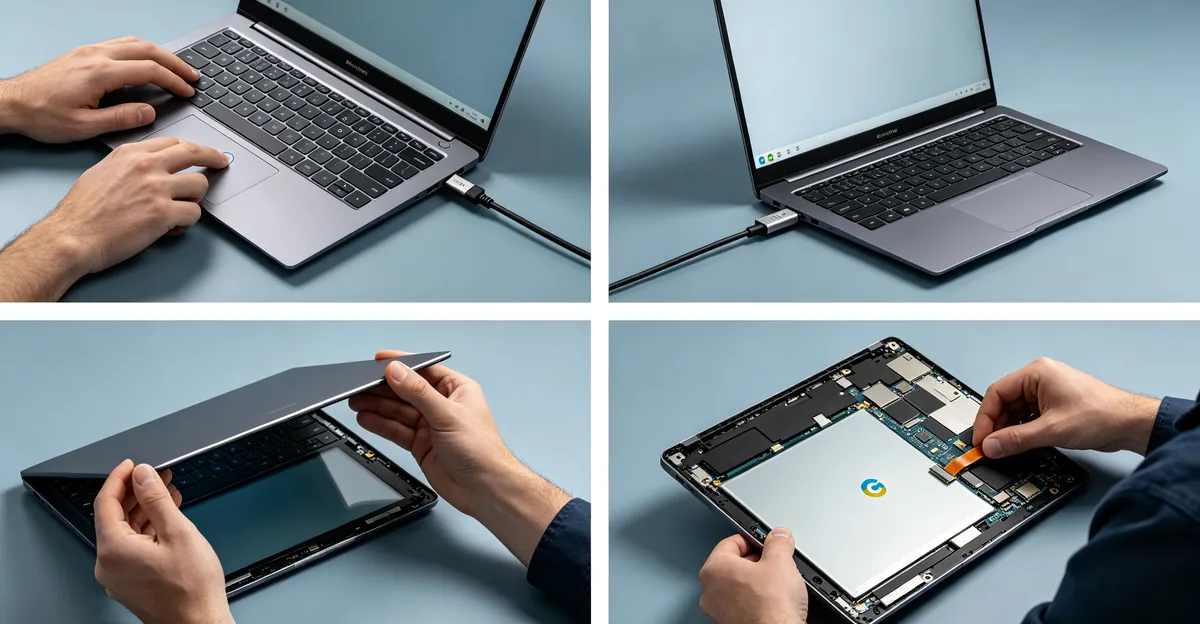
Connect your Chromebook to an external monitor using HDMI or USB-C. If the external monitor shows the same glitch, the issue is with the graphics processor or software. If the external monitor displays normally, the built-in display panel or its cable is the problem.
This test is the single most important diagnostic step because it tells you immediately whether to pursue software solutions or hardware repair.
Step 4: Check for Physical Damage
Examine the screen carefully under good lighting:
- Look for cracks, pressure marks, or dark spots
- Check the hinge area for unusual resistance or clicking sounds
- Inspect the screen bezel for gaps or warping that might indicate impact damage
Step 5: The 80 Percent Solution — Hard Reset
Repair technicians frequently cite an 80 percent success rate for resolving Chromebook display issues through a hard reset (holding Refresh and Power for approximately 10 seconds). This forces a complete restart of hardware components including the display controller without deleting personal files. Try this before more involved troubleshooting:
- Turn off your Chromebook completely
- Press and hold the Refresh key (the circular arrow in the top row)
- While holding Refresh, tap the Power button
- Hold both keys for about 10 seconds, then release
- The Chromebook will turn off and restart automatically
For Chromebook tablets or convertible models, press Volume Up plus Power for 10 to 15 seconds instead.
Manufacturer Warranty and Acceptable Defect Thresholds
If your Chromebook is still under warranty, understanding the manufacturer's display defect policy can save you a repair bill entirely.
Standard Warranty Coverage
Most Chromebook manufacturers provide a one-year limited warranty that covers manufacturing defects including dead pixels, backlight bleeding, and display panel failures that appear without physical damage. Google's own warranty for Chromebooks varies by manufacturer — you will need to check with the original equipment manufacturer (Acer, ASUS, Dell, HP, Lenovo, Samsung) using your device's serial number.
Acceptable Pixel Defect Standards
Display manufacturers follow the ISO 9241-302 standard for acceptable pixel defects, which classifies pixel failures into categories based on the number of defective subpixels (each pixel has red, green, and blue subpixels). Most manufacturers consider a display acceptable if it has no more than a certain number of dead or stuck pixels in specific locations, though these thresholds vary by manufacturer and product tier.
If your screen has a small number of permanently dark or always-lit subpixels, it may still be within the manufacturer's acceptable range and not covered for replacement under warranty. However, clusters of dead pixels, entire rows of stuck subpixels, or defects that appear suddenly on an otherwise undamaged screen are typically covered.
Filing a Warranty Claim
Before paying for repair, verify your warranty status:
- Locate your Chromebook's serial number (found on the bottom of the device or in Settings > About Chrome OS)
- Visit the manufacturer's support website
- Enter your serial number to check warranty status and coverage
- Contact the manufacturer's customer support to initiate a repair or replacement claim
If the device is no longer under warranty, third-party repair shops typically offer screen replacement services at a fraction of the cost of a new device.
Step-by-Step Fixes for Chromebook Screen Glitches
Work through these fixes in order, starting with the simplest solutions.
Step 1: Restart Your Chromebook
A simple restart clears temporary software errors that can cause display glitches. Save your work and restart normally. If the screen is too glitchy to use, perform a hard restart by holding the power button for 3 to 5 seconds.
Step 2: Update Chrome OS
An outdated operating system is the most common software cause of screen glitches.
- Click the time in the bottom right corner
- Click the Settings gear icon
- Click "About Chrome OS" at the bottom of the settings panel
- Click "Check for updates"
- Install any available updates and restart
Chrome OS automatically includes display driver updates with system updates, so a full update reinstalls graphics drivers if they have been corrupted.
Step 3: Reset Chrome Flags
Chrome Flags are experimental features that can cause display instability even when they appear unrelated to display settings.
- Open Chrome browser
- Type
chrome://flagsin the address bar - Click "Reset all" at the top of the page
- Click "Restart" to restart your Chromebook
Step 4: Disable Hardware Acceleration in Chrome
Hardware acceleration can cause glitches on some Chromebooks with less capable graphics processors.
- Open Chrome browser
- Click the three-dot menu in the top right
- Click Settings > Advanced > System
- Toggle "Use hardware acceleration when available" OFF
- Restart Chrome or your Chromebook
Step 5: Adjust Display Settings
Incorrect display settings can mimic hardware failure. Verify these settings are correct:
- Resolution: Ensure it is set to the native resolution for your screen. Non-native resolutions cause distortion and can trigger display artifacts.
- Brightness: Set brightness to approximately 50 percent as a baseline test. Some backlight issues only manifest at specific brightness levels.
- Night Light: Temporarily disable Night Light mode. Its color temperature adjustments can occasionally cause flickering on sensitive panels.
- Display size scale: An incorrectly set display scale can cause rendering artifacts. Go to Settings > Device > Displays and reset the scale to the default.
Step 6: Identify and Remove Problematic Extensions
Disable all extensions to test if one is causing the glitch:
- Type
chrome://extensionsin the Chrome address bar - Toggle off all extensions one by one
- After disabling each extension, check if the glitch persists
- Once you identify the problematic extension, remove it
Step 7: Power Wash (Factory Reset)
If simpler fixes fail, a power wash removes all settings, extensions, and local data to restore Chrome OS to a clean state.
- Back up important files to Google Drive or an external drive
- Click the time in the bottom right > Settings
- Scroll down and click "Advanced"
- Under "Powerwash", click "Powerwash" again
- Click "Restart" to confirm
- Set up your Chromebook again after the restart
A power wash resolves persistent software conflicts that no other troubleshooting step can address. If glitches disappear after the power wash, you have confirmed a software cause.
Step 8: Check and Reseat the Display Cable
This step requires opening your Chromebook and should only be attempted if you are comfortable with electronics repair.
- Shut down your Chromebook and unplug it
- Remove the screws from the screen bezel (check online for model-specific disassembly guides)
- Gently lift the bezel away from the display panel
- Locate the flex cable connector near the hinge
- Disconnect and reconnect the cable, ensuring it is firmly seated
- Reassemble and test
Before assuming the cable needs replacement, try reseating it first. A cable that is partially unseated from repeated hinge stress may work perfectly once reconnected. If reseating does not resolve the issue, the cable itself may need replacement. iFixit offers model-specific repair guides for many Chromebook brands.
If you are not comfortable opening your device, skip to professional repair.
Step 9: Use the Built-In Screen Test Tool
The Screen Test Tool displays full-screen solid colors that make screen defects easy to spot. Run it to determine whether your glitch is visible on all colors or only specific ones, which helps narrow the diagnosis. Use our free online screen test tool to systematically test your Chromebook display for defects and document any issues before visiting a repair shop.
Run the screen test in a dark room for the most accurate results. Document any defects you find so you can describe them accurately to a repair technician.
Repair Cost Ranges by Service Option
When hardware repair is necessary, understanding your cost options helps you make an informed decision:
| Repair Option | Cost Range | Best For |
|---|---|---|
| DIY panel replacement | $30 – $60 for the panel | Tech-savvy users with repair experience |
| Professional repair shop | $120 – $200 | Most out-of-warranty repairs |
| Manufacturer repair | Varies widely | In-warranty or premium devices |
| Screen replacement (new device) | $200 – $400+ | End-of-life devices or severe damage |
The right choice depends on your device's age, condition, and value. If repair costs approach half the price of a comparable new device, replacement is usually the better financial decision. Budget Chromebook models with screen damage are often more cost-effectively replaced than repaired.
When Hardware Repair Is Needed
Seek professional repair in these situations:
- Physical damage: Cracks, pressure marks, or liquid damage require screen replacement
- Flickering that changes with lid angle: The flex cable is damaged and needs professional replacement
- Lines that persist regardless of software fixes: The panel or T-con board has failed
- Backlight bleeding that worsens: The backlight assembly needs replacement
- Device will not boot and screen remains dark: The display panel, cable, or motherboard has failed
- External monitor also showing glitches: The graphics processor or motherboard needs attention
For Chromebooks under warranty, contact the manufacturer or your place of purchase for a free repair or replacement. Out-of-warranty repairs can be handled by third-party laptop repair shops that specialize in screen and cable replacements. iFixit maintains a directory of repair shops and offers parts for many Chromebook models.
Manufacturers do not publish exact failure rates for display components, but repair communities such as iFixit and Reddit frequently report that flex cable failures are among the most common hardware issues in laptops and Chromebooks, particularly in models with frequent lid movement. In K-12 fleet environments, cable wear is consistently the leading cause of display failure, driven by the high frequency of device openings and closings throughout a school day.
Prevention Tips for Chromebook Screen Health
Protect your Chromebook display from future problems:
- Avoid closing the lid with objects on the keyboard: Pens, earbuds, and other items can press against the screen and cause permanent damage including dead zones and pressure marks
- Handle the hinge gently: Excessive force on the hinge accelerates flex cable wear at the stress point inside the hinge mechanism
- Keep Chrome OS updated: Regular updates include graphics driver improvements that prevent software-related glitches and fix known display bugs
- Limit background extensions: Each extension consumes system resources and can introduce display conflicts or conflicts with hardware acceleration
- Use a protective case: A padded sleeve protects the screen during transport and cushions the device against impacts
- Keep the device cool: Excessive heat accelerates backlight and panel degradation; avoid using the device on soft surfaces that block ventilation
- Avoid stacking devices: In multi-device environments, placing Chromebooks on top of each other puts pressure on screens and stresses cables even when the lid is closed
Related Chromebook Display Issues
Chromebook screen glitches can be related to other common problems:
- Dead Pixel Diagnosis: Small dark dots that never change may be dead pixels, a different issue from typical glitches
- Screen Flickering: Persistent flickering shares many causes with general display glitches and the same diagnostic approach
- Display Issues Overview: A comprehensive guide to all types of Chromebook and laptop display problems
- LCD Bright Spots: Glowing areas on the display caused by backlight or pressure damage
- Display Lines on Screen: Horizontal or vertical lines are a specific type of glitch with distinct causes
Conclusion
Most Chromebook screen glitches are caused by software issues that you can resolve at home by updating Chrome OS, resetting Chrome Flags, disabling hardware acceleration, or removing problematic extensions. More persistent glitches point to hardware problems, with flex cable failures being the most common physical cause. The diagnostic steps — observing symptom patterns, testing with an external monitor, and trying the hard reset — help you distinguish between software and hardware issues quickly. For physical damage or cable failures that resist all software fixes, professional repair is the recommended path. Protect your display by keeping the lid clear of objects, handling the hinge gently, and maintaining regular software updates.
Use our free online screen test tool to run a complete diagnostic on your Chromebook display.