Screen flickering is one of the most common display problems and one of the most solvable. In most cases, the cause is software-related — outdated graphics drivers, incorrect refresh rates, or loose cables — all of which you can fix at home without professional help. This guide walks through practical solutions in the order you should try them.
Resolving Screen Flickering: Practical Solutions That Work
Why Screen Flickering Happens
Before diving into fixes, it helps to understand the two categories of causes. Software causes are by far the most common and the easiest to resolve. Hardware causes are less common but may require professional repair.
Software causes include outdated or incompatible graphics drivers, incorrect refresh rate settings, display scaling conflicts, and power management settings. Hardware causes include loose or damaged display cables, aging display panels, failing backlights, and dying graphics cards.
The solutions below are ordered from fastest and most likely to work (software fixes) to more involved solutions (hardware repair).
Quick Diagnostic: Identify the Type of Flickering
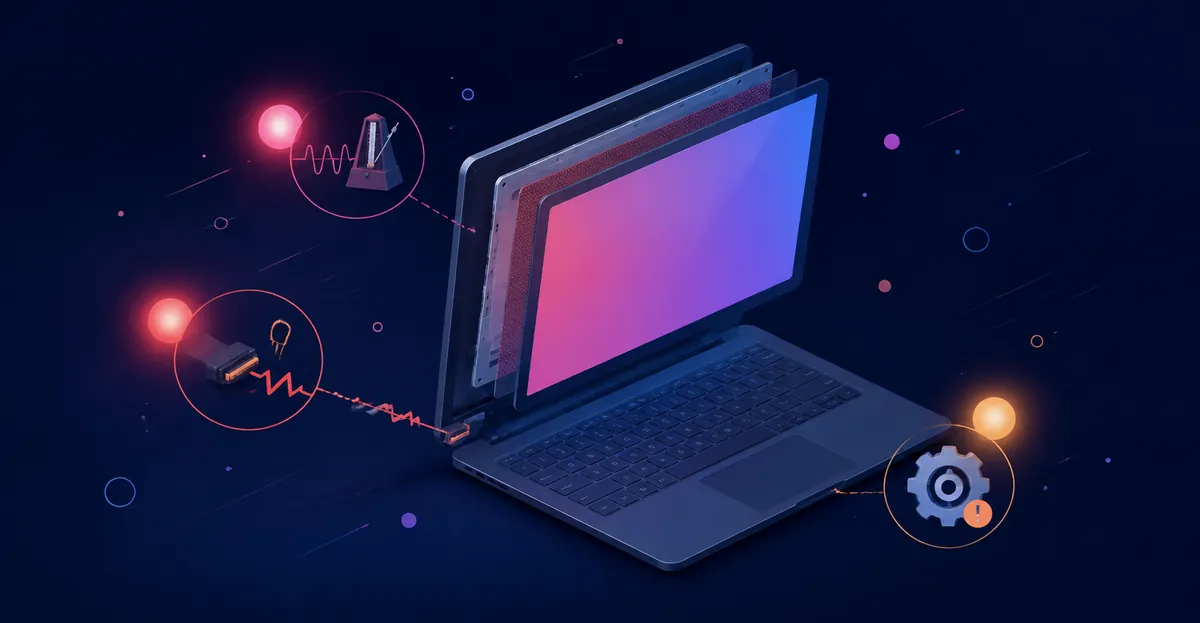
Before trying fixes, observe the flickering carefully:
- Flickers constantly: Likely a driver, refresh rate, or cable issue
- Flickers only during certain apps: Software conflict or GPU issue
- Flickers at specific brightness levels: Backlight or inverter issue
- Flickers when lid moves (laptops): Flex cable problem
- Flickers on external monitor too: GPU or graphics card issue
- Flickers in Safe Mode: Software or driver cause
- Flickers normally but not in Safe Mode: Confirms software cause
Microsoft's official Windows troubleshooting guide adds a faster test that saves time: open Task Manager with Ctrl + Shift + Esc and watch whether it flickers along with the rest of the screen (Microsoft Support — Troubleshoot screen flickering in Windows). If Task Manager stays solid while the desktop flickers, an incompatible app is the culprit. If Task Manager flickers too, the cause is almost always the display driver. The Task Manager test resolves the "is it hardware or software?" debate in seconds.
Solution 1: Update Your Graphics Drivers
Graphics drivers are the bridge between your operating system and display hardware. When they are outdated, corrupted, or incompatible, flickering is a common symptom.
For NVIDIA GPUs:
- Visit nvidia.com/Download
- Enter your GPU model or let it auto-detect
- Download the latest Game Ready or Studio driver
- Run the installer and choose "Express Installation"
- Restart your computer
For AMD GPUs:
- Visit amd.com/support
- Select your GPU series
- Download the latest driver
- Run the installer
- Restart your computer
For Intel Integrated Graphics:
- Visit intel.com/download
- Search for your processor's graphics driver
- Download and install the latest version
- Restart your computer
If flickering started after a driver update, roll back to the previous version through Device Manager (Right-click Start > Device Manager > Display adapters > right-click GPU > Properties > Driver tab > Roll Back Driver). For a fully clean reinstall, use Display Driver Uninstaller (DDU) from wagnardsoft.com in Safe Mode to strip every registry entry, shader cache, and profile config before installing the fresh driver — reboot, install from the chip maker's site (NVIDIA, AMD, or Intel), not Windows Update (rebootdoctor — Laptop Screen Flickering).
Solution 2: Check and Adjust Refresh Rate
An incorrect refresh rate is the second most common cause of flickering.
On Windows:
- Right-click the desktop and select Display settings
- Scroll down and click Advanced display settings
- Check the refresh rate dropdown
- Select 60Hz (or the highest available that matches your display's native rate)
- Click Apply
If 60Hz still flickers, try 59Hz or 50Hz. Some displays have compatibility issues with 60Hz that these alternatives resolve.
On macOS:
- Go to System Settings > Displays
- Hold Option + click Scaled
- Select a different refresh rate
- Observe whether flickering stops
On laptops with Intel graphics, an extra Intel-specific setting can eliminate power-saving flicker: open the Intel Graphics Command Center and turn off Panel Self-Refresh under Power. This setting toggles the panel during idle to save battery and is a documented cause of intermittent flicker on Intel-based Ultrabooks (Geek After Dark — Laptop Screen Flickering Fixes).
Solution 3: Reseat Display Cables
Loose cables cause flickering that changes with movement. This is especially common on laptops (flex cable at the hinge) and desktop monitors (loose internal ribbon cable).
For Desktop Monitors:
- Power off the monitor
- Unplug the cable at both ends (monitor and computer)
- Inspect the cable for visible damage
- Replug firmly at both ends
- Try a different cable type (HDMI vs DisplayPort vs DVI)
- If possible, test with a different cable
For Laptops:
- Power off and unplug the laptop
- Remove the screen bezel carefully
- Locate the flex cable connection at the back of the screen
- Unplug and firmly reconnect
- If the cable shows visible damage or wear, it needs replacement
The tilt-and-watch test is the simplest way to confirm a flex cable problem: tilt the laptop lid back slowly and watch the screen. If the flicker pattern changes with the angle, the display cable is wearing out at the hinge — software fixes will not help (rebootdoctor — Laptop Screen Flickering). Internal flex cable replacement typically costs $15-40 in parts and 30-90 minutes of disassembly.
Solution 4: Adjust Power Management Settings
Windows power settings can cause flickering by adjusting display brightness or refresh rate during use.
- Right-click the desktop > Display settings
- Click Additional power settings
- Select High Performance or create a custom plan
- Expand Display > Enable PCI Express > Link State Power Management: Off
- Expand Display > Adaptive brightness: Off
For laptops that flicker on battery but not on AC power, the cause is almost always the power plan. Open Control Panel > Power Options > Change Plan Settings > Change Advanced Settings, then turn off "Display Power Savings" or set "Panel Self-Refresh" to Off. The GPU throttles aggressively on battery to save power, and that throttle is what produces the flicker.
A related cause on laptops is the AC adapter itself. When a charger cannot supply stable voltage, the laptop rapidly toggles between Battery Saver and High Performance modes, switching the display's power delivery dozens of times per second and producing visible flicker. Test by unplugging the charger; if flicker stops, replace the charger immediately — a failing adapter can damage the motherboard.
Solution 5: Disable Hardware Acceleration in Apps
Some applications cause flickering through hardware acceleration conflicts.
In Google Chrome:
- Go to Settings > System
- Turn off Use hardware acceleration when available
- Restart Chrome
In Other Applications:
Look for Settings or Preferences > General or Performance > Disable hardware acceleration.
For Microsoft Office apps that lack a hardware acceleration toggle, ASUS's official troubleshooting guide documents a registry workaround: open the Registry Editor, navigate to the Office application's Graphics key, create a new DWORD value named DisableHardwareAcceleration, set its value to 1, and restart (ASUS Support — Screen Flickering Troubleshooting). For apps that ignore registry flags, switching the BIOS hybrid-graphics mode to "discrete only" prevents the GPU switch that triggers the flicker.
Solution 6: Test for Software Conflicts
Flickering that disappears in Safe Mode is caused by software. To test:
- Windows: Restart > Settings > Recovery > Restart now (under Advanced startup). Choose Troubleshoot > Advanced options > Startup Settings > Restart > Safe Mode
- macOS: Restart and hold Shift during boot
If flickering stops in Safe Mode, a startup program or service is causing the issue. Disable non-essential startup programs through Task Manager (Windows) or System Preferences > Users & Groups > Login Items (macOS). A clean boot is the systematic version of the same test: press Win + R, type "msconfig", go to the Services tab, check "Hide all Microsoft services", click "Disable all", then disable startup items in Task Manager, and restart. If flickering stops, gradually re-enable services one at a time to find the offending program.
Solution 7: Check Display Scaling Settings
Incorrect display scaling causes flickering on many Windows laptops.
- Right-click the desktop > Display settings
- Under Scale, select the recommended percentage
- If using a custom scale, try reverting to 100%
- Check if a specific display resolution causes flickering — switch to the native resolution
When a non-100% scale is set, applications that don't respect the system's DPI awareness may render incorrectly and produce flicker. Right-click the application's shortcut > Properties > Compatibility > Change High DPI scaling override, and select "System" or "System (Enhanced)" to force the app into the same scaling path as the OS.
Solution 8: Update Your Operating System
Operating system updates include display driver improvements and bug fixes.
- Windows: Settings > Windows Update > Check for updates
- macOS: System Settings > General > Software Update
If flickering began within days of a major OS update, the cause is almost always the OS change — Microsoft and Apple both ship display-related fixes in subsequent patches, so installing the latest cumulative update resolves the majority of these cases within two to three weeks. If flickering persists past that window, rolling back the update (Windows) or reinstalling macOS becomes a reasonable next step.
Solution 9: Professional Hardware Repair
If flickering persists after all software fixes, the hardware needs attention.
Flex Cable Replacement (Laptops)
Flickering that changes with lid angle is almost always a flex cable issue. Cable replacement costs $50-100 for parts and labor. The repair takes 30-60 minutes.
Display Panel Replacement
If the panel itself is failing (flickering that never changes regardless of movement or settings), screen replacement is needed. See our guide to screen flickering for specific brand recommendations.
GPU Repair or Replacement
If flickering appears on external monitors too and all software fixes fail, the graphics card may be failing. GPU repair costs $100-300; replacement costs $200-800 depending on the card.
For laptops with discrete GPUs, GPU failure often means the entire motherboard needs replacement ($300-800), which can approach the cost of a replacement device on older hardware. A GPU stress test (FurMark, 3DMark) confirms the diagnosis: if artifacts or driver crashes appear under load while the system is cool, the GPU is failing and no software fix will help.
How Manufacturers Define Acceptable Defect Thresholds
Manufacturers do not publish exact flicker failure rates. What they do publish — or historically followed — are pixel-defect tolerance classes. The most-cited reference is ISO 13406-2:2001, which classified flat-panel displays into four Pixel Fault Classes based on the maximum number of defective pixels per million (Wikipedia — ISO 13406-2). The standard was withdrawn in November 2008 and replaced by ISO 9241-307:2008, which shifted from rigid thresholds to ergonomic acceptance criteria — effectively letting each manufacturer set its own tolerance.
For flicker specifically, no equivalent numerical standard exists. Apple, Dell, HP, and Lenovo each define their own acceptable behavior in internal QA specifications that are not published. The practical threshold used by independent repair shops is simple: if the user can see the flicker under normal lighting without effort, it is a defect regardless of class.
Apple ran a free repair program for MacBook Pro 13-inch (2016) Flexgate and display backlight issues from May 2019 through May 2022 (Apple Support — 13-inch MacBook Pro Display Backlight Service). The program ended and is no longer active. The 15-inch models with identical symptoms were never officially covered, and Apple does not currently list a replacement program for Flexgate-style flicker.
Dell standard warranty is one year; Premium Support and ProSupport extend coverage and add on-site service. Hinge and cable wear is generally classified as wear and tear after the first year and is rarely covered unless the device is still in the original warranty window.
HP Pavilion and EliteBook lines ship with a one-year limited warranty. HP's published pixel-defect spec typically follows ISO 13406-2 Class II tolerances. Hinge cable wear is treated the same way as Dell — covered only while in the original warranty.
Lenovo ThinkPad lines ship with a one-year base limited warranty covering manufacturing defects; Accidental Damage Protection can be added at purchase. Hinge and cable wear from normal use falls in a grey zone — covered if a defect caused the failure, out of pocket if classified as wear (Lenovo — Warranty Entitlement FAQ).
Repair Cost Ranges by Device Type
Repair costs vary widely by device and root cause. The figures below are drawn from independent repair shops, manufacturer service programs, and customer reports published in 2025 and 2026 — manufacturers do not publish official price lists for out-of-warranty repair, so these are real-world quotes, not list prices.
| Repair | Typical Cost Range | Notes |
|---|---|---|
| External HDMI / DisplayPort cable (replacement) | $5 – $25 | General retail |
| Internal laptop flex cable (parts only) | $15 – $40 | iFixit parts store |
| Standard 15.6-inch FHD laptop panel (installed) | $120 – $250 | Common laptop repair (Laptop Screen Repair Cost 2026) |
| Touchscreen, high-resolution, or gaming panel | $250 – $450 | Touchscreen adds digitizer cost |
| OLED or bonded display assembly (MacBook, premium ultrabook) | $350 – $700+ | Lid assembly, not separate panel |
| CCFL backlight inverter (older monitors) | $10 – $30 | LED monitors do not have inverters |
| MacBook display assembly (Apple out-of-warranty) | $455 – $900+ | Parts plus labor (Absolute Circuits — Flexgate Repair) |
| MacBook Pro 2016-2018 Flexgate micro-soldering (third-party UK) | £149 – £449 | Third-party micro-soldering route (celltech — MacBook Flexgate Repair Guide) |
| Dell XPS OLED / Precision 4K display assembly | $300 – $600+ | Premium panel |
| Generic laptop screen replacement (any brand) | $100 – $800 | Wide range by brand |
| GPU repair (laptop discrete) | $100 – $300 | Often requires motherboard replacement |
| GPU replacement (laptop) | $300 – $800 | Full motherboard assembly |
| External GPU (eGPU) replacement | Standalone unit cost | Only viable on supported laptops |
Cable reseating and driver fixes are free; cables and inverters are the cheapest hardware repairs; full display assemblies and logic boards sit at the top of the range and can approach the cost of a replacement device on older hardware. As a general rule, if the complete repair quote approaches half the price of a comparable replacement laptop, replacement becomes the more economical choice (My Second Monitor — When to Replace a Failing Laptop Screen).
How to Document Flickering for a Warranty Claim
Before visiting a repair shop or contacting manufacturer support, document the flickering pattern in a way a technician can act on. Most warranty claims are denied because the user cannot reproduce or describe the issue clearly enough to confirm it is a defect rather than user error.
- Record the trigger conditions. Note when the flicker appears — which app, which brightness level, which lid angle, AC vs battery, after how many minutes of use.
- Capture video evidence. Use a phone camera at 60fps or higher pointed at the screen. Standard 30fps video often misses fast flicker entirely. Slow-motion mode on modern phones works.
- Test with an external monitor. Run the same workload on an external display and confirm whether the external monitor also flickers. This single test separates panel/cable issues from GPU/driver issues.
- Run the Task Manager test. Record whether Task Manager flickers with the rest of the screen (driver issue) or stays steady (app issue).
- Note the device's uptime. Many flickering patterns only appear after 10-30 minutes of operation, when the GPU or panel warms up. Document how long the device was on before flicker started.
- Gather system information. Device model, GPU model, current driver version, OS version, refresh rate set in display settings. Repair shops and manufacturer support agents all ask for this information first.
- Save the diagnostics logs. For Windows: run
dxdiagand save the report. For macOS: open Console.app and export system logs covering the period when flicker occurred.
Documentation like this shortens the diagnostic loop dramatically. Many shops charge a diagnostic fee ($50-100 is typical) and credit it toward the repair; clear documentation means the technician confirms the cause on the first pass rather than running through the same software checklist you already completed.
Prevention Tips
- Keep graphics drivers updated (check every 1-2 months)
- Use a stable, quality power source
- Avoid running displays at non-native resolutions
- Handle laptop cables and hinges carefully
- Monitor temperatures during gaming or GPU-intensive tasks using tools like MSI Afterburner or HWMonitor
A surge protector (cost $20-40) protects both the GPU and monitor power supply from power surges that can cause permanent damage. Always carry laptops from the bottom, not by the lid or screen edge — repeated one-handed carrying puts stress on the hinge and the flex cable routed through it. Schedule periodic screen tests every 3-6 months to catch early signs of display degradation before it becomes severe.
Related Guides
- Screen Flickering: Causes and Solutions: Comprehensive guide to flickering diagnosis
- Dead Pixel Diagnosis: Distinguish dead pixels from flickering artifacts
- Green Line on Screen: Green line issues share similar causes
- Black Line on Laptop Screen: Black line diagnosis and repair
- Screen Test Tool: Free tool to systematically test your display
Conclusion
Resolving screen flickering starts with the fastest, most likely fixes: update your graphics drivers, check the refresh rate, and reseat display cables. These three steps resolve the majority of flickering cases. If flickering persists, move on to power management settings, hardware acceleration conflicts, and display scaling adjustments. Persistent flickering that does not respond to software fixes indicates a hardware issue — flex cable, display panel, or GPU — that requires professional repair. Always document the flickering pattern (when it occurs, what triggers it, whether it changes with movement) before visiting a repair shop so the technician can diagnose efficiently.
Run the screen test tool to confirm your display's current state after the fix.