A black spot screen problem is a fixed dark area that stays dark while the image around it changes. This guide separates dead pixels from LCD pressure bruises and OLED dark regions, then walks through computer monitors, Dell laptops, and phone corners with concrete checks you can run in minutes.
Black Spot Screen: Causes by Device & How to Diagnose
A black spot screen defect is not one single fault. The same dark mark can be a failed pixel transistor, a crushed liquid-crystal cell, a dead OLED region, or something as simple as debris on the glass. Choosing the wrong “fix” wastes time and can enlarge real panel damage.
This article focuses on diagnosis by device type and defect shape. You will learn how a display black spot differs from dirt, how an LCD screen black spot forms inside the panel stack, why PC and Dell laptop spots often track to pressure or manufacturing pixel failure, and why a black spot in the corner of a phone so often means physical layer damage rather than an app glitch.

What a Display Black Spot Actually Is
A display black spot is any localized region that fails to emit or transmit light the way neighboring pixels do. On a solid white field it looks like pepper, ink, or a bruise. On a black field a true dead pixel nearly disappears, while some pressure marks and coating defects stay faintly visible depending on angle.
Three mechanisms dominate real-world reports across repair shops and panel manufacturers:
| Pattern | Likely cause | Software can help? |
|---|---|---|
| Tiny sharp black dot, one pixel wide | Dead pixel (TFT/subpixel failure) | No |
| Colored fixed speck | Stuck subpixel | Sometimes (color cycling) |
| Fuzzy blotch, often >2 mm, irregular edge | Pressure / liquid-crystal disruption | No |
| Spreading ink-like patch after drop | Internal LCD/OLED layer rupture | No — replace panel |
| Spot gone after wipe | Surface dirt / fiber | Cleaning only |
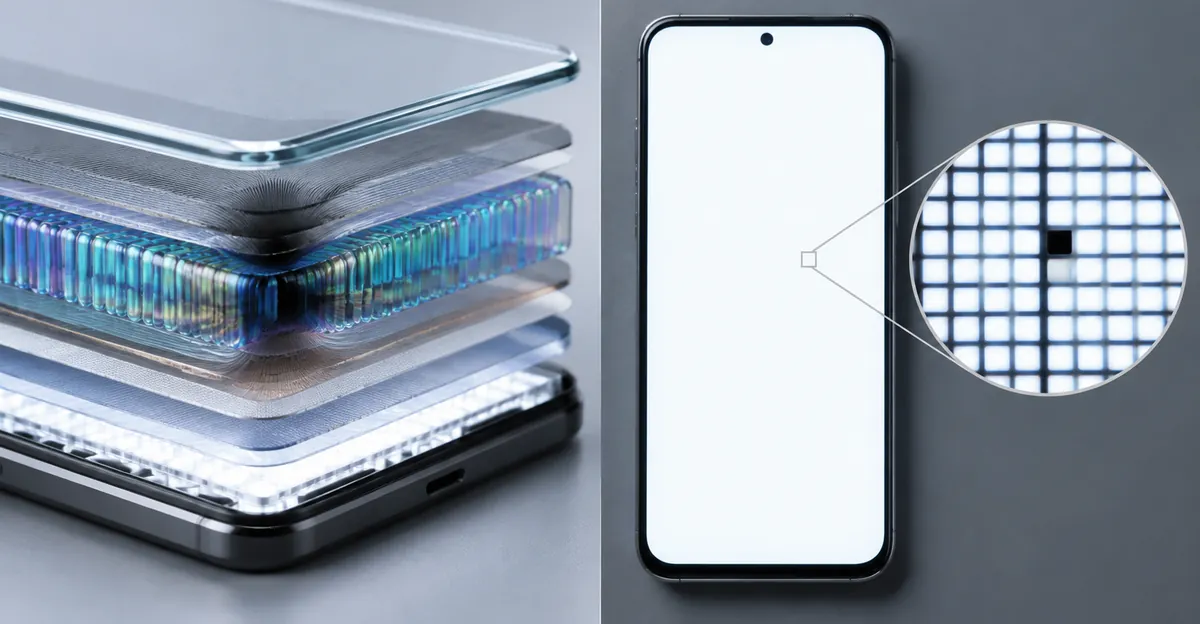
Industrial LCD references describe the liquid-crystal layer as only a few micrometers thick—on the order of 3–5 μm. Modest local force can displace the alignment layer and create a dark patch with soft edges, sometimes with a faint rainbow halo when viewed off-axis. That is a different failure mode from a dead pixel, which is a failed transistor that never drives that pixel again.
OLED phones add another pattern: a region of self-emissive pixels that no longer light. The glass may be intact while that region stays fully black. Functionally you still treat it as panel damage: replacement, not an app.
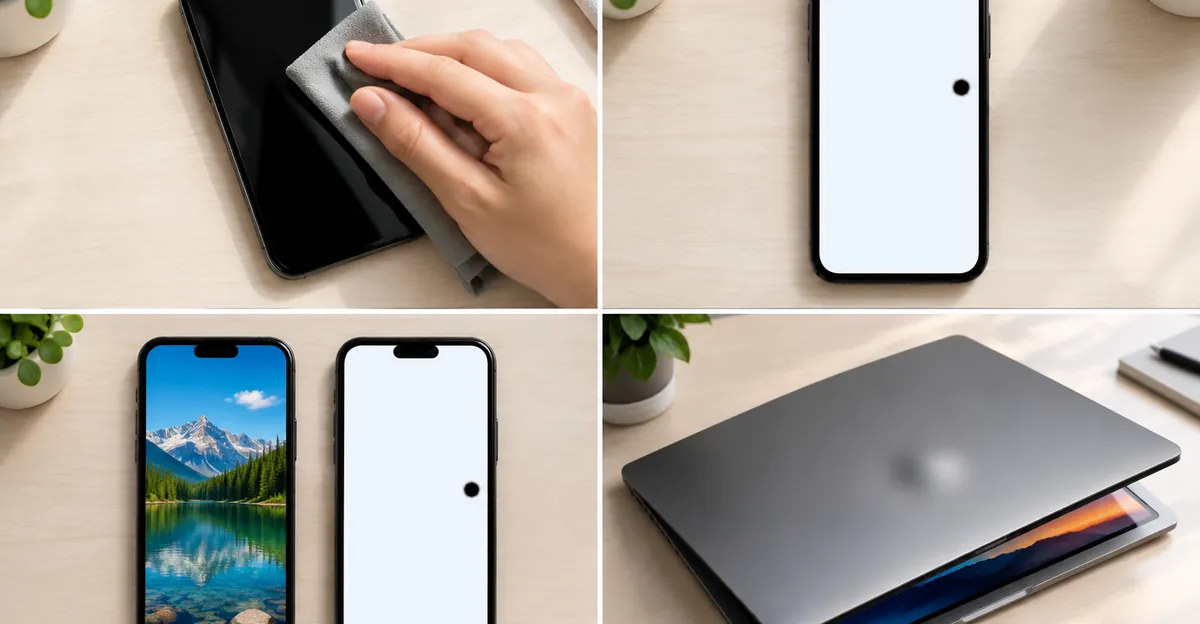
Rule out non-panel causes first. Dust, dried residue, and a dirty protector mimic black dots. Soft microfiber cleaning with light pressure is the first step on every device. Then take a screenshot while the spot is visible and open that image on another screen. If the spot is missing from the screenshot file, the defect is on the physical display. If the spot appears inside the screenshot, investigate GPU/driver/overlay issues—rare for a fixed black mark, but worth one check.
For a deeper overview of related spot types (white, bright, colored), see our display spots guide and the general black spots overview. This page goes deeper on keyword-specific device paths.
LCD Screen Black Spot vs OLED and Dead Pixels
An LCD screen black spot usually comes from one of three places inside or on the stack: the TFT that drives a pixel, the liquid-crystal cell gap, or the backlight path behind that region.
Dead pixel path. Each LCD pixel is gated by a thin-film transistor. When that transistor fails open, the pixel cannot pass backlight correctly and reads as black on bright content. The defect is typically square to the pixel grid, one pixel (or a tight cluster) in size, and identical on white, red, green, and blue solid fields. Pixel-fixing utilities that flash colors cannot revive a transistor that is electrically dead.
Pressure / bruise path. External force compresses the LC layer. Sources include closing a laptop on a pen, squeezing a phone in a pocket, or pressing a monitor while cleaning. Early elastic displacement may improve within roughly 24–72 hours if the alignment layer was not scraped. Once the cell gap or alignment layer is permanently altered, the blotch stays and can darken or grow. Repair literature and panel vendors consistently warn against “massage,” heat guns, or hard rubbing as DIY cures—those gestures turn a small bruise into a larger failure zone.
Dirt path. Fibers and dried oils sit on the outer glass or under a film protector. They move or vanish with cleaning and change appearance with viewing angle more than a dead pixel does.
Backlight path (less common as a tiny spot). Localized backlight failure can darken a zone, but it more often presents as a larger dim region than a pinhead black dot.
OLED differs because there is no separate backlight: damaged emissive material simply stays dark. Stuck-pixel color cycling tools still only help when a subpixel is stuck on, not when material is destroyed. If you are unsure whether you have LCD or OLED, check the device specs; the diagnostic solid-color workflow is the same either way.
Compare against bright or white defects when the mark glows on dark backgrounds—that is a different family covered in LCD bright spots and white spot guides. A black spot screen issue stays dark on light backgrounds.
Quick LCD diagnosis checklist
- Clean the glass and remove any thick protector temporarily.
- Display full-screen white for 30 seconds in a dim room.
- Switch to red, green, blue, then black.
- Note size, edge sharpness, and whether the mark moves with angle.
- Document with a phone photo of the solid-color screen for warranty tickets.
If the defect is one sharp black pixel on every color, treat it as a dead pixel. If it is a soft blotch after pressure, treat it as panel damage and skip force-based “fixes.”
Black Spot on Computer Screen and PC Screen: Causes and Checks
A black spot on computer screen or black spot on pc screen searches usually map to desktop monitors or all-in-one displays. Users often ask why is there a black spot on my computer screen after noticing a pepper-like dot on a white document or browser page.
Manufacturing dead pixels. Large panels ship with millions of pixels. A single failed pixel is statistically expected on some units. Vendor pixel policies decide whether one black pixel qualifies for warranty replacement; policies vary by brand and region. Document the defect early while return windows are open.
Pressure and mounting. Pushing on a IPS or VA panel while adjusting a monitor arm, packing a screen face-down without foam, or cleaning with hard pressure creates bruise-type black spots. Gaming and ultrawide panels with thin stacks are especially sensitive. Manufacturer support tips from display brands increasingly advise against pressure and heat “pixel tricks” on modern 2K/4K and curved panels because they escalate damage.
Cable and GPU confusion. A GPU artifact usually flickers, moves with content, or appears as lines/tearing—not a fixed black pin. Still, one useful check is connecting a second input source (another PC or laptop HDMI/DisplayPort). If the black spot stays in the same panel location with a different computer, the monitor panel is the culprit. If it disappears, investigate the original GPU, cable, or OS overlay.
Cleaning and environment. Smoke residue and dust look worse under bright office lighting. Clean before you escalate to RMA language.
Monitor-focused action order
- Wipe with microfiber; avoid liquid pooling at the edges.
- Run solid colors via our Screen Test tool full-screen.
- Swap video cable and input PC once.
- Photograph white and red screens for the seller ticket.
- Check the monitor’s dead-pixel policy before attempting any DIY pressure.
Why is there a black spot on my computer screen after a move or desk reorganization? Look for recent mechanical stress: a clamp tightened against the panel, a backpack strap pressed against a portable monitor, or a child poking the display. Those histories favor pressure damage over a sudden spontaneous dead pixel—though both remain possible.
Living with a single peripheral dead pixel is reasonable for many users. A growing blotch in the center of a work monitor is a productivity and warranty issue: replace or RMA rather than ignore it until the dark zone expands.
Black Spot on Laptop Screen Dell: Pressure, Lid, and Warranty
A black spot on laptop screen Dell is one of the highest-volume brand-specific queries in this topic cluster. Dell notebooks (XPS, Inspiron, Latitude, and others) share the same panel physics as other laptops, but warranty outcomes depend heavily on how Dell classifies the damage.
Common physical scenarios. Closing the lid on a USB drive, pen, earbud case, or folded paper creates a pressure point that maps to a black blotch—often with radiating lines from the impact point. Backpack compression against a charger brick next to the lid is another frequent pattern in community reports. The outer glass can remain unscratched while the LCD substrate shows “broken substrate” black spots internally.
Dead pixels vs accidental damage. A solitary manufacturing dead pixel may fall under Dell’s pixel guidelines and limited hardware warranty when it meets the policy threshold. Dell’s support documentation on damages not covered by base support lists LCD black spots (broken substrate), pressure marks on LCD, and surface abrasion from external pressure among examples of accidental or misuse-related damage. Those cases typically require Accidental Damage Service (or equivalent Care add-on) or out-of-warranty paid repair.
What to do on a Dell before you call support.
- Note the Service Tag and open Dell’s support site to see active entitlements.
- Capture solid-color photos showing the black spot size and location.
- Be precise: “single pixel black dot present since unboxing” versus “blotch after backpack travel” leads to different coverage paths.
- Avoid pixel-fixing apps or pressing the spot if you still hope for warranty goodwill—some vendor guidance warns that aggressive DIY can be treated as misuse.
For laptop-general symptoms beyond Dell branding, see laptop screen black spots. For Mac-specific pressure patterns from thin lids, compare Mac black spots.
Replacement cost ranges widely by panel type (touch, OLED, high-res). Quote a local authorized repair or Dell parts estimate before writing the machine off. A mid-age Latitude or Inspiron with a healthy battery often justifies a panel swap; a failing hinge plus a cracked panel stack may not.
Dell checklist table
| Observation | Likely Dell classification | Next step |
|---|---|---|
| One tiny black pixel, no impact history | Possible manufacturing defect | Pixel policy + Limited Hardware Warranty |
| Soft blotch after lid closed on object | Accidental / pressure | Accidental Damage or paid panel |
| Black spots + vertical lines from a point | Impact / substrate damage | Accidental Damage or paid panel |
| Spot only with one user account / app | Software overlay | Safe Mode / clean boot test |
Black Spot in Corner of Phone: Why Corners Fail First
A black spot in corner of phone is the highest-volume phone-side keyword in this brief for a reason: corners concentrate mechanical stress. Drops land on corners. Cases transfer clamp force into corner bezels. Pockets fold phones so a corner takes the load when you sit down.
Mechanically, corner impact drives energy into the display stack even when the outer glass survives. LCD liquid crystal can rupture locally and look like an ink blot starting at the corner and creeping inward. OLED emissive layers can go dark in a wedge or blob from the same corner. Touch sampling sometimes fails in the same zone, which is a strong panel-damage signal.
Not every corner spot is a drop. Tight jeans, magnetic wallet attachments that twist the frame, and over-tight cases appear repeatedly in repair write-ups. Overheating is a secondary contributor; heat alone rarely creates a sharp corner blotch without mechanical assist.
What corner location tells you diagnostically.
- Corner + irregular spreading edge → treat as physical panel damage; skip massage.
- Corner + single sharp pixel → still could be a dead pixel that happens to sit in the corner; confirm with solid colors.
- Corner + spider lines radiating → classic impact signature; plan replacement.
Do not flex the phone trying to “pop” the spot back. Flexing can extend delamination. Back up the device early if the spot is growing—touch failure or a larger black region can arrive suddenly after another pocket day.
Related mobile spot patterns (white, colored) live under mobile spots and mobile white spots. Use those when the defect glows or shifts color rather than staying black.
What Is the Black Spot on My Phone Screen
What is the black spot on my phone screen? In plain terms it is a region of the display that no longer produces the correct light. The underlying label depends on tests:
Dead or clustered dead pixels. Stay black on white/red/green/blue. Size matches the pixel grid. Common on both LCD and OLED phones, though modern high PPI panels make single pixels harder to see—clusters read as a small pepper spot.
Pressure bruise / internal crack without glass break. Soft edges, may show rainbow sheen, often expands. Outer glass looks fine. Screenshot test confirms it is on-device hardware.
Liquid damage. Can create dark irregular patches and corrosion trails; often paired with other symptoms (boot loops, charging faults). Not a DIY wipe-away issue.
Software / overlay (uncommon for true black hardware spots). Blue-light filters, accessibility masks, or buggy screen-recording overlays can tint regions. Restart and Android Safe Mode clear third-party overlays. If the spot remains on the lock screen and in Safe Mode, it is hardware.
Manufacturer community threads (especially Samsung OLED discussions) frequently warn that black stains can grow and take more of the screen offline. That matches repair-shop advice: photograph early, stop pressing, and schedule panel service if the region expands day to day.
Phone identification mini-table
| Test result | Interpretation |
|---|---|
| Spot missing from screenshot file | Physical display defect |
| Spot present in screenshot | Image pipeline / software — investigate apps |
| Gone in Safe Mode | Third-party overlay or app |
| Grows over days | Panel damage progression → replace |
| Tiny fixed black speck on all colors | Dead pixel cluster |
If you only needed a short definition: the black spot is almost never “dirt inside the software.” It is a physical or pixel-level failure until proven otherwise by Safe Mode and screenshot checks.
How to Fix Black Spots on Phone Screen
How to fix black spots on phone screen depends entirely on the class you identified above. Use this staged approach; stop when a stage matches your defect.
Stage A — Safe, always do these
- Power off, clean glass with microfiber, remove case and tempered glass temporarily.
- Restart. On Android, boot Safe Mode and check the lock screen and a white image.
- Install pending OS updates only if you already ruled out an expanding hardware blotch (updates will not heal panel ruptures).
- Run solid white/red/green/blue fields—browser-based tools or our Screen Test on mobile browsers work when fullscreen is allowed.
Stage B — Only for suspected stuck pixels
If the speck is colored or sometimes flickers rather than a dead black blotch, limited color-cycling (browser pixel fixers) for 10–30 minutes is a low-risk experiment. Firefold Repair and similar guides stress that cycling will not fix dead pixels or fractured panel layers. Treat it as a test, not a cure. Never combine cycling with hard thumb pressure on modern OLED phones.
Stage C — Hardware path
If the mark is an irregular black patch, a corner bruise, or a dead pixel that bothers you:
- Check remaining manufacturer warranty and accidental coverage.
- Prefer authorized screen replacement for water resistance and true-tone calibration on flagship phones.
- Avoid heat, alcohol flooding into the bezel, or “press with a cloth until it clears” advice for ink-like spots—repair blogs that still mention gentle pressure limit it to stuck-pixel speculation and warn it can worsen LCD damage.
Stage D — Living with it
A single peripheral dead pixel on a phone can be ignored if it does not grow. Reassess weekly with the same white screenshot photo. Growth of more than a millimeter or new touch dead zones means stop waiting.
Cost reality: phone screen assemblies often dominate repair quotes. Compare that quote to device value. Mid-range phones sometimes are not worth OEM OLED replacements; flagships under warranty usually are.
Diagnose With a Solid-Color Screen Test
Guessing from a wallpaper wastes time. Solid colors remove image detail so defects pop.
Open the Screen Test tool on the device under test. Cycle white (best for black spots), black (dead pixels vanish; bright defects appear), then red, green, and blue (stuck subpixels). Hold each color for at least ten seconds. Note:
- Exact location (corner, center, edge)
- Approximate size relative to a known UI element
- Whether edges are sharp or fuzzy
- Whether the spot changes with viewing angle
Repeat after cleaning. Save photos dated for warranty. If you are comparing laptop versus external monitor, test each panel separately so you do not mis-attribute a GPU issue.
Pair this page with the dead pixel guide when the defect is a single grid-aligned black cell, and with laptop screen black spots when the device is a clamshell notebook rather than a phone or desktop monitor.
Repair vs Replace: When to Stop DIY
Stop DIY when any of the following is true:
- The black region is spreading or darkening across days.
- Touch input fails over the spot.
- Lines radiate from a corner impact point.
- You already tried cleaning, restart, Safe Mode, and solid-color confirmation.
- The device is under a time-limited return window—use it.
Continue careful observation (no pressure experiments) when:
- You have one tiny dead pixel away from primary content.
- Dirt was the actual cause and cleaning removed it.
- A very fresh mild pressure mark is less than a day old and not spreading—recheck at 48–72 hours without poking it.
Replacement is the honest end state for most permanent black spot screen defects caused by panel damage. Software cannot rewrite a crushed LC cell or a dead OLED region. The value of this guide is matching your symptom to the right bucket so you do not spend a week on pixel apps while a corner blotch doubles in size.
Sources and further reading
- LCD black-spot mechanisms (dead pixel vs dirt vs pressure): Jictech LCD black spots overview
- Phone black-spot staging and when replacement is required: Firefold Repair phone black spots guide
- Dell base-support exclusions including LCD black spots and pressure marks: Dell support KB on damages not covered
- Monitor dead/stuck pixel check guidance: KTC support — check monitor for dead pixels