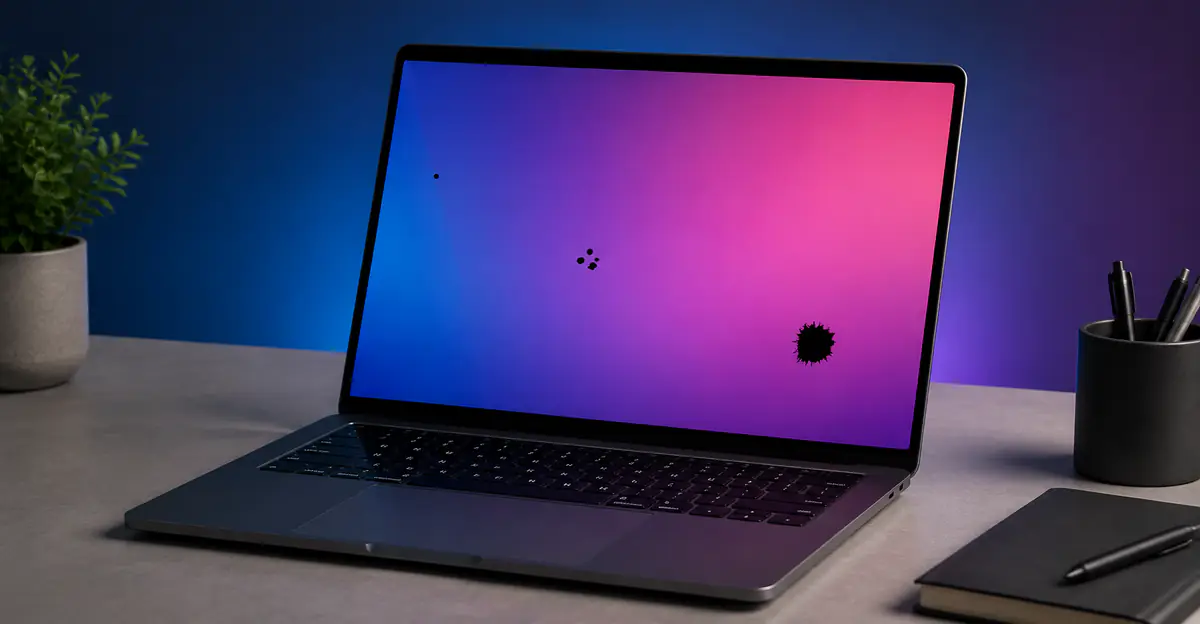
Black spots on laptop screen are a common concern among laptop users. These dark areas can appear suddenly or develop over time, and they can significantly impact your viewing experience.
Why Does My Laptop Screen Have Black Spots
Black spots on your laptop display are more than just an eyesore — they can indicate underlying hardware problems that may worsen over time if left unaddressed. Understanding the root cause helps you determine whether a simple fix is possible or if professional repair is necessary, saving both time and money in the process.
Symptoms of Black Spots on Laptop Screen
Black spots on your laptop display can appear in various forms:
- Single pixel black spots: Tiny dots that are exactly one pixel in size
- Clustered black spots: Groups of dead pixels that form a larger dark area
- Pressure marks: Larger irregularly shaped dark areas, often near edges or corners
- Dust spots: Dark spots that appear to move slightly when you tilt the screen
Each type of black spot has different causes and potential solutions. Identifying the exact type of black spot helps determine the best course of action. In most cases, the location and behavior of the spot provide enough clues to narrow down the cause without professional equipment.
Most Common Causes
Dead Pixels
The most common cause of black spots on laptop screens is dead pixels. A dead pixel occurs when the liquid crystal in a specific pixel no longer responds to electrical signals, causing it to appear permanently black.
According to display manufacturer support documentation, dead pixels can result from:
- Manufacturing defects
- Physical shock or vibration
- Extended use leading to component wear
- Heat damage
Dead pixels are permanent and cannot be repaired with software. Each pixel is an independent component, so one dead pixel does not affect others.
Physical Pressure Damage
Closing your laptop with force, placing heavy objects on the screen, or applying pressure to the display can damage the LCD layer. This type of damage typically appears as larger, irregularly shaped black spots near the edges of the screen.
Common causes of pressure damage include:
- Closing the laptop with a pen or object on the keyboard
- Carrying the laptop in a bag with loose items
- Pressing on the screen while cleaning or pointing
- Dropping the laptop (even from short distances)
HP support documentation notes that pressure damage is one of the leading causes of screen defects in laptops.
Dust and Debris Under the Screen
Small particles that become trapped between the display panel and the protective layer can appear as black spots. These spots may be visible on all backgrounds but often become more or less noticeable depending on the display color.
Dust spots can enter through:
- Vents near the screen hinges
- Damage to the screen bezel seal
- Improper screen assembly or repair
- Opening the laptop in dusty environments
Panel Delamination
Over time, the layers of an LCD display can begin to separate, a process known as delamination. This can create dark or discolored areas that may appear as black spots. Delamination is more common in older laptops or those exposed to heat or humidity.
Cable Connection Issues
In some cases, black spots can result from loose or damaged display cables connecting the screen to the laptop's motherboard. This type of issue may cause flickering, color distortions, or intermittent black spots that come and go.

How Manufacturers Define Acceptable Defect Thresholds
Understanding manufacturer warranty policies for pixel defects can save you hundreds of dollars. Most laptop and monitor manufacturers reference the ISO 9241-307 standard (formerly ISO 13406-2) when determining whether a display qualifies for warranty replacement.
The ISO 9241-307 standard classifies display defects into three types:
- Type 1 (Hot pixel): Always on, appearing as a bright white dot
- Type 2 (Dead pixel): Always off, appearing as a permanent black dot
- Type 3 (Stuck pixel): One or more sub-pixels stuck on a single color
The standard defines four defect classes. Most consumer laptop panels are manufactured to Class II, which permits:
| Defect Type | Maximum per 1 Million Pixels |
|---|---|
| Type 1 (Hot pixel) | 2 |
| Type 2 (Dead pixel) | 2 |
| Type 3 (Stuck pixel) | 5 |
| Cluster of Type 1 or 2 | 0 (no clusters allowed) |
| Cluster of Type 3 | 2 |
For a standard 1920 x 1080 (Full HD) display with approximately 2 million pixels, this works out to roughly 2 dead pixels, 2 hot pixels, and 5 stuck sub-pixels before the panel is considered defective under Class II.
However, individual manufacturers often apply stricter policies for premium product lines. According to data compiled by deadpixel.tools, the policies vary significantly by brand:
- Dell standard monitors follow ISO 9241-307 Class II, requiring roughly 6 or more dark sub-pixel defects for replacement. However, Dell's Premium Panel Guarantee (PPG) on UltraSharp, Professional, and select Alienware monitors offers zero-tolerance for bright (hot) pixels — even a single bright pixel qualifies for replacement under PPG during the warranty period. Note that PPG does not cover dead pixels (dark dots).
- HP typically follows ISO 9241-307 Class II for consumer products, with thresholds around 5 defects for standard panels. Business-class Z-series monitors and HP DreamColor panels apply stricter criteria.
- Lenovo consumer policy activates at 3 bright sub-pixel defects or 5 dark sub-pixel defects. ThinkPad and ThinkVision Pro lines apply a zero-bright-pixel policy on qualifying models.
- Apple evaluates dead pixel cases on a case-by-case basis at the Genius Bar with no published threshold. Premium MacBook Pro displays are held to a higher standard in practice.
- Samsung follows ISO 9241-307 Class II with a typical threshold of 3 or more dead pixels, varying by panel size.
- ASUS follows ISO standards on consumer lines but offers stricter zero-defect policies on ProArt and ROG (gaming) monitors.
- LG typically requires 5 or more dead/stuck pixels combined for replacement under warranty.
Manufacturers do not publish exact failure rates, but repair communities such as iFixit and Reddit frequently report that isolated dead pixels on new laptops are common enough that many users successfully obtain replacements within the retailer's return window even when the manufacturer threshold is not met. Always check your specific product's warranty documentation rather than relying on general brand policies.
Repair Cost Ranges by Device Type
When black spots require professional repair or screen replacement, costs vary significantly based on the laptop model, screen type, and repair source.
Standard LCD Panels (Non-Touch)
For the most common 13 to 16 inch non-touch LCD panels found in mainstream Windows laptops and Chromebooks, screen replacement costs typically range from $80 to $350 total including parts and labor. Entry-level panels for older or budget models can be as low as $80 to $120, while premium non-touch panels for business laptops like ThinkPads or Dell Latitudes run $150 to $250 for parts alone.
- 13-14 inch standard LCD: $139 to $249 for parts and labor
- 15-16 inch standard LCD: $179 to $279 for parts and labor
- 17 inch gaming panels: $229 to $349 for parts and labor
Touchscreen and 2-in-1 Displays
Laptops with touchscreen capability require replacing both the glass digitizer and the LCD panel as a fused assembly on most models. This significantly increases repair costs:
- Touchscreen Windows laptops: $220 to $380 total
- 2-in-1 convertibles with fused glass/LCD: $280 to $480 total
- High refresh gaming IPS panels (120-240 Hz): $260 to $420 total
OLED, 4K, and Retina Displays
Premium display technology commands premium repair prices. OLED panels are structurally different from LCD — each pixel produces its own light, which means pixel-level defects can look different from LCD dead pixels. OLED screen replacements are significantly more expensive:
- OLED ultrabook panels: $350 to $650 total
- MacBook Air Retina / Liquid Retina: $280 to $450 at authorized service centers
- MacBook Pro 14/16 inch with Liquid Retina XDR: $500 to $800 depending on model year and parts source
- 4K / QHD workstation panels: $300 to $500 total
Professional Repair Labor
Independent repair shops typically charge $40 to $120 for diagnostic evaluation, plus $60 to $120 per hour for labor. Standard screen replacements take 1 to 3 hours. Authorized manufacturer service centers may charge a flat fee of $100 to $200 for the same work but use OEM parts and maintain warranty coverage.
When Repair Is Worth It
A widely used rule of thumb: if the total repair cost exceeds 40 to 50 percent of what a comparable new laptop costs, replacement is more economical. For a $700 mainstream laptop where a $280 screen replacement restores full function, repair makes strong financial sense. For a $400 budget laptop with a $300 screen replacement, the math is closer — consider the laptop's age, battery health, and whether other components are likely to fail soon.
How to Diagnose the Problem
Proper diagnosis helps determine the appropriate solution:
- Use the Screen Test Tool: Display full-screen solid colors to examine the black spots
- Check the size: Dead pixels are exactly one pixel (or three sub-pixels) in size
- Observe the behavior: Dust spots may shift slightly when you tilt the screen
- Note the location: Pressure damage typically appears near edges
- Check for changes: Dead pixels are permanent; pressure marks may fade slightly over time
- Test with different backgrounds: See how the spots appear on various colors
Distinguishing Dead Pixels from Dust
| Characteristic | Dead Pixel | Dust Spot |
|---|---|---|
| Size | Exactly 1 pixel | Variable, often larger |
| Shape | Perfect square | Irregular |
| Background behavior | Always black | Changes with background color |
| Movement | Never moves | May shift with screen tilt |
Distinguishing Dead Pixels from Stuck Pixels
| Characteristic | Dead Pixel | Stuck Pixel |
|---|---|---|
| Appearance on white | Black dot | Colored dot |
| Appearance on black | Invisible (no light) | Visible, glowing |
| Behavior | Always black on every color | Visible on every background including black |
| Fixability | Permanent | May be recoverable with color cycling |
The key diagnostic test: look at the dot on a pure black background. A dead pixel is invisible on black because it produces no light at all. A stuck pixel is visible on black because it is actively emitting a color, even though that color is wrong. This single observation tells you immediately which repair options may exist.
How to Document the Spot for a Warranty Claim
Before contacting the manufacturer or retailer, prepare documentation that strengthens your claim:
- Photograph the defect against a white background using a solid white image from the Screen Test Tool. Include the full laptop screen in frame so the location (center vs. edge) is clear.
- Note the exact screen resolution and model of your laptop. Include the serial number and model number from the bottom of the device.
- Describe the defect precisely: specify whether it is a single dot, a cluster, or a larger irregular mark; whether it is visible on black, white, or all colors; and approximately where on the screen it appears.
- Keep your purchase receipt and proof of warranty status readily accessible. Check the manufacturer's support website with your serial number to confirm warranty coverage before calling.
- Contact the retailer first if the laptop was purchased recently. Many retailers offer 15 to 30 day return windows with no-questions-asked policies that are more generous than manufacturer warranty thresholds for pixel defects.
Step-by-Step Fixes
For Dust Spots
1. Gentle Cleaning
Dust spots can sometimes be removed with careful cleaning:
- Power off the laptop
- Use a soft, lint-free microfiber cloth
- Gently wipe the screen in circular motions
- Do not press hard as this can cause pressure damage
2. Professional Cleaning
For stubborn dust inside the screen:
- Consult a professional repair service
- Do not attempt to disassemble the screen yourself
- Professional cleaning costs typically range from $20 to $50
For Pressure Damage
3. Wait and Monitor
Minor pressure damage may fade slightly over time as the liquid crystals redistribute:
- Allow the laptop to rest for several days
- Avoid applying any pressure to the screen
- Monitor whether the spots improve
4. Gentle Heat Application
Some users report success with mild heat application:
- Power off the laptop
- Use a hair dryer on low heat from 12 inches away
- Gently warm the affected area for 30 to 60 seconds
- Allow to cool completely before powering on
For Software-Related Issues
5. Update Display Drivers
If the black spots appear intermittently or seem related to specific applications:
- Update your graphics card drivers
- Check for BIOS updates from your laptop manufacturer
- Reset display settings to default
6. Run Pixel Repair Software
While not effective for truly dead pixels, pixel repair apps can sometimes revive stuck pixels:
- JScreenFix and similar tools cycle colors rapidly
- Run for 30 to 60 minutes on the affected area
- This works only for stuck pixels, not dead pixels
When Hardware Repair Is Needed
Screen Replacement
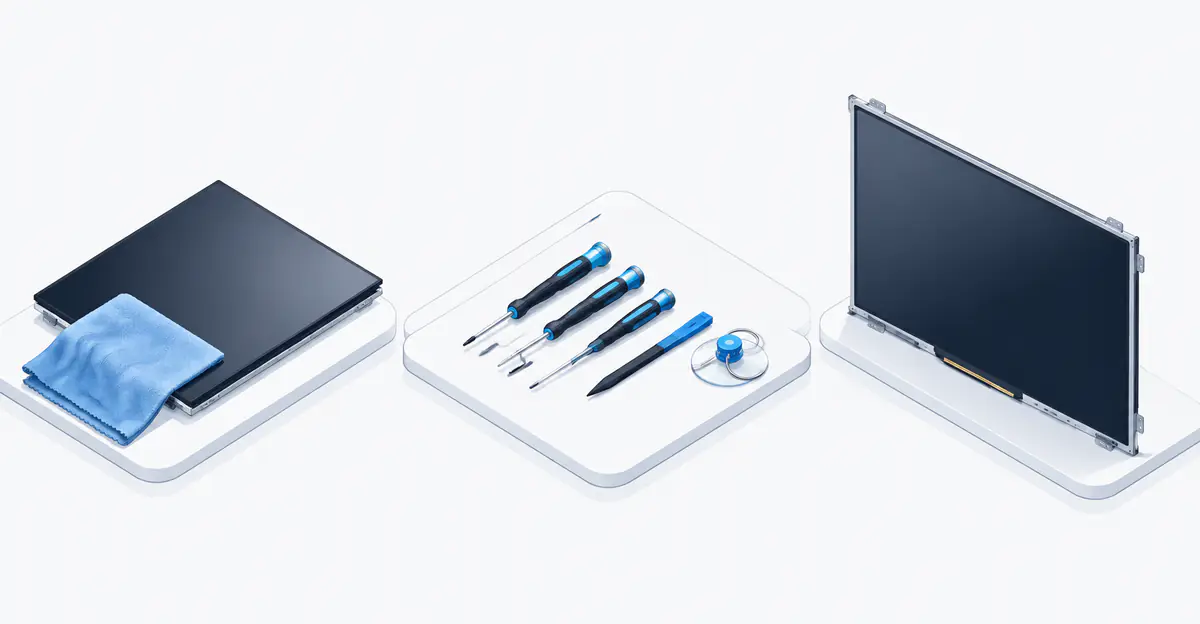
If black spots are caused by dead pixels, pressure damage, or delamination, screen replacement is often the only reliable solution:
- Purchase a compatible replacement screen for your laptop model
- OEM screens are recommended for best quality
- Professional installation is advised unless you have experience
- Total costs typically range from $80 to $350 depending on the laptop
Cable Repair
If loose cables are suspected:
- Consult a professional technician
- Cable replacement is relatively inexpensive
- Labor costs vary by repair shop
Warranty Service
If your laptop is under warranty:
- Contact the manufacturer immediately
- Do not attempt self-repair as this may void the warranty
- Apple, Dell, HP, Lenovo, and other manufacturers offer screen replacement services
Prevention Tips
Preventing black spots is easier than repairing them:
- Close your laptop carefully: Always check that the keyboard is clear before closing
- Use a protective case: Especially when traveling with the laptop
- Keep the workspace clean: Avoid crumbs and debris near your laptop
- Handle with care: Avoid touching the screen directly
- Regular cleaning: Keep the screen and keyboard free of particles
- Avoid extreme temperatures: Heat and humidity accelerate panel delamination
- Check bag contents before packing: Ensure no loose objects press against the screen
- Inspect before use: Quick visual check of the screen before closing the lid catches debris early
Screen Test Tool
The Screen Test Tool is essential for properly diagnosing black spots:
- Displays full-screen colors that make black spots clearly visible
- Helps distinguish dead pixels from dust or pressure damage
- Allows you to track whether new black spots are forming
- Available for all laptop brands including Dell, HP, Lenovo, and Acer
Related Screen Issues
Black spots can be confused with other laptop display problems:
- Dead Pixel: Complete guide to dead pixel diagnosis and repair
- Black Spot Diagnosis: Comprehensive guide to black spots on screens
- Laptop Line Issues: Lines on laptop screens, a related issue
- Screen Pressure Damage: Preventing and fixing pressure damage
- Water Damage on Screens: When black spots are caused by a liquid spill
Conclusion
Black spots on laptop screen are most commonly caused by dead pixels, physical pressure damage, or dust trapped under the screen. Dead pixels are permanent hardware failures that cannot be repaired with software. Pressure damage and dust spots may be fixable or may require professional cleaning or screen replacement. Manufacturer warranty policies vary widely — Dell's Premium Panel Guarantee covers bright pixels even at one, while standard policies typically require 5 or more defects before replacement is offered.
Use the Screen Test Tool to properly diagnose the type of black spot affecting your laptop. Document the defect with photos before contacting the manufacturer. If your laptop is under warranty, contact the manufacturer for repair options. For out-of-warranty devices, compare the cost of repair against the value of the laptop to determine the best course of action. For a laptop under three years old with a functioning battery and a modern processor, a screen replacement typically extends productive use by two to four additional years, making it a worthwhile investment in most cases.