Why is my YouTube TV screen black? In most living rooms the answer is that the app decoded audio, failed the video path, and left you staring at a dark player. This guide separates that failure from a TV that is already dying on every input.
You will leave with a three-bucket check (app, HDMI/HDCP, panel), Google’s published speed floors, and device steps for Roku, Fire TV, Apple TV, Chromecast, and built-in smart-TV apps.
Why Is My YouTube TV Screen Black: What It Means
A YouTube TV black screen is a playback diagnosis, not a cracked LCD. The guide can load. The channel row can look fine. You pick live TV or a recording and the picture drops to black. Sound may continue. Sound may vanish. Those two variants point at different hops, and mixing them wastes an evening on the wrong reboot.
People type the same problem three ways: why is my YouTube TV screen black, why is my YouTube TV black screen, and why is my screen black on YouTube TV. The intent is identical. The player went dark. The glass may still be healthy.
Why Is My YouTube TV Screen Black
Why is my YouTube TV screen black is the wrong first question if you have not named what else still works. YouTube TV Help tells you to open another app on the same device. If that app paints a picture, Google treats the YouTube TV app or that manufacturer’s YouTube TV build as the suspect, not the panel. Asurion’s field write-up uses the same split: Netflix or Hulu working means you do not start by replacing the set.
Read the failure against three buckets:
| What you see | Likely hop | First move |
|---|---|---|
| Guide works, player goes black, other apps work | YouTube TV app cache, update, or live ingest | Force close, then uninstall and reinstall |
| Guide works, player goes black, audio continues | HDMI handshake, HDCP, HDR/4K mismatch | Reseat HDMI, bypass AVR, drop HDR |
| TV menus, HDMI splash, and every app are black | Input, backlight, or panel | Change HDMI input, then a solid-color test |
The YouTube TV Community thread that matches this page’s wording is the “black only in YouTube TV, not in other apps” report. The locked reply there is the same short tree Google publishes in Help: unplug the TV or stick for 30 seconds, delete and reinstall YouTube TV, then send hardware details if it still fails. That is not folklore. It is the vendor’s first two steps.
A black YouTube TV screen after you select a channel, with the rest of the smart-TV shell still lit, is almost never a backlight that died in the last two seconds. Backlights do not spare the home row. They take the whole raster. If the YouTube TV chrome is visible and only the video surface is empty, you have a decoder, DRM, or stream problem.
Location can also blank playback. YouTube TV Help starts streaming troubleshooting by asking you to confirm Home Area and Current playback location inside the app. Local stations and some live rights fail when the playback ZIP is wrong. That failure can look like a black player rather than a polite error, especially on a stick that has no GPS. Google’s supported-devices article says devices without built-in GPS need a phone visit to tv.youtube.com/verify to refresh the playback area.
Do this before you factory-reset anything:
- Open a second streaming app. Note whether it has a picture.
- Back out of the player to the YouTube TV guide. Note whether the UI is still there.
- Press the TV’s input button. Confirm you are on the HDMI or app source you think you are.
- Only then power-cycle.
If you came here because why is my screen black on YouTube TV after a firmware night, treat the update as a cache event. Sony’s support article for YouTube going black or bouncing to broadcast tells you to Clear Data and Clear Cache, long-press power or unplug for two minutes, then update the app and the TV OS. That sequence is the smart-TV version of “the player binary is stale.”
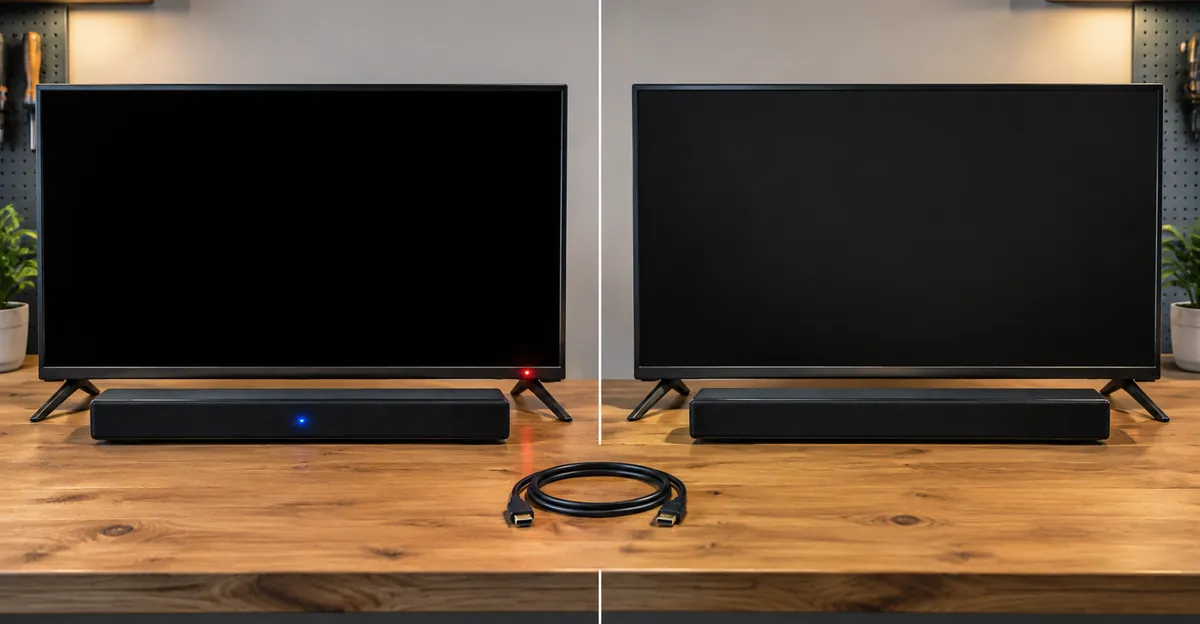
Why Is My YouTube TV Black Screen With Sound
Why is my YouTube TV black screen with sound is a different complaint from a silent black rectangle. Audio with no picture means the device received a stream, the speakers or ARC path are alive, and the video pipeline refused to light pixels. Asurion states that pattern as an HDMI handshake issue or a video output mismatch. Projector and HDMI vendors describe the same pattern when HDCP fails: sound can pass while the video plane stays dark.
HDCP (High-bandwidth Digital Content Protection) authenticates the whole HDMI chain. Roku’s HDCP article is blunt: if the player decides the TV, AVR, soundbar, or cable does not support HDCP, you get an “HDCP Error Detected” message or a purple screen. YouTube TV is protected live TV. It sits in the same class as other Hollywood streams. A cheap switch, a long uncertified cable, or a soundbar that only speaks HDCP 1.4 will fail a 4K or HDR title while older HD channels sometimes still show a picture.
Google’s 4K Plus Help page makes the cable requirement explicit: a 4K streaming device must connect with an HDCP 2.2 compliant HDMI cable to a 4K TV. If that handshake fails, Google says the video falls back to HD or SD when it can. When it cannot, you get a black player with audio still commenting on a game you cannot see.
Computer users get a documented variant. YouTube TV Help: if you hear audio in Chrome or Safari and the picture is black, disconnect external display devices. The same article notes that Mac and Linux machines driving an external monitor may be limited to 480p because of how those platforms handle copyright protection. That is policy, not a dying iMac panel.
Chromecast and Google TV Streamer have their own HDCP branch. Google’s “TV has no signal or only shows a black screen” article says to unplug the stick from the TV, AVR, or soundbar, reboot both ends, then reconnect with a firm HDMI seat. If it persists, connect the stick directly to the TV. Bypass the receiver. AVR pass-through is a frequent HDCP break.
Samsung adds a contradictory control that is easy to get wrong. For Chromecast on Samsung, Google says intermittent black or loss of signal can improve if you disable HDMI UHD Color on that port. For Roku HDCP errors inside YouTube TV, Google says to turn on HDMI Ultra HD Color. Those are not the same failure. Chromecast plus Samsung wants a quieter HDMI mode. Roku plus HDCP wants the port in UHD/HDCP 2.2 mode. Change one setting, test one title, write down which way you flipped it.
A useful control experiment: play a YouTube TV live channel at 1080p, then a 4K Plus title if you subscribe. If only 4K goes black with sound, you have an HDCP 2.2 or HDR problem. If every channel is black with sound, you have a handshake that never completed, a stuck HDR flag, or an app surface that is not compositing.
Do not confuse this with screen mirroring not working. Mirroring fails discovery or HDCP on a phone-to-TV session. YouTube TV black with sound is usually the TV app or the stick’s own HDMI output. If you were AirPlaying or Cast-mirroring the phone and the mirrored YouTube TV window is a black rectangle while the phone UI is visible, that is DRM capture policy. Play on the TV’s native YouTube TV app instead.
App Cache, Force Close, and a Clean Reinstall
When other apps work and YouTube TV does not, stop swapping HDMI cables for a minute and treat the install as corrupt. YouTube TV Help’s smart-TV path is: power-cycle 30 seconds, check app and system updates, then uninstall and reinstall. WikiHow’s YouTube TV black-screen piece, which cites that same Help article, adds signing out of all sessions and clearing cache where the OS exposes it.
Recordings are not on the stick. Asurion states they live on the YouTube TV account in the cloud. Deleting the channel does not delete the library. That fact is why a clean reinstall is a cheap test, not a data-loss event.
Device-level cache, not the in-app Reset toggle, is what usually clears a black player:
- Samsung: Settings → Support → Device Care (or Self Diagnosis) → App Repair or clear cache, then Settings → Support → Software Update. Asurion documents this as the Samsung-specific black-screen path.
- Sony Google TV / Android TV: Clear Data and Clear Cache for YouTube or YouTube TV, then long-press POWER or unplug two minutes. Sony publishes this for YouTube going black or kicking you to broadcast.
- Fire TV: Settings → Applications → Manage Installed Applications → YouTube TV → Clear Cache, then Clear Data. Amazon’s Fire TV Help documents that pair for intermittent app issues. You will sign in again after Clear Data.
- Roku: Home → highlight YouTube TV → * → Remove channel → Settings → System → Power → System restart → reinstall from the Channel Store. Asurion’s Roku steps match this order because a Remove without a restart often leaves the broken package in memory.
- Apple TV: press and hold the YouTube TV icon, Delete, reinstall from the App Store.
- Android / Google TV: Play Store → YouTube TV → Uninstall, then install again.
- Phone: Android Settings → Apps → YouTube TV → Storage → Clear cache. iPhone has no cache button; Offload App or delete and reinstall is the equivalent.
Force close first if you only want a 20-second test. On most Android TVs, opening Recents and swiping YouTube TV away is enough to kill a stuck decoder. On Roku, Home then launch again is a soft reset. If the black player returns on the next live tune, skip ahead to uninstall. Repeating force close is not a repair.
App and firmware skew is a real manufacturer issue. Google’s Help page says problems on a supported TV, player, or console can be a manufacturer defect and tells you to open another app as the check. If both apps fail, call the TV or stick maker. If only YouTube TV fails after a store update, the YouTube TV build on that OS is the working theory. Check the device’s app store for a pending YouTube TV update before you assume Google’s servers are down.
Sign-out is the session-level cousin of cache. WikiHow’s steps: profile picture → Accounts → Log Out → close the app → sign in. Use this when the black player followed an account change, a family-group invite, or a 4K Plus add-on that never attached to this device. It will not fix HDCP.
HDMI Handshake, HDCP, and HDR Mismatch
A streaming stick that looks dead is often on the wrong input, starved of power, or failing HDCP through a soundbar. Google’s Chromecast black-screen article starts with those mundane facts: use the bundled power adapter in a wall outlet, set the TV to the HDMI number the stick occupies, unplug the power cord for one minute (not the HDMI lead), and only then pull every HDMI device and leave the TV unplugged for 30 minutes if the raster never returns.
HDMI errors on Chromecast with Google TV (4K) need an extension cable that supports 4K and HDMI 2.0. Google TV Streamer (4K) wants HDMI 2.1 on that extension. A 1.4 cable that “worked for years” with 1080p cable boxes is a common 4K YouTube TV failure.
Handshake repair order that does not invent steps:
- Seat both HDMI ends until they click. Google and Roku both start here.
- Change HDMI ports. Ports on the same TV are not equal. Some are ARC-only. Some advertise HDCP 2.2. Some are labeled HDMI 2.1.
- Swap in a High Speed or Ultra High Speed cable under about 6 feet. Roku’s HDCP article prefers the short cable when you have one.
- Pull the AVR, soundbar, and HDMI switch out of the path. Connect the stick or Roku straight to the TV. Google, Roku, and Chromecast Help all say this when HDCP persists.
- Power order: unplug TV and stick, reconnect HDMI, restore TV power, then stick power. Google’s Chromecast steps even tell you to power the stick before you plug it into HDMI, wait 30 seconds, then insert HDMI and switch the input.
HDR is the other silent black. YouTube TV Help on Roku: if playback is choppy, set Display type to 4K 30 Hz, 4K 60 Hz, or 4K HDR 60 Hz in a way that turns HDR off for the test. Apple TV has a published flicker and blank-screen note: app version 1.13.1 and newer can show a blank screen or flicker when changing channels and during ads. Google’s fix is to set the default format to an SDR option while Match Dynamic Range is ON, or turn Match Dynamic Range off under Settings → Video and Audio → Match Content.
4K Plus does not cause a black screen by itself. It raises the HDCP and bitrate bar. Google wants 25 Mbps down, a listed 4K device, an HDCP 2.2 cable, and a 4K panel. If those are missing, the player should drop to HD or SD. When a TV advertises 4K but the HDMI port is in a legacy mode, the drop does not always happen cleanly. Preview the 4K test clip inside YouTube TV (Settings path under 4K Plus) and open Stats for Nerds if the device exposes it. A 4K flag with a black raster is a handshake. A 1080p flag with a black raster is not a 4K Plus problem.
CEC can steal the input back to an internal tuner or a different stick while YouTube TV audio continues on ARC. Lock the input while you test. If the picture returns the moment you press Input and re-select HDMI 2, you did not have a dead app. You had a TV that wandered.
Fixes by Device: Roku, Fire TV, Apple TV, Smart TVs
Device steps are not interchangeable. A Roku Remove Channel is not a Fire TV Clear Data. A Samsung App Repair is not an Apple TV Match Dynamic Range toggle. Use the row that matches the hardware in front of you.
| Device | Black-screen first aid | If audio-only remains |
|---|---|---|
| Roku player or Roku TV | Remove YouTube TV, System restart, reinstall; check Settings → System → Software update | HDMI Ultra HD Color ON; Display type without HDR; Roku HDCP power-cycle; direct HDMI to TV |
| Fire TV Stick / Cube | Settings → Applications → Clear Cache then Clear Data; uninstall if it returns | New HDMI port; wall power, not a weak TV USB; skip the soundbar |
| Apple TV 4K | Delete and reinstall YouTube TV; tvOS update | SDR default format; Match Dynamic Range off for a test |
| Chromecast / Google TV Streamer | Unplug stick power 1 minute; confirm HDMI input; bundled PSU | Direct to TV; HDCP reconnect; Samsung HDMI UHD Color off if the drop is intermittent |
| Samsung 2017+ smart TV | Device Care / App Repair; firmware update; delete YouTube TV | Other apps test; if all apps fail, HDMI and panel path |
| Sony Bravia (Google TV) | Clear Data/Cache; long-press power or unplug 2 minutes; app and TV software update | Same HDMI/HDCP tree as Chromecast if you use an external stick |
| LG 2017+ / Hisense / Vizio | Uninstall YouTube TV from the TV app store; firmware update | External stick as a control: if the stick is fine, the TV app is the fault |
| Browser (Chrome, Firefox, Safari) | Close tab, update browser, Google prefers Chrome | Disconnect the extra monitor; Mac/Linux HDMI out can be 480p or black under DRM |
YouTube TV’s supported-devices list is the eligibility gate. LG and Samsung built-in apps start at 2017 models. Apple TV is 4th generation and 4K. Fire TV Stick 2nd gen and newer are listed; first-gen Chromecast is called out as error-prone and can take 30 seconds to open. An unsupported cheap Android box running a sideloaded APK will fail in ways Google will not document. Check Settings → Support → Device Capabilities in the YouTube TV app when that screen exists on your build. It reports 4K, 5.1, multiview, and background playback. A device that cannot tick 4K should not be forced into a 4K Plus title as a “fix.”
Roku HDCP, restated as a procedure rather than a slogan:
- Unplug HDMI at both the Roku and the TV or AVR.
- Unplug TV (or AVR) power and Roku power.
- Reseat HDMI firmly.
- Restore power and retry YouTube TV.
- If the error or purple screen remains, different port, shorter cable, direct to TV, then Settings → Display type.
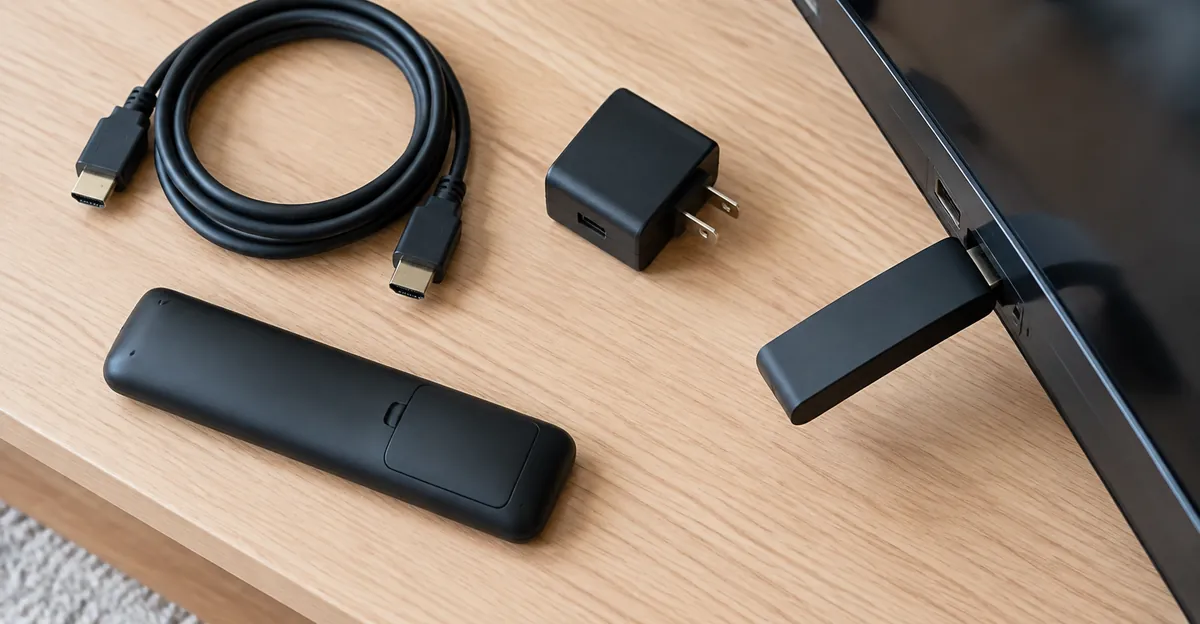
Fire TV power matters the way Chromecast power matters. A stick on a TV USB port that cannot hold 5W will decode audio and drop video. Google’s Chromecast article is explicit about the bundled adapter and a wall outlet. Apply the same rule to Fire TV and Roku sticks that shipped with their own PSU.
Apple TV users who only see black during channel changes or ads should not reinstall ten times. Google already attributed that flicker and blanking to Match Dynamic Range plus a specific app series. Change the video format once. If the player is black for the entire program, not just the ad boundary, then reinstall.
Smart TVs with the app baked in cannot always uninstall. Some LG and Hisense builds only let you disable or delete updates. Sony’s Clear Data is the substitute. If the TV app stays black and a $30 stick on HDMI 2 plays YouTube TV cleanly, you have isolated the TV’s app sandbox. Keep the stick. Stop factory-resetting the TV OS for an app bug.
Live Channels, Bandwidth, and 4K Plus
A live linear channel is not a VOD file. YouTube TV Help says internet congestion, Wi-Fi interference, and other factors can delay live programming even on a strong network. Broadcast Delay in the TV app trades buffer for latency. Default is the setting Google recommends to minimize interruptions. Decrease is for people who hate spoilers and will accept more stalls. A live player that goes black after you hammer Decrease is a buffer that ran out, not a new HDMI problem. Put it back to Default for the test.
Google’s download-speed table is the only bitrate chart this page will use:
| Download speed | What Google says you can do |
|---|---|
| 25 Mbps or higher | 4K Plus on available programs |
| 13 Mbps or higher | Reliable HD with other devices sharing the network |
| 7 Mbps or higher | One HD stream; extra devices may buffer |
| 3 Mbps or higher | Standard definition |
| Under 3 Mbps | Slow load or rebuffer |
WikiHow cites the 3 Mbps floor and claims YouTube TV may play a black screen when the link is below that. Google’s own wording is load slowly or rebuffer, not “black.” Treat sub-3 Mbps as a stall risk. Treat a black player on a 200 Mbps cable plant as cache or HDCP until a speed test on the streaming device shows a collapse. Testing on your phone while the TV is on congested 2.4 GHz is a false pass.
One channel black, the next channel fine, is the stream-side pattern Asurion calls out: switch away and come back. A single live ingest or a rights blackout can zero the video plane. All channels black, library thumbnails still loading, is the app or output path. All channels black on two different TVs in the house, phones still working, is account, location, or a YouTube TV outage. Google’s Help also warns that if you decline the prompt “YouTube TV wants your device’s identity to be verified, by Google, to determine eligibility for enhanced playback of protected media,” you may get lower quality. On some builds, refusing Widevine-style attestation looks like a black protected player.
Wi-Fi versus Ethernet is not a religion. A smart TV on a weak mesh node will underrun live HD while a phone next to the router looks fine. Power-cycle the router 30 seconds, which YouTube TV Help lists as its own step. Then pin the TV or stick to 5 GHz, or run Ethernet if the device has a jack. Do not stack this on top of an HDCP test. Change one variable.
4K Plus unlimited in-home streams still need the YouTube TV app on a supported device. Google notes the app is missing in some regions and on some Xfinity X1 boxes. A black screen after you hit the stream cap is an account limit, but it usually shows an error, not a silent black. If you are troubleshooting black, log the stream count anyway so you do not chase HDMI for a fourth-device block.
When a Black YouTube TV Screen Is the Panel
Most YouTube TV black screens are not panel defects. Some are. The tell is that the defect ignores the app. TV settings menus look dim, half-lit, or striped. The HDMI splash from a Blu-ray player matches the YouTube TV darkness. A flashlight at an angle on a “black” LCD still shows a faint image, which is a backlight failure, not YouTube TV.
Compare that to a half-black screen. A vertical or horizontal dead half that stays put when you leave YouTube TV is T-con, cable, or panel. YouTube TV cannot darken the left 40% of the TV menus. If you only lose the left side inside the player and the guide is full-width, you are still in app-land. Sony and LG OLED owners on community threads describe a YouTube TV black field with a sliver of picture on one edge and working audio. That sliver is a compositor bug more often than a dying WOLED, if Netflix is still full-frame. If Netflix grows the same sliver, stop reinstalling apps and treat it as a display path.
Screen flickering that starts the moment YouTube TV hits 60 Hz HDR and stops in the TV’s own menus is often the HDMI mode, not PWM backlight death. Flicker that continues on a solid white HDMI source is the panel or the power board.
A laptop or PC browser that goes black only on the external monitor, while the built-in panel plays YouTube TV, is the DRM-plus-HDMI case Google already documented. That is closer to a computer screen going black on the cable path than to a YouTube TV outage. Unplug the extra display as Help instructs. If the laptop lid is also black on every GPU output, you have left this article.
Panel checks that do not require YouTube TV:
- Open the TV’s internal settings and a photo app or screen-saver. If those are black, the app is innocent.
- Connect a known-good laptop or stick to the same HDMI port. If that is black, the port or the panel is in play.
- When any source can show a full-screen field, run a solid-color screen test on white, then black, then red, green, and blue. White proves the backlight. Black shows whether a faint glow or a stuck line is hiding inside the complaint. Photograph the panel for warranty.
A growing dark blotch, a pressure bruise, or a black spot on the screen is unrelated to YouTube TV even if you first noticed it during a game. Software does not draw a fixed ink stain. Do not massage the LCD.
What To Do Next
Why is my YouTube TV screen black? Because the player lost video while the rest of the system often kept working. Walk the buckets in order: other-app test, 30-second power cycle, cache or reinstall, then HDMI/HDCP with the soundbar out of the path. If audio kept going the whole time, skip the “is my internet down” spiral until the handshake is clean. If every input is dark, stop reinstalling YouTube TV and inspect the glass.
Use Google’s numbers when you do test the network: 3 Mbps for SD, 7 Mbps for one HD stream, 13 Mbps when the house is busy, 25 Mbps for 4K Plus. Use Google’s device list when you are about to buy another stick. Use the native YouTube TV app on the TV or stick, not phone mirroring, for protected live TV.
When the picture is wrong on every input, run a full-screen color pass with our screen test and compare it to HDMI from a second source. That is the difference between a $7 cable and a panel quote.
Sources
- YouTube TV Help: Troubleshoot YouTube TV streaming issues
- YouTube TV Help: Watch YouTube TV on supported devices
- YouTube TV Help: 4K Plus
- Google Streaming Help: TV has no signal or only shows a black screen
- Roku: HDCP Error Detected or purple screen
- Sony: YouTube switches to broadcast or turns black
- Amazon: Clear App Data and Cache on Fire TV
- Asurion: How to fix YouTube TV black screen
- YouTube TV Community: black screen only in YouTube TV
- XGIMI: streaming apps black screen and HDCP