Why isn't my screen mirroring working? In most homes the answer is that the phone and the display never finish discovery, or they finish discovery and then fail the HDCP handshake. This guide separates AirPlay, Google Cast, Samsung Smart View, and Windows Miracast, then shows when a cable is the faster fix.
You will leave with a protocol check, a same-Wi-Fi and isolation check, device-specific steps, and a way to tell a dead wireless session from a display that is already failing on HDMI.
Why Isn't My Screen Mirroring Working: What It Means
Screen mirroring fails when two devices cannot agree on a transport. The phone may have internet. The TV may have internet. Those two facts do not prove they can see each other. Discovery uses multicast or Wi-Fi Direct. The stream then needs a stable band and, for movies, HDCP. Treat the symptom as a session failure first, not as a cracked LCD.
What Screen Mirroring Not Working Actually Means
Screen mirroring not working is a session diagnosis, not a single hardware fault. The sender encodes frames. The receiver decodes them. In between sit a discovery protocol, a peer link, and often a DRM check. If any hop fails, the UI reports a generic error or an empty device list.
Four stacks dominate consumer gear:
| Stack | Typical sender | Typical receiver | Discovery |
|---|---|---|---|
| AirPlay | iPhone, iPad, Mac | AirPlay 2 TVs, Apple TV, some Samsung/LG/Sony sets | Bonjour mDNS on the LAN |
| Google Cast | Android, Chrome, many apps | Chromecast, Google TV, Cast-built-in TVs | LAN discovery plus Google Home |
| Miracast | Windows (Win+K), many Android OEMs | Miracast TVs, Microsoft Wireless Display Adapter | Wi-Fi Direct plus LAN assist |
| Smart View | Samsung phones | Samsung TVs (2016+ strongest) | Samsung peer protocol over Wi-Fi |
Niche troubleshooting sites and TV support pages agree on the same three buckets: network isolation, device or firmware bugs, and protocol mismatch. An iPhone looking for AirPlay will not appear on a Miracast-only Android TV. That is not a broken Wi-Fi chip. It is an empty intersection of standards.
Read the failure mode before you factory-reset anything:
- Empty list, no TV name: discovery is blocked or the protocol does not match.
- Name appears, connect fails: firewall, driver, or Wi-Fi Direct handshake.
- Connects, then drops in seconds: band steering, mesh hop, Eco standby, or power saving.
- Connects with a black rectangle over Netflix: HDCP or app-level capture block.
- Connects with a torn, half-black, or flickering picture: treat it as a display path after you prove HDMI does the same thing.
Google Cast and AirPlay need the same local network. Miracast can fall back to a direct radio link, which is why a Windows laptop sometimes connects when Cast does not, and why DxDiag can still say Miracast is missing when the GPU driver never advertised it.
A screenshot test still helps. If the mirrored image is missing from a screenshot saved on the phone, you are looking at the TV panel. If the screenshot contains the same black app window, the app blocked capture. If nothing ever lists the TV, stop staring at the glass and inspect SSID, isolation, and protocol.
Quick protocol checklist
- Name the sender OS and the TV brand.
- Name the protocol that pair actually shares.
- Confirm both SSIDs character for character, including Guest and 5G suffixes.
- Only then update firmware or reset the router.
Why iPhone Screen Mirroring Is Not Working
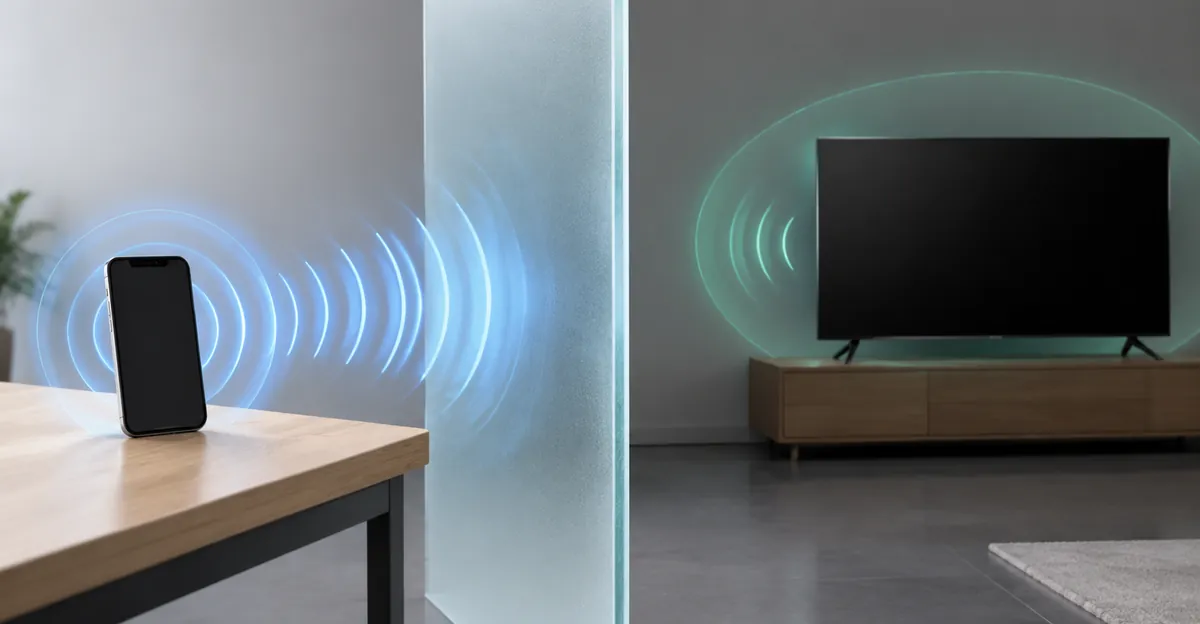
iPhone screen mirroring not working almost always means AirPlay discovery never completed. Built-in mirroring on iPhone is AirPlay. Many Android TVs have no AirPlay stack. Samsung, LG, and Sony publish AirPlay 2 on some later models, but a generic Android TV box will stay invisible in Control Center no matter how many times you restart Wi-Fi.
AirPlay 2 advertises _airplay._tcp and _raop._tcp over Bonjour. That traffic is mDNS multicast on UDP port 5353. Mesh kits (Eero, Nest Wifi, Asus AiMesh) and IoT VLANs often filter multicast to cut broadcast noise. The phone still has 400 Mbps of internet. The TV still has 400 Mbps of internet. They still cannot see each other. Toggle AP isolation or client isolation off. Keep the phone and the TV on the same VLAN. Enable IGMP snooping if the router documents it for AirPlay.
Local Network permission on iOS is easy to miss after an OS update. If a mirroring helper app is involved, grant Local Network or the app cannot browse mDNS even when AirPlay itself is healthy. VPN clients and third-party firewall apps intercept the same path. Disable them for one test.
Hotel, dorm, and office Wi-Fi is a designed failure. Client isolation exists so guests cannot scan each other. Screen mirroring discovery fails on purpose. A personal hotspot from the phone to the TV is a common workaround only if the TV can join that hotspot. Many smart TVs cannot.
When AirPlay connects and then dies, look at mesh steering and TV Eco modes before you replace the set. Band steering that parks the TV on 2.4 GHz and the phone on 5 GHz, or that roams the phone across nodes mid-stream, matches field reports of multi-second drops. Pin the TV to one node. Split SSIDs by band if the combined name keeps lying to you.
Cross-brand iPhone-to-Android-TV mirroring with only built-in tools is a protocol dead end. Third-party receiver apps can bridge it, but they add another permission surface and still need the same LAN. For a movie night, HDMI from a laptop or a streaming stick on the TV's own Netflix app is the path that survives DRM.
If Control Center lists the TV and the image is garbled, compare a wired Apple digital AV adapter. A cable that is clean while AirPlay is noisy points back at Wi-Fi, not at the panel. A cable that is also noisy points at the screen itself.
Why Android Screen Mirroring Fails on Chromecast and Smart View
Android screen mirroring is not one feature. Pixel-class phones lean on Google Cast. Samsung phones lead with Smart View. Some OEMs still expose Miracast or Wi-Fi Direct under names like Wireless display, Cast, or SmartShare. Casting a YouTube tab is not the same as mirroring the entire launcher. People mix those two and think the TV is broken.
Google's own Cast help is blunt on two points. The phone and the Chromecast must share the same Wi-Fi network. Power Saving Mode must be off, because it throttles the encoder. More important for the "connects then dies" pattern: the Microphone permission on Google Play Services must be allowed for Cast Screen/Audio. If that permission is off, Google documents that the session disconnects immediately after it tries to connect. Nearby devices and local-network prompts on Android 12 and later are the same class of handshake. Tapping Not now during setup will strand discovery.
Dual-band routers are the next Android trap. A single SSID that covers 2.4 GHz and 5 GHz looks identical in the phone UI. An older Chromecast may sit on 2.4 GHz for range while the phone camps on 5 GHz. On many consumer routers those bands do not fully bridge client traffic. Split the SSIDs, put both devices on 5 GHz when the TV radio allows it, and retry.
Samsung Smart View is strongest on Samsung TVs from roughly 2016 onward. Cross-brand Smart View to LG or Sony has narrowed on newer One UI builds. If a Galaxy phone cannot see a non-Samsung set, that can be a product decision, not your router. A Chromecast or Google TV streamer on HDMI then becomes the Cast path that actually matches the phone.
Clearing caches is a real fix when discovery used to work. Android Wi-Fi Direct and Google Play Services both cache peer state. Settings, Apps, Show system, Wi-Fi Direct, clear cache, then force-stop Google Home and rescan. Do this after SSID and isolation are already verified so you are not wiping caches in a hotel that will never allow peers.
Pixel phones often will not Miracast to a Miracast-only TV. That is why a friend's Galaxy works and the Pixel does not. Add Cast hardware or use HDMI. Do not chase GPU drivers on a phone that never shipped Miracast.
Hotel AP isolation hits Android as hard as iPhone. Guest Wi-Fi with client isolation will hide Chromecast even when the Google Home app shows the house. Move both devices onto the primary SSID, not the guest SSID, and turn isolation off if you own the router.
Why Windows Screen Mirroring and Miracast Will Not Connect
Windows screen mirroring uses Miracast. The entry is Windows logo key plus K. Microsoft's support text is the fastest hardware filter in this entire article: if Win+K tells you to connect an external display with a cable, the PC does not support Miracast on the current stack. Stop buying TV firmware updates.
DxDiag is the second filter. Save the report and search for Miracast. Field cases on Microsoft Q&A show mixed GPUs on the same laptop: Intel HD Graphics reporting Miracast Available, with HDCP, while an NVIDIA discrete GPU reports Miracast Not Supported by Graphics driver. The wireless display session follows the adapter that actually owns the output. OEM or Windows Update display drivers restore Miracast more often than a bleeding-edge vendor package that dropped wireless display.
Projecting to another Windows PC needs the Wireless Display optional feature (Windows 11 22H2 and later) or the older Connect app. Settings, System, Projecting to this PC, add Wireless Display, then launch the Wireless Display app so the target is discoverable. Wi-Fi must stay on even if you think Ethernet is enough. Miracast rides the Wi-Fi radio.
Microsoft's Wireless Display Adapter troubleshooting adds numbers you can actually use. Keep the PC within 23 feet (7 m) of the adapter. Power the adapter from a USB port that can supply at least 5W (5V/1A), preferably a wall charger, not a sleepy TV USB port. The adapter talks to one display at a time. Update adapter firmware from the Store app before you replace the TV.
Firewalls are a first-class Miracast failure, not an afterthought. Microsoft tells you to allow the adapter through Windows Firewall. Enterprise threads add inbound TCP 7236 and 7250 plus UDP 5353, and program exceptions for WUDFHost.exe and CastSrv. Third-party suites (Symantec, ESET) silently undo those rules after a policy refresh. If Miracast died on every laptop the same week, check GPO and endpoint firewall before Wi-Fi cards.
Intel wireless chipsets with expired vendor support (7260/7265 era) show up in community threads as "drivers install, Miracast never returns." That is a radio stack limit. A USB Miracast adapter or HDMI is cheaper than hunting a driver that Intel already retired.
If Win+K lists the TV, the session starts, and the desktop is a black frame, jump to HDCP. If the desktop is visible but flickers or shows half the image, leave Miracast and test the panel on a wired input.
Windows Miracast checklist
- Win+K: cable warning means no Miracast.
- DxDiag: Available with HDCP versus not supported by Wi-Fi or graphics driver.
- Wireless Display optional feature if the target is a PC.
- Firewall allow for wireless display, then retry on a private network profile.
- Distance under 7 m and adapter power at or above 5W for Microsoft dongles.
Same Wi-Fi, Firewalls, and HDCP Breaks
Same Wi-Fi is the phrase every vendor repeats, and it is still the most failed check. The SSID string must match. HomeWiFi and HomeWiFi-Guest are different networks. A TV on an IoT VLAN and a phone on the main LAN are different networks even when both names look friendly in a mesh app. Cast and AirPlay discovery will not cross that line without an mDNS reflector you probably do not have.
AP isolation, client isolation, and guest isolation are the same idea with different labels. The router lets each client reach the internet and blocks client-to-client packets. Screen mirroring discovery is client-to-client. Hotels and campuses enable this on purpose. Home mesh kits sometimes ship it enabled for "security." Turn it off on hardware you own. On hardware you do not own, use HDMI or a display that joins a phone hotspot.
Firewalls and VPNs sit on top of isolation. A full-tunnel VPN on the phone can take the device off the LAN for multicast even while Wi-Fi shows connected. Windows Defender and third-party firewalls can drop the Wireless Display inbound rules after a hardening pass. UDP 5353 (mDNS) and Miracast TCP 7236/7250 are the ports that keep showing up in Microsoft Q&A when someone locked a public-network profile.
HDCP is the other silent break. High-bandwidth Digital Content Protection authenticates the whole chain. Projector and switcher vendors document black, purple, or blinking screens when the handshake fails, and 1080p fallback when a link only speaks HDCP 1.4 while the title wants 2.2. Wireless adds more failure points: the Miracast or AirPlay receiver must speak HDCP, the radio cannot drop the handshake, and many streaming apps refuse to capture at all. Netflix on a mirrored phone commonly becomes a black rectangle while YouTube still plays. That is policy, not a dead TV.
Power-cycle order still matters on HDMI and on wireless docks. Source off, display off, wait, display on, source on. Loose HDMI, a cheap splitter, or a TV USB port starving a dongle below 5W will look like "mirroring is broken" when the secure link never came up.
Interference is real but over-blamed. Microwaves and dense 2.4 GHz apartments can stall a Miracast peer link. Move closer than 7 m, prefer 5 GHz when both radios allow it, and only then replace hardware.
If you made it here and the TV still never appears, you do not have a panel defect. You have a network or protocol defect. If the TV appears and the picture is wrong in the same way on HDMI, you have a monitor problem, not a Cast problem.
HDMI vs Wireless Mirroring When Wireless Keeps Failing
HDMI vs wireless mirroring is the comparison that ends most support loops. Wireless is a convenience layer. HDMI is a control experiment. If HDMI is clean and wireless is not, stop replacing the LCD. If HDMI is also black, half-lit, or torn, the display path is in play.
| Dimension | Wireless (AirPlay / Cast / Miracast) | Wired HDMI |
|---|---|---|
| Discovery | Needs LAN multicast or Wi-Fi Direct | Plug and EDID |
| Guest / hotel Wi-Fi | Often blocked by AP isolation | Works |
| DRM / Netflix | Frequent black window | HDCP over cable, still can fail on cheap splitters |
| Latency | Encoder plus radio; stutters under load | Lower, stable |
| Distance | Microsoft cites 7 m for its adapter | Cable length and quality |
| Best use | Slides, camera, quick share | Movies, desktop, diagnosis |
Use HDMI when you need the picture more than you need to walk around. Use wireless when the content is not HDCP-hostile and both devices share a real LAN. A certified HDMI dongle on a phone is still HDMI. It inherits HDCP chain rules. Non-compliant USB-C hubs and splitters break 4K titles the same way a bad wireless receiver does.
For a living-room TV, the most reliable "mirror" of a streaming app is not mirroring at all. Open the TV's own app or a Chromecast session that the service supports. That path never captures the phone framebuffer, so app-level blocks do not apply.
Samsung Smart View versus a cheap HDMI stick is a useful brand case. Smart View is excellent phone-to-Samsung-TV on the same 5 GHz SSID. It is a poor bet on a 2013 Miracast-only set. An HDMI stick that speaks Cast restores a Pixel phone that never had Smart View. The "broken mirroring" was a missing protocol.
Windows-to-TV is the other brand case. Win+K plus a Microsoft Wireless Display Adapter works inside 7 m with a 5W supply and firewall exceptions. It still loses to HDMI for Netflix. Use Miracast for PowerPoint. Use HDMI or the TV app for films.
Chromebooks add a third pattern. Some units glitch on the internal panel while HDMI out is fine, which is a hinge-cable or panel issue documented in our Chromebook screen glitch guide. If the internal screen is already tearing, wireless encode of that same framebuffer will look just as bad. Fix or replace the panel path before you blame Cast.
When the Display Itself Is the Problem
Wireless troubleshooting assumes the TV or monitor can show a healthy image. That assumption fails more often than forums admit. Wrong HDMI input, Eco dimming, a failing backlight, and a panel with a half-black screen all get reported as "mirroring died."
Run this split:
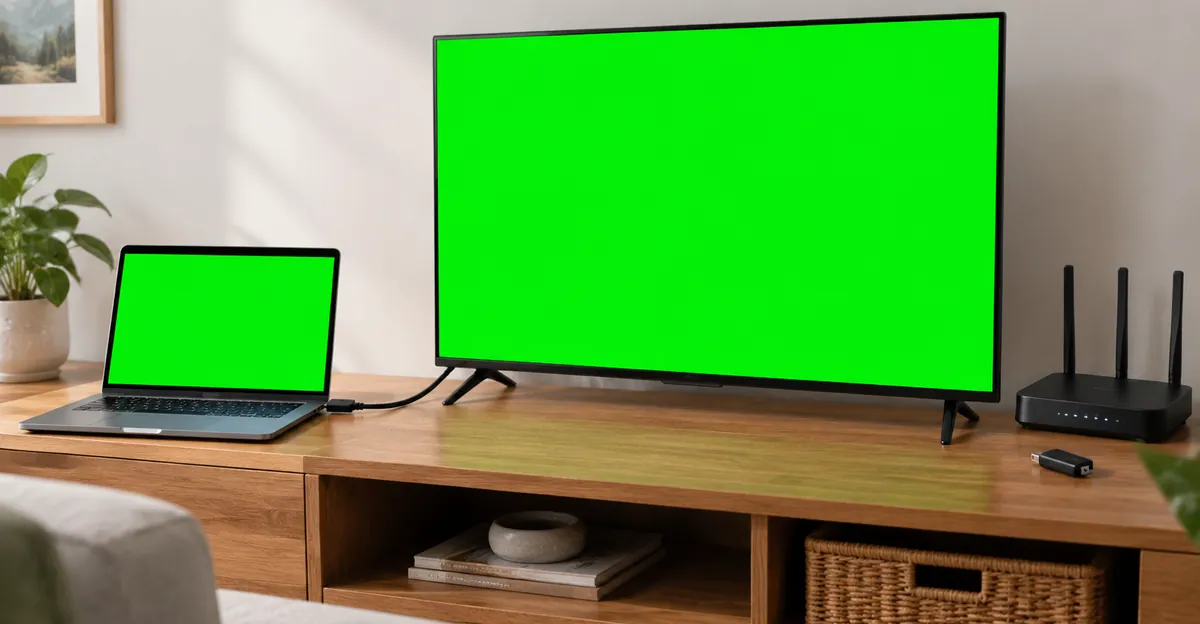
- Connect a known-good HDMI source (a streaming stick or a laptop).
- Show a full-white and full-black frame.
- If the wired picture is already dim, lined, or half missing, repair the display. Mirroring will not heal it.
- If the wired picture is clean, return to protocol and network.
A black wireless session with a clean HDMI picture is HDCP or encoder failure. A black wireless session with a black HDMI picture is the TV input, HDCP chain, or panel. A session that shows the phone UI but flickers only when the TV is the source may still be the set's scaler or a backlight PWM issue, not Miracast.
Input selection is mundane and common. The dongle is on HDMI 2. The TV is watching HDMI 1. Wireless adapters that inject via HDMI inherit that mistake. CEC can steal the input back to a streaming stick. Lock the input while you test.
Panel damage does not hide the TV from AirPlay lists. If the receiver never appears, do not book a screen replacement. If the receiver appears and the damage is visible in the same place on every input, book the repair. Use a solid-color screen test on the display itself when you can load a browser on a device that already has a working picture.
Laptop lids and TV Eco timers cut Wi-Fi mid-mirror. That looks like a protocol bug. Disable auto-sleep on the sender. Disable Eco or Auto power-off on the TV for the test window.
Conclusion
Why isn't my screen mirroring working? Because discovery, isolation, or HDCP failed, or because you asked AirPlay to talk to a Miracast-only screen. Match the protocol, put both devices on the same non-guest SSID with isolation off, then use Win+K, Smart View, or Cast with the permissions those stacks document. When wireless still lies, HDMI tells you whether the glass is innocent.
If the picture is wrong on every input, stop tuning Wi-Fi and inspect the panel. Run a full-screen color pass with our screen test to separate an encoding artifact from a real display defect before you replace a TV that only needed a different HDMI port.
Sources
- Microsoft: Screen mirroring and projecting to your PC or wireless display
- Microsoft: Fix connections to wireless displays or docks in Windows
- Microsoft: Troubleshooting Microsoft Wireless Display Adapter
- Microsoft Q&A: Not able to connect to TV through Miracast
- Microsoft Q&A: Miracast and firewall rules
- Google: Cast Android audio / Cast Screen microphone permission
- 1001 TVs: Screen mirroring not working
- smarttvs.org: TV screen mirroring protocol-first fix tree
- smarttvs.org: Samsung Smart View
- Pigeoncast: AirPlay vs DLNA vs Cast vs Miracast
- AWOL Vision: HDCP black screen guide
- SC&T: HDCP errors and screen mirroring
- TechBloat: Smart TV not showing in Cast