A monochrome screen looks like every color has been drained—icons, photos, and UI chrome all render in shades of gray (or a single phosphor hue on vintage hardware). Most sudden cases are an accessibility color filter, not a failed LCD. This guide separates software grayscale from a true monochrome display screen, walks Windows/Mac/iPhone paths, covers green monochrome heritage, and shows how to restore color or enable mono on purpose.
Monochrome Screen: Software Filter vs Real Hardware
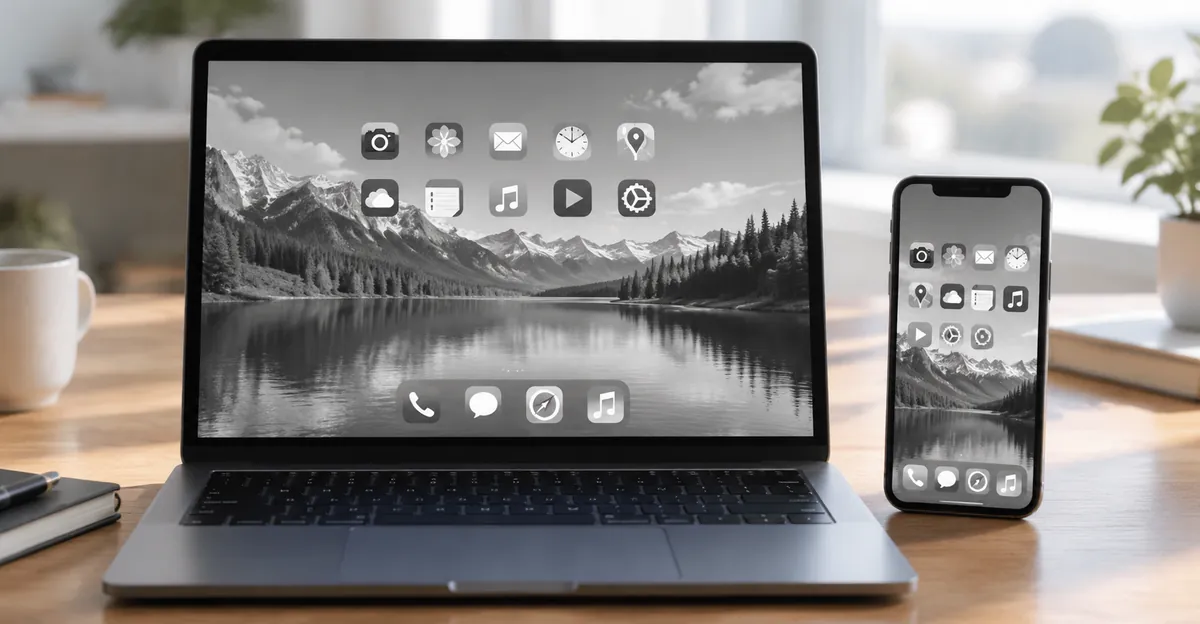
A monochrome screen problem is almost never “the panel forgot how to make red and blue.” On modern phones and PCs, color is removed by a system-level filter that remaps every pixel’s RGB values into luminance before the image hits the panel. That is why a screenshot often still contains color data even while the live desktop looks black and white—and why toggling one accessibility switch restores a full palette in seconds.
This article covers both intents people search for: accidental monochrome (why is my screen gray?) and intentional monochrome (how to make screen monochrome for focus or accessibility). You will also see where a hardware monochrome display screen differs from software grayscale, and when a green monochrome screen means CRT phosphor history rather than a broken color filter.
What a Monochrome Screen Actually Means
In everyday consumer language, “monochrome screen” usually means the entire UI lost hue: whites stay bright, blacks stay dark, and everything else collapses into gray. Technically, monochrome means “one chromatic channel.” That channel can be neutral gray (software grayscale), green or amber phosphor light (classic CRT terminals), or a single backlight color on a reflective industrial LCD.
Three layers get mixed up in search results and forum threads:
| Layer | What you see | Typical cause | Reversible in settings? |
|---|---|---|---|
| Software grayscale filter | Full UI in gray, all apps affected | OS Color Filters / Color correction | Yes |
| Warm / tint filter | Still colored, but shifted | Night Light, Night Shift, Color Tint | Yes |
| Hardware monochrome panel | Never had RGB color by design | No color-filter array; single-channel LCD/CRT/e-paper | N/A — buy a color panel |
| Partial channel loss | Pink, green, or yellow cast, not pure gray | Cable, GPU, or panel subpixel fault | Sometimes (cable/driver); often hardware |
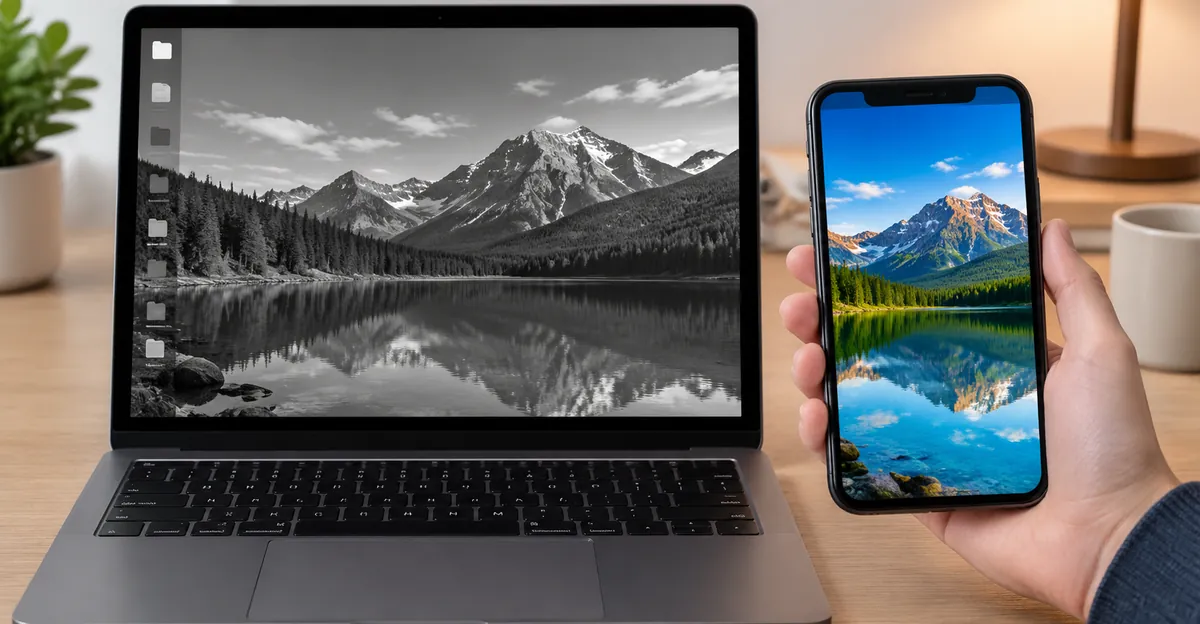
The diagnostic that separates the first row from the last is simple. Take a screenshot while the display looks monochrome, then open that file on another phone or computer. If the file shows normal color, the live monochrome look is in the display pipeline (filter, profile, OSD). If the screenshot itself is gray and you did not apply an editor filter, something earlier in the capture path—or a true mono capture pipeline—is involved; on stock Windows, macOS, and iOS, OS grayscale still leaves color in the screenshot bitmap in the majority of user reports summarized by troubleshooting guides such as TechYorker and UseFella.
A second check: does only one app look gray while the rest of the system is colorful? Then dig into that app’s accessibility or “reading mode” options instead of system Color Filters. Does only one external monitor look gray while the laptop lid stays colorful? Then inspect that monitor’s picture mode, input, and cable before blaming Windows.
For related color-channel faults that are not full grayscale—warm yellow, pink/magenta, or orange casts—see our yellow screen, pink screen, and orange screen guides. Those problems keep hue; a monochrome screen removes it.
Monochrome Display Screen: Hardware Without Color Filters
A monochrome display screen in the industrial and embedded sense is a panel that was never built to reproduce a full RGB gamut. Display vendors such as IDT Display describe the structural split clearly: a color TFT LCD includes a color-filter array that splits each pixel into red, green, and blue subpixels; a monochrome LCD omits that filter stack and modulates backlight (or reflected ambient light) as a single channel. The result is text and icons in one hue—often white-on-black, blue STN, or green—with optional grayscale steps for depth.
Sonytek’s product comparison of monochrome vs grayscale panels adds a useful nuance: “monochrome” in marketing sometimes means few luminance levels (near binary on/off), while “grayscale” means many brightness steps on the same single hue—useful for medical and inspection imagery where intensity carries information but chromatic noise would distract. In consumer search language both still fall under monochrome display screen.
Why these panels still ship in 2026:
- Lower bill of materials and driver complexity than color TFT
- Higher effective luminance efficiency (no color filter absorbing light)
- Excellent readability for numbers, status, and HMI text
- Predictable behavior in harsh temperature or EMI environments
That is a different product category from “my MacBook suddenly went gray.” Confusing them leads to bad advice: you cannot “turn color filters off” on a calculator LCD that has no RGB path, and you should not replace a phone OLED because an Accessibility Grayscale toggle is on.
Hardware mono also appears in e-paper readers and some specialty cinema or medical monitors. Those devices may support many gray levels while remaining chromatically monochrome. If you are evaluating whether a device “supports color,” check for a color-filter array / RGB subpixel specification—not whether the UI theme looks gray.
Software grayscale vs hardware mono (quick matrix)
| Question | Software filter on color panel | Hardware monochrome display screen |
|---|---|---|
| Can you restore full color in OS settings? | Yes | No |
| Do photos on disk stay RGB? | Yes | Panel cannot show RGB regardless |
| Typical devices | Phones, laptops, modern monitors | Industrial HMI, instruments, vintage terminals, some e-paper |
| Power / cost profile | Same as color panel | Often lower cost and power |
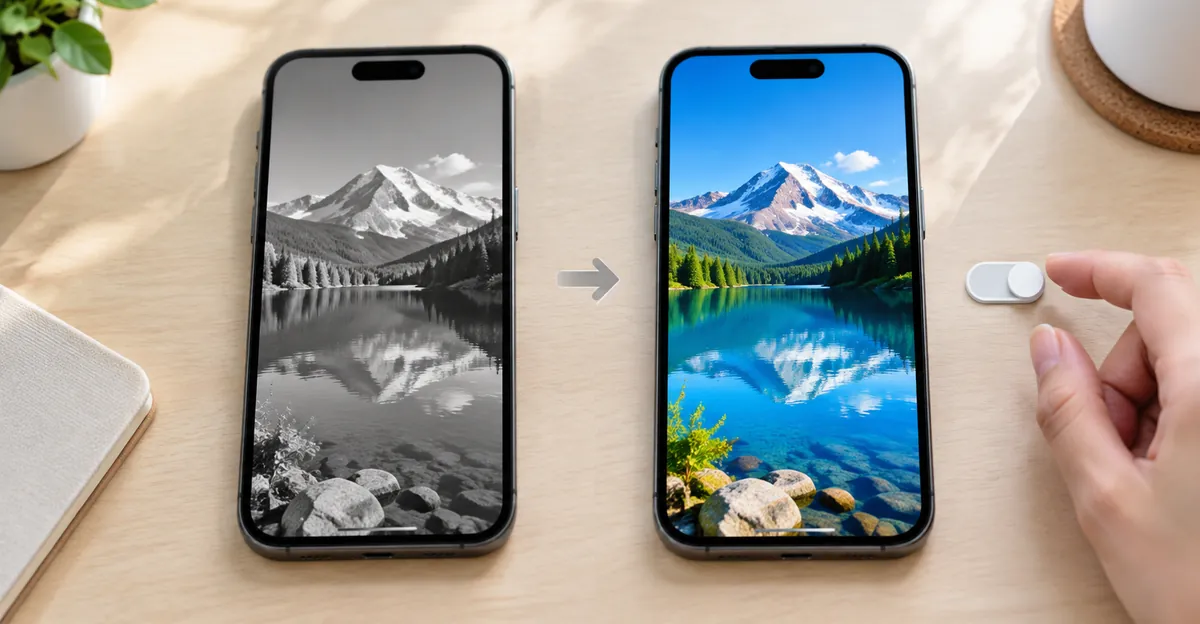
If your device shipped as a color phone or color notebook and it used to show color yesterday, treat it as a software (or cable/OSD) problem first. Only after filters, profiles, and cables fail should you escalate to panel service—and even then, pure uniform grayscale with a colorful screenshot is almost never panel RGB failure.
Monochrome Computer Screen on Windows and Mac
A monochrome computer screen complaint on a desktop or laptop is dominated by accessibility color filters. Microsoft’s Windows accessibility documentation frames Color filters as a vision aid that remaps the on-screen palette so users can distinguish content that differs mainly by hue. Grayscale is one of the selectable filters alongside inverted and color-blindness assistance modes. Niche troubleshooting sites (UMA Technology, TechYorker, LifeWire) consistently report the same first-line fix when the entire desktop, taskbar, and apps go gray at once: disable Color filters.
Windows 11 and Windows 10
- Press Windows logo key + I to open Settings.
- Open Accessibility (Windows 11) or Ease of Access (older Windows 10 builds).
- Select Color filters.
- Turn Color filters Off to restore color—or On and choose Grayscale if you want monochrome intentionally.
- If gray keeps returning, turn Keyboard shortcut for color filters Off. The common shortcut is Windows logo key + Ctrl + C, which toggles the current filter and explains many “it went gray while I was typing” threads on Super User and Reddit-style anecdotal reports.
Windows filter options typically include Grayscale, Inverted, Grayscale inverted, and red-green / blue-yellow assistance filters. Only Grayscale matches the classic monochrome computer screen look. High contrast themes can remove cheerful accent colors and look “harsh,” but they usually retain some chromatic UI chrome—so they are a second check, not the first.
If Color filters are Off and the screen is still gray:
- Check Magnifier color inversion
- Reset the display color profile (Windows Color Management)
- Update or roll back the GPU driver after a recent update
- On an external monitor, open the OSD and leave “Movie / Eco / Paper” modes that desaturate the image
macOS
Apple’s Mac Accessibility Display guide lists Color filters under System Settings > Accessibility > Display, with Filter type options that include Grayscale, color-vision filters, and Color Tint, plus an Intensity slider. To restore color:
- Apple menu > System Settings
- Accessibility > Display
- Turn Color filters off (or change Filter type away from Grayscale)
Older macOS versions used System Preferences > Accessibility > Display and a “Use grayscale” checkbox; LifeWire and similar guides still reference that wording for older machines. Accessibility Shortcuts on Mac can also toggle Color Filters quickly—if gray appears after a triple-press style shortcut habit, clear that shortcut mapping.
Night Shift and True Tone warm the white point; they do not usually produce a true monochrome computer screen. If your Mac looks yellow or orange instead of gray, jump to the yellow screen MacBook path rather than grayscale settings.
Multi-monitor nuance
When both monitors go gray together, the OS filter is the prime suspect. When only one monitor goes gray, compare a known-color desktop wallpaper: if the laptop panel is colorful and the external is gray, reset that monitor’s color mode and swap the cable before reinstalling Windows. GPU control panels (NVIDIA / AMD / Intel) occasionally apply desktop color effects; clear any “grayscale” or extreme desaturation slider there as a late step.
How to Make Your Screen Monochrome on Purpose
People enable a monochrome screen deliberately for color-vision assistance, migraine/light sensitivity preferences, or focus—removing colorful notification badges that pull attention. The steps reverse the restore path: turn the same Color Filters on and select Grayscale.
How to make iPhone screen monochrome
Apple’s iPhone display-color guide (Settings path: Accessibility > Display & Text Size) documents Color Filters for grayscale, color-vision presets, and custom tints. Practical steps mirrored across Apple Support and independent walkthroughs (The Verge, UseFella):
- Open Settings > Accessibility > Display & Text Size > Color Filters
- Turn Color Filters on
- Select Grayscale
- Optional: drag Intensity if your iOS build exposes it for that filter
- Optional fast toggle: Settings > Accessibility > Accessibility Shortcut > enable Color Filters, then triple-click the side button (Home button on supported older models)
Apple notes that color filters can change how images and videos look on screen, and that Night Shift removes most color-filter effects except grayscale—so grayscale can persist while other filters get cleared by Night Shift schedules.
Saved Camera roll photos remain full color. What you see live is filtered; AirDrop or Mac Finder still transfers RGB files.
Android and intentional PC mono
Android OEMs bury the control under slightly different labels—often Settings > Accessibility > Color correction / Color and motion, then Grayscale or similar. Samsung and Pixel documentation and Verge how-tos agree on Accessibility as the hub. Some “Digital Wellbeing” or bedtime modes also force grayscale as a wind-down trick; check those schedules if mono appears only at night.
On Windows or Mac, use the Color filters Grayscale option described above. For scheduled focus, pair the filter with Focus/Do Not Disturb rather than third-party “force grayscale” apps when possible—fewer overlay conflicts.
Intentional mono is a display preference, not a content mode. Designers reviewing color-critical work should keep an Accessibility Shortcut handy so they can flip back to color without hunting through nested menus.
Green Monochrome Screen: Phosphor Heritage vs Green Filters
A green monochrome screen in computing history is not a grayscale filter with a green tint slider. Classic terminals and many 1970s–1980s CRTs used a single phosphor—commonly families related to P31 green—chosen because the human eye’s photopic sensitivity peaks near yellowish-green, delivering readable luminance for less beam energy. Retrocomputing discussions (for example Stack Exchange threads on green vs amber phosphor) emphasize brightness efficiency and persistence trade-offs: green often won for crisp text; amber was preferred by some operators for long sessions.
That heritage still shapes language. People search “green monochrome screen” when they mean:
- Vintage / emulation aesthetic — green-on-black terminal look
- Modern green tint or green filter — accessibility Color Tint / color-vision filter, or a GPU/monitor green cast
- True green hardware mono — specialty or industrial panels with green backlight or green STN
Do not treat (2) like (1). A green cast on an otherwise full-color panel usually means a filter, wrong color profile, failing cable channel, or panel tint—not “the computer became a VT100.” Our green tint article covers chromatic green casts on color LCDs. If the entire UI is gray with no green hue, you are in grayscale Color Filters territory, not phosphor nostalgia.
| Look | Likely cause | First action |
|---|---|---|
| Gray only, no green | OS Grayscale | Disable Color filters |
| Green-on-black text, CRT glow | Vintage mono CRT or emulator theme | Expected behavior / theme setting |
| Everything slightly green but still multi-hue | Tint, profile, cable, or panel | See green-tint guide |
| Green filter selected in Accessibility | Color Tint / CVD filter | Change filter type or turn filters off |
Modern “hacker terminal” apps fake the green mono look with themes while the OS stays full color. That is cosmetic. System Color Filters affect every pixel, including the wallpaper and video players.
Why Is My Screen Monochrome — and How to Restore Color
Use this decision tree when the question is “why is my screen monochrome” or “how do I change screen from monochrome to color.”
Step A — Prove software vs hardware path
- Screenshot the gray desktop; open the file elsewhere.
- If the file is colorful → OS/OSD/GPU pipeline. Continue below.
- If only one app is gray → app setting.
- If only one monitor is gray → that monitor’s OSD/cable.
Step B — Kill the common OS filters
| Device | Restore-color path |
|---|---|
| Windows | Settings > Accessibility > Color filters → Off; try Win+Ctrl+C once |
| Mac | System Settings > Accessibility > Display > Color filters → Off |
| iPhone / iPad | Settings > Accessibility > Display & Text Size > Color Filters → Off; try Accessibility Shortcut triple-click |
| Android | Settings > Accessibility > Color correction → Off; check Bedtime/Digital Wellbeing grayscale |
Step C — Rule out lookalikes
- Contrast themes (Windows)
- Smart Invert / Classic Invert (Apple) — inverted, not true mono
- Night Light / Night Shift / Reading Mode — usually warm, not gray
- Browser extensions that desaturate pages only inside the browser
Step D — Late hardware / driver checks
Only after Step B fails on a device that previously showed color:
- Reseat HDMI/DisplayPort cable; test another port
- Reset monitor OSD to default color temperature and turn off “paper”/grayscale picture modes
- Boot to Safe Mode / clean graphics profile
- Compare with an external monitor known to be good
Uniform grayscale that vanishes when Color filters toggle is not a warranty panel claim. Uniform grayscale that survives every OS reset and appears inside screenshots on a color-capable device is rare and deserves professional diagnostics—but start with the five-minute filter checklist anyway.
When It Is Not a Filter
A minority of “monochrome” reports are mislabeled channel failures. Users sometimes describe a severely desaturated or single-channel-looking image as monochrome when the real issue is missing red or blue from a damaged eDP/LVDS cable, a failing GPU, or a bad dock. Clues that you have left filter territory:
- Color returns briefly when you flex the laptop lid hinge
- Artifacts, lines, or flicker accompany the gray look
- External monitor is fine while the built-in panel is wrong (or the reverse) after filters are confirmed off
- Solid-color tests show one primary missing rather than all hues collapsed to gray
Those patterns overlap with broader monitor color problem diagnostics. Run solid red, green, and blue full-screen fields: true grayscale filtering remaps all three into gray shades; a missing blue channel often yields yellow/orange content instead of neutral gray—another reason yellow/pink/orange guides matter as differential diagnosis.
Pressure damage, dead pixels, and black spots are also unrelated to monochrome filters; they are spatial defects, not global hue removal. Keep those in display spots and black spot screen if your issue is a blotch rather than a full-screen gray UI.
Practical Checklist by Device
Use this as a printable-style closeout. Each line is a binary check—done or not—before you spend money.
Any device
- Screenshot test completed (file colorful vs gray)
- Issue is full system, one app, or one display — noted
- Accidental shortcut / Accessibility Shortcut considered
Windows PC
- Color filters Off
- Keyboard shortcut for color filters Off if unwanted
- Contrast themes / Magnifier checked
- Monitor OSD reset if external
Mac
- Accessibility > Display > Color filters Off
- Accessibility Shortcut not forcing filters
- Color profile set to the Apple-recommended default
iPhone
- Color Filters Off (or Grayscale selected only if intentional)
- Triple-click shortcut not leaving filters on
- Confirm Camera roll still shows color in files when filter is on (proves software path)
If intentional mono for focus
- Grayscale selected deliberately
- Shortcut configured for fast exit during color-critical tasks
- Schedules (Bedtime / Focus automations) documented so overnight mono is expected
A monochrome screen is usually a setting with a switch. Hardware monochrome display screens are a deliberate single-channel product class. Green monochrome heritage is phosphor history. Sort those three buckets first, then restore color—or keep grayscale—with the platform steps above. For neighboring tint problems that still show hue, continue with yellow screen, pink screen, or green tint.
Sources
- Microsoft Support — Use color filters in Windows (Accessibility documentation)
- Apple Support — Change display colors / Display settings for accessibility (iPhone & Mac)
- TechYorker / UMA Technology — Windows 11 grayscale Color filters troubleshooting
- LifeWire — Fix computer screen turned black and white
- The Verge / UseFella — iPhone and Android grayscale how-tos
- IDT Display — TFT LCD vs monochrome screen (color-filter array distinction)
- Sonytek — Monochrome vs grayscale display product framing
- Retrocomputing discussions — green vs amber CRT phosphor rationale