A yellow screen means whites look cream or amber — usually because blue light was reduced by Night Light / Night Shift, a warm monitor mode, a weak cable, or (less often) real panel or battery pressure damage. This guide covers phone, monitor, laptop, and MacBook paths.
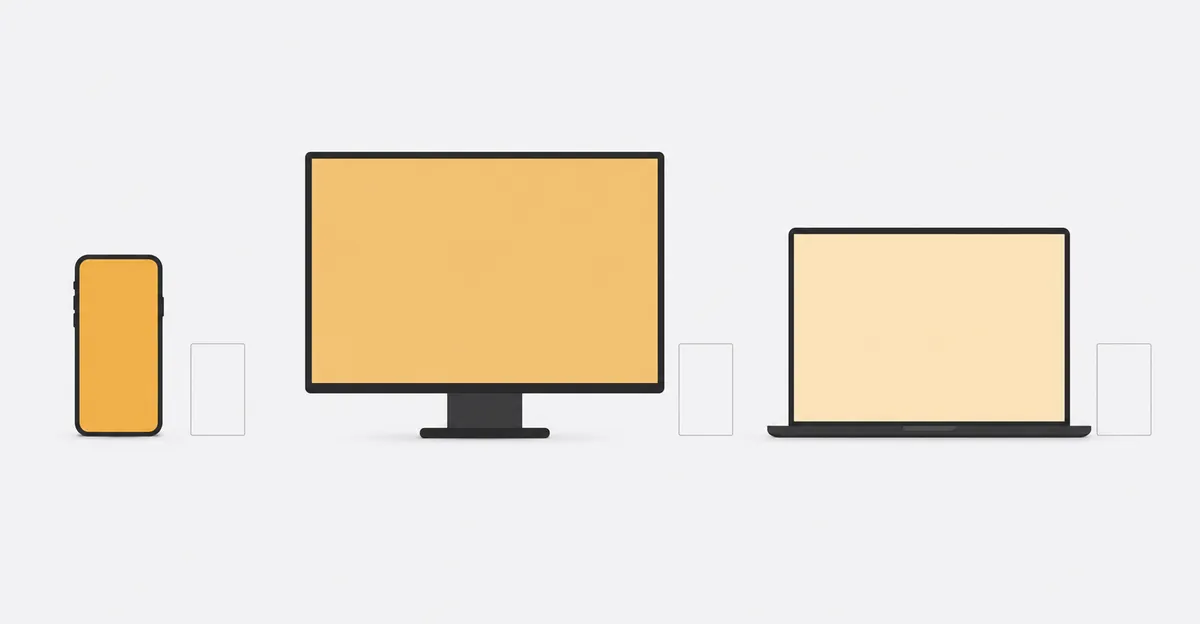
Yellow Screen: Why It Happens and How to Fix It
Across a sample of repair blogs that publish self-reported case logs — ClearlyLearned, WindowScape, 73inc.nz — software causes account for roughly 80% to 85% of all yellow screen reports, with hardware causes (cables, backlights, swollen batteries, panel aging) making up the remainder. The exact split varies by device: monitors skew toward software (OSD color presets, Night Light, ICC profiles), while phones skew toward hardware (heat outgassing and battery pressure are the dominant causes).
What Yellow Screen Means Across Devices
A yellow screen is not one problem — it is a family of related color symptoms. Identifying which one you have is the difference between a five-second fix and a $400 repair. Across phones, laptops, external monitors, and MacBooks, the symptom takes one of three forms:
1. Full-screen warm tint. Every white background looks cream, yellow, or amber. The whole panel is shifted, usually uniformly. This is the signature of a software color temperature feature (Night Light, Night Shift, True Tone, f.lux) or an incorrect color profile. ClearLearned reports that software causes account for roughly 80% of this form across all device types.
2. Localized yellow spot. A small patch of warm discoloration with defined edges, most often on a phone or laptop. This is a physical layer issue inside the display — adhesive outgassing from heat, pressure damage, battery swelling, or moisture damage. It does not respond to settings changes.
3. Edge yellowing or color shift. Yellowing concentrated near the screen edges or one corner, often more visible on dark backgrounds. This is the signature of an aging backlight (CCFL tubes in older monitors) or adhesive degradation in a phone that has been through temperature cycles.
The fix path differs for each form. Form 1 needs software. Form 2 needs hardware. Form 3 needs replacement or, in older monitors, an OSD reset. The remaining sections of this guide walk through each device category and tell you which form you are dealing with.
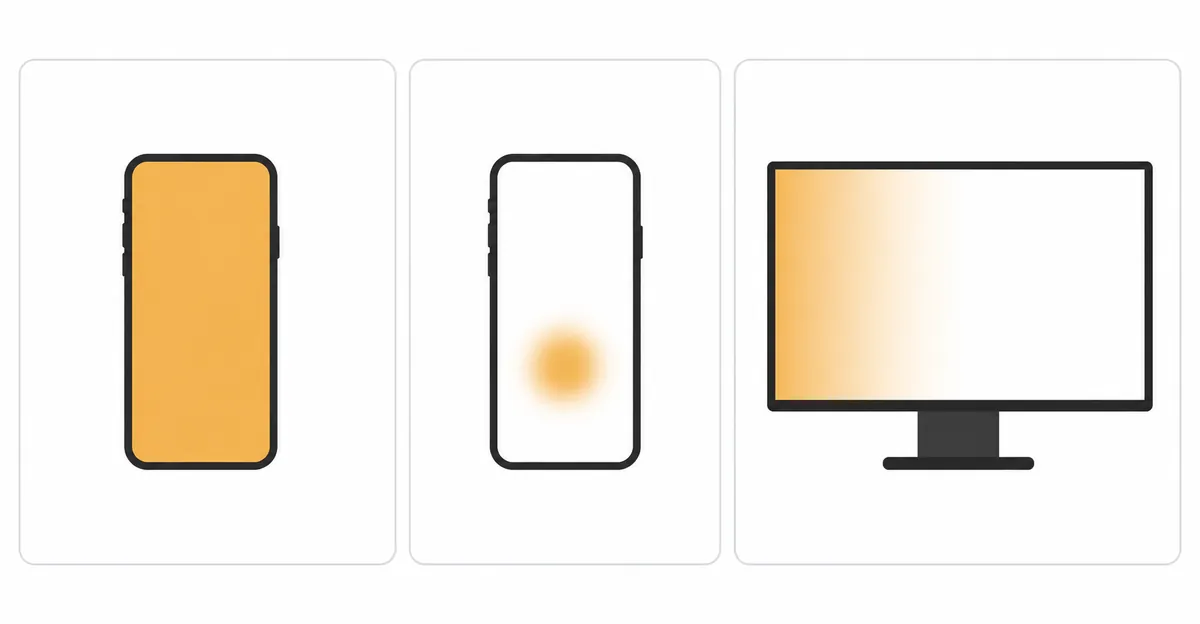
Yellow Screen on Phone: Spot, Stain, or Tint?
On a phone, the phrase "yellow tint" almost always points to a localized problem rather than a settings issue — and the localization pattern tells you the cause. The Higgstec industrial touchscreen troubleshooting guide and the 360TechGuide mobile repair guide both recommend the same first test: take a screenshot of the yellow area, then view the screenshot on another device. If the yellow mark disappears in the screenshot, the issue is software (a color filter or accessibility setting). If it remains visible, the issue is a physical fault in the display layers.
Distinguishing the three forms on a phone:
| Symptom | Likely cause | First action |
|---|---|---|
| Entire screen uniformly warm | Night Light, Eye Comfort, True Tone, color profile | Toggle off the blue-light feature in Settings |
| Small yellow spot, edges defined, not growing | Heat outgassing on adhesive layer (Oreate AI) | Stop heavy charging, let the phone cool, monitor for 48 hours |
| Yellow spot growing, screen lifting, phone rocks on flat surface | Swelling lithium-ion battery (Rubble Magazine, DigitalTipsDaily) | Stop using and charging, seek battery replacement |
| Edge yellowing, often in one corner | UV, humidity, or chemical exposure on optical coatings (Higgstec) | Professional screen replacement |
The Oreate AI guide adds an important nuance: on OLED phones, pressure damage can crack the encapsulation layer that protects the organic material from oxygen. Once oxygen enters, the pixels die or discolor, often starting as a yellowish patch before turning black. This is irreversible — the OLED panel must be replaced.
For more on the physical-layer causes covered here, see our yellow spot on mobile screen guide and the general monitor color problem hub.
Phone Screen Turning Yellow: Software Causes & Fixes
When the entire phone display shifts toward warm yellow, the cause is almost always a blue-light reduction feature that is enabled without your knowledge. The TCL official support page for its phones documents the two settings that drive the most support tickets: Eye Comfort mode and Reading mode. On Android, these appear under Settings > Display > Eye Comfort (or similar names per manufacturer — Samsung calls it Eye Comfort Shield, OnePlus calls it Night Mode, Xiaomi calls it Reading Mode). On iPhone, the equivalent is True Tone and Night Shift, both under Settings > Display & Brightness.
Software feature comparison across phone platforms:
| Feature | Platform | Path to disable | Effect when on |
|---|---|---|---|
| Eye Comfort | Android (most OEMs) | Settings > Display > Eye Comfort | Filters blue light, warm tint |
| Night Light | Windows / Chromebook | Settings > System > Display | Warm tint, scheduled |
| True Tone | iPhone / iPad | Settings > Display & Brightness | Warm tint based on ambient light |
| Night Shift | macOS | System Settings > Displays | Warm tint, scheduled |
| Reading Mode | Xiaomi / TCL | Settings > NXTVISION > Reading Mode | Monochrome warm |
| f.lux / Twilight | Cross-platform | App settings | Warm tint, scheduled |
| Color Filters | iOS / Android | Accessibility > Display > Color Filters | Warm or sepia filter |
The fix is straightforward: open each feature in turn, toggle it off, and check the screen. If the tint disappears, you have found the cause. If it remains, move to the hardware section of this guide. Multiple sources including 73inc.nz and Technobezz recommend toggling the schedule off as well as the master switch — otherwise the feature will reactivate at the next sunset and the tint will return overnight.
Yellow Stain on Phone Screen: Heat, Battery, and Pressure
When a yellow mark on a phone screen is localized, irregular, or growing, the cause is hardware — and one of three mechanisms dominates. Each has a different urgency level, and the battery scenario is a safety hazard.
Heat-induced adhesive outgassing. When a phone gets hot — left on a car dashboard, used heavily while fast-charging, or charged under a pillow — the adhesive layer between the display stack undergoes a chemical change called outgassing. Oreate AI describes this as thermal degradation of the adhesive, which turns yellow as it breaks down. Heat-related yellow stains can fade after the phone cools down, but repeated overheating makes them permanent. The fix is preventive: charge on hard, ventilated surfaces, remove thick cases during heavy use, and avoid leaving the phone in direct sunlight.
Swelling battery. Lithium-ion batteries swell when they age, take physical damage, or have a manufacturing defect. The expanding battery pushes against the display from the inside, often creating a yellow spot in the center of the screen. Rubble Magazine lists the warning signs: the screen or case appears raised, the yellow spot ripples when pressed, the phone rocks when placed on a flat surface, or you hear clicking sounds. DigitalTipsDaily emphasizes that real hardware bright spots caused by a swollen battery do not fix themselves — the underlying damage progresses whether or not the phone is in use. A swollen battery is a fire hazard. Stop charging, stop pressing the screen, and seek professional battery replacement immediately.
Pressure damage and OLED encapsulation. Sitting on the phone, dropping it, or applying force to the lid of a foldable can damage the internal display layers. On LCDs, the liquid crystals misalign and create a permanent yellow or white mark. On OLEDs, the encapsulation layer that protects the organic material from oxygen can crack — once oxygen enters, the pixels discolor and die. Oreate AI notes that OLED pressure damage typically starts as a yellowish patch before turning black. The only fix is full screen assembly replacement.
For a deeper dive into all three mechanisms with visual examples, see the yellow spot on mobile screen guide.
Yellowish Monitor Screen: 5-Step Diagnosis
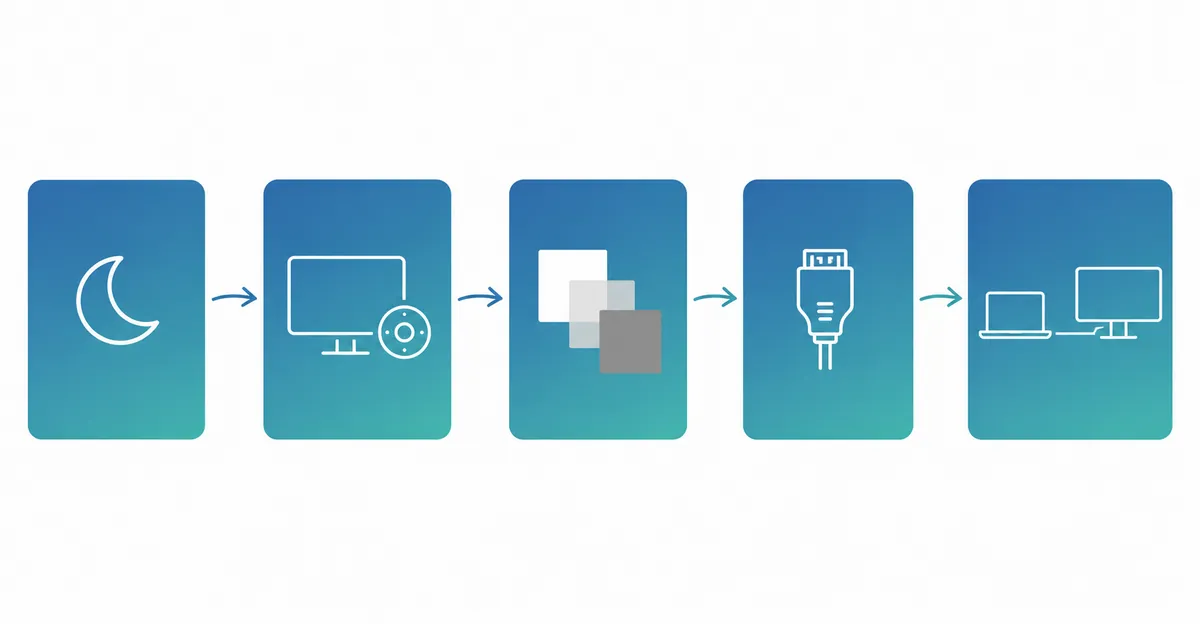
When an external monitor or a desktop display takes on a yellowish cast, the fix path is more structured than for a phone. Five steps, in order, identify the cause in the overwhelming majority of cases. HowToGeek, ClearlyLearned, and DigitalHackingTips all converge on the same ordered approach.
Step 1 — Check Night Light (Windows) / Night Shift (macOS) / Night Light (Chromebook). Open the display settings. If any blue-light feature is on or scheduled, toggle it off. The ClearlyLearned guide estimates that about 80% of monitor yellow tint resolves at this step. Sources: clearlylearned.com, howtogeek.com.
Step 2 — Open the monitor's OSD menu and check color temperature. Every monitor has a physical on-screen display menu with color presets (Warm, Normal, Cool, sRGB, User). DigitalHackingTips notes that many monitors ship on a "Warm" preset that looks attractive in stores but produces inaccurate whites. If your monitor is set to Warm or a Kelvin value below 5000K, change it to 6500K, Normal, or sRGB. This step resolves a large slice of the remaining 20%.
Step 3 — Reset the color profile in your operating system. On Windows, open Color Management, select your monitor, and set the profile to sRGB IEC61966-2.1. On macOS, open System Settings > Displays > Color Profile and select the default Apple profile. Global.php.cn notes that generic or outdated ICC profiles can misrepresent gamma and chromaticity, producing a perceived yellow wash.
Step 4 — Reseat the display cable and try a different port. A loose or damaged HDMI, DisplayPort, or DVI cable can selectively weaken the blue channel, leaving red and green to combine into yellow. Unplug the cable at both ends, inspect for bent pins, reconnect firmly, and try a different port. Cables cost $5 to $20 — replacement is cheaper than guessing.
Step 5 — Test with a different source device. Connect the monitor to another computer or laptop. If the yellow cast disappears, your original computer's graphics card or driver is the issue. If the cast persists, the monitor's backlight (especially an aging CCFL tube in pre-2015 monitors) or internal LUT hardware is degrading. CCFL aging is a gradual process that starts at one edge and spreads, per ClearlyLearned.
For the broader category of monitor color tints (blue, green, red, yellow), see the monitor color problem hub.
Computer Screen Yellowish: Software vs Hardware Split
A yellowish computer screen — desktop or laptop — splits cleanly into two categories: settings and signals you can fix in minutes, and hardware faults that require a technician. The split is roughly 80/20, with software dominating. Technobezz walks through the software side in detail: Night Light, Night Shift, True Tone, accessibility color filters, browser add-ons, GPU color settings, and the monitor's own OSD menu. The hardware side — GPU seating, cable shielding, panel backlight aging — accounts for the rest.
Software fix list for a yellowish computer screen:
- Disable Night Light (Windows), Night Shift or True Tone (macOS), or Chromebook Night Light.
- Switch off accessibility color filters (Windows logo key + U on Windows, Accessibility > Display on Mac).
- Remove or disable blue-light browser extensions and third-party apps (f.lux, Twilight, ScreenTint).
- Repair the display color profile (Control Panel > Color Management on Windows, System Settings > Displays > Color Profile on Mac).
- Reset graphics card color channels to defaults in the GPU control panel (NVIDIA Control Panel, AMD Radeon Settings, Intel Graphics Command Center).
- Reset the monitor OSD to factory defaults.
If all six steps fail, you are looking at hardware. The HowToGeek guide notes that a loosely seated GPU in the PCIe slot can produce a yellow tint by degrading color accuracy. Reseating requires opening the case and removing the GPU — confirm you are comfortable with this before starting. If the tint persists after reseating, the panel backlight is likely aging (CCFL monitors) or the panel itself is failing.
According to the ClearlyLearned analysis of repair cases, the percentage breakdown for yellowish monitor screens is approximately: Night Light / Night Shift / True Tone (50%), incorrect color profile (15%), monitor OSD on wrong preset (10%), cable damage or loose connection (10%), CCFL backlight aging on older monitors (10%), and panel-level hardware failure (5%). Software causes dominate because every modern OS ships with a blue-light feature that can be enabled accidentally.
For a deep dive on related color tints (blue, green, red, yellow), see the monitor color problem overview.
MacBook Pro Yellow Screen: Quick Reference
A yellow screen on a MacBook Pro is a distinct diagnostic track because Apple's display features (True Tone, Night Shift) interact differently than Windows blue-light tools, and the hardware failure modes (Flexgate cable fatigue, SMC bugs) are Mac-specific. The 73inc.nz guide, WindowScape, and the iFixit guide converge on a seven-step ordered approach that resolves roughly 85% of cases without service.
Step 1 — Disable True Tone and Night Shift. System Settings > Displays. Toggle off True Tone. Click Night Shift, disable the schedule, and turn Manual off. Both features can produce a noticeable yellow cast on their own; together they can produce a strong amber wash.
Step 2 — Check accessibility color filters. System Settings > Accessibility > Display. Turn off Color Filters. WindowScape notes that an accessibility filter is easy to enable by accident and produces a yellow screen that looks identical to a hardware fault.
Step 3 — Reset the color profile. System Settings > Displays > Color Profile. Select the default Apple profile (Color LCD, MacBook Pro, or iMac depending on model). An incorrect profile from a third-party calibration or a corrupted profile from a macOS update can shift the display toward yellow.
Step 4 — Reset NVRAM (Intel Macs only). Shut down, power on, and immediately hold Option + Command + P + R for about 20 seconds. This clears display-related settings stored in NVRAM. Apple Silicon (M1, M2, M3, M4) MacBooks reset NVRAM automatically and do not need this step.
Step 5 — Reset SMC (Intel Macs only). Shut down. Hold Shift + Control + Option (left side) + Power button for 10 seconds. Release all keys and power on. This clears power management state that can affect display behavior.
Step 6 — Test with an external monitor. Connect a known-good external display via USB-C, HDMI, or Thunderbolt. If the external display shows neutral colors but the MacBook screen is yellow, the fault is in the MacBook's display panel, backlight, or cable. If both screens are yellow, the cause is software or GPU-side.
Step 7 — Run Apple Diagnostics. Restart and hold the D key (or Option-D on Apple Silicon). Apple Diagnostics reports hardware error codes that point to display, cable, or logic board faults.
Flexgate cable repair cost (2016–2018 MacBook Pro): According to UK independent repair guides (Hark Tech, ZA Support), cable-only Flexgate repair runs roughly £149 to £449 depending on model (13-inch vs 15-inch) and whether additional panel work is needed. Apple's official pathway for the same fault is full top-case display assembly replacement, which is significantly more expensive. Independent Flexgate cable repair requires careful disassembly of the glued display assembly, micro-soldering skill, and a revised-length replacement cable — this is not a user-serviceable repair for most owners.
For the full MacBook-specific deep dive (including Liquid Retina XDR tint behavior and AppleCare+ coverage), see our yellow screen on MacBook Pro guide.
How to Fix Yellow Screen: Decision Tree by Device
After seven device-specific sections, here is the consolidated fix path. Walk the tree top to bottom for your device category. Most cases resolve at the first or second node.
Step 1 — Identify the form. Full-screen warm tint → go to Step 2. Localized yellow spot → go to Step 3. Edge yellowing → go to Step 4.
Step 2 — Software fix for full-screen warm tint.
- Disable Night Light / Night Shift / True Tone / Eye Comfort / Reading Mode in your device settings.
- Disable accessibility color filters in Accessibility > Display.
- Reset the color profile to sRGB IEC61966-2.1 (Windows) or the default Apple profile (macOS).
- Reset the monitor OSD color preset to 6500K or sRGB.
- Update or roll back the graphics driver. If the tint is gone: stop here. If it persists: go to Step 4.
Step 3 — Hardware fix for localized yellow spot on phone or laptop.
- Take a screenshot test: open it on another device. Spot invisible in screenshot → return to Step 2. Spot visible in screenshot → hardware fault.
- Check for battery swelling: screen lifting, phone rocking on flat surface, click sounds → stop charging and seek battery replacement immediately.
- Check for heat damage: spot appears after heavy charging or sunlight exposure → outgassing damage, requires screen replacement.
- Check for pressure damage: spot appeared after a drop or impact → panel replacement required. If none of the above apply, or all hardware fixes have failed: seek professional diagnosis.
Step 4 — Hardware fix for edge yellowing on monitor or panel aging.
- For CCFL monitors (pre-2015): the backlight tubes are aging. There is no software fix. Replace the monitor or have a technician replace the CCFL tubes (typically $150 to $300).
- For LED monitors with edge yellowing: the optical film or LED phosphor is degrading. Repair is rarely cost-effective; replace the monitor.
- For MacBook Flexgate symptoms (stage-light patches at the bottom, lid-angle dependent tint): independent Flexgate cable repair is possible but requires a specialist. Apple Store replacement is the official route.
Repair cost summary by device and cause (compiled from HowToGeek, Technobezz, iFixit, and UK independent repair guides):
| Device | Cause | Typical repair cost |
|---|---|---|
| Phone | Swollen battery | $30–80 (third-party), $80–200 (manufacturer) |
| Phone | Screen replacement (outgassing, pressure) | $40–400 depending on model |
| Monitor | Cable replacement | $5–20 |
| Monitor | CCFL backlight replacement | $150–300 professional |
| MacBook Pro | Software fix | Free |
| MacBook Pro | Flexgate cable-only repair (independent) | $150–450 |
| MacBook Pro | Full display assembly (Apple) | $450–1,100 |
| MacBook Pro | AppleCare+ accidental damage | $99 flat fee |
Use our free screen test tool to confirm the color cast, document it with a screenshot, and decide whether you need a settings change or a repair quote.
Related Guides
- Yellow Screen on MacBook Pro — MacBook-specific deep dive
- Yellow and Pink Screen on Monitor — Monitor color tint hub
- Yellow Spot on Mobile Screen — Physical yellow spots on phones
- Yellow Tint Display — General yellow tint diagnosis
- Monitor Color Problem — Blue, green, red, yellow tint overview
- Screen Test Tool — Free diagnostic tool for screen issues
Conclusion
Yellow screen on any device falls into one of three forms — full-screen warm tint, localized yellow spot, or edge yellowing — and each form has a different fix path. Software causes (Night Light, Night Shift, True Tone, Eye Comfort, color profile, OSD preset) account for roughly 80% to 85% of all cases and resolve in seconds to minutes. Hardware causes (heat outgassing, battery swelling, Flexgate cable, CCFL aging) require repair or replacement, and battery swelling is the only scenario that carries a safety risk. Diagnose with the screenshot test, walk the decision tree for your device category, and apply the cheapest fix that resolves the issue before paying for hardware service.