Yellow Screen MacBook Pro: What It Means and How to Fix It
A yellow tint on your MacBook Pro screen almost always traces back to a feature or setting that is intentionally warming the display, but in some cases it points to a real display hardware fault. This guide covers the diagnosis path, the fixes that resolve most cases without service, and the hardware repair options when software cannot fix the issue.

What Is Yellow Tint on MacBook Pro
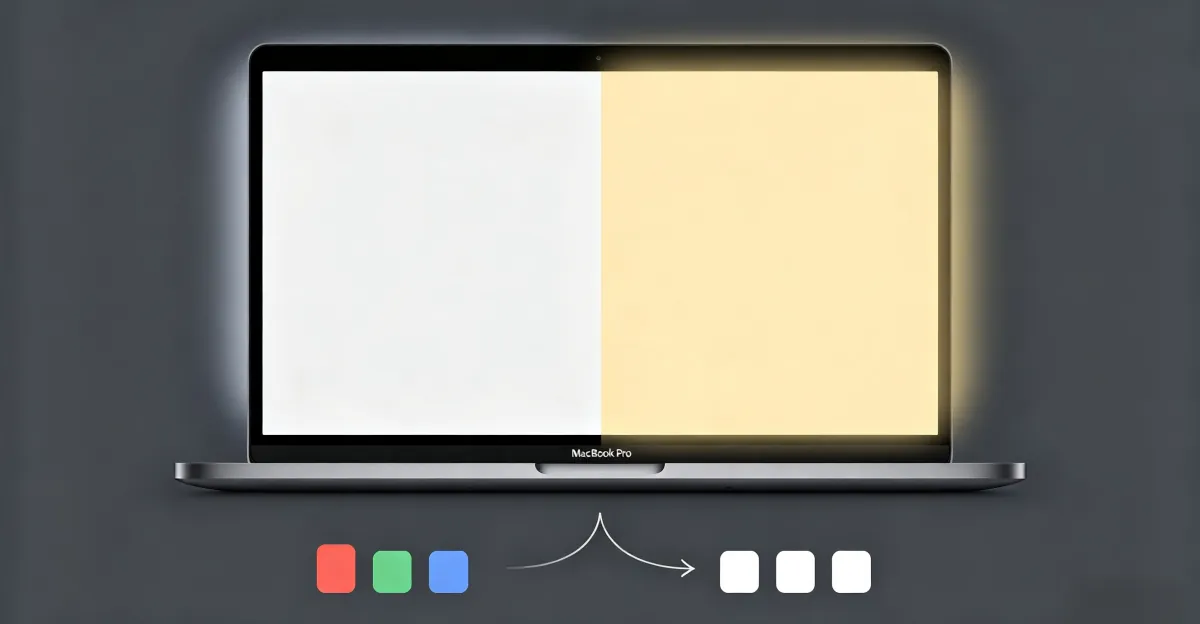
Yellow tint on MacBook Pro is a color cast where the display's white point shifts away from the neutral 6500K (D65) reference toward warm yellow. On a pure white background, you see it as cream, warm-white, or distinctly yellowish. On neutral gray, it appears as a brownish wash. On saturated blue, it can look greener than it should. The tint can be constant, schedule-dependent (worse in the evening), or angle-dependent (changing as you open or close the lid).
Key characteristics:
- All-white backgrounds look cream, paper-toned, or amber
- Blue and cyan colors look duller or shifted toward green
- Photos and videos appear warmer than the original capture
- Issue may be constant, scheduled, or dependent on lid angle
- Affects Intel and Apple Silicon MacBook Pro models from the past decade
The same pattern can also appear as a more aggressive warm cast that looks almost orange. That variant is usually the same root cause at a more extreme setting, and you can read more about it in our guide to orange screen on MacBook Pro. For a related MacBook color problem in the opposite direction, see MacBook screen white tint.
What Causes Yellow Tint on MacBook Pro
Multiple independent sources identify the same set of root causes, with software settings at the top of every list.
1. Night Shift Is Enabled
Night Shift is a macOS feature that warms the display by reducing blue light. It can run on a sunset-to-sunrise schedule, a custom schedule, or be toggled manually. At the warmest end of the color temperature slider, the display is pushed to roughly 3000K, which is a distinctly amber-yellow tone on white backgrounds. Independent repair guides report that Night Shift left enabled during the day is one of the top three causes of unexpected yellow tint complaints.
2. True Tone Is Enabled
True Tone uses the MacBook Pro's ambient light sensors to shift the display's white balance toward the color of the room lighting. In a warm-lit room (incandescent bulbs, halogen, candlelight, late-afternoon sun through curtains), True Tone intentionally warms the screen. OS X Daily notes that True Tone is different from Night Shift: it works all day based on environment, not based on time, and can shift the screen to a yellow cast in any lighting condition.
3. Incorrect Color Profile
macOS uses an ICC color profile to tell the GPU how to render colors on a given display. If the active profile is wrong — for example a profile from a different Mac model, an old custom calibration, or a corrupted profile — the display can take on a yellow cast. A corrupted profile is one of the most overlooked causes because the profile is invisible to the user.
4. Accessibility Color Filters
System Settings > Accessibility > Display includes a Color Filters toggle that can apply a warm or sepia filter across the entire display. This filter is easy to enable by accident and produces a yellow screen that looks identical to a hardware fault. Always verify this is turned off before doing deeper diagnosis.
5. Display Cable Fault and Flexgate
On 2016–2018 MacBook Pro models, a known design flaw nicknamed Flexgate can cause color cast, dim patches, and backlight cutoff. Apple routed the display flex cable across the lower edge of the screen with too little slack; after roughly 10,000–20,000 lid cycles the copper traces fatigue and break. The first signs are a stage-light gradient along the bottom of the screen and color inconsistency that worsens at certain lid angles. Hark Tech and ZA Support both describe Flexgate as a flex-cable fault, not a panel fault.
6. Aging LCD Backlight and Panel Degradation
Older MacBook Pro models with CCFL backlights (pre-2012) develop yellow tint as the blue phosphor in the backlight degrades. Modern LED-backlit Retina displays can also drift over years of heavy use, though the effect is usually milder. Repair communities report that yellowing from panel aging is gradual and uniform across the screen, unlike Flexgate, which is patchy and angle-dependent.
How to Diagnose Yellow Tint on MacBook Pro
Follow this ordered path. Most yellow tint cases resolve at step 3 or earlier.
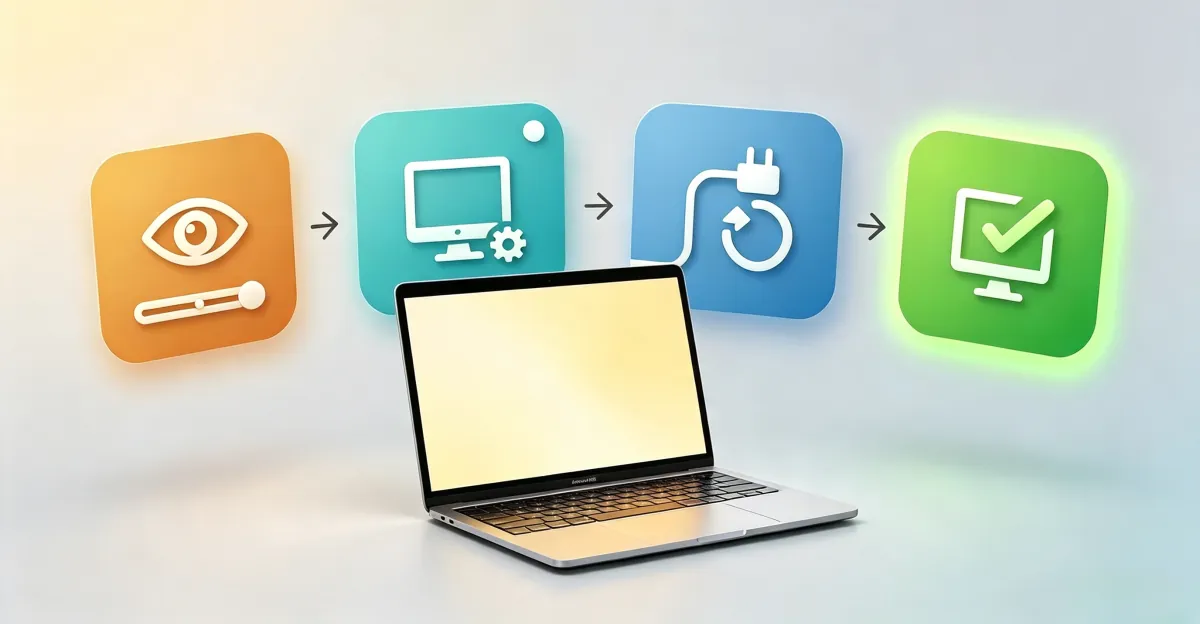
- Disable Night Shift and True Tone. Open System Settings > Displays. Toggle off True Tone. Click Night Shift and disable the schedule, or move the color temperature slider toward Less Warm. If the tint disappears, you found the cause.
- Disable Accessibility Color Filters. Open System Settings > Accessibility > Display. Confirm Color Filters is off. If it was on, the tint is a deliberate accessibility setting, not a defect.
- Reset the Color Profile. Open System Settings > Displays > Color Profile. Select the default Apple-recommended profile for your model (often labeled Apple Display or Color LCD). If only an unfamiliar profile is listed, your active profile is the likely culprit.
- External Monitor Test. Connect a known-good external monitor via USB-C, HDMI, or Thunderbolt. If the external display shows neutral colors while the MacBook screen is still yellow, the fault is in the MacBook's display panel, backlight, or cable. If both screens are equally yellow, the cause is software or GPU-side.
- NVRAM Reset (Intel Macs). Shut down, then power on and immediately hold Option + Command + P + R for about 20 seconds. This clears display-related settings stored in NVRAM. Apple Silicon (M1, M2, M3, M4) MacBook Pro models reset NVRAM automatically on reboot and do not need this step.
If the tint persists after all five steps, you are looking at a hardware fault. Use our screen test tool to confirm the color cast and document it before contacting Apple.
How to Fix Yellow Tint on MacBook Pro
The fix path depends on what step 5 of the diagnosis reveals.
Fix 1: Turn Off Apple Display Features
Use when: Yellow tint appeared after a macOS update, after first setup, or after a settings change you do not remember making.
- Open System Settings > Displays
- Toggle True Tone off
- Click Night Shift, disable the schedule, and turn Manual off
- Open System Settings > Accessibility > Display and confirm Color Filters is off
- Restart Safari or any app you had open to flush the previous color settings
This is the fix for the majority of yellow tint cases.
Fix 2: Reset and Recalibrate the Color Profile
Use when: A custom color profile has been applied, a colorimeter calibration produced a strange result, or the default profile is missing.
- Open System Settings > Displays > Color Profile
- Select the default profile recommended by Apple for your MacBook Pro
- If you need precise calibration, open ColorSync Utility (search via Spotlight), choose your display, and click Calibrate
- In the Display Calibrator Assistant, set the target white point to D65 (6500K) and gamma to 2.2
- Save as a new profile and select it as the active profile
Fix 3: macOS Update and SMC Reset
Use when: Tint appeared right after a macOS update, or on Intel-based MacBook Pro where display behavior became erratic.
- Open System Settings > General > Software Update and install any pending macOS updates
- On Intel MacBook Pro, reset the System Management Controller (SMC): shut down, hold Shift + Control + Option + Power for 10 seconds, release all keys, then power on
- On Apple Silicon MacBook Pro, simply shut down, wait 30 seconds, and power on
- Retest
Fix 4: Display Cable Replacement (Advanced / Professional)
Use when: Tint is uneven, changes with lid angle, or appears together with stage-light patches at the bottom of the screen — Flexgate symptoms on 2016–2018 MacBook Pro.
Independent repair shops can replace just the flex cable, preserving the original panel. Multiple UK repair sources quote £149 to £449 for cable-only Flexgate repair, with prices varying by model (13-inch versus 15-inch) and whether additional panel work is needed. Apple's official pathway for the same fault is full top-case display assembly replacement, which is significantly more expensive. Cable-only repair requires careful disassembly of the glued display assembly, micro-soldering skill, and a revised-length replacement cable — this is not a user-serviceable repair for most owners.
If your MacBook Pro is on Apple Silicon or post-2019 and you see Flexgate-like symptoms, the cause is more likely a loose internal display connector than the Flexgate cable fault, but the repair path is similar: a technician opens the case, reseats or replaces the cable, and tests at multiple lid angles.
When Hardware Repair Is Needed
Seek professional service when:
- Yellow tint is uneven across the panel, with patches that are warmer than the rest
- Tint changes as you open or close the lid, or with screen angle
- You see stage-light bands at the bottom of the display (Flexgate on 2016–2018 models)
- The external monitor test shows the internal MacBook display is yellow but the external screen is neutral
- All software fixes in System Settings have been tried with no improvement
Typical cost ranges for out-of-warranty MacBook Pro display repair at the time of writing:
- Apple Store full display assembly replacement: roughly $450 to $1,100 depending on model, with 14-inch and 16-inch Liquid Retina XDR at the upper end
- Third-party repair shop full display replacement: roughly $300 to $750 for the same models
- Independent Flexgate cable-only repair on 2016–2018 MacBook Pro: roughly $150 to $450
- AppleCare+ coverage for accidental damage: flat $99 service fee per incident
If your MacBook Pro is still under Apple Limited Warranty or AppleCare+ and the yellow tint is a manufacturing defect (uniform across the panel with no physical damage), Apple covers the repair at no cost. Tint caused by physical impact or liquid exposure is treated as accidental damage and falls under the AppleCare+ deductible.
Prevention Tips
- Be deliberate about True Tone and Night Shift: keep them on if you use them, but know they are on
- Check the Night Shift schedule before assuming your display has a fault
- Calibrate color profiles through ColorSync Utility rather than third-party apps you do not trust
- Avoid leaving heavy objects on a closed MacBook Pro; pressure on the lid is a known contributor to panel layer delamination
- Open and close the lid smoothly rather than slamming or yanking; this extends flex-cable life
- Keep macOS updated to receive any Apple-issued display calibration fixes
- If you rely on color-accurate work, set the display profile explicitly and lock Night Shift off during work sessions
Related Guides
- Monitor Color Problem Hub
- Yellow and Pink Screen Issues
- Orange Screen on MacBook Pro
- MacBook Screen White Tint
- Blue Tint on Monitor
Conclusion
Yellow tint on MacBook Pro is almost always a software setting — Night Shift, True Tone, an incorrect color profile, or an accessibility color filter — and is reversible in System Settings within minutes. The small minority of cases that survive every software fix are usually hardware: an aging backlight, a loose or fatigued display cable, or the Flexgate flex cable fault on 2016–2018 models. Diagnose in the order above, then choose the cheapest fix that resolves the issue before paying for hardware service.
Use our free screen test tool to confirm the color cast, document it with a screenshot, and decide whether you need a settings change or a repair quote.