White lines and static lines on a monitor signal fundamentally different hardware problems. White lines point to display elements stuck in the "on" state—a transistor that won't switch off. Static lines point to signal corruption—data being scrambled somewhere between your graphics card and the panel. Confusing the two leads to wrong fixes: you might replace a cable when the T-CON board is failing, or buy a new monitor when a $15 DisplayPort cable would solve it. This guide covers the four technical causes of white lines on LCD monitors, the diagnostic tests that separate signal problems from display failures, and the repair-versus-replace decision framework based on real cost data.
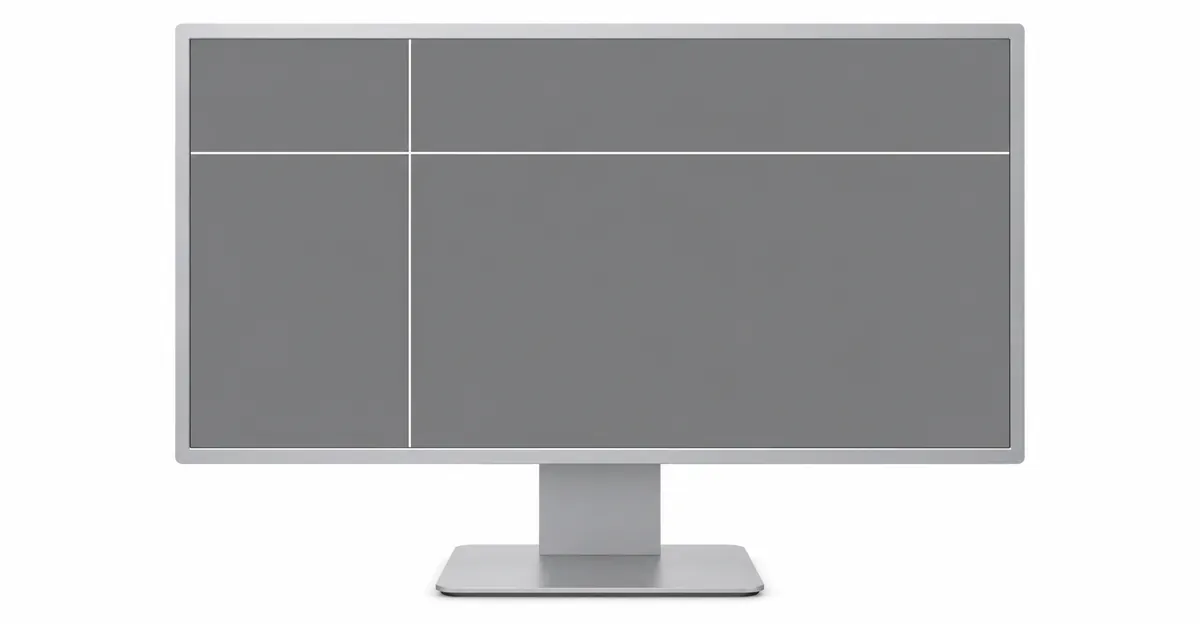
White Lines vs Static Lines: The Critical Distinction
These two problems look similar at first glance but arise from opposite technical failures. White lines are pixels or entire columns/rows stuck permanently displaying white. The circuit controlling those pixels is physically jammed in the "on" position—imagine a light switch welded to the up position. Static lines, in contrast, are the result of corrupted video data. The pixels themselves may be fine, but the signal telling them what color to display has been scrambled during transmission, producing a noise-like flickering pattern instead of a solid color.
The distinction matters because it determines your next step. White lines suggest a hardware fault inside the monitor—stuck sub-pixel transistors, a failing T-CON board, or degraded flex cables connecting the timing controller to the LCD panel. Static lines suggest a problem in the signal chain: a damaged HDMI or DisplayPort cable, electromagnetic interference, or a T-CON board that's corrupting the timing signals it generates.
The 30-second test: Watch the line for 30 seconds. If it remains perfectly stable—same white color, same position, no flicker—it's a white line caused by a stuck circuit. If the line flickers, changes pattern, or shows a grainy texture, it's a static line caused by signal corruption. This simple observation tells you whether to focus on cables and signal integrity or on internal monitor hardware.
Another diagnostic clue: where the line appears. White lines caused by stuck transistors will be present in the monitor's own on-screen display (OSD) menu—they're burned into the display path itself. Static lines caused by external signal corruption will not appear in the OSD menu, because the menu is generated internally by the monitor's firmware and bypasses the external video input entirely.
Understanding this distinction prevents wasted troubleshooting. If you see lines in the OSD menu, no amount of cable swapping or driver updates will help—the fault is inside the monitor. If lines disappear in the OSD menu, the monitor's panel is likely fine, and you should focus on the signal path: cables, ports, graphics card output, and refresh rate settings.
White Lines Across Computer Screen: The Four Root Causes
1. Sub-Pixel Transistors Stuck On
Each sub-pixel in an LCD has its own thin-film transistor (TFT). When one fails in the "on" position, it continuously activates its sub-pixel. When all three sub-pixels in a pixel are stuck on, the result is a white dot. When an entire column or row of sub-pixels is stuck on, the result is a white line.
Signs: Single thin white line, perfectly stable, no flickering, appeared suddenly or after physical impact.
2. T-Con Timing Signal Errors
The T-con board generates precise signals that tell each pixel when to update. When it malfunctions, it can generate incorrect signals that keep specific pixels permanently white.
Signs: Multiple white lines, lines accompanied by other artifacts, lines that appear only in specific screen areas.
3. Static Discharge (ESD) Damage
Electrostatic discharge—touching the screen, using alcohol-based cleaners near the screen, or working on the monitor without grounding—can physically destroy a transistor's ability to switch off.
Signs: White line appeared after touching the screen, cleaning near it, or during a power event. Often located in the exact area where discharge occurred.
4. LCD Panel Aging
As panels age, the liquid crystal alignment in specific areas degrades. Pixels begin displaying brighter than their neighbors.
Signs: Faint white line that gradually became more visible over months or years. Panel is 5+ years old.
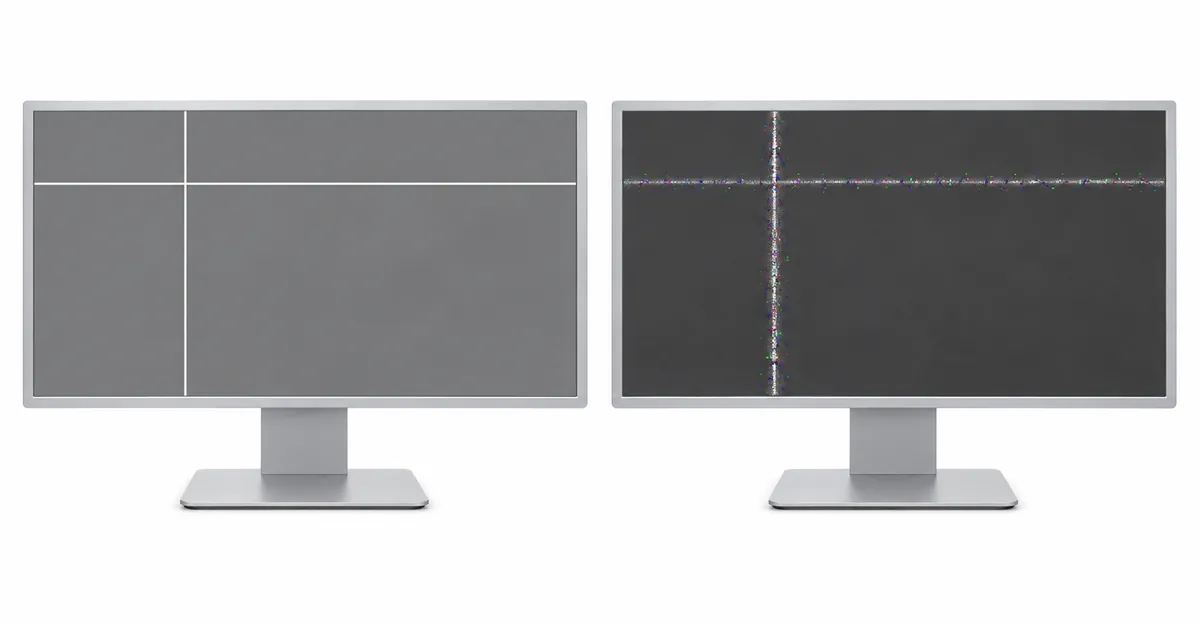
Faint White Lines on Monitor: Early Warning Signs
Faint white lines often precede complete electrode failure. A line that starts barely visible and gradually becomes brighter over weeks or months indicates progressive degradation—either in the panel's liquid crystal alignment or in the flex cable connections between the T-CON board and the LCD panel.
The key diagnostic question: does the faint line get brighter as the monitor warms up? This "warm-up effect" is a strong indicator of flex cable degradation. The heat from normal operation causes micro-fractures in the ultra-thin cable traces to expand slightly, improving contact and making the line less visible. When the monitor cools, the fractures close again and the line returns. This pattern is repairable through cable reseating or replacement, but only if caught early.
Another early warning sign is line visibility that changes with screen content. A faint line that becomes prominent only on white backgrounds but disappears on black backgrounds suggests a marginal connection—the signal is strong enough for low-amplitude (dark) pixel data but drops out for high-amplitude (bright) pixel data. This is fixable with cable or T-CON service before it progresses to a permanent failure.
Faint lines that appear after the monitor has been moved, tilted, or subjected to vibration point to mechanical stress on internal ribbon cables rather than gradual electronic degradation. Desktop monitors use ribbon cables that plug into the T-CON board and LCD panel; these connectors can loosen over time. Reseating these cables—removing and firmly reconnecting them—often restores clean signal transmission.
Not all faint lines are early warnings. Some indicate end-of-life panel degradation that will not respond to cable service or T-CON replacement. If the faint line has been present since the monitor was new, or if it appeared after a known impact event, the fault is likely in the panel itself rather than the signal chain. Replacement is the only permanent fix in these cases.
Black Screen with White Lines: Signal vs Display Failure
When a monitor displays a black screen with one or more white lines during boot, the diagnostic path splits based on timing. Lines that appear before the operating system loads point to hardware failures—either in the monitor or in the graphics card's low-level output. Lines that appear only after Windows or macOS loads point to driver or operating system issues.
Boot-time white lines (visible during BIOS, manufacturer logo, or "no signal" screen): Test by entering the monitor's OSD menu. If the lines are present in the menu, the fault is inside the monitor—T-CON board, panel, or ribbon cable. If lines disappear in the OSD menu, the graphics card is sending corrupted output even at the BIOS level, which typically indicates failing GPU hardware or a marginal connection between the GPU and motherboard.
Post-boot white lines (black screen during Windows startup, then desktop appears with lines): This pattern suggests driver initialization failures or Windows update conflicts. Boot into Safe Mode. If lines disappear in Safe Mode, perform a clean GPU driver reinstall using DDU (Display Driver Uninstaller). If lines persist in Safe Mode, the fault is hardware.
A specific edge case reported by multiple users: black screen with a single thin white line in the corner, system unresponsive to keyboard input. The fix in verified cases: repeatedly press Del or F2 during power-on to force BIOS entry, wait 5 minutes for BIOS to fully initialize, then exit BIOS. Windows will resume and apply pending updates. This resolves the issue in systems where Windows Update created a boot-time conflict that froze display initialization.
The key diagnostic tool for black-screen scenarios is the monitor's OSD menu. It's generated entirely within the monitor, independent of any external video signal. If your black-screen-with-lines condition prevents you from seeing the OSD menu clearly, the monitor itself has failed. If the OSD menu displays cleanly with no lines, the problem is in the computer or video signal path.
Computer Monitor Static Lines: Why They Flicker
Static lines mean the video signal is being corrupted somewhere between the graphics card and the panel. The pixels themselves may be fine—but the data they receive is garbage. Unlike white lines (stuck circuits displaying a solid color), static lines change constantly—flickering between different patterns, colors, or brightness levels.
The signal chain: Graphics card → video cable → monitor's T-CON board → ribbon cable → LCD panel.
Where corruption occurs:
- Video cable: Damaged conductors cause intermittent signal loss. HDMI and DisplayPort cables degrade over time; physical damage from bending or crushing can break individual wire conductors while others survive.
- T-CON board: Failing timing circuits corrupt the data they're supposed to relay cleanly to the panel.
- Ribbon cable: Partial breaks in individual conductors cause some columns or rows to receive garbage data while adjacent areas display correctly.
Why cables fail: Long cable runs without proper shielding are vulnerable to electromagnetic interference from nearby power supplies, USB hubs, or wireless routers. High refresh rates (144Hz, 165Hz) push more data through the cable than 60Hz modes, exposing marginal cables that appeared to work fine at lower bandwidth.
Real Case: HP 27er Monitor Static Line Mystery
An HP 27er owner reported horizontal static-like lines appearing intermittently across the screen. Initial assumption: panel failure.
Investigation:
- Tried three different HDMI cables—lines persisted
- Connected to different computers—lines persisted
- Booted into BIOS—lines NOT present
- Updated graphics drivers—lines persisted
Actual cause: The graphics card on the specific computer had developed a timing output fault. The card worked fine for normal use but produced intermittent signal corruption that manifested as static lines. The key clue: lines disappeared in BIOS (which uses a different, simpler video mode) but returned in Windows.
Solution: Connected the monitor to a different computer. No lines. The monitor was never the problem.
Lesson: Always test in BIOS and on a different computer before assuming monitor hardware failure. Static lines that disappear in BIOS or on a different source device point to the computer's graphics output, not the monitor.
How to Fix White Lines Across Monitor
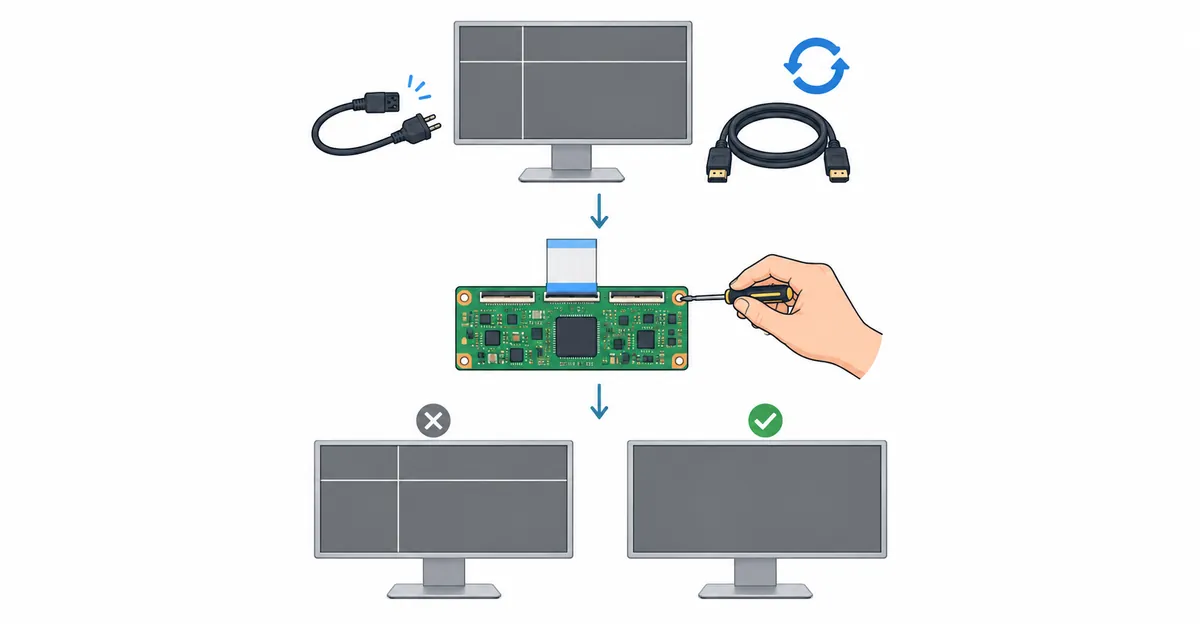
The fix priority depends on whether you're dealing with white lines (stuck circuits) or static lines (signal corruption). Start with the least invasive, lowest-cost options and progress to component replacement only after ruling out simple causes.
For white lines (solid, stable color):
-
Power cycle (free, 2 minutes): Unplug the monitor's power cord. Press and hold the power button for 30 seconds to discharge residual power. Wait 60 seconds, then reconnect and power on. This resets the T-CON board's internal state and can clear temporary timing errors.
-
Pixel-fixing software (free, 20 minutes): For thin single lines, try JScreenFix or PixelHealer. These tools rapidly cycle the affected pixels through all colors at high speed, which can sometimes unstick a transistor that's marginally jammed. Success rate: ~15% for new lines, <5% for lines older than 6 months.
-
Driver and cable test (free to $15): Update or roll back GPU drivers. Try a different video cable (HDMI, DisplayPort, or USB-C). Test at 60Hz refresh rate even if your monitor supports 144Hz. If the line disappears at 60Hz, you've found a bandwidth/cable quality issue.
-
T-CON replacement ($25-80 parts + labor): If the line appeared suddenly, is accompanied by other artifacts, or affects multiple rows/columns, the T-CON board is the likely culprit. Replacement is realistic for monitors under 3 years old where replacement boards are still available. DIY difficulty: moderate (requires disassembly and ribbon cable handling).
-
Panel replacement ($100-300): Only viable for high-value monitors (ultrawides, professional color-calibrated panels) where the panel itself can be sourced. For mainstream 24-27" monitors, panel replacement typically costs 60-85% of a new monitor's price—economically not worthwhile.
For static lines (flickering, changing pattern):
-
Different cable ($5-15, immediate): Replace the video cable with a certified HDMI 2.1 or DisplayPort 1.4 cable. Use the shortest practical length; every meter adds signal degradation.
-
Different port and computer (free, 10 minutes): Try a different video port on both the monitor and graphics card. Test the monitor on a completely different computer or game console. Static lines that follow the monitor indicate internal failure; lines that stay with the original computer indicate graphics card issues.
-
Refresh rate adjustment (free, 1 minute): In Windows Display Settings or macOS System Settings, lower the refresh rate from 144Hz to 120Hz, then 60Hz. If static lines disappear at lower refresh, your cable or T-CON board cannot reliably handle the higher bandwidth.
-
T-CON replacement ($25-80): For static lines that persist across multiple cables and appear in the monitor's OSD menu, the T-CON board is failing. Replacement resolves most static line issues when performed within the first year of symptoms.
-
Panel replacement ($100-300): Only necessary if the ribbon cable between T-CON and panel has failed, or if the panel's internal timing circuits have degraded. Rare for static lines; more common for white lines.
The Background-Dependent Line Test
Some lines appear only on certain backgrounds. This is one of the most useful diagnostic patterns because it reveals the exact nature of the signal failure.
Why lines appear on white but not black: A cable or ribbon connection with marginal signal integrity successfully transmits low-amplitude signals (dark pixel data) but fails on high-amplitude signals (bright pixel data). On a black background, the signal voltage is close to zero—even a degraded cable can carry it. On a white background, the signal must swing to its maximum voltage—a damaged cable loses data at that amplitude.
The physics: each pixel's brightness is controlled by a voltage applied to its liquid crystal layer. Black = minimum voltage (~0V). White = maximum voltage (~5-7V depending on panel design). A cable with increased resistance due to a broken conductor or corroded contact will drop more voltage at higher currents, which correspond to brighter pixels.
What this tells you: Background-dependent lines point strongly to signal chain issues—cable, T-CON output stage, or ribbon cable connection—not to panel electrode failures. A stuck transistor or dead electrode produces a line that's equally visible on all backgrounds because it's a binary failure (stuck fully on or fully off), not a gradual signal degradation.
How to test: Open a solid color test pattern. Use the /screen-test tool and cycle through pure white, 50% gray, and pure black backgrounds. Observe whether the line's visibility changes. A line that's prominent on white, faint on gray, and invisible on black confirms signal chain degradation. This pattern is fixable with cable replacement in ~70% of cases where it's caught early.
This test also distinguishes between external cable issues and internal ribbon cable issues. Run the test while viewing the monitor's OSD menu (which bypasses the external video input). If the background-dependent behavior persists in the OSD menu, the fault is in the internal ribbon cable or T-CON output stage. If the line becomes uniformly visible (or uniformly invisible) in the OSD menu, the external video cable is the culprit.
Prevention: ESD and Cable Care
Most white and static line failures are preventable with basic handling discipline and environmental awareness.
Electrostatic discharge (ESD) prevention: Ground yourself before touching monitor internals or the screen surface. Use an anti-static wrist strap when disassembling a monitor for cleaning or repair. Avoid touching the screen with bare hands in low-humidity environments (below 30% relative humidity), where static buildup is highest. Never use compressed air or alcohol-based cleaners near the screen edges while the monitor is powered on—the spray can generate localized static charges strong enough to damage transistors.
Cable handling: Avoid sharp bends within 6 inches of cable connectors. The conductors inside HDMI and DisplayPort cables are fine strands of copper—sharp bends create stress points where strands break over time. Secure cables with strain-relief clips or cable ties that distribute tension, not with tape that creates hard edges. For long cable runs (over 6 feet), use actively powered cables or fiber-optic HDMI/DisplayPort cables that are immune to electromagnetic interference.
Power discipline: Use a surge protector rated for data line protection, not just power line protection. Many consumer surge protectors protect the AC power input but leave HDMI/DisplayPort/USB ports unprotected. A voltage spike entering through an unprotected video port can destroy the T-CON board's input stage. For critical monitors, consider a UPS (uninterruptible power supply) that conditions power in addition to providing battery backup.
Environment: Dust buildup on internal heatsinks accelerates T-CON board failure. Monitor vents (usually on the bottom or rear edge) should be unobstructed. Elevated operating temperatures (above 35°C ambient) shorten the lifespan of the LCD panel's liquid crystal layer and the T-CON board's timing circuits. Avoid placing monitors in direct sunlight or near heat sources like radiators or PC exhaust vents.
Conclusion
White lines and static lines on a monitor are fundamentally different problems with different causes and solutions. White lines indicate display elements stuck permanently on—caused by failed sub-pixel transistors, T-CON timing errors, electrostatic discharge damage, or panel aging. Static lines indicate signal corruption—caused by damaged cables, failing T-CON boards, or degraded internal ribbon connections.
The 30-second observation test distinguishes them: stable color = white line (hardware fault), flickering pattern = static line (signal fault). The OSD menu test localizes the fault: lines present in OSD = internal monitor failure, lines absent in OSD = external signal problem.
Start with the easiest fixes—cable replacement, power cycling, refresh rate adjustment—before committing to T-CON or panel replacement. Background-dependent line behavior points to repairable signal chain issues rather than permanent panel damage. Use the screen test tool to observe line behavior on multiple backgrounds and isolate the failure mode.
Related resources: Monitor Lines Problem Hub for all line types, Vertical Black Lines for dark line issues, Colored Lines for non-white artifacts, and Horizontal Lines for scan-line problems.