Horizontal Lines on Monitor (and TV): What They Mean and How to Fix
Horizontal lines on your monitor — or colored horizontal lines on a TV — are usually caused by cable issues, refresh rate settings, graphics drivers, T-con, or panel faults. Most cases are fixable without opening the set. On a TV, check whether lines remain in the native menu with no HDMI source; if they do, the TV hardware is at fault.
What Are Horizontal Lines on a Monitor
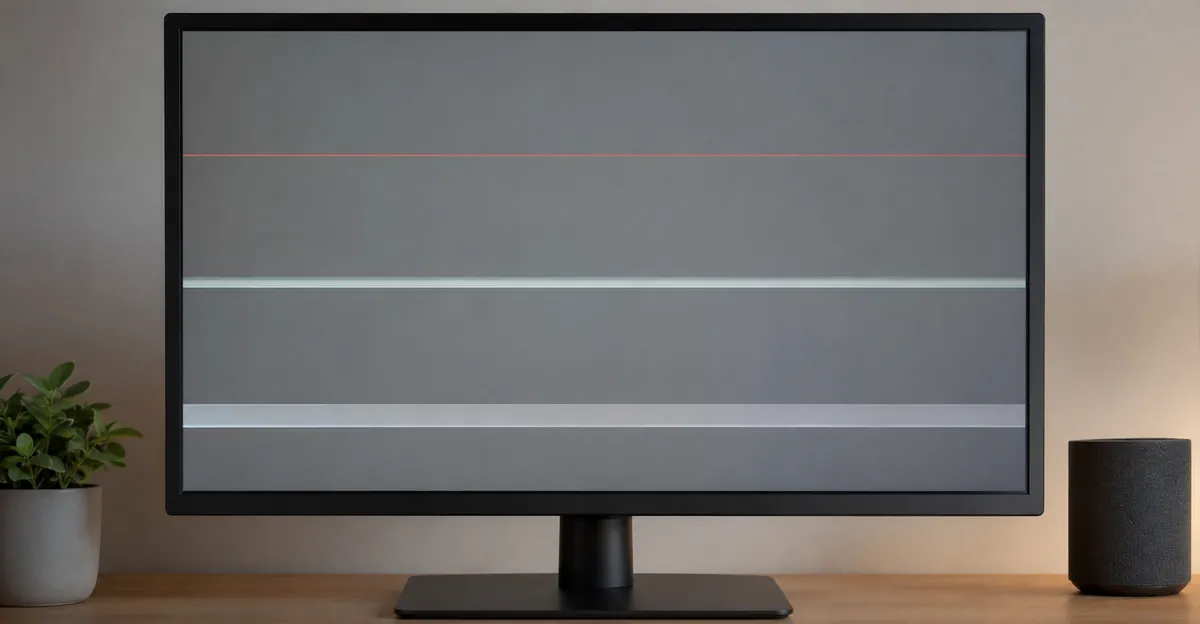
Horizontal lines on a monitor are display artifacts that run from the left edge of the screen to the right edge. They can appear as thin single-pixel lines, semi-transparent streaks, or wide bands of dead pixels. Unlike vertical lines which indicate column electrode failures, horizontal lines point to issues with the row control circuits — specifically the gate driver circuitry that activates each horizontal row of pixels in sequence.
The search terms computer monitor horizontal lines, small horizontal lines on monitor, and monitor lines horizontal all describe variations of this issue on different device types.
Common Causes of Horizontal Lines
1. Row Electrode Failures in the LCD Panel
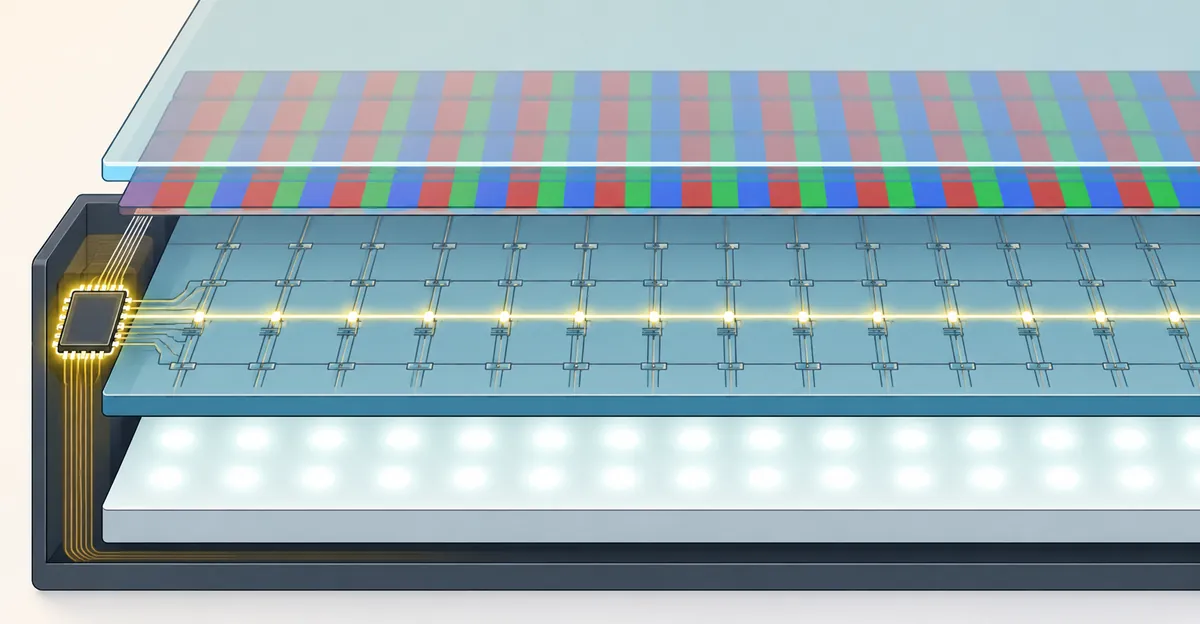
The LCD panel contains row electrodes (gate lines) that activate each horizontal row of pixels in sequence during the refresh cycle. When one or more of these gate lines fails, all the pixels in that row become stuck in a particular state, creating a visible horizontal line.
This is the most serious cause of horizontal lines because it cannot be fixed without replacing the LCD panel.
2. Gate Driver Circuit Malfunction
The gate driver is the circuitry responsible for sequentially activating each row of pixels. If the gate driver develops a fault — through age, heat damage, or manufacturing defect — it can cause horizontal line artifacts across the entire screen.
Gate driver issues can sometimes be fixed by replacing the T-con board, which houses the gate driver circuitry.
3. Ribbon Cable Damage
Like vertical lines, horizontal lines can be caused by ribbon cable damage. However, the specific cables and connections involved are different. Horizontal data path issues affect the signals that control each row, rather than each column.
In laptops, the ribbon cable is still the most common culprit — it experiences the same hinge-related wear regardless of whether the symptom is vertical or horizontal lines.
4. Graphics Card Output Signal Errors
Corrupted horizontal timing signals from the graphics card can cause horizontal line artifacts. These are typically software/driver-recoverable and should be ruled out before assuming hardware failure.
5. Refresh Rate and Resolution Mismatches
Incorrect refresh rate settings or resolution mismatches between the graphics card output and the monitor's native resolution can cause horizontal banding artifacts. This is an easy fix through display settings.
Horizontal Lines vs Vertical Lines vs Other Line Types
Understanding the difference helps narrow the diagnosis:
| Feature | Horizontal Lines | Vertical Lines | Colored Lines |
|---|---|---|---|
| Direction | Left to right | Top to bottom | Any direction |
| Typical cause | Row electrode / gate driver | Column electrode / source driver | Sub-pixel channel failure |
| Hardware severity | High | High | Moderate to high |
| Software fix possible | Sometimes | Rarely | Sometimes |
If you are also seeing vertical lines or colored lines alongside horizontal ones, multiple hardware components may be failing simultaneously — a sign of advanced panel degradation.
How to Test for Horizontal Lines
- Open the screen test tool on your device
- Display pure white — horizontal lines will appear as dark horizontal streaks against the white field
- Display pure black — faint horizontal lines or static-like artifacts will become visible here
- Display pure red, green, and blue — this helps identify whether specific color channels are involved, which would suggest colored line issues alongside the horizontal problem
- Check whether the lines are single or multiple, and note their exact vertical position
Document the results. Multiple evenly-spaced horizontal lines can indicate gate driver or timing issues, while a single line suggests localized panel damage.
How to Fix Horizontal Lines
Software and Configuration Fixes
Try these first — they cost nothing and may resolve the issue immediately:
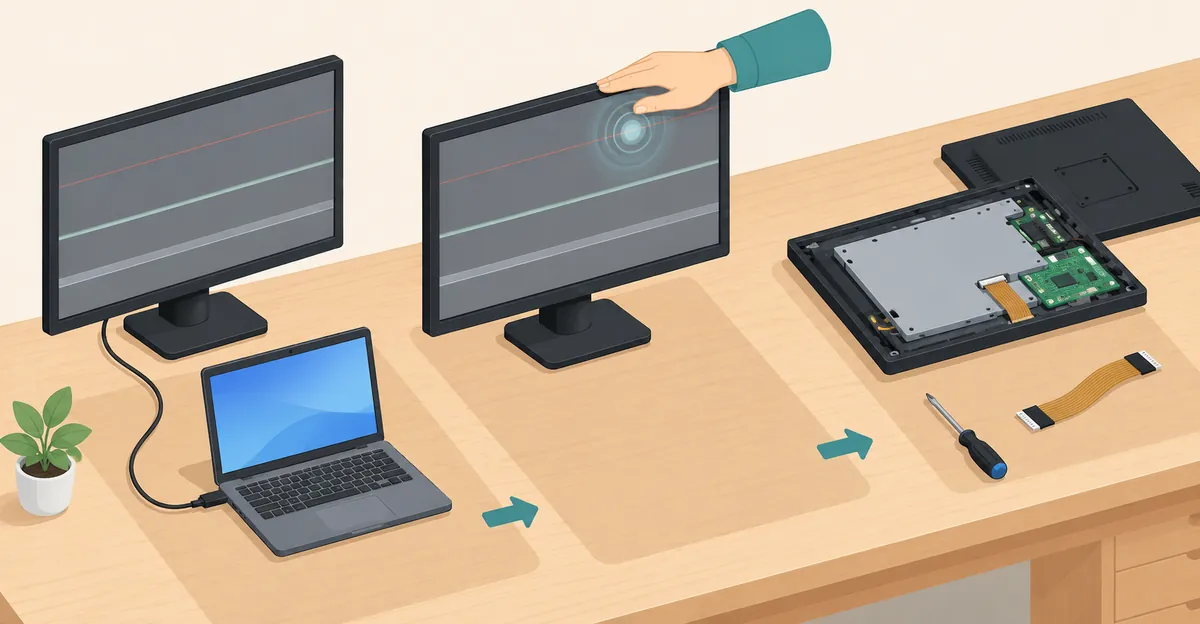
- Update graphics drivers: Download from your GPU manufacturer's website (NVIDIA, AMD, or Intel)
- Change the refresh rate: Try 60Hz, 75Hz, and 144Hz in Windows display settings
- Reset display resolution: Set the monitor to its native resolution
- Try a different cable: Replace the current HDMI, DisplayPort, DVI, or VGA cable
- Test on a different device: Connect the monitor to another computer to isolate the problem
- Reseat ribbon cables (laptops): A loose cable inside the laptop can cause intermittent horizontal lines
Hardware Fixes
If software fixes do not work, the cause is physical:
- T-con board replacement: For gate driver and timing issues, the T-con board can often be replaced for $15–$50
- Ribbon cable replacement: Replacement cables for laptops cost $10–$30 and are a common fix
- Panel replacement: For row electrode failures within the LCD glass, panel replacement is the only option
Practical Advice for Laptops
For small horizontal lines on monitor in laptops:
- Try the lid flex test — if lines change with screen angle, the ribbon cable is loose
- Search for a disassembly video for your specific laptop model
- Cable replacement is often a $10–$30 part with 30–60 minutes of labor if done carefully
- If the panel itself is damaged, compare replacement cost to device value before deciding
Related Monitor Line Problems
- Monitor Lines Problem Hub: Complete overview of all line types
- Vertical and Black Lines: Lines running top to bottom
- Colored Lines: Green, red, purple, and pink lines
- White and Static Lines: White and flickering lines
- Screen Flickering: Flickering is often related to the same cable and panel issues that cause lines
Conclusion
Horizontal lines on a monitor — whether computer monitor horizontal lines, small horizontal lines on monitor, or monitor lines horizontal — are caused by row electrode failures, gate driver malfunctions, ribbon cable damage, or signal errors. Start with software fixes (drivers, cables, refresh rate) before assuming hardware failure. Use our screen test tool for accurate diagnosis and track changes over time. If the lines are permanent and persist across devices, the issue is hardware-level and requires cable replacement, T-con board replacement, or panel replacement.