Colored lines on a monitor are display artifacts where a specific color dominates a line across the screen. The color itself is a diagnostic signal — it tells you exactly which color channels have failed.
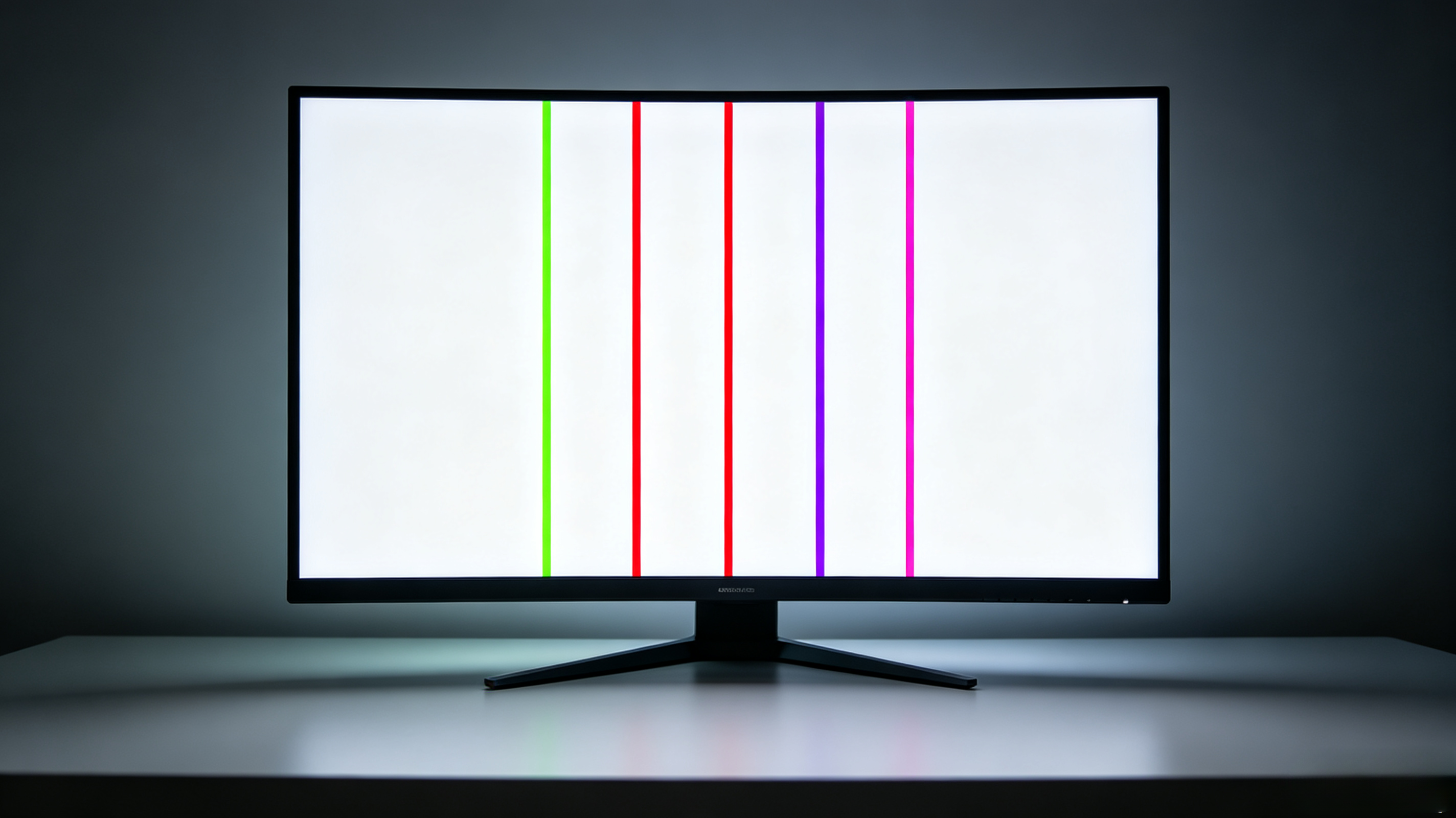
Colored Lines on Monitor: Green, Red, Purple and Pink Lines Fixes
What Colored Lines on a Monitor Actually Mean
Colored lines are fundamentally different from black or white lines. Black lines mean pixels are dead. White lines mean pixels are stuck on. Colored lines mean a specific color channel is failing.
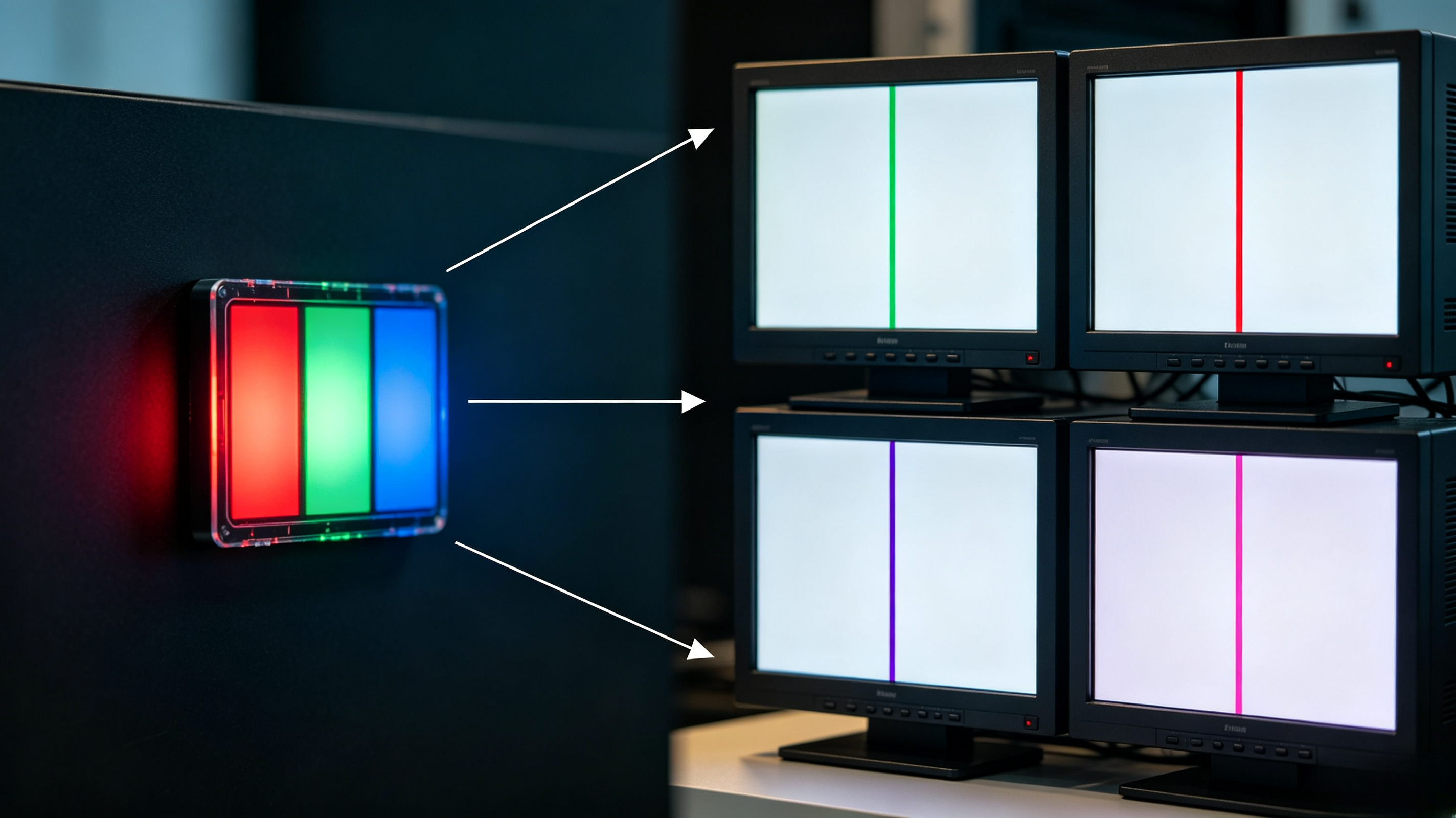
Each pixel on an LCD screen contains three sub-pixels: red, green, and blue. Working together, these three channels create every color you see. When one or two of these channels fail in a specific column or row, only the remaining channel(s) display — creating a visible colored line.
The diagnostic rule: The line color tells you exactly which channel(s) failed. This is the most precise diagnostic signal in display repair.
Why Color Channel Failures Create Specific Colors
The color of the line is not random — it is the direct result of which sub-pixel channels remain active:
| Line Color | Failed Channels | Remaining Active |
|---|---|---|
| Green | Red + Blue | Green only |
| Red | Green + Blue | Red only |
| Purple | Blue (partially) | Red + Blue |
| Pink | Blue (mostly) | Red + Green |
The physics: RGB color mixing means when red and blue channels fail, only green sub-pixels display their color — creating a green line. When blue is partially failing, red + blue creates purple. When blue is mostly failing, red + green creates pink.
Monitor vs Laptop — Different Risk Profiles
Desktop monitors and laptops face different failure modes for colored lines.
Desktop monitors typically develop colored lines from:
- T-con board failures affecting specific color channels
- Ribbon cable degradation inside the monitor
- Panel-level sub-pixel transistor failures (less common in new monitors)
Laptops face unique risks:
- Ribbon cables route through hinges — thousands of opening/closing cycles cause conductor fatigue
- Individual color channel conductors can break independently while others survive
- Heat from the chassis accelerates cable degradation
- Physical movement during transport stresses cable connections
The laptop hinge cable problem is the single biggest cause of colored lines on laptops. Cable replacement ($15-40) often fixes colored lines that appear to be panel failures.
Color Science: Why RGB Sub-Pixels Fail Independently
Each sub-pixel in an LCD panel is controlled by its own thin-film transistor (TFT). These transistors are independent circuits — one can fail while its neighbors continue working perfectly.
This independence is both a feature and a vulnerability:
Why they fail independently:
- Each transistor has its own electrical connection to the gate driver
- Conductor breaks in ribbon cables affect individual channels
- Heat and mechanical stress degrade channels at different rates
Why this matters for repair: When you see a green line, the red and blue transistors in that column have failed independently of the green transistor. This suggests a localized failure pattern — not a blanket panel defect.
Real Case: A Dell U2720Q User's Green Line Journey
A Dell U2720Q owner reported a persistent green vertical line that appeared three years into monitor ownership.
Timeline:
- Year 1-2: Monitor worked perfectly, no colored lines
- Year 3: Green line appeared suddenly — single vertical line in the right third of the screen
- Initial assumption: Panel failure, monitor was "dead"
Actual diagnosis: The owner searched online and found that the Dell U2720Q was known for ribbon cable degradation in the panel connection. A $35 ribbon cable replacement (the entire T-con to panel assembly cable) resolved the issue completely.
Key lesson: Before assuming panel failure, research your specific model for known issues. Colored lines on certain monitor models are a documented cable problem, not a panel problem.
How to Diagnose Which Color Channel Is Failing
The diagnosis process narrows down the cause in minutes:
Step 1: Display solid primary colors
- Pure red: Green line disappears → red channel failed
- Pure green: Red line disappears → green channel failed
- Pure blue: Green + purple line disappears → blue channel failed
Step 2: Test on a different device
- Connect to another computer with a different cable
- If colored lines persist: monitor hardware is the cause
- If lines disappear: graphics card or cable is the cause
Step 3: Flex test (laptops only)
- Gently open and close the lid while watching the line
- If the line changes intensity or disappears: cable is loose
- If the line remains constant: panel-level failure
Step 4: Note the pattern
- Single thin line: individual column/row of sub-pixel failures
- Multiple parallel lines: multiple channel failures across adjacent columns
- Lines that flicker: intermittent cable connection
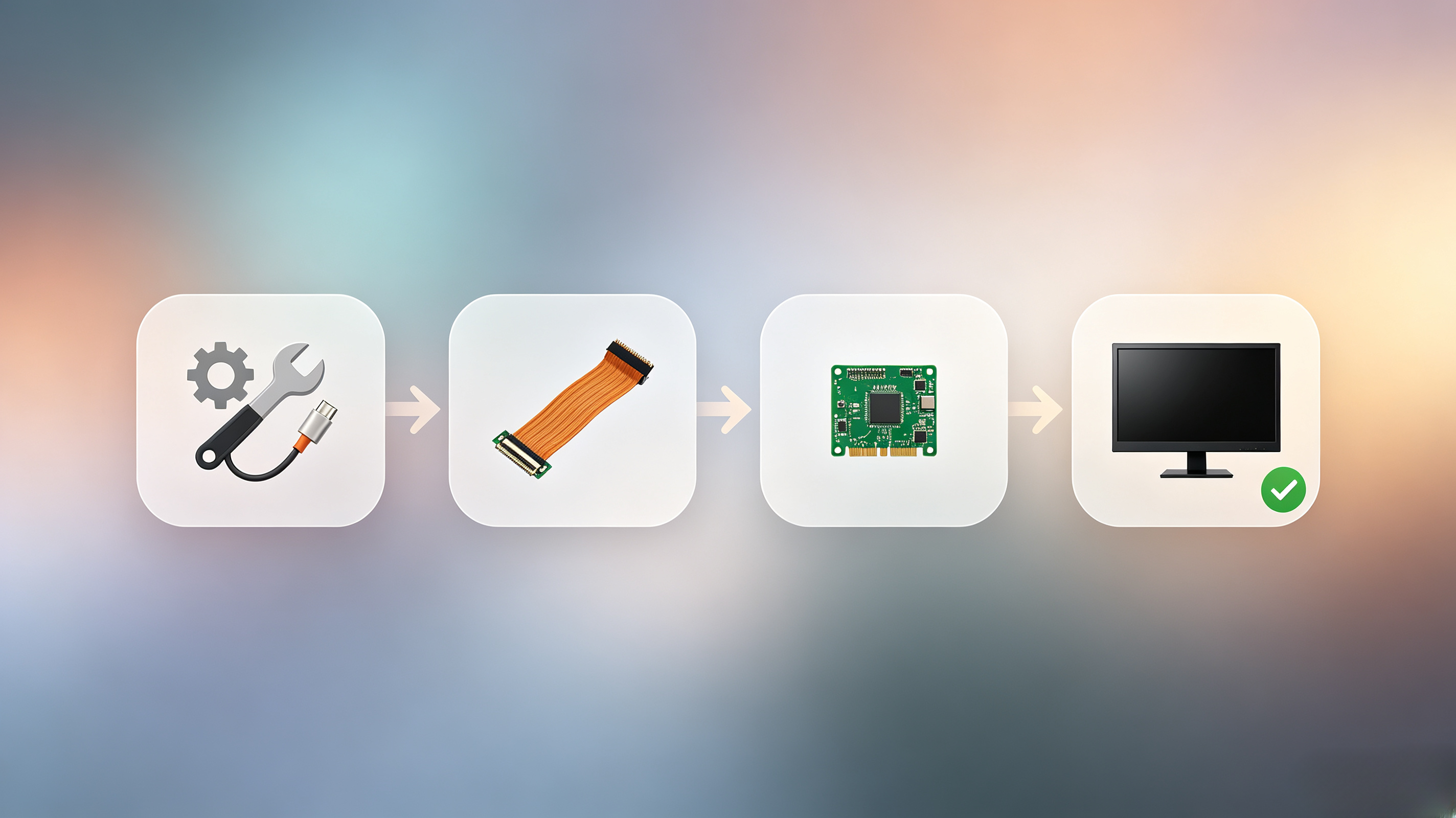
Fix Priority: From Software to Panel Replacement
Work through fixes in order of cost and complexity:
Tier 1 — Software fixes (free, try first):
- Update or roll back graphics drivers
- Try a different display cable
- Change refresh rate (try 60Hz, 75Hz, 144Hz)
- Reset display color calibration to defaults
Tier 2 — Cable fixes ($15-40): 5. Reseat internal ribbon cables (desktop monitors) 6. Replace internal ribbon cables
Tier 3 — Component fixes ($25-80): 7. Replace the T-con board
Tier 4 — Panel replacement ($100-300): 8. Replace the display panel (last resort)
Rule: Never pay for panel replacement until you have ruled out cables and T-con board. Colored lines from cable or T-con failures look identical to panel failures.
Screen Types Most Prone to Colored Lines (IPS Warning)
Not all LCD panels are equally vulnerable to colored lines.
IPS (In-Plane Switching) panels are the most prone to colored lines because:
- They have the most complex sub-pixel transistor layout
- The wider viewing angle architecture creates more failure points
- IPS glow can mask early-stage colored line development
- Many laptop IPS panels use thin, flex-prone ribbon cables
VA (Vertical Alignment) panels have better native contrast but still develop colored lines from cable and T-con issues.
TN (Twisted Nematic) panels are older technology and less prone to colored lines from panel defects, but more prone to complete failure patterns.
The IPS paradox: IPS panels produce the most accurate colors but have the most complex internal architecture — making colored lines more likely from both cable wear and panel-level failures.
Related Monitor Line Problems
- Monitor Lines Problem Hub: Overview of all line types
- Vertical and Black Lines: Black and vertical line issues
- Horizontal Lines: Lines running left to right
- White and Static Lines: White and flickering lines
- Green Line on Screen: Detailed guide on green lines
Conclusion
Colored lines on a monitor — green, red, purple, or pink — are the most diagnostic of all line defects. The line color directly identifies which sub-pixel channels have failed. Start by confirming the failing channel with solid color tests. Then work through software fixes, cable reseating, T-con replacement, and finally panel replacement in order. For laptops, always check the hinge cable before assuming panel failure — cable replacement is far cheaper than panel replacement. Use the screen test tool to run accurate color channel diagnostics in minutes.