Blue tint on a monitor is the inverse of red tint — the screen appears cool and bluish instead of warm. It is one of the most common color complaints, and like red tint, the cause is usually a setting rather than hardware.
Blue Tint on Monitor: Why It Happens and How to Fix It (2026)
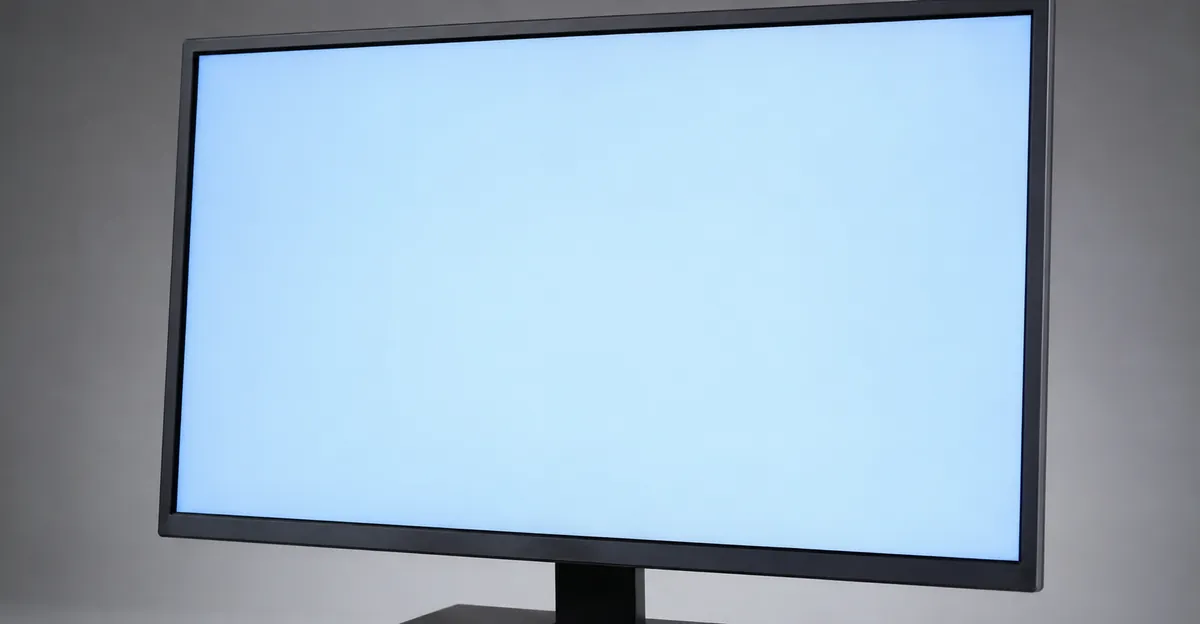
What Blue Tint on Monitors Looks Like
Blue tint causes the entire screen to take on a cool, bluish hue. On white backgrounds, this appears as a pale blue or cool-white tone instead of neutral. The effect ranges from subtle (noticeable only on pure white backgrounds) to severe (everything appears distinctly blue).
The color temperature explanation: Color temperature measures the warmth of white light in Kelvin (K). Higher values (6500K-9300K) appear cooler and more blue. Lower values (4000K-5000K) appear warmer and more orange/red. If your monitor is set to a cool color temperature, everything appears blue-tinted.
The Windows Night Light factor: Windows 10 and 11 include a Night Light feature designed to reduce blue light for evening use. When enabled, it shifts the display toward warm/orange tones. But if Night Light is configured incorrectly — or its schedule is set to activate during your work hours — it can create persistent blue tinting when it deactivates.
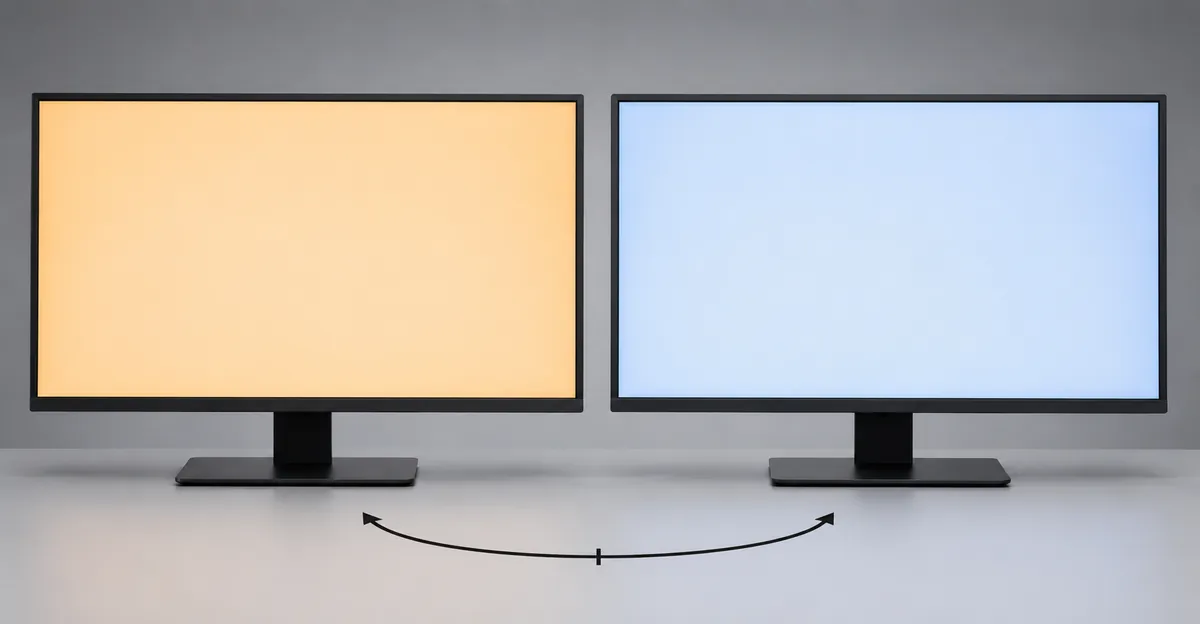
The Color Temperature Setting Trap
The most common cause of blue tint is color temperature set to 6500K or higher when the user expects neutral white.
| Color Temperature | Setting Name | Appearance |
|---|---|---|
| 4000K | Warm | Orange/red cast |
| 5000K | Medium Warm | Slightly warm |
| 6500K | Standard/sRGB | Neutral white |
| 7500K | Cool | Slightly cool/blue |
| 9300K | Very Cool | Strong blue cast |
The issue: Many monitors ship with color temperature set to 9300K (Very Cool) by default, which makes whites appear distinctly blue. Users often mistake this for a monitor defect.
The fix: Go to your monitor's OSD menu → Color settings → Color Temperature → change to 6500K or Standard. This is usually the complete fix.
Understanding Color Temperature Presets
Monitor manufacturers use different labels for color temperature presets, and the terminology can be confusing:
- sRGB / Standard / Normal / 6500K: These all refer to approximately the same neutral white point used in web content, photography, and video production. Use this setting for general computing.
- Warm / 5000K-5500K: Pushed toward orange/red. Used by some photographers for print work, but causes a visible yellow tint in general use.
- Cool / 7500K: Slightly blue-tinted. Common default on many monitors.
- Very Cool / 9300K: Strong blue cast. The source of most blue tint complaints.
- User / Custom / Manual RGB: Allows manual adjustment of individual red, green, and blue channel gain. Set all three to equal values (e.g., Red: 50, Green: 50, Blue: 50) for neutral output.
Manual RGB Gain Adjustment
If preset color temperature options do not include a 6500K option, use manual RGB gain adjustment:
- Reduce the blue channel by 4-5 steps from its default value
- If the screen looks too yellow after reducing blue, slightly reduce red as well
- The goal is all three channels at equal values
- Never increase a channel above default — reducing channels preserves peak brightness
Night Light: The Sneaky Culprit
Windows Night Light and macOS True Tone can create blue tint confusion:
How Night Light works: Night Light reduces blue light by shifting display colors toward warm tones. When Night Light is ON, the screen appears warmer/orange. When Night Light is OFF, the screen returns to its natural color temperature.
The confusion: If Night Light was recently enabled and then disabled, you may notice the screen now appears "too blue" — because you have adapted to the warm tint. This is perceptual, not a real problem.
Night Light schedule confusion: Night Light may be scheduled to activate/deactivate at specific times. If it deactivates during your work hours, the shift to cooler colors can seem like blue tint.
The fix: Check Settings → System → Display → Night Light settings. Verify whether it is manually disabled or scheduled incorrectly.
macOS: Night Shift and True Tone
macOS users face additional complexity with two features that affect color temperature:
Night Shift: Similar to Windows Night Light. Go to System Settings → Display → Night Shift to disable or adjust its schedule. If Night Shift is set to "Sunset to Sunrise," it may deactivate in the morning, creating the illusion of blue tint.
True Tone: This feature continuously adjusts display colors based on ambient light sensor readings. It is designed to make colors look consistent in any lighting environment, but it can create a subtle blue cast in rooms with cool LED lighting. To disable True Tone, go to System Settings → Display and toggle it off. True Tone is primarily available on MacBooks with True Tone displays.
When Cable Problems Cause Blue Tint
Damaged or degraded cables can cause blue tint — though this is less common than with green tint.
Why cables affect blue differently: HDMI and DisplayPort carry color data digitally, so all channels should degrade equally. However, longer cables without proper shielding can allow electromagnetic interference that affects specific color channels differently.
VGA cables are a special case: Analog VGA cables carry red, green, and blue signals as separate analog voltages. If the blue channel wire is damaged, corroded, or has a poor connection, the blue signal weakens relative to red and green — creating a yellow-tinted image, not blue. Conversely, if the blue channel is picking up interference, the image shifts blue. Always prefer digital connections (HDMI, DisplayPort) over VGA.
Signs cable-related blue tint:
- Tint changes with cable position or movement
- Tint appeared after replacing or moving cables
- A different cable eliminates the tint
- Tint is intermittent
The fix: Replace the cable, especially if it is old or longer than 15 feet. Use high-speed HDMI 2.0+ cables or DisplayPort cables rated for your resolution and refresh rate.
Power outages and cable degradation: Power surges and unexpected shutdowns can scramble a monitor's saved OSD profile or loosen a marginal cable connection at the connector. If your colors went wrong right after a power cut, reset the monitor to factory defaults and reseat both ends of the video cable — this resolves 9 out of 10 post-outage color issues. The cable connection at the monitor end is especially vulnerable because the connector often sits at an angle, creating uneven pressure on the internal pins. Visually inspect both ends of the cable for bent or missing pins, particularly on HDMI connectors which have 19 pins that can bend individually.
GPU Control Panel Color Settings
Modern graphics cards from NVIDIA, AMD, and Intel include control panels that allow per-channel color adjustments. Incorrect settings here are a common but overlooked source of blue tint.
NVIDIA Control Panel
- Open NVIDIA Control Panel (right-click desktop → NVIDIA Control Panel)
- Navigate to Display → Color Adjustment
- Check the Use NVIDIA Color Settings box
- The "Temperature" slider controls overall color temperature — reduce it for warmer colors
- For manual control, expand the "3. Apply the following color enhancements" section
- Adjust individual red, green, and blue contrast sliders — lowering blue contrast reduces blue tint
AMD Radeon Software (Adrenalin Edition)
- Open AMD Radeon Software (right-click desktop → AMD Radeon Software)
- Navigate to the Gaming tab, then click the Display icon
- Find Color Temperature — reduce the value below 6500K to warm the image
- For advanced control, use the Custom Color section to adjust individual RGB channels
Intel Graphics Command Center
- Open Intel Graphics Command Center
- Navigate to Display → Color
- Adjust the Color Temperature slider toward warm
- Use Advanced Display Settings for individual channel control
HDR and Wide Color Gamut: When HDR Causes Blue Tint
High Dynamic Range (HDR) content and wide color gamut displays add a new dimension to blue tint issues. HDR mode fundamentally changes how your display handles brightness and color, and improper calibration can shift colors toward blue.
How HDR Causes Blue Tint
When you enable HDR on Windows, the display switches from its standard color calibration to an HDR mode. Many monitors have less refined HDR calibration out of the box, leading to:
- Elevated black levels: The screen appears slightly gray-black instead of true black
- Blue-shifted whites: HDR content often has a cooler white point than SDR
- Washed-out colors: Without proper tone mapping, colors lose saturation
- Blue tint in highlights: Bright areas take on a blue cast
The Windows HDR Calibration App
Microsoft provides a free Windows HDR Calibration app from the Microsoft Store. This tool establishes correct luminance levels for HDR content:
- Download and install Windows HDR Calibration from the Microsoft Store
- Follow the on-screen prompts to set three parameters:
- Minimum luminance: Sets the black floor (how dark blacks appear)
- Maximum full-screen luminance: Sets peak brightness for full-screen HDR content
- Maximum window luminance: Sets peak brightness for windowed HDR content
- The app generates an ICC profile that Windows applies for HDR tone mapping
For OLED displays, expect 250-450 nits full-screen and 800-1300 nits peak in a 10% window. For Mini-LED panels, expect 1000 nits sustained and 1500-4000 nits peak in HDR.
When to Use HDR vs. SDR
Not all content benefits from HDR. Switch between modes based on content type:
| Content Type | Recommended Mode |
|---|---|
| Web browsing, office work | SDR (HDR off) |
| SDR movies and videos | SDR (HDR off) |
| HDR movies (4K Blu-ray, streaming) | HDR on |
| HDR gaming | HDR on |
| Photo editing | SDR with proper ICC profile |
| Color-critical work | SDR with hardware calibration |
Color Calibration: A Permanent Solution
For users who want a lasting fix rather than constantly adjusting settings, professional color calibration is the answer.
Software Calibration (Free, Good Results)
- Windows Display Calibration Wizard: Type "Calibrate display color" in the Start menu
- X-Rite i1Profiler (basic mode, free): Works with many colorimeters
- DisplayCAL: Free, open-source calibration software
Software calibration adjusts your graphics card's gamma, brightness, and color curves but cannot fully compensate for a monitor with poor color accuracy.
Hardware Calibration (Best Results)
A hardware colorimeter (also called a color calibrator or spectrophotometer) measures your monitor's actual output and creates a precise ICC color profile:
| Device | Approximate Cost | Best For |
|---|---|---|
| X-Rite i1Display Pro | $170-200 | Photographers, designers, color-critical work |
| Datacolor Spyder X2 | $170-200 | General users, photographers |
| X-Rite ColorMunki Photo | $250-300 | Photo/video professionals |
| Calibrite ColorChecker Display Pro | $250-300 | Highest accuracy, studio work |
Hardware calibration is especially important for wide-gamut monitors (Adobe RGB, DCI-P3), where the native color space is far larger than sRGB.
Hardware Causes of Blue Tint
When settings and software fixes do not resolve blue tint, hardware may be the cause:
1. T-con board color processing failure The T-con board processes RGB color signals. If the red/green channel processing degrades, blue can dominate output.
2. Panel color filter degradation Over time, the color filter layer in LCD panels can degrade. In some cases, the red and green filters degrade faster, leaving blue more prominent.
3. CCFL backlight shift (older monitors) In older CCFL-backlit monitors, the backlight phosphor mix can shift over time. Blue phosphor tends to be more stable than red, so aged CCFL backlights often develop a blue cast.
4. Wide-gamut panel without proper profile Wide-gamut monitors (those covering more than 100% sRGB) that are not running the correct ICC profile will display oversaturated, shifted colors — often with a blue cast.
Hardware test: Boot into BIOS or safe mode. If blue tint persists, it is almost certainly hardware.
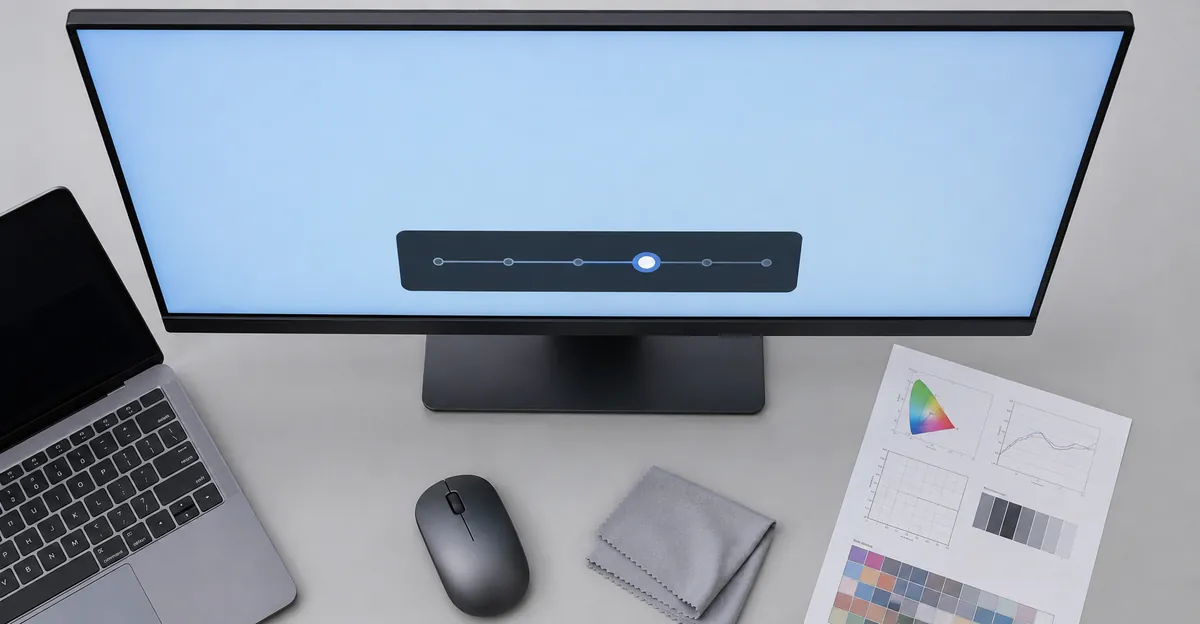
How to Diagnose and Fix Blue Tint
Quick fix checklist (try in order):
- Check color temperature: OSD menu → 6500K or Standard
- Disable Night Light: Windows Settings or macOS System Settings
- Check Night Light schedule: Settings → System → Display → Night Light
- Try a different cable: Especially for VGA or long HDMI runs
- Update graphics drivers: NVIDIA, AMD, or Intel
- Reset color profiles: Windows Color Management → restore defaults
- Adjust GPU control panel: Reduce blue channel in NVIDIA/AMD/Intel settings
- Run Windows HDR Calibration: If your display supports HDR
- Test in BIOS/safe mode: If tint persists, hardware is the cause
Screen test for blue tint: Open the screen test tool and display pure white. A properly calibrated monitor displays neutral white. Any blue cast indicates the color temperature is set too cool, or the red/green channels are underperforming.
Prevention and Maintenance
Preventing blue tint from recurring involves establishing stable display settings:
- Document your calibration: Write down all OSD settings (brightness, contrast, color temperature, RGB gains) once you achieve a good result. Keep this note in a place where you can find it — a driver update or Windows reinstall can reset everything.
- Use ICC profiles: After calibration, switch to your created color profile in Windows Color Management. Verify it is set as the default for your display.
- Test cables periodically: Cable degradation is gradual; replace old cables before they cause color issues. Inspect connectors for bent pins or corrosion, especially if you frequently move your setup.
- Avoid aggressive Night Light schedules: If you use Night Light, set it to activate only in late evening hours (after 8 PM), not during your working day. Check whether it is set to follow sunset times, which can change seasonally.
- Update drivers deliberately: Before major driver updates, export your color profile and note your OSD settings; roll back if color shifts occur unexpectedly. Avoid accepting driver updates bundled with other software — download directly from NVIDIA, AMD, or Intel.
- Avoid generic budget cables: Cables purchased from non-specialty retailers are often missing required shielding or use substandard connectors that degrade quickly. A $5 HDMI cable from a petrol station is a false economy when color accuracy matters.
Cleaning your monitor: Use only a microfiber cloth and distilled water or a monitor-specific cleaning solution explicitly labeled as ammonia-free and alcohol-free. Standard glass cleaners and isopropyl alcohol attack the anti-reflective coating on many monitor surfaces and can create a permanent shimmer on aged panels. Never spray directly onto the screen — apply to the cloth first.
Related Screen Issues
- Red Tint on Monitor: The opposite color temperature problem
- Green Tint on Monitor: Similar diagnosis approach
- Screen Test Tool: Free tool to test color accuracy
- Screen Flickering: Related display issues
Conclusion
Blue tint on a monitor is almost always a settings problem — most commonly incorrect color temperature (set to 9300K instead of 6500K) or Night Light features. Check your monitor's color temperature setting first, then verify Night Light settings in Windows or macOS. Cable issues and hardware failures are uncommon causes. For HDR displays, run the Windows HDR Calibration app to correct tone mapping. Use the screen test tool to assess whether your color temperature is correct — pure white should appear neutral, not blue or orange.