MacBook Screen White Tint: Causes, Fixes, and How to Restore Accurate Colors
A white tint on your MacBook screen usually means the display is reading brighter, paler, or washed-out compared to the neutral colors Apple calibrates at the factory. The MacBook is still functional — content is still visible, the backlight is still on, and the operating system is still running — but every color is shifted toward a bright, low-saturation white. This guide covers every known cause of MacBook screen white tint, from Night Shift settings to a damaged eDP flex cable, and gives you step-by-step fixes you can apply at home before scheduling professional repair.
What Is MacBook Screen White Tint
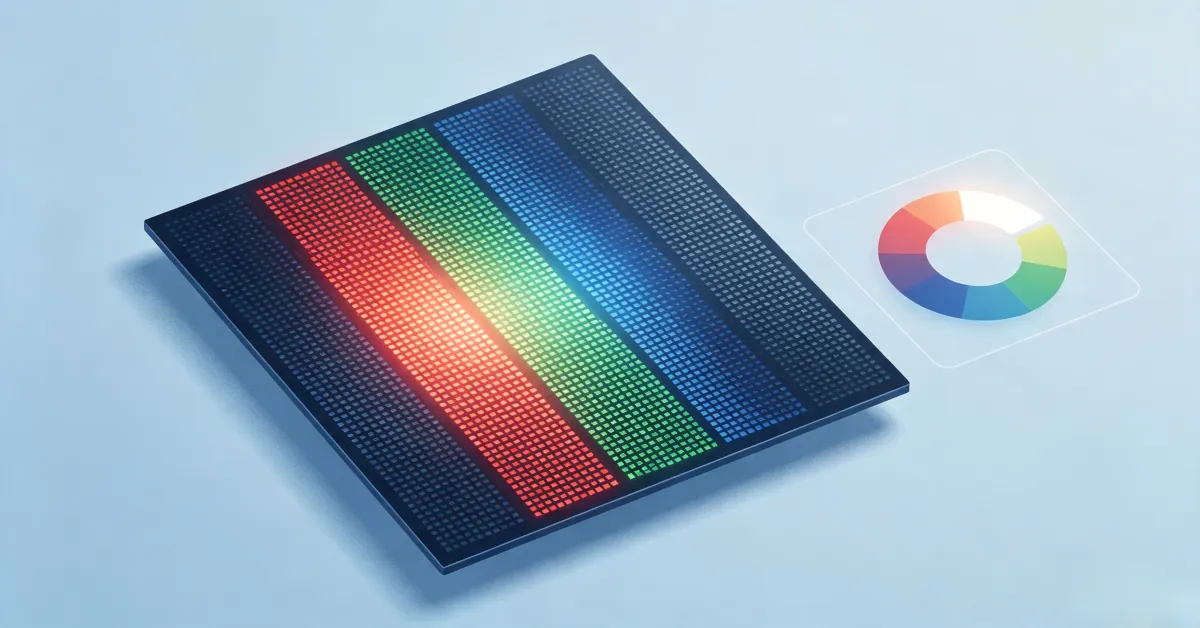
MacBook screen white tint refers to a color distortion where the entire display or specific regions shift toward bright, washed-out white tones instead of producing the saturated, accurate colors Apple calibrates at the factory. Every MacBook display uses a combination of red, green, and blue subpixels to render the full color spectrum. When the colors are pulled toward white, the display looks pale, lacking contrast, and overly bright — even when the brightness slider is set to a moderate level.
A white tint is different from a stuck solid white screen. In a software or hardware white tint, the MacBook is still working normally; you can see the menu bar, the dock, and your applications. The display is just showing every color with reduced saturation. A stuck white screen, by contrast, usually means the Mac has failed to boot, the login screen is not loading, or the display controller has crashed. That is a startup issue, not a color issue, and is covered by a separate troubleshooting path.
Key characteristics of a MacBook white tint:
- Uniform tint across the entire display: not localized to corners or one side
- Whites look brighter and slightly gray: instead of pure white with depth
- Colors look washed out and pastel: every color loses saturation
- The tint is consistent across apps and menus: not just one browser or video
- It may appear after a macOS update, after installing a calibrator, or on first use each morning
- It does not change when the lid is moved: suggests software, not flex cable
- It may appear with the screen at a specific angle: then a cable issue is likely
The issue affects every MacBook model, from the 2008 unibody MacBook through the 2024 M4 MacBook Air and MacBook Pro. We see it reported most often on MacBook Pro 13-inch Intel (2016–2020), MacBook Pro 14-inch and 16-inch Liquid Retina XDR (2021–2024), MacBook Air M1 (2020), MacBook Air M2 (2022), and MacBook Air M3 (2024). The OS is irrelevant: macOS Catalina, Big Sur, Monterey, Ventura, Sonoma, and Sequoia all show the same symptom for the same underlying causes.
What Causes MacBook Screen White Tint
A white tint on a MacBook display can come from seven distinct sources. Four of them are software, three are hardware. Diagnosing which one applies to your MacBook is the first step toward a fix.
1. Night Shift at Maximum Warm Temperature
Night Shift is the single most common cause of MacBook white tint. The feature shifts the display color temperature warmer to reduce blue light. When the temperature slider is dragged to the maximum warmest end, the display can look noticeably pale and washed-out — especially in dark rooms where the contrast against the warmer tones is more pronounced.
The same issue can appear if Night Shift is scheduled to run all day, if you set the schedule to Custom and leave it always active, or if a third-party app like f.lux or Iris is forced to maximum warmth. Many users enable Night Shift to read at night and forget to disable it the next morning, leading to the persistent white tint.
A subtle clue that Night Shift is the culprit: the tint is strongest at sunset and weakest in the morning when the schedule transitions. On Macs with True Tone enabled, the two effects compound, and the display can look almost gray-white.
2. Corrupted or Custom ICC Color Profile
macOS stores ICC color profiles for every connected display. The default profile is named Color LCD, Apple Display, or Apple Pro Display XDR depending on your MacBook model. If a calibrator app like DisplayCAL, SpyderX, or X-Rite i1Profiler installs a custom profile, or if a profile becomes corrupted during a macOS update, the display can render every color incorrectly, including a persistent white tint.
This is a frequent issue on MacBook Pro models used for color-critical work. Photographers, video editors, and designers install custom profiles and then forget to remove them when the workflow ends. Software updates can also corrupt the default profile, leaving the system rendering with a fallback that was never intended for the actual panel.
A subtle clue that the ICC profile is the culprit: the white tint will not appear in screenshots. macOS captures the pre-profile color data, while the display panel applies the profile on output. If you take a screenshot of what looks like a white webpage and the screenshot looks normal on another device, the profile is the problem.
3. True Tone Compensating for Warm Lighting
True Tone uses the MacBook's ambient light sensor to adjust the display's white balance based on the lighting in the room. In rooms with warm incandescent or tungsten lighting, True Tone pulls the display warmer to compensate. The end result can look like a pale white tint, especially in dim warm lighting.
True Tone is enabled by default on most MacBook Pro and MacBook Air models. Many users never disable it, and the subtle tint it adds to the display becomes the new normal. When the MacBook is moved to a cool, brightly lit environment, the display shifts back to neutral, and the user finally notices the difference.
4. macOS Display Driver Bug After Update
Some macOS updates introduce temporary display driver bugs that produce a white tint on certain MacBook models. macOS Monterey 12.0.1 caused a widespread white tint on MacBook Pro 16-inch (2019) until 12.0.2 fixed it. macOS Ventura 13.0 produced a similar issue on MacBook Air M1. Sonoma and Sequoia have had fewer reports, but the pattern repeats after every major release.
If the white tint appeared within a week of a macOS update, and you have not changed any settings, the update is the most likely cause. Apple typically resolves the issue within one or two point releases. Until the fix ships, the workaround is to disable Night Shift and True Tone, and to manually reset the color profile.
5. Aging CCFL Backlight in Older Intel MacBook Pros
MacBook Pro models from 2008 to 2015 used CCFL (cold cathode fluorescent lamp) backlights. The blue phosphor in CCFL tubes degrades faster than the red or green phosphors because blue light requires more energy to produce. Over years of use, the blue output drops, and the remaining red and green combine to produce a warmer, paler white instead of the cool neutral white the display was calibrated for.
A real aging-backlight tint develops gradually over months or years, not overnight. It is also a genuine hardware cause, but it is the least common in modern MacBooks. Almost all MacBook Air and MacBook Pro models released since 2016 use LED backlights, which retain their color balance much longer.
HP's official LCD documentation cites 30,000 to 60,000 hours as the typical panel lifespan before noticeable color degradation. Apple does not publish the same number, but repair communities report the same general pattern: LED backlights in MacBook Pros from 2016 onward typically retain neutral color until the backlight actually fails or the panel develops a separate defect.
6. Loose or Damaged eDP Flex Cable
The thin ribbon cable connecting the display panel to the logic board carries all color data as separate channels for red, green, and blue. When that cable is loose, partially disconnected, or physically damaged, individual color channels can drop out or shift in level. The result is a display that looks washed-out, with the colors unevenly balanced toward white.
On early Intel MacBook Pros and MacBook Air models, the eDP cable runs through the hinge and flexes thousands of times over the laptop's life. When it begins to fail at the hinge flex point, the tint can vary depending on the lid angle. On 2016–2019 MacBook Pros, Apple used a slightly longer cable that still stressed the same way, leading to the well-known "Flexgate" issue (Apple 13-inch MacBook Pro 2016–2019, covered under a free repair program).
The giveaway that no competitor article explains is that gently pressing the bezel near the hinge while watching the screen will often temporarily change the tint. If pressing near the hinge clears the white tint or makes it more pronounced, the cable, not the panel, is the failure point.
7. Failing LCD Panel or Liquid Retina XDR Layer
In rare cases, the LCD panel itself is the cause. Manufacturing defects, physical damage, or aging can cause the color filters to degrade unevenly, producing a permanent white tint. The Liquid Retina XDR panels in MacBook Pro 14-inch and 16-inch models have multiple layers, including a Mini-LED backlight array that can develop uneven output over time.
A failing panel is the most expensive cause to fix. It cannot be repaired at the component level — the entire display assembly must be replaced. Apple replaces the whole lid, which includes the LCD panel, the backlight, the eDP cable, the camera, the microphone array, and the Wi-Fi antenna. Third-party repair shops can sometimes replace just the LCD panel on older unibody MacBook Pros where the panel is sold separately, but on Retina and Liquid Retina models, the panel is bonded to the glass and must be replaced together.
How to Diagnose MacBook Screen White Tint
Diagnosis matters because MacBook white tint can have very different fixes depending on the cause. Walking through these checks in order will narrow down the culprit quickly.
Diagnosis Step 1: Take the Screenshot Test
Press Shift + Command + 4 to capture the screen. Save the screenshot, then transfer it to another device (your phone, a different Mac, or a Windows PC) and open it. If the screenshot looks normal — colors are saturated, white is white, no tint — the problem is the display panel or its cable, not the GPU. If the screenshot also looks white, the problem is software, GPU, or video output.
This is the single most useful diagnostic on any MacBook. It takes 30 seconds and tells you whether to keep troubleshooting software or take the MacBook in for repair.
Diagnosis Step 2: Open Color Profile Settings
Go to System Settings → Displays → Color Profile. Note which profile is currently selected. If it says "Color LCD", "Apple Display", or "Apple Pro Display XDR", that is the default and should produce accurate colors. If it says "sRGB IEC61966-2.1", "Display P3", or any custom name, the profile may have been changed or corrupted.
Click through the other available profiles. If most profiles show the same white tint regardless of which one you select, the profile is not the cause. If only one profile shows the tint, switch to a different one and the display should return to normal.
Diagnosis Step 3: Disable Night Shift and True Tone
Go to System Settings → Displays. Toggle Night Shift off. Click Night Shift Schedule and ensure the schedule is set to Off. Drag the color temperature slider to the Less Warm end. Toggle True Tone off.
Wait 5 seconds for the change to take effect. If the white tint was caused by Night Shift or True Tone, the display should return to normal colors immediately. If the tint persists, the issue is elsewhere.
Diagnosis Step 4: Test on an External Monitor
Connect your MacBook to an external monitor via HDMI, DisplayPort, USB-C, or Thunderbolt. If the external monitor shows the same white tint, the problem is the MacBook's GPU, the macOS display driver, or the color profile applied to the external display. If the external monitor shows normal colors, the problem is the MacBook's internal display or its eDP cable.
Apple Silicon MacBooks automatically output to the external display through the same unified GPU. Intel MacBook Pros with discrete AMD Radeon graphics can sometimes behave differently — the external display might still show the tint if the discrete GPU is the source. The screenshot test still resolves this in seconds.
Diagnosis Step 5: Boot Into Safe Mode
Safe Mode loads macOS with minimal drivers and no third-party software extensions. If the white tint disappears in Safe Mode, software is confirmed as the cause.
Apple Silicon MacBook (M1, M2, M3, M4): Shut down the MacBook. Press and hold the power button until "Loading startup options" appears. Select a startup disk while holding Shift. Release Shift when you see the login screen (the Shift key indicator appears in the menu bar).
Intel MacBook: Shut down. Restart while holding Shift. Release Shift when the login screen appears. The words "Safe Boot" appear in red in the menu bar.
If the tint is gone in Safe Mode, restart normally and the tint may return (since third-party software loads again). Uninstall or update any recently installed display utilities, calibrator apps, or color management software.
Diagnosis Step 6: Test the Lid Angle
Slowly open and close the MacBook lid while watching the screen. If the white tint changes intensity at specific angles, the eDP cable running through the hinge is almost certainly the cause. Try gently pressing the bezel near the hinge with your finger while watching the screen. If pressing changes the color, the cable is loose or partially disconnected at the hinge.
Diagnosis Step 7: Run Apple Diagnostics
Apple Diagnostics is a built-in test that runs without booting macOS. It is the cleanest way to confirm a hardware failure.
Apple Silicon MacBook: Shut down. Press and hold the power button until "Loading startup options" appears. Release the button, then press Command + D. Follow the on-screen prompts.
Intel MacBook: Shut down. Restart while holding D. Follow the on-screen prompts.
Apple Diagnostics will report any detected hardware issue, including display panel failure, sensor failure, or logic board failure. If the diagnostic reports no issues, the white tint is almost certainly software-related.
How to Fix MacBook Screen White Tint
Each fix below targets a specific cause. Apply them in order, starting with the simplest. Most MacBook white tint cases are resolved in the first two fixes.
Fix 1: Disable Night Shift and True Tone
This resolves the majority of MacBook white tint cases in under two minutes.
Disable Night Shift on macOS Ventura and later:
- Click the Apple menu → System Settings
- Click Displays in the sidebar
- Click Night Shift
- Toggle Night Shift to Off
- Click Schedule and set it to Off
- Drag the color temperature slider all the way to Less Warm
- Close System Settings
Disable True Tone:
- In System Settings → Displays, toggle True Tone to Off
- Close System Settings
Disable on macOS Monterey and earlier:
- Apple menu → System Preferences → Displays
- Click the Night Shift tab
- Turn off the schedule and toggle off
Wait 30 seconds for the change to apply. The white tint should disappear immediately if Night Shift or True Tone was the cause.
Fix 2: Reset the Color Profile to Default
A corrupted or custom color profile is the second most common cause. Resetting the profile costs nothing and takes about a minute.
Reset the color profile on macOS Ventura and later:
- Apple menu → System Settings → Displays
- Click the dropdown next to Color Profile
- Select Color LCD, Apple Display, or Apple Pro Display XDR (the default for your MacBook)
- Close System Settings
- Restart the MacBook
Reset the color profile on macOS Monterey and earlier:
- Apple menu → System Preferences → Displays
- Click the Color tab
- Select the default profile from the list
- Close System Preferences
- Restart the MacBook
Delete custom profiles with ColorSync Utility:
- Open Applications → Utilities → ColorSync Utility
- Click the Profiles tab
- Select any profile that is not a default (Apple Display, Color LCD, Display P3, sRGB IEC61966-2.1)
- Click the delete button (trash icon)
- Restart the MacBook
If after resetting the profile the white tint persists, the issue is hardware or a deeper macOS problem. Move to Fix 3.
Fix 3: Reset NVRAM and SMC on Intel MacBooks
Intel MacBook Pro and MacBook Air models from 2008 to 2019 store display settings in NVRAM (non-volatile random-access memory). If NVRAM becomes corrupted, the display can render colors incorrectly even after you reset the profile. Apple Silicon MacBooks reset NVRAM automatically and do not have a user-accessible reset.
Reset NVRAM on Intel MacBook:
- Shut down the MacBook
- Press the power button, then immediately hold Option + Command + P + R for 20 seconds
- Release the keys when the MacBook plays the startup chime a second time, or when the Apple logo appears and disappears twice
- Let the MacBook boot normally
Reset SMC on Intel MacBook with T2 chip (2018–2019):
- Shut down the MacBook
- Press and hold the power button for 10 seconds
- Release the power button, wait 5 seconds, then press the power button again to start
Reset SMC on Intel MacBook without T2 chip (2008–2017):
- Shut down the MacBook
- Unplug the charger
- Hold Shift + Control + Option + Power for 10 seconds
- Release all keys, plug the charger back in, then press the power button to start
After NVRAM and SMC reset, the white tint should be cleared if it was caused by a corrupted display state. The default color profile, brightness, and other display settings will be reset to factory defaults.
Fix 4: Update macOS and Reset the Display Driver
A macOS update with a display driver bug can cause a white tint. Updating to the latest patch release usually fixes the issue.
- Apple menu → System Settings → General → Software Update
- If an update is available, click Update Now
- Wait for the download and installation to complete
- Restart the MacBook
If the white tint appeared immediately after a recent macOS update, the update may not yet have a fix. In that case, you can wait for the next point release, or you can reinstall the current version of macOS without erasing your data:
- Restart the MacBook while holding Command + R
- Select Reinstall macOS from the macOS Utilities window
- Follow the prompts
- The reinstall preserves your files and applications
Some users report that the white tint resolves after this reinstall. The installer replaces the display driver cache and the system color profile database, which can clear a corrupted state.
Fix 5: Reseat or Replace the eDP Flex Cable
Reseating the cable is a more advanced fix but can resolve MacBook white tint issues caused by a loose connector without needing to replace parts. This requires opening the MacBook case.
- Power off the MacBook completely and unplug the charger
- If your MacBook has a removable battery, remove it
- Use a P5 Pentalobe screwdriver to remove the bottom case screws
- Locate the eDP ribbon cable where it connects to the back of the display panel or the logic board
- Gently disconnect the cable by flipping the connector latch
- Inspect the cable for visible damage, bent pins, or burn marks
- Reconnect the cable firmly, ensuring the latch clicks into place
- Power on and test before reassembling the case
If you are not comfortable opening your MacBook, skip this fix and go to professional repair. The eDP cable runs close to the hinge, and improper handling can crack the panel itself.
For MacBook Pro 13-inch models from 2016 to 2019, the eDP cable is part of the well-known Flexgate issue. Apple replaced these cables free of charge under a 2019 repair program extended through 2024. If your MacBook Pro is affected, contact Apple Support or visit an Apple Store to confirm eligibility.
Fix 6: Replace the Display Assembly
When all software fixes have failed and Apple Diagnostics reports a display issue, the panel, backlight, or eDP cable assembly needs professional replacement.
Apple Store or Apple Authorized Service Provider:
- MacBook Air M1/M2/M3: Out-of-warranty screen replacement is $450 to $650
- MacBook Pro 13-inch Intel (2016–2019): $400 to $550 (with AppleCare+ flat fee) or $500 to $750 out of warranty
- MacBook Pro 14-inch and 16-inch Liquid Retina XDR (2021–2024): $700 to $1,100+ out of warranty
- MacBook Neo: $149 flat fee for screen damage out of warranty, $49 with AppleCare+
Third-party repair shops:
- MacBook Air screen replacement: $200 to $350
- MacBook Pro 13-inch screen replacement: $300 to $500
- MacBook Pro 14-inch and 16-inch screen replacement: $500 to $800
- eDP flex cable replacement only: $80 to $200
Apple authorized repairs use genuine parts but cost more. Third-party repair shops offer more affordable pricing for out-of-warranty MacBooks. For MacBook models still under AppleCare+, the flat $99 service fee per incident (screen or enclosure damage) covers the entire repair.
When Hardware Repair Is Needed
Seek professional repair when any of the following apply:
- The white tint appears during Apple Diagnostics or before macOS loads
- The white tint persists after every software fix described above
- The tint is angle-dependent and changes when you open or close the lid
- Pressing near the hinge temporarily changes or clears the tint
- The external monitor also shows the white tint when connected
- The Apple Diagnostics test reports a display hardware issue
- You notice other symptoms alongside the tint — flickering, lines, dead pixels, or backlight bleed
- The MacBook has recently been dropped, exposed to liquid, or sustained physical impact
Cost ranges for hardware repair:
- AppleCare+ screen damage service fee: $99 per incident on most MacBooks, $49 for MacBook Neo
- Apple out-of-warranty screen replacement: $450 to $1,100+ depending on model
- Third-party screen replacement: $200 to $800 depending on model
- eDP flex cable replacement only: $80 to $200 at third-party shops
- Logic board repair (rare, GPU-related): $300 to $700 for older Intel MacBook Pros
Apple authorized repairs use genuine parts and offer a 90-day warranty on the work. Third-party repair shops vary widely in parts quality and warranty terms — verify the shop's warranty before authorizing any repair.
Prevention Tips
Preventing MacBook screen white tint is largely about managing the software settings carefully and handling the hardware gently.
- Disable Night Shift when you do not need it: do not leave it scheduled to run all day. Use the Control Center toggle (macOS Big Sur and later) to enable Night Shift only when you need it.
- Avoid stacking custom color profiles: if you use a calibrator, save the custom profile and remove the default profile only temporarily. After calibration, switch back to the default profile for everyday use.
- Keep macOS updated: install macOS point releases promptly to receive display driver fixes. Apple often ships display bug fixes within weeks of the initial release.
- Handle the lid gently: avoid aggressive one-handed opening that stresses the hinge mechanism. Hold the MacBook with one hand while opening with the other.
- Do not leave the MacBook in hot cars or direct sunlight: heat accelerates CCFL and LED backlight degradation, and can cause permanent panel discoloration.
- Use the MacBook on hard, flat surfaces: soft surfaces like beds and couches block ventilation and cause heat buildup that ages the panel faster.
- Calibrate with the default profile in mind: if you use DisplayCAL or similar tools, save your custom profiles and know how to revert to the default. Misconfigured profiles are the second most common software cause.
- Keep vents and fans clear: compressed air every few months prevents heat-related damage to the display backlight.
- Carry the MacBook in a padded sleeve: pressure on the closed lid can damage the panel or stress the flex cable at the hinge.
- Run Apple Diagnostics monthly: Apple Diagnostics catches aging panel issues before they become severe. Most can be caught under warranty or AppleCare+ if you check regularly.
Brand-Specific Notes
Different MacBook models and generations have different default settings and known issues. Here are the most common quirks that produce white tint.
MacBook Pro 13-inch (2016–2019) — Flexgate
These models are covered under Apple's Flexgate repair program. The eDP cable runs along the hinge and can develop micro-fractures from repeated travel flexing. The white tint may appear at first only when the lid is at a specific angle, then progress to a permanent stage light bar at the bottom of the display. Apple replaces the affected display assembly free of charge under the program.
MacBook Pro 14-inch and 16-inch (2021–2024) — Liquid Retina XDR
The Liquid Retina XDR panels have more layers than older Retina panels, including a Mini-LED backlight array. A white tint can appear if the backlight zones develop uneven output, or if the local dimming feature (ProMotion) interacts with a particular color profile. Reset the color profile to Apple Pro Display XDR first, then disable ProMotion on battery if the tint persists.
MacBook Air M1, M2, M3 (2020–2024)
The MacBook Air does not have a discrete GPU. The SoC includes the GPU, which simplifies diagnosis: if the white tint is on the internal display but not on an external monitor, the issue is the display panel or its cable, not the GPU. MacBook Air models are also less prone to flexgate-style issues because the hinge pressure is lower than on the MacBook Pro.
MacBook Pro 16-inch (2019)
This model had a widespread white tint issue after macOS Monterey 12.0.1. Apple fixed it in 12.0.2. If the white tint appeared after updating to 12.0.1, update to a later macOS version. The 2019 MacBook Pro 16-inch is also one of the last Intel MacBook Pros with a discrete AMD Radeon GPU, which means the discrete GPU switch could be the source of the tint rather than the integrated GPU.
MacBook Neo
Released in 2026, the MacBook Neo is Apple's entry-level MacBook with a standard Liquid Retina display. The white tint fixes are the same as for other MacBook models, but the screen repair cost is lower: $49 with AppleCare+ for screen damage, versus $99 on other MacBook models.
Older MacBook Pro (2008–2015) — CCFL Backlight
These models used CCFL backlights that gradually shift toward warm white as the blue phosphor degrades. There is no software fix for a degraded CCFL backlight — the only reliable solution is to replace the backlight or the entire display assembly. Several third-party shops offer CCFL backlight replacement for $80 to $150, which is much cheaper than replacing the full display.
Related Guides
- MacBook Screen Issues Hub: Complete MacBook screen repair guide
- Yellow Screen on MacBook Pro: Yellow tint specifically
- Orange Screen on MacBook Pro: Orange tint specifically
- MacBook Air Screen Issues: Air-specific display problems
- MacBook Pro Black Lines: Flex cable and line issues on Pro
- Screen Test Tool: Free diagnostic tool
Conclusion
MacBook screen white tint is most often a software issue caused by Night Shift, True Tone, or a corrupted color profile, and can be fixed at home in minutes by toggling those features off and resetting the color profile to the display default. If the white tint survives every software reset and appears on an external monitor, the cause is hardware — typically the eDP flex cable inside the hinge, the LCD backlight, or the panel itself. Diagnose by taking the screenshot test first, then testing with an external monitor, then resetting NVRAM and SMC on Intel MacBooks, then deciding between Apple service (for warranty or AppleCare+ coverage) and third-party repair (for out-of-warranty cost savings).
Use our screen test tool to cycle through pure white, red, green, blue, and gray backgrounds and identify exactly which color your MacBook display is losing. Then return to this guide for the specific fix that matches your model and symptoms.