Red tint on a monitor is one of the most visually noticeable color problems. Unlike dead pixels or lines, a red tint affects the entire screen — making everything appear warmer than it should. The good news: most cases are caused by adjustable settings, not hardware failure.
Red Tint on Monitor: Causes, Diagnosis & Fix Guide
What Is Red Tint on Monitors
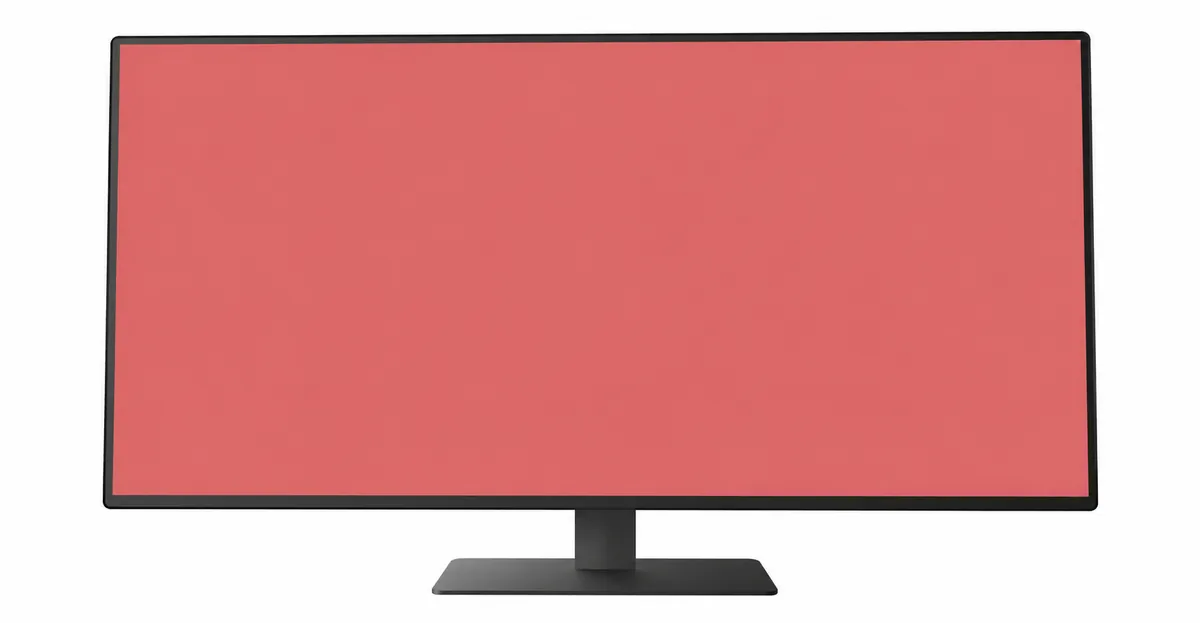
Red tint occurs when the red color channel is output disproportionately high relative to green and blue. The entire screen takes on a warm, reddish hue. On a white background, this manifests as pinkish, salmon, or warm-cream tones instead of neutral white.
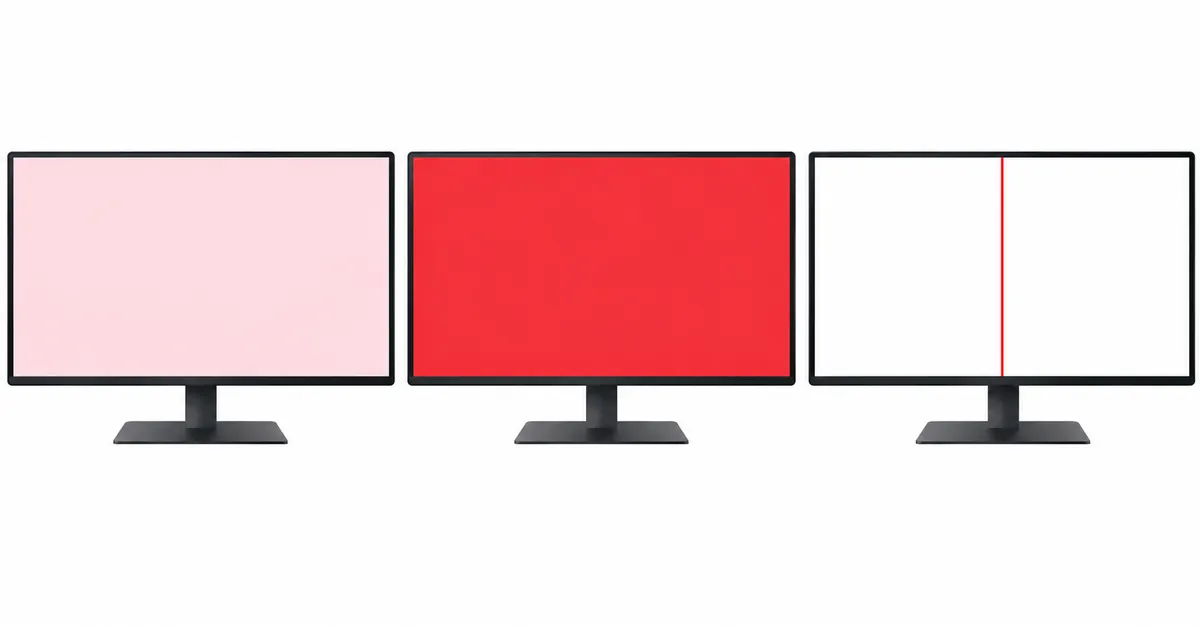
Key distinction: Red tint vs. red screen vs. red line:
- Red tint: The entire screen has a warm bias, all colors are affected
- Red screen: The entire screen is completely red (usually a more serious hardware issue)
- Red line: A single vertical or horizontal line that is red (see our colored lines guide)
Red tint can range from subtle (noticeable only on white backgrounds) to severe (everything appears distinctly red or pink).
The Color Temperature Misunderstanding
The single most common cause of red tint is incorrect color temperature setting.
Color temperature is measured in Kelvin (K) and describes the warmth or coolness of white light:
| Setting | Temperature | Appearance |
|---|---|---|
| Cool/Daylight | 9300K-6500K | Neutral to slightly blue |
| Standard/Normal | 6500K | Neutral white (sRGB standard) |
| Warm | 4000K-5000K | Noticeably orange/red |
Why red tint happens: If your monitor is set to "Warm" (4000K) instead of "Standard" (6500K) or "Cool" (9300K), everything appears reddish. This is not a defect — it is the intended behavior of warm color temperature.
The fix: Go to your monitor's OSD menu (buttons on the monitor) and change the color temperature from Warm to Standard or Cool. Alternatively, change it to "sRGB" mode if available.
Why Red Tint Appears After Driver Updates
Graphics driver updates commonly reset display color settings — or introduce new color management behavior that manifests as red tint.
What happens: After a driver update, your graphics card may change how it outputs color data, or previously overridden color settings may revert to defaults. Night Light may also activate by default in some driver packages.
The fix: Update your graphics drivers to the latest version — or roll back to a previous version if the tint appeared immediately after an update. Both options are available through Device Manager.
Hardware Causes of Red Tint (Less Common)
When software fixes do not resolve red tint, the cause may be hardware-level:
1. Aging red LED backlight In older CCFL-backlit monitors, the red phosphor in the backlight degrades more slowly than green and blue. This creates a natural shift toward red over years of use.
2. Failing red sub-pixel circuits In LCD panels, each sub-pixel has its own driving circuit. If the red sub-pixel circuit degrades or fails, it can output excessive red signal.
3. T-con board color processing failure The T-con board processes color signals before sending them to the panel. If the red channel processing circuit fails, red tint results.
4. Damaged VGA cable Analog VGA cables carry red, green, and blue signals separately. If the cable is damaged, analog interference can create color tinting — often red.
Hardware vs. software test: Boot into BIOS or safe mode. If red tint persists in BIOS, it is almost certainly hardware. If it only appears in your operating system, software is the culprit.
How to Diagnose Red Tint
Step 1: Check color temperature
- Go to monitor OSD menu → Color/Image settings
- Change from Warm to Standard or sRGB mode
- If this resolves it: settings issue, no further action needed
Step 2: Check Night Light
- Windows: Settings → System → Display → Night Light (turn off)
- macOS: System Settings → Displays → Night Shift (turn off)
- If this resolves it: Night Light was the cause
Step 3: Test with screen colors
- Open the screen test tool
- Display pure red: should be a clean, even red
- Display pure green: should be a clean, even green with no red cast
- Display pure blue: should be a clean, even blue with no red cast
- If red appears in green or blue tests: hardware issue
Step 4: Try a different cable
- Replace HDMI, DisplayPort, DVI, or VGA cable
- If tint changes or disappears: cable was the cause
How to Fix Red Tint on Monitor
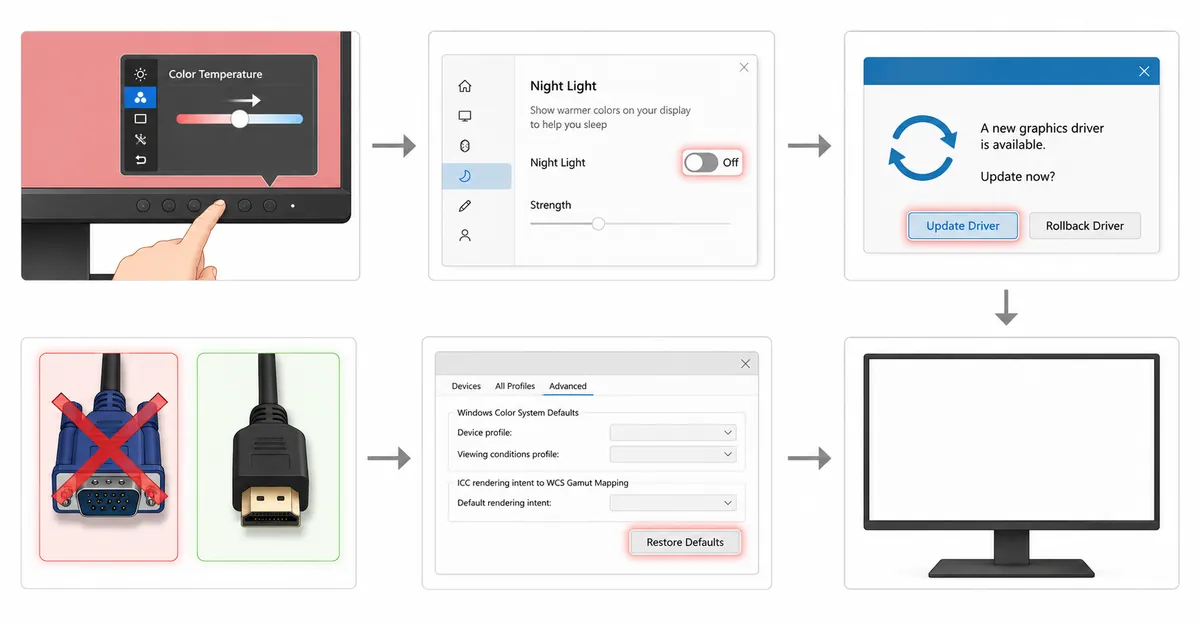
Fix 1: Color Temperature Adjustment (Most Common)
- Press the menu button on your monitor
- Navigate to Color or Picture settings
- Find Color Temperature or White Balance
- Change from Warm to Standard, Normal, or sRGB
- Save and exit
Fix 2: Graphics Driver Update/Rollback
- Open Device Manager → Display adapters
- Right-click your graphics card → Update driver
- If the issue appeared after a recent update, select "Roll back driver"
Fix 3: Cable Replacement (VGA Users)
VGA cables are analog and degrade over time. Replace with HDMI or DisplayPort for the best signal quality.
Fix 4: Color Profile Reset
- Right-click desktop → Display settings → Advanced display settings
- Click "Display adapter properties" → Color Management tab
- Click "Color Management" → Advanced tab
- Click "Change system defaults" → Restore to defaults
Fix 5: Hardware Repair
If red tint persists after all software fixes:
- T-con board replacement (common repair, $25-80)
- Panel replacement (last resort, $100-300)
- For laptops: external monitor is often more cost-effective
Case Study: Dell U2717D With Reverse Tint
A widely-reported case on the Dell community forums describes the opposite of typical red-tint complaints — yet the diagnostic path is identical and worth understanding.
The owner of a Dell U2717D IPS monitor noticed, roughly two weeks before warranty expiry, that white backgrounds had turned slightly cyan. Testing on a black background revealed a hazy red rectangle covering most of the panel — but the very edges remained clean. The tint did not depend on input: it appeared with the laptop unplugged and the monitor running on its own.
The diagnostic chain that resolved it:
- Confirm it is not the source: testing with another HDMI cable and another computer did not change the symptom
- Run the monitor's built-in self-test (BIST): the tint persisted with no video input connected at all
- Inspect the panel uniformity: the symptom was confined to the panel itself
Dell replaced the unit under warranty. The cause was almost certainly a failing TAB (tape-automated bonding) connection inside the LG LM270WQ5 (SS A1) panel that the U2717D uses. TAB failures are unrepairable without specialized bonding equipment — even iFixit's repair experts describe them as "not worth fixing" because panel cost approaches replacement-monitor cost.
The lesson for diagnosis: when a tint appears without any input, or with a different cable, the panel is the source. No software change will correct a TAB failure.
Panel Technology: Why IPS, VA, and TN Behave Differently
The tint you see depends on which panel technology your monitor uses and which channel is being driven beyond its spec.
IPS (In-Plane Switching). Crystals rotate parallel to the panel. IPS panels typically have the best color accuracy and the widest viewing angles, but light leakage around the edges gives IPS "glow." Aging red phosphor in the backlight is the slowest-degrading channel — so on an old IPS with KSF or wide-gamut phosphor, the red output persists after blue has begun dimming, producing a subtle warm shift that worsens over thousands of hours.
VA (Vertical Alignment). Crystals stand vertically to block light. VA panels deliver the highest contrast and deepest blacks of the three LCD types, but they suffer from backlight bleed and slower response. For red-tint purposes, VA's high contrast can amplify the perceptual difference between a true white and a slightly warm white — making an otherwise minor deviation feel more obvious.
TN (Twisted Nematic). TN twists crystals 90 degrees to block or pass light. TN panels are the fastest, but their color accuracy is the lowest, and viewing angles are poor — colors shift dramatically even with small head movements. TN is largely obsolete outside esports monitors today, but if you are diagnosing one, know that TN panels are more sensitive to color-temperature settings than IPS or VA because they have less native color range to compensate.
A subtle point worth flagging: on some wide-gamut backlights (KSF phosphor in particular), the red channel has a slower decay than green or blue. In strobe-backlight or local-dimming modes, this manifests as faint red fringing behind moving objects — not true tint, but it can be misread as one. Blur Busters documented this in their testing of Nano IPS panels.
Driver and OS Update History: When Microsoft and NVIDIA Pushed the Tint
Several specific driver branches and Windows updates have generated widespread red-tint reports.
NVIDIA dynamic range (recurring). NVIDIA Control Panel exposes an "Output dynamic range" setting with two options: Full (0-255) and Limited (16-235). Forcing Full on a monitor that only supports Limited does not extend the range — it over-drives the red channel and creates an oversaturated, sunburned look. This has been reported across driver branches from the 100s through the 500s (e.g., versions 591.89 stable versus 595.97 / 596.02 producing visibly different Color Accuracy Mode behavior). The fix is documented in NVIDIA's own control panel help: set the range to the default your monitor specifies.
Windows 10 v1903 (May 2019). The original 1903 release broke color management on many systems. KB4501375 (OS Build 18362.207, June 27 2019) addressed a regression where Night Light, color profiles, and gamma correction stopped working after shutdown. A follow-up, KB4505903 (OS Build 18362.267, July 26 2019), fixed severe banding and color casts including pink, green, red, blue, and yellow tints on systems with 10-bit panels. Workarounds from the DisplayCAL community during the gap period included disabling the Calibration Loader task under Task Scheduler → Microsoft → Windows → WindowsColorSystem.
Windows 11, 2024-2025. KB5034441 (Windows 10) and several Windows 11 cumulative updates in early 2024 triggered red-tint reports linked to HDR rendering and color-profile handling. The most recent documented regression shipped in the August 2025 optional update KB5064081, which shaded some games and videos noticeably red. Microsoft confirmed the issue and shipped the fix in KB5067036 (October 2025 optional), to be rolled into the November 2025 Patch Tuesday.
The recurring pattern. Red-tint regressions tend to follow three categories of change: HDR pipeline updates, color-profile (ICC) handler rewrites, and graphics-driver / DWM interaction changes. If red tint appears immediately after an update, that is the most likely cause — and the most likely to be fixed by either updating again (for Microsoft issues) or rolling back (for GPU driver issues).
Repair Cost Tiers: When It Pays to Call a Professional
When the diagnostic chain points to hardware, cost determines whether you repair or replace. As a general 2025-2026 reference for out-of-warranty monitors:
- Reseat ribbon cables / clean connectors: $0, can fix roughly 30% of apparent T-con failures on monitors older than four years
- DIY T-con board replacement (parts only): $38-65 for new OEM boards, $22-36 for refurbished (verify 30-day return); requires matching the exact part number printed on the board, not the monitor model
- Ribbon cable replacement: $5-30 for OEM-compatible LVDS/FFC cables (e.g., LG part numbers EAD63787812, EAD65832602), $50+ for rare wide-gamut panels
- Professional T-con or ribbon repair labor: $95-200 for parts and labor at a third-party repair shop; usually 90-day warranty
- Full panel replacement: $150-400 for the panel alone on a 27-inch class monitor; $400-1,000 if paid through a service center — frequently exceeds 60-80% of the cost of a new comparable monitor
When to use manufacturer service: within the original or extended warranty period, manufacturer service (Dell, LG, ASUS, BenQ) is typically free for panel-level defects and includes a refurbished replacement. For out-of-warranty professional monitors (BenQ PD, ASUS ProArt), authorized service preserves the calibration and firmware pairing that DIY panel swaps cannot.
Third-party repair shops make sense when the failed part is a board or cable and the labor cost stays under about 40% of a comparable new monitor's price. For laptops, replacing a failing integrated panel rarely makes sense — a $100-200 external monitor is more cost-effective than a $300+ panel swap that voids any remaining warranty.
Preventive Maintenance: Keeping Red Tint From Returning
Once red tint is resolved, a few habits reduce the chance of it returning.
Temperature and environment. LED backlights degrade faster at higher sustained brightness and higher ambient temperature. Running a monitor at 100% brightness constantly shortens the useful life of the backlight and can shift color temperature toward warm over time. Most CCFL-backlit monitors dim by about 25% in the first 5,000-10,000 hours; LED backlights are rated for 30,000-60,000 hours but still exhibit slow color drift. Keep the room temperature stable and avoid placing the monitor in direct sunlight.
Cleaning. Use only a microfiber cloth and distilled water (or a monitor-cleaning solution explicitly listed as ammonia-free and alcohol-free). Avoid Windex, isopropyl alcohol, and any cleaner containing ammonia — these attack the polarizer film on the panel surface and can produce a permanent yellow or pink cast on aged panels. Never spray directly onto the screen.
Cable management. VGA cables degrade visibly within a few years. If you still use VGA, expect periodic re-cable as a maintenance task. For digital connections (HDMI, DisplayPort, USB-C), use certified cables and avoid sharp bends near the connector — repeated stress fractures on internal conductors produce intermittent color shifts rather than a complete failure.
Driver discipline. Avoid auto-included driver packages from Windows Update for NVIDIA and AMD cards. Use the manufacturer installer directly, and note the driver version that produces correct color — that becomes your rollback target when a future update breaks things. For calibration-sensitive work, disable "Allow Windows to manage ICC profiles" and load profiles manually so you know exactly what is active.
Firmware updates. Some monitors (notably the LG 27UK650-W class and several ASUS ProArt models) release firmware updates that correct color management bugs. Check the manufacturer's support page twice a year and apply updates after noting your calibration state.
Using the Screen Test Tool for Channel Isolation
When diagnosis is unclear, a structured pure-color test separates channel-level defects from global tint. The screen test tool generates pure red, pure green, and pure blue full-screen patterns — use them in this order:
- Pure red test. Should show a clean, even red across the entire panel. Any visible structure (bright spots, dark patches, vertical bands) suggests panel or backlight non-uniformity, not tint.
- Pure green test. Should show an even green with no red or magenta cast. A red overlay on the green test is the clearest indicator of a stuck or over-driven red sub-pixel.
- Pure blue test. Should show an even, slightly darker blue with no red or magenta cast. A red overlay here is even more diagnostic — it isolates a hardware issue rather than a color-temperature misconfiguration.
If all three pure-color tests display correctly and only white windows appear red, the cause is almost always software: color temperature, Night Light, ICC profile, or driver-level output. The screen test tool is the fastest way to reach that conclusion without opening a single dialog box.
Related Screen Issues
- Green Tint on Monitor: Similar diagnosis approach
- Blue Tint on Monitor: Night Light and color temperature causes
- Red Screen: Complete red screen (different from tint)
- Screen Test Tool: Free tool to test color accuracy
Conclusion
Red tint on a monitor is usually caused by incorrect color temperature settings, Night Light features, or graphics driver changes — all easily fixable at home. Check your monitor's color temperature setting first, then disable Night Light, then update or roll back graphics drivers. Hardware causes (backlight aging, panel circuits, T-con failure) are far less common and only warrant repair when software fixes fail. Use the screen test tool to assess whether your color channels are displaying correctly.