A laptop screen turning green is a frustrating issue that can stem from software settings or serious hardware problems. This guide covers every common cause of laptop green screen issues, from quick-fix software solutions to cable repair procedures, helping you diagnose and resolve the problem efficiently.
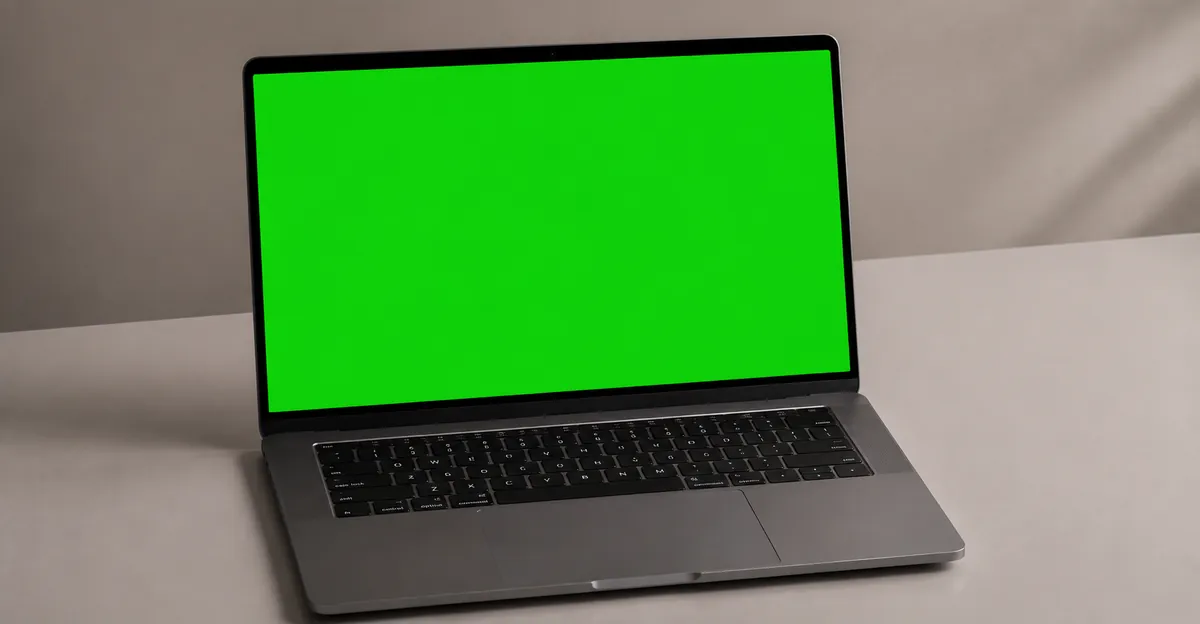
How to Fix Laptop Green Screen: Causes and Solutions
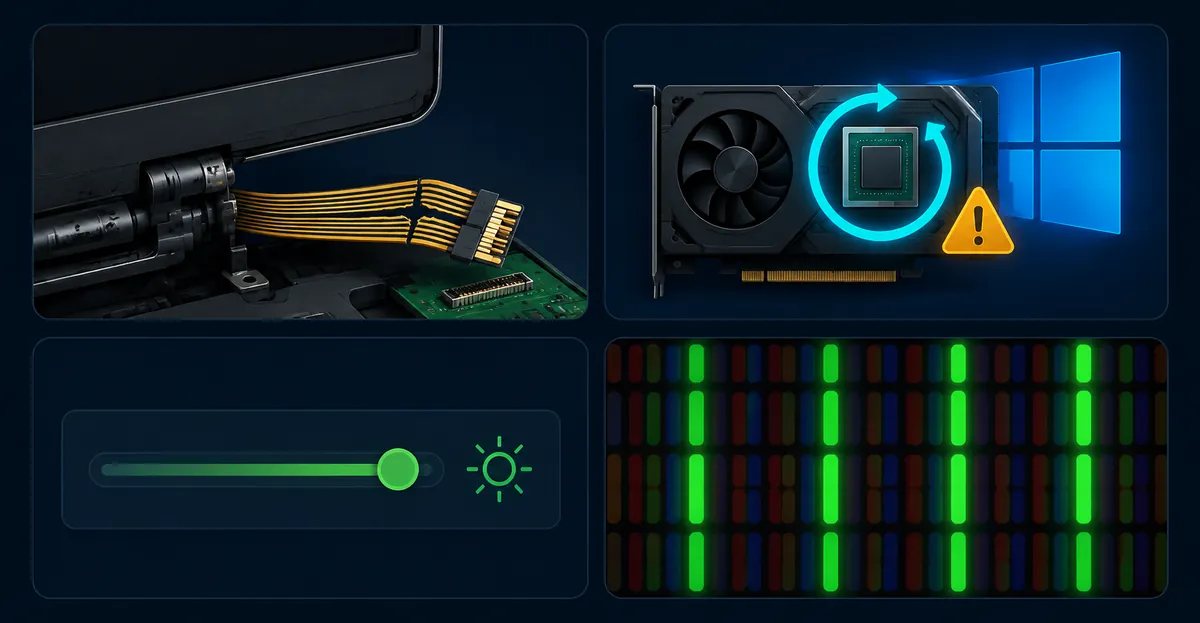
What Is a Laptop Green Screen Issue
A laptop green screen means your display is outputting an incorrect color balance where the red and blue color channels are missing, reduced, or not reaching the panel correctly. The result is an image dominated by green, whether the entire screen shows green or specific areas are affected.
This is distinct from a green line (a thin vertical or horizontal line of green across the screen) or a green tint (a subtle green cast over normally colored content). A full green screen indicates a more fundamental problem with color channel delivery to the display.
Understanding whether the issue affects the entire screen, appears only in certain applications, or changes when you adjust the display cable or lid angle helps pinpoint the cause and the right solution.
Common Symptoms of Laptop Green Screen
- Full green screen: The entire display shows green regardless of content, making the screen unusable
- Green tint: All content appears with a greenish cast, colors look washed out or unnatural
- Partial green areas: Specific sections of the screen display green while others show normal colors
- Green flickering: The screen alternates between normal colors and green, often triggered by movement or angle changes
- Green on boot: The screen appears green during startup but may show colors once Windows or Chrome OS loads
If you see thin lines rather than a full green screen, this may be a related but distinct issue. Learn more about green lines on screens
Most Common Causes of Laptop Green Screen
Loose or Damaged Display Cable
The most frequent hardware cause of a laptop green screen is a problem with the display cable. The flex cable that connects the motherboard to the display panel carries the video signal including red, green, and blue color channels. If one or more channels are interrupted due to a loose connection or damaged traces, the corresponding color is lost.
Cable-related causes include:
- Loose connector: The cable connector at either end (motherboard or display panel) can work loose from normal vibration and movement
- Damaged flex traces: The internal conductive traces in the flex cable can crack from repeated hinge movement, especially near the hinge area
- Crushed or pinched cable: Physical pressure on the cable from improper assembly or impact damage can interrupt color channels
- Oxidized contacts: Corrosion on the connector pins can reduce signal quality and cause color problems
Graphics Driver Problems
On Windows laptops, the graphics driver manages how the operating system sends color data to the display. When this driver becomes corrupted, outdated, or conflicts with another component, color output can be affected.
Driver-related causes include:
- Corrupted driver from Windows Update: A recent Windows update may have replaced your proper graphics driver with a generic or incompatible version
- Driver conflict: Two graphics processors (integrated + dedicated) can conflict if not properly managed, causing color errors
- Missing or corrupted color profiles: Windows color profiles that correct display colors can become corrupted and cause the opposite effect
- Driver rollback failure: If a driver update failed partway through, the partially installed driver can cause various display problems
Display Color Settings
Incorrect color temperature, gamma, or saturation settings can produce a green-tinted image without any hardware problem.
Settings-related causes include:
- Night light mode: Windows Night light or macOS Night Shift shifts colors toward warmer tones, but if incorrectly configured can produce greenish results
- Color profile mismatch: Using a color profile designed for a different display model can cause severe color errors
- Manual color adjustments: Aggressive adjustments to RGB balance in display settings can produce green dominance
- ICC profile corruption: A corrupted ICC color profile can override normal color rendering
Display Panel Hardware Failure
In more serious cases, the display panel itself is failing and losing its ability to reproduce certain colors.
Panel-related causes include:
- Failed color filter: The red or blue color filter layer in the LCD panel can degrade or fail, removing that color from the output
- Backlight color shift: In LED-backlit displays, a failing blue LED can make the white point shift toward green
- T-con board failure: The timing controller board that drives the panel can malfunction and fail to send correct color signals
- Heat damage: Sustained overheating can damage the panel's internal color filter layers
How to Diagnose the Laptop Green Screen Problem
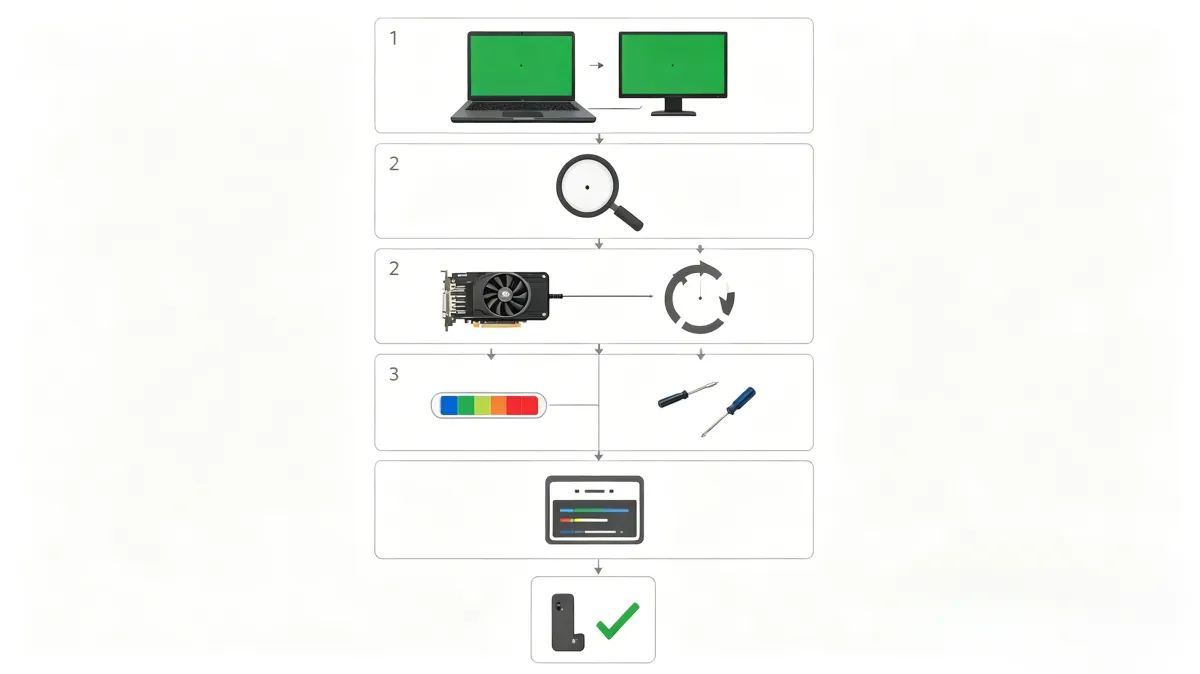
Step 1: Test With an External Monitor
Connect your laptop to an external monitor using HDMI, DisplayPort, or USB-C. This immediately tells you whether the problem is in the display panel and its cable or in the graphics processor and software.
- External monitor shows green: The graphics processor or software is at fault. Update or reinstall your graphics drivers.
- External monitor shows normal colors: The built-in display panel, cable, or backlight is the problem. Inspect the flex cable and seek repair if needed.
Step 2: Check Recent System Changes
Think about what changed before the green screen appeared:
- Did Windows update recently?
- Did you install new software or drivers?
- Did you drop or bump the laptop?
- Did the laptop overheat recently?
This history helps narrow down whether the cause is software (updates, new software) or hardware (movement, impact, heat).
Step 3: Check Display Cable Connection
If the external monitor shows normal colors, the issue is with the built-in display's cable or panel.
On laptops with accessible hinges (consult your model's service manual):
- Shut down and unplug the laptop
- Remove the bezel around the screen
- Locate the display cable near the hinge
- Disconnect and reconnect the cable at both ends
- Ensure connectors are firmly seated
- Reassemble and test
If you are not comfortable opening the laptop, skip to professional repair.
Step 4: Run Display Diagnostics
On Windows:
- Right-click the desktop and select Display settings
- Click Advanced display settings
- Click Display adapter properties for Display 1
- In the Adapter tab, click List All Modes
- Try selecting a different display mode to see if color improves
On Chrome OS:
- Open Settings
- Click Device > Displays
- Adjust color temperature and night light settings
- Reset to defaults if any custom settings were applied
Step-by-Step Fixes for Laptop Green Screen
Step 1: Restart Your Laptop
A simple restart clears temporary software glitches that can cause color errors. If the green screen appeared suddenly without obvious cause, this may resolve it.
Step 2: Update Graphics Drivers
For Windows laptops, properly updating the graphics driver is the most important fix:
- Identify your graphics processor (Intel UHD/Iris, NVIDIA GeForce, AMD Radeon)
- Visit the manufacturer's website (intel.com, nvidia.com, amd.com) and download the latest driver for your specific GPU model
- Uninstall the current driver through Device Manager
- Install the newly downloaded driver
- Restart and check if the green tint is resolved
Avoid relying solely on Windows Update for graphics drivers, as it may not provide the most recent or stable version.
Step 3: Roll Back the Graphics Driver
If the green screen started after a driver update, rolling back to the previous version can help:
- Right-click the Start button and select Device Manager
- Expand Display adapters
- Right-click your graphics device and select Properties
- Click the Driver tab
- Click Roll Back Driver
- Follow the prompts and restart
Step 4: Check and Adjust Color Settings
- Right-click the desktop and select Display settings
- Click Night light settings and toggle it OFF
- Click Color calibration (under Advanced display settings)
- Run through the color calibration wizard to reset color balance
- Click Color management > Advanced tab > Change system default associations
- Remove any custom ICC profiles and use the default sRGB profile
Step 5: Reset Display Cable Connection
If software fixes do not resolve the issue and your laptop is out of warranty, try reseating the display cable:
- Shut down the laptop completely and disconnect power
- Consult your model's hardware maintenance manual for bezel removal steps
- Locate the display cable connector (usually near the hinge on either side)
- Gently disconnect, inspect for damage, and reconnect firmly
- Reassemble and test
If the cable shows visible damage (torn outer sheath, bent pins, scorch marks), it needs replacement rather than reseating.
Step 6: Use the Screen Test Tool
The Screen Test Tool displays full-screen solid colors that make it easy to identify whether your green screen issue affects all colors or only specific ones. A full green screen test indicates all non-green channels are lost. Normal green on the green test with missing red and blue on their respective tests points to a channel-specific cable or panel failure.
When Hardware Repair Is Needed
Seek professional repair or screen replacement in these situations:
- Physical cable damage visible: Torn cables, bent connector pins, or scorch marks require cable replacement
- Green screen persists after driver reinstall: The display panel itself is failing
- Green tint accompanied by other defects: Dead pixels, lines, or backlight bleeding alongside the green tint indicates panel degradation
- Laptop was dropped or exposed to liquid: Internal damage may have affected multiple display components
- Cable reseating did not help: The cable may need replacement or the panel connector may be damaged
Manufacturers do not publish exact failure rates for display components, but repair communities such as iFixit and Reddit frequently report that display cable failures are among the most common causes of color problems on laptops, with flex cable replacement being a routine repair for models older than two years.
For in-warranty devices, contact the manufacturer for a free repair. Out-of-warranty repairs typically cost less than half the price of a new laptop for screen replacement, making repair worthwhile on relatively recent devices.
Prevention Tips for Laptop Display Health
- Handle the hinge area carefully: Excessive force accelerates flex cable wear
- Keep graphics drivers updated: Regular driver updates from the manufacturer prevent color and compatibility issues
- Avoid closing the lid with objects on the keyboard: Prevents pressure damage to the display
- Use surge protection: Power fluctuations can affect display electronics
- Keep vents clear: Overheating accelerates degradation of all display components
How Manufacturers Define Acceptable Green Tint Thresholds
Display manufacturers publish exact pixel and color defect specifications that determine whether a green-tinted screen qualifies for warranty replacement. The most widely referenced standard is ISO 13406-2, which classifies pixel defects into four types and sets maximum acceptable defect densities per million pixels. Type II defects, which cover adjacent sub-pixel clusters of red, green, and blue, are directly relevant to green screen issues because a cluster of failed red and blue sub-pixels leaves only green visible.
Individual manufacturers layer their own policies on top of these standards. Dell laptops sold with the Premium Panel Exchange (PPE) service qualify for free screen replacement if even a single bright pixel defect appears within the first year, regardless of ISO thresholds. HP sets its Pixel Defect Maximum at between 2 and 16 stuck pixels depending on the product line, with bright sub-pixel defects (red, green, or blue) counted separately from dark defects. Lenovo ThinkPads follow a tiered policy: three or fewer bright sub-pixel defects may not qualify for warranty service, while clusters of adjacent defects always trigger replacement. Apple does not publish pixel defect thresholds publicly but handles display issues on a case-by-case basis through AppleCare, with screen discoloration and uneven backlight issues typically covered under the standard warranty.
Understanding these thresholds matters when deciding whether to pursue a warranty claim versus self-repair. If the green tint is caused by a handful of stuck sub-pixels in a localized area, the device may qualify for free replacement under the manufacturer's policy. A diffuse green cast across the entire screen, by contrast, points to a cable or color profile problem that no warranty will cover. Checking your device's specific warranty terms before paying for repair can save significant money.
Laptop Green Screen vs Desktop Monitor: Key Differences
Laptop and desktop displays share the same underlying LCD and LED technologies, but the root causes of green screen problems differ in important ways. Desktop monitors connect to the graphics source through external cables (HDMI, DisplayPort, DVI, USB-C) that can be swapped, tested, and replaced without opening the computer. Laptops route the display signal through internal ribbon cables that pass through the hinge, making them far more susceptible to mechanical wear over time.
The flex cable inside a laptop hinge undergoes repeated bending every time the lid opens and closes. Over months and years, the internal conductive traces in these cables can develop micro-fractures that interrupt individual color channels. A cable that would have caused intermittent color flickering on a desktop monitor can cause a permanent green screen on a laptop because the hinge flex places physical stress on the very connection carrying the red and blue signals. Repair communities such as iFixit and Reddit report that display cable failures are among the most common causes of color problems on laptops, with flex cable replacement being a routine repair for models older than two years.
Another key difference is thermal management. Desktop monitors dissipate heat through large chassis surfaces, while laptop screens share thermal space with the CPU and GPU. A laptop GPU that is thermally throttling under heavy load can send corrupted display signals to the screen even when the panel itself is healthy. This thermal interplay explains why some users see green screen issues only during gaming, video editing, or other GPU-intensive tasks rather than during idle desktop use.
Finally, the integrated nature of laptop hardware means that a failing GPU cannot be independently replaced in most models. On a desktop, a faulty graphics card can be swapped out for a new one. On a laptop, GPU failure typically requires board-level repair or full device replacement, making accurate diagnosis critically important before committing to a repair path.
Repair Cost Ranges by Device Type
When a laptop green screen cannot be resolved through software fixes, understanding typical repair costs helps determine whether professional repair makes financial sense. Costs vary significantly by device type, component, and location, but the following ranges reflect commonly reported figures from repair shops and manufacturer service centers as of 2026.
Display cable replacement is the most affordable hardware fix for laptop green screen issues. A replacement LVDS or eDP flex cable typically costs between $8 and $25 for the part, with labor adding $30 to $80 depending on the laptop model and repair shop. On models with user-accessible bottom covers, cable replacement can be a DIY project for experienced users. On sealed unibody designs like certain MacBook models, professional installation is effectively mandatory, pushing total cost to $100 or more.
Display panel (screen) replacement costs more because the panel itself is the expensive component. IPS and TN laptop panels range from $60 to $180 depending on resolution and size, with 4K and OLED panels costing significantly more. Adding professional installation, total panel replacement typically runs $120 to $350 for most mainstream laptops. Premium devices like the Dell XPS, MacBook Pro, and Microsoft Surface can exceed $500 for an OEM replacement panel.
Graphics processing unit (GPU) issues that manifest as green screens require either board-level repair or full motherboard replacement. GPU reballing (re-soldering the GPU chip to the motherboard) costs between $150 and $300 at specialist repair shops. Full motherboard replacement, which is required when the GPU is permanently failed, can cost $300 to $600 or more depending on the laptop model.
For comparison, out-of-warranty screen replacement typically costs less than half the price of a new laptop for screen replacement, making repair worthwhile on relatively recent devices. For laptops older than five years, the math shifts: the repair cost may approach or exceed the device's current market value, making replacement the more sensible choice.
How to Document the Spot for a Warranty Claim
Before contacting the manufacturer or bringing the laptop to a repair shop, gathering the right documentation significantly improves the chances of a successful warranty claim. Manufacturers and service centers use documentation to verify that the issue existed before the warranty expired and to determine whether the specific defect falls under coverage.
The most useful documentation combines visual evidence with system information. Use a smartphone or another device to photograph the green screen from directly in front of the display, ensuring the camera is perpendicular to the screen to avoid perspective distortion. Take a second photo from an angle to show whether the green tint changes with viewing position, which helps distinguish panel-level issues from cable problems. Record a short video showing the screen over a two-minute period, demonstrating whether the green screen is constant, intermittent, or triggered by specific movements like opening and closing the lid.
System information helps establish the device's warranty status and configuration. Note the exact model number (visible on the bottom label), the serial number, and the purchase date. Include screenshots of the Device Manager display adapter information and the graphics driver version. This combination of visual and system data gives the manufacturer everything needed to process a warranty claim efficiently.
If the laptop is still under manufacturer warranty, contact authorized service support directly rather than a third-party repair shop. Many manufacturers (Dell, HP, Lenovo) offer on-site or mail-in repair services for covered display issues. Unauthorized repairs by third parties can void the remaining warranty on other components, so it is worth exhausting the manufacturer route first.
Common Mistakes to Avoid When Fixing Green Screen Issues
Several common missteps can turn a straightforward laptop green screen repair into a frustrating waste of time and money. Avoiding these mistakes saves both effort and expense.
The most frequent mistake is skipping the external monitor test. Connecting an external display is the single fastest way to distinguish a software problem from a hardware problem, yet many users spend hours reinstalling drivers or adjusting settings when the issue is actually a loose display cable. If the external monitor also shows green, the problem is in the GPU or software stack and driver work is relevant. If the external monitor shows normal colors, the built-in display and its cable are the target and driver reinstallation is unlikely to help.
Another common error is updating drivers without first uninstalling the existing driver completely. A clean installation using Display Driver Uninstaller (DDU) in Windows Safe Mode removes all residual driver files and registry entries that can cause conflicts. Simply downloading a new driver over the top of a corrupted one often leaves the conflict intact, producing the same green screen result.
Users also frequently overlook simple software causes. Night light mode, custom ICC color profiles, and HDR settings can all produce a green-tinted display without any hardware involvement. Resetting these to defaults takes minutes and should be one of the first steps in any green screen troubleshooting sequence.
Finally, attempting hardware repairs without proper tools or documentation risks causing additional damage. Opening a laptop without consulting the hardware maintenance manual can result in broken clips, stripped screws, or accidentally disconnected components that are unrelated to the green screen issue. When in doubt, professional diagnosis before any physical repair is the safer path.
Related Laptop Display Issues
Green screen problems can overlap with or be confused with other issues:
- Green Line on Screen: Thin green lines across the screen are caused by similar cable and panel issues but manifest differently
- Green Tint Monitor Problems: A specific guide to green tint issues on desktop monitors
- Screen Flickering: Flickering and green screen issues share common causes like cable problems and driver conflicts
- Monitor Color Problems: A comprehensive guide to all types of monitor color issues
- Dead Pixel Diagnosis: Distinguishing dead pixels from color channel failures
Also see: Screen Test Tool — use our free online screen test tool to diagnose whether your green screen affects specific color channels and document the results for a repair technician.
Conclusion
A laptop green screen is most commonly caused by a loose or damaged display cable, followed by graphics driver problems and incorrect color settings. The diagnostic process is straightforward: test with an external monitor to distinguish software from hardware causes, then work through driver updates, color setting resets, and cable reseating in order. Software fixes resolve the majority of cases. Hardware repair is needed when the flex cable is visibly damaged, the display panel itself is failing, or cable reseating does not resolve the issue. Protect your laptop display by handling the hinge gently, keeping graphics drivers updated, and avoiding physical pressure on the screen. Use the Screen Test Tool to confirm which color channels are affected and get an accurate diagnosis before committing to a repair path.