Your laptop screen appears orange because the blue color channel is missing or severely reduced, leaving only red and green to combine into orange. This guide walks through every common cause, from Night Light settings to a damaged internal display cable, and provides step-by-step fixes you can apply at home before considering professional repair.
What Is Orange Screen on a Laptop
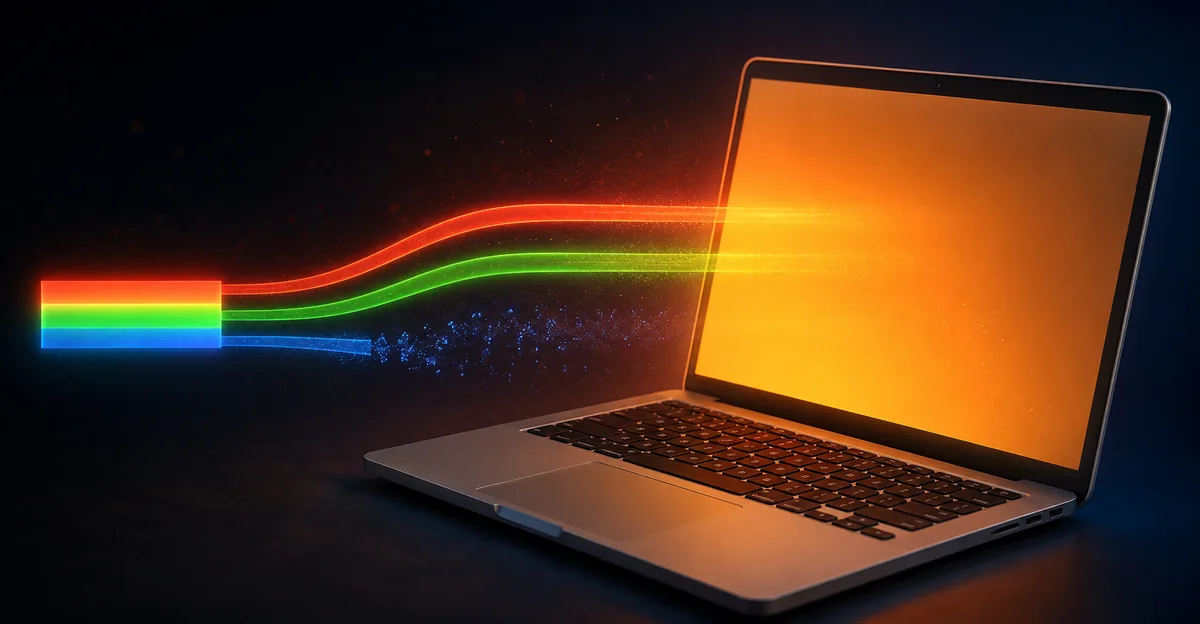
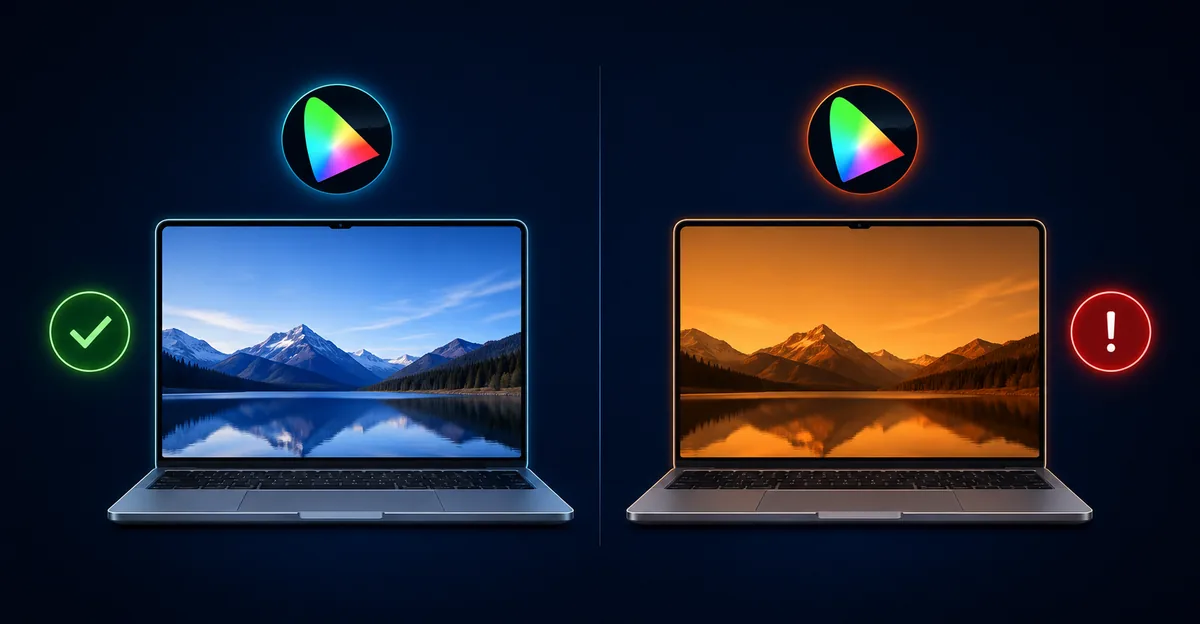
Orange screen on a laptop refers to a color distortion where the entire display or specific regions shift toward warm orange, amber, or yellow tones instead of producing accurate colors. Every laptop display works by combining red, green, and blue (RGB) subpixels to render the full color spectrum. When the blue component is suppressed or lost, the remaining red and green combine to produce the orange tint users see.
This is a different problem from a solid colored screen or a screen that has lost signal entirely. The laptop is still functioning, the backlight is still on, and content is still visible — but the entire color palette is shifted toward warm tones.
Key characteristics of an orange laptop screen:
- Uniform tint across the entire display: not localized to corners or specific areas
- White backgrounds appear cream, beige, or pale yellow: instead of pure white
- Colors look washed out and warm: blues are particularly muted or absent
- The tint is consistent across apps and menus: not just one browser or one video
- It may worsen or shift slightly when the lid is moved: suggesting a cable involvement
- It may appear suddenly after an update: or develop slowly over weeks
The issue affects every laptop brand and operating system. We see it most often reported on Dell XPS, Dell Latitude, HP Spectre, HP Envy, Lenovo ThinkPad X1 Carbon, Lenovo IdeaPad, ASUS ZenBook, Microsoft Surface, and MacBook Pro units. Both Intel and AMD-based laptops are equally affected, and Apple Silicon MacBooks experience the same issue, primarily from Night Shift and True Tone settings.
What Causes Orange Screen on a Laptop
1. Night Light, Night Shift, and Blue Light Filter Software
The single most common cause of orange laptop screens is built-in software designed to reduce blue light. These features are enabled by default on most modern laptops and may activate silently after an update.
Windows Night Light shifts colors toward warmer amber tones based on a sunset schedule. On some Dell XPS 15 and HP Spectre units, the scheduled task re-enables Night Light automatically even after the user toggles it off in Settings. We have seen this on dozens of HP Envy and Lenovo IdeaPad units where the Night Light schedule kept re-enabling at the display driver level without any user input.
macOS Night Shift performs the same function on MacBook Air and MacBook Pro. It uses the system clock and your location to apply a warm filter after sunset.
Lenovo Vantage Eye Care Mode is a Lenovo-specific feature shipped on IdeaPad and ThinkPad machines that adds an additional warm tint layer on top of any Windows filter.
HP Display Comfort and ASUS Eye Care are equivalent features on those brands. Each applies its own color temperature shift, and when multiple are active simultaneously, the cumulative warm effect becomes unmistakable.
Third-party blue light filters like f.lux, Iris, and Night Owl can also produce an orange tint. Even after these apps are uninstalled, leftover ICC color profiles can persist and continue to apply the warm shift.
If your orange screen appeared right after a Windows Update, macOS update, or after installing new display software, the most likely cause is one of these blue light filters.
2. Graphics Driver Problems
A corrupted, outdated, or freshly installed graphics driver is the second most common cause of orange laptop screens. The graphics driver is the software layer that translates your operating system's color values into the actual signal sent to the display panel. When that translation goes wrong, the blue channel often gets dropped first.
Driver corruption after Windows Update is particularly common. Windows 11 cumulative updates can silently overwrite or corrupt the active ICC display profile, causing the screen to render incorrectly even though the hardware is completely undamaged. Dell and Lenovo laptops running Intel Iris Xe graphics are particularly affected after rushed Windows Update driver pushes. The orange cast often appears overnight after a background update completes.
Newly installed incompatible drivers can also produce orange tint. This is especially common after upgrading to a new major Windows release or after installing driver packages from third-party "driver updater" tools, which HP's own support documentation warns against.
Driver conflicts between integrated and discrete GPUs produce inconsistent color output. Laptops with both Intel integrated graphics and a discrete NVIDIA or AMD GPU can develop orange tint when the system switches between them or when both are trying to drive the display simultaneously.
The key symptom: a yellow-orange cast across the entire screen uniformly, not just at the edges or in one corner. The tint does not change when you move the lid, which differentiates it from cable issues.
3. Misconfigured Display Color Profile (ICC Profile)
Windows and macOS both store ICC color profiles that define how colors should appear on each connected display. If the wrong profile gets assigned through a software installation, a driver update, or a calibration tool, the screen can shift heavily toward orange or warm yellow.
This is common after installing third-party software like DisplayCAL, f.lux, or hardware calibration tools. The wrong profile can persist even after the software is fully uninstalled, because the profile file remains in the system color management folder.
A subtle clue that the ICC profile is the culprit: the orange tint will not appear in screenshots. The operating system captures the pre-profile color data, while the display panel applies the profile on output. If you take a screenshot of what looks like an orange webpage and the screenshot looks normal, the problem is software, not hardware.
4. Loose or Damaged Internal Display Flex Cable
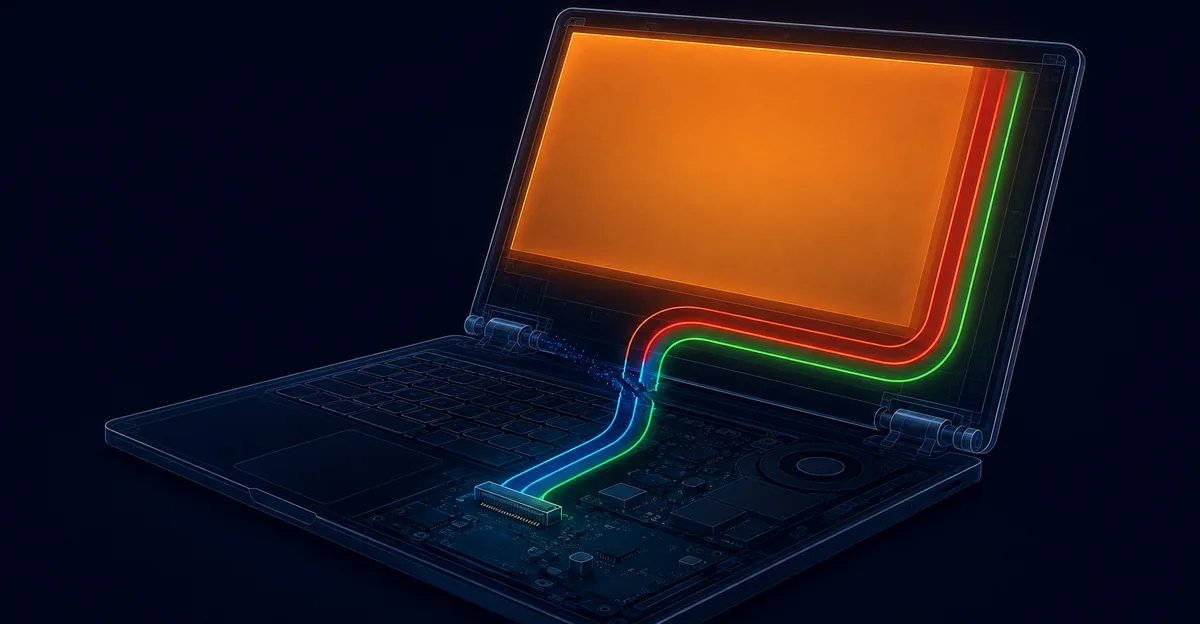
The thin ribbon cable connecting the display panel to the motherboard carries all color data as separate channels for red, green, and blue. When that cable is loose, partially disconnected, or physically damaged, individual color channels can drop out. The blue channel is the weakest of the three signals, so it is the first to degrade when a connection is imperfect.
On hinge-heavy convertibles like the HP Spectre x360, ASUS ZenBook Flip 14, and Lenovo IdeaPad Flex 5, this cable flexes thousands of times over the laptop's life. When it begins to fail at the hinge flex point, color distortion appears at specific lid angles — normal at 90 degrees, wrong at 45 degrees, for example.
On ThinkPad X1 Carbon and Dell Latitude models, the hinges sit directly over the flex cable path and can pinch it over time. This produces a similar angle-dependent color shift.
The giveaway that no competitor article explains is that gently pressing the bezel near the hinge while watching the screen will often temporarily worsen or clear the orange tint. If pressing near the hinge changes the color, the cable, not the panel, is the failure point.
5. LCD Backlight and Panel Aging
LCD backlights, especially older CCFL and early LED types, can shift color as they age. The blue LED elements degrade faster than red or green elements because blue light requires more energy to produce. Over years of heavy use, the blue output drops, and the remaining red and green combine to produce an increasingly warm cast.
HP's official support documentation cites 30,000 to 60,000 hours as the typical LCD panel lifespan before noticeable color degradation. LED backlights themselves typically last 50,000+ hours but can fail prematurely due to heat exposure.
A real aging-panel tint develops gradually over months or years, not overnight. It is also a genuine hardware cause, but it is the least common. Most "orange screen" complaints turn out to be software.
Heat damage accelerates this. Laptops that run hot due to clogged vents, dried-out thermal paste, or blocked fans will see backlight degradation set in earlier than expected. A thermal profile showing sustained 70°C+ at the panel edge during GPU load is a warning sign.
6. GPU Hardware Failure
A failing discrete GPU — particularly on older NVIDIA GTX or AMD Radeon-equipped laptops — can produce permanent color shifts when the GPU's color processing logic begins to fail. Unlike driver issues, GPU hardware failure does not clear up after a restart or driver reinstall.
Symptoms include:
- Persistent orange tint that survives every software reset
- Orange tint visible on an external monitor connected to the same laptop
- Glitches, artifacts, or lines accompanying the color shift
- Sudden onset following a heat event or physical shock
GPU failure is rare on modern Apple Silicon MacBooks because the GPU is integrated into the SoC. It is more common on older Intel-based laptops with discrete NVIDIA graphics from the 2010 to 2018 era.
7. Heat Damage to the Display Panel
Localized heat damage can cause permanent orange or yellow splotches on a laptop screen. This typically appears as a discolored region in one corner or along an edge, not as a uniform tint across the entire screen.
Common causes include:
- Closed laptops left in direct sunlight or in hot cars
- Laptops used on soft surfaces that block ventilation
- Battery swelling that pushes against the back of the panel
- Heat-generating components mounted near the panel edge
If the orange tint is confined to one area rather than covering the whole screen, heat damage is the more likely explanation than Night Light settings or driver issues.
How to Diagnose Orange Screen on a Laptop
Diagnosis matters because orange screen can have very different fixes depending on the cause. Walking through these checks in order will narrow down the culprit quickly.
Diagnosis Step 1: Check the BIOS or Startup Screen
Restart your laptop and immediately watch the screen during the boot process, before Windows or macOS fully loads. Look at the manufacturer's logo screen or the BIOS/UEFI setup screen if you can enter it (typically F2, F10, F12, or Delete during startup).
- If the BIOS screen looks orange: the problem is hardware. The operating system cannot be the cause because the BIOS runs before any OS software loads. The flex cable, panel, or backlight is suspect.
- If the BIOS screen looks normal and orange only appears after Windows or macOS loads: the problem is software. Night Light, Night Shift, drivers, or color profiles are suspect.
Diagnosis Step 2: Try an External Monitor
Connect your laptop to an external monitor or TV via HDMI, DisplayPort, or USB-C. This isolates whether the problem is the internal display hardware or the graphics output.
- External monitor shows normal color: the laptop's internal panel or its flex cable is the problem
- External monitor also looks orange: the graphics card, driver, or output stage is the problem
For MacBooks, connect via USB-C to HDMI adapter or directly through Thunderbolt. For Windows laptops, HDMI is universally supported.
Diagnosis Step 3: Boot Into Safe Mode
Safe Mode loads the operating system with minimal drivers and no third-party software. If the orange tint disappears in Safe Mode, software is confirmed as the cause.
- Windows: Settings → System → Recovery → Advanced Startup → Restart Now. After restart, choose Troubleshoot → Advanced Options → Startup Settings → Restart, then press 4 or F4 for Safe Mode.
- macOS: Shut down, then hold Shift while pressing the power button. Release Shift when you see the login screen.
Diagnosis Step 4: Test the Lid Angle
Slowly open and close the laptop lid while watching the screen. If the orange tint changes intensity at specific angles, the flex cable running through the hinge is almost certainly the cause.
Try gently pressing the bezel near the hinge with your finger while watching the screen. If pressing changes the color, the cable is loose or partially disconnected at the hinge.
Diagnosis Step 5: Check for Software Clues
Open your display settings and look for:
- Night Light or Night Shift toggled on
- Color Filters enabled
- HDR turned on (HDR can produce a warm cast on some panels)
- Custom color profiles applied
- Multiple blue light filters stacked together
On Lenovo laptops, open Lenovo Vantage and check Eye Care Mode. On HP laptops, check HP Display Settings. On ASUS, look for ASUS Eye Care or Splendid settings.
How to Fix Orange Screen on a Laptop
Fix 1: Disable Night Light, Night Shift, and All Blue Light Filters
This resolves the majority of orange laptop screen issues in under two minutes.
Disable Windows Night Light:
- Right-click the desktop and choose Display settings
- Click Night light
- Toggle Night light to Off
- If a schedule was active, also click "Schedule night light" and turn the scheduling off
- Check the system tray — some HP and Dell units have a separate quick toggle in the action center that overrides Settings
Disable macOS Night Shift and True Tone:
- Open System Settings → Displays
- Toggle Night Shift to off and remove any schedule
- Toggle True Tone to off
- Close System Settings
Disable Lenovo Vantage Eye Care:
- Open Lenovo Vantage
- Go to Device → Display
- Toggle Eye Care Mode off
- Also disable any preset color modes like Reading Mode or Movie Mode
Disable HP Display Comfort:
- Open HP Display Center or right-click desktop → HP Display Settings
- Look for ComfortView, Low Blue Light, or Eye Ease settings
- Toggle all of them off
- Also check Windows Night Light as described above
Disable ASUS Eye Care and Splendid:
- Open ASUS Splendid or Armoury Crate
- Find Eye Care or Blue Light Filter
- Toggle off
- Set Splendid mode to Normal if it is on any preset like Vivid, Manual, or Eye Care
If after disabling all of these the orange tint persists, move to Fix 2.
Fix 2: Reset the ICC Color Profile to sRGB
A corrupted or misconfigured color profile is the second most common software cause. Resetting the profile costs nothing and takes about a minute.
Windows:
- Press Win + R, type
colorcpl, press Enter to open Color Management - Select your display from the device list
- Check "Use my settings for this device"
- Click Add and browse to C:\Windows\System32\spool\drivers\color
- Select
sRGB IEC61966-2.1and click OK - Set sRGB IEC61966-2.1 as the default profile
- Click Apply and restart
Alternative Windows method via Settings:
- Settings → System → Display → Advanced display
- Click "Display adapter properties for Display X"
- Go to the Color Management tab
- Click Color Management
- Follow the steps above to set sRGB as default
macOS:
- Open System Settings → Displays
- Click the Color profile dropdown
- Select "Display P3" or "sRGB" — avoid custom profiles unless professionally calibrated
- If the orange persists, open the Displays menu and check that "Pro Mode" or any custom calibration toggle is off
After resetting, take a screenshot of your screen. If the screenshot looks normal but the screen still looks orange, the issue is hardware — the ICC profile is correctly telling the OS what to send, but the display panel is rendering it wrong.
Fix 3: Update or Clean Reinstall the Graphics Driver
A driver reinstall resolves driver corruption issues without affecting your data.
Windows Update method:
- Right-click Start → Device Manager
- Expand Display adapters
- Right-click your GPU → Update driver
- Choose "Search automatically for drivers"
- Restart and test
Clean reinstall via manufacturer tool (preferred):
- Dell: run Dell Command Update, which handles BIOS and display firmware together
- HP: use HP Support Assistant to install the validated graphics driver
- Lenovo: open Lenovo Vantage → System Update, install all pending display and BIOS updates
- ASUS: use MyASUS or Armoury Crate for validated drivers
Clean uninstall + manual install:
- Download the latest driver from your GPU vendor (NVIDIA, AMD, or Intel)
- Download Display Driver Uninstaller (DDU) from a trusted source
- Boot into Safe Mode
- Run DDU and select "Clean and restart"
- After restart, install the driver you downloaded
- Restart again and test
If the orange tint appeared right after a Windows Update, try rolling back the driver instead:
- Device Manager → Display adapters → right-click GPU → Properties
- Driver tab → Roll Back Driver
- Restart and test
Fix 4: Run the Manufacturer's Built-In Display Diagnostic
Most laptop manufacturers ship a built-in display self-test that runs without booting the operating system. This is the cleanest way to confirm hardware failure.
Dell LCD BIST: Power off, then hold the D key while pressing the power button. The screen will cycle through solid colors. If orange appears during this test, the panel is failing.
HP LCD Diagnostic: Power off, then press the power button and immediately press F2 repeatedly. In the BIOS, look for Diagnostic options or run the display test.
Lenovo Diagnostics: Power off, then press the Novo button (small pinhole button, usually on the left side or under the laptop) and select Diagnostics.
Apple Apple Diagnostics: Disconnect all external devices, shut down, then press and hold the power button. Apple Diagnostics will run automatic tests including display color.
If the manufacturer diagnostic shows orange with no operating system running, the panel or its cable is confirmed faulty. If the diagnostic shows normal colors, the problem is software.
Fix 5: Reseat the Internal Display Flex Cable
Reseating the cable is a more advanced fix but can resolve orange screen issues caused by a loose connector without needing to replace parts. This requires opening the laptop case.
- Power off the laptop completely and unplug the charger
- If your laptop has a removable battery, remove it
- Use a plastic pry tool to remove the display bezel
- Locate the eDP or LVDS ribbon cable where it connects to the back of the panel
- Gently disconnect the cable by flipping the connector latch
- Inspect the cable for visible damage, bent pins, or burn marks
- Reconnect the cable firmly, ensuring the latch clicks into place
- Power on and test before reassembling the bezel
If you are not comfortable opening your laptop, skip this fix and go to professional repair. The eDP cable runs close to the hinges, and improper handling can crack the panel itself.
On ThinkPad X1 Carbon Gen 9 and Gen 10, the eDP cable runs along the left hinge and can develop micro-fractures there from repeated travel flexing. On HP Spectre x360 units, the cable sits in a channel along the right hinge.
Fix 6: Professional Repair for Hardware Damage
When all software fixes have failed and the BIOS screen shows orange, the panel, backlight, or flex cable needs professional attention.
Repair options:
- Flex cable replacement: $80 to $200 depending on laptop brand and availability of the part
- Full LCD panel replacement: $120 to $400 for mainstream laptops, $300 to $800 for MacBook, Dell XPS, and ThinkPad X1 Carbon
- Backlight repair: less common as a standalone repair, usually done as part of panel replacement
- Logic board GPU repair: $200 to $500 for older discrete GPU laptops; modern integrated GPU failures usually require full motherboard replacement
For MacBook Pro models, Apple Store repairs are typically more expensive than third-party services. For ThinkPad and Dell business laptops, on-site warranty service may be available.
When Hardware Repair Is Needed
Seek professional repair when any of the following apply:
- The orange tint appears during the BIOS or startup screen, before any operating system loads
- The orange tint persists after every software fix described above
- The tint is angle-dependent and changes when you move the lid
- Pressing near the hinge temporarily changes or clears the tint
- The external monitor also shows orange when connected
- The manufacturer diagnostic test shows color distortion with no operating system running
- You notice other symptoms alongside the tint — flickering, lines, dead pixels, or backlight bleed
- The laptop has recently been dropped, exposed to liquid, or sustained physical impact
Cost ranges:
- Mainstream laptop panel replacement: $120 to $300
- Premium laptop panel replacement (MacBook, XPS, ThinkPad): $300 to $800
- Flex cable replacement: $80 to $200
- Logic board repair (older discrete GPU laptops): $200 to $500
Apple authorized repairs use genuine parts but cost more. Third-party repair shops offer more affordable pricing for out-of-warranty laptops. For business-class ThinkPad and Dell Latitude units, on-site warranty service may be available through your IT department.
Prevention Tips
Preventing orange screen on a laptop comes down to careful software management and physical handling.
- Disable Night Light schedules unless you specifically want the warm filter at predictable times. Many users prefer to toggle Night Light manually rather than trust the automatic scheduler.
- Avoid third-party blue light filter stacking. If Windows Night Light is on, do not also run f.lux, Iris, or similar apps. The combined effect is excessive warm tint.
- Keep graphics drivers updated through official channels. Use Dell Command Update, HP Support Assistant, Lenovo Vantage, or the GPU vendor directly. Avoid third-party "driver updater" utilities.
- Open and close the lid gently. Avoid aggressive one-handed opening that stresses the hinge mechanism. Hold the laptop with one hand while opening with the other.
- Do not leave the laptop in hot cars or direct sunlight. Heat accelerates backlight degradation and can cause permanent panel discoloration.
- Use the laptop on hard, flat surfaces. Soft surfaces like beds and couches block ventilation and cause heat buildup that ages the panel faster.
- Calibrate ICC profiles carefully. If you use DisplayCAL or similar tools, save your custom profiles and know how to revert to sRGB. Misconfigured profiles are a common software cause.
- Keep vents and fans clear. Compressed air every few months prevents heat-related damage to the display backlight.
- Carry the laptop in a padded sleeve. Pressure on a closed lid can damage the panel or stress the flex cable at the hinge.
- Run manufacturer diagnostics quarterly. Most include a panel test that catches aging issues before they become severe.
Brand-Specific Notes
Different laptop brands ship with different default display settings. Here are the most common brand-specific quirks that produce orange screen.
Dell — Dell ships many XPS and Latitude models with ComfortView enabled by default. The Dell PremierColor application can also apply custom color profiles that may not match the actual panel. Dell Command Update is the correct way to update both BIOS and display firmware together.
HP — HP Display Center and HP Support Assistant control Eye Ease and ComfortView. On HP Spectre and Envy units, Night Light schedules can re-enable themselves at the driver level even after the user toggles them off in Windows Settings. HP Support Assistant is the correct driver update path.
Lenovo — Lenovo Vantage ships with Eye Care Mode, which stacks on top of Windows Night Light. If both are active, the cumulative warm effect is extreme. Lenovo's on-site warranty service for ThinkPad business units often covers flex cable replacement without sending the laptop away.
ASUS — ASUS Splendid and Armoury Crate include preset modes (Vivid, Manual, Eye Care) that override ICC profiles. Eye Care Mode applies a significant warm filter. Setting Splendid to Normal disables all preset color manipulation.
Apple MacBook — Night Shift, True Tone, and Pro Display XDR color presets can each produce warm shifts. Disabling all three in System Settings → Displays is the first step. macOS users should also check the Color profile setting and avoid custom ICC profiles unless professionally calibrated.
Microsoft Surface — Windows Night Light is the primary cause. Surface devices do not ship with an additional manufacturer blue light filter. Resetting the ICC profile and updating the Surface display driver via Windows Update usually resolves software causes.
Related Guides
- Why Is My Screen Orange — Complete orange screen causes and solutions across all devices
- MacBook Pro Orange Screen — Specific fixes for MacBook Pro units
- Monitor Color Problem — External display color diagnosis
- Screen Flickering — Related display symptoms and fixes
- Laptop Screen Lines — Other laptop display issues
Conclusion
An orange screen on your laptop is most often a software issue caused by Night Light, Night Shift, or a misconfigured color profile, and can be fixed at home in minutes by toggling those features off and resetting the ICC profile to sRGB. If the orange tint survives every software reset and appears during the BIOS or startup screen, the cause is hardware — typically the internal flex cable, the LCD backlight, or the panel itself. Diagnose by checking the BIOS first, then testing with an external monitor, then reseating the cable or seeking professional repair for confirmed hardware failure.
Use our screen test tool to run a complete color diagnostic and identify exactly which channel is missing from your laptop display.