Your screen is orange because the blue color channel of the display signal has been reduced or lost, leaving only red and green to combine into the warm tint you see. This complete guide walks through every common cause — from blue-light filters and brand-specific defaults to graphics drivers, ICC color profiles, flex cables, and aging backlights — and gives you step-by-step fixes you can apply at home, plus a clear cost range for cases that require professional repair.
Why Your Screen Is Orange
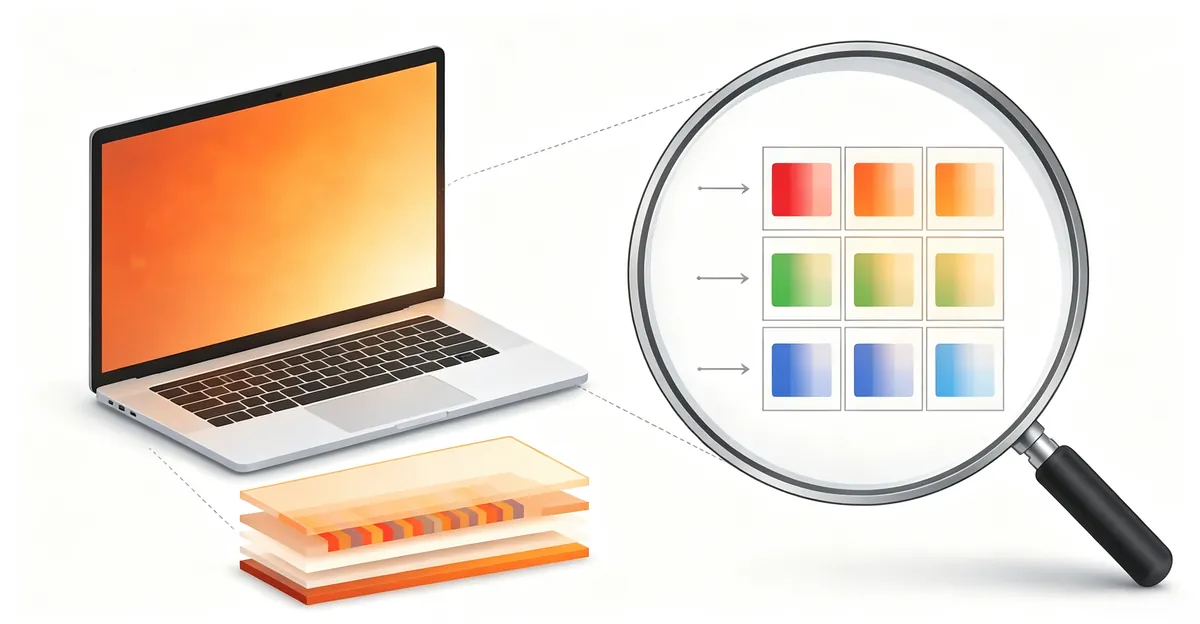
Every modern display produces colors by combining red, green, and blue subpixels (RGB) at different intensities. Pure white requires all three channels firing at full strength; any reduction in the blue channel shifts the resulting color toward yellow, amber, or orange. When the blue channel is sharply reduced or eliminated, the only light reaching your eyes is the combination of red and green, and the entire display takes on the warm orange tint users describe.
This is fundamentally different from a screen that has lost the signal entirely or one that is showing a single solid color. The display is still working, the backlight is still on, and content remains visible — but the color palette has shifted. The same mechanism explains why a setting like Night Shift feels warmer to look at: it deliberately suppresses the blue channel to reduce stimulation before sleep.
Several key characteristics separate an orange-screen problem from other display issues. The tint is typically uniform across the entire panel rather than confined to one corner. White backgrounds look cream, beige, or pale yellow instead of pure white. Colors appear faded and warm, with blues and violets especially muted. The tint may be present at every brightness level or only at the lower levels. It may appear suddenly after a software update, or it may develop slowly over weeks and months as the backlight ages.
The orange-screen phenomenon affects every device type and every operating system, but the distribution of underlying causes is uneven. On modern laptops, more than half of orange-screen reports are software-related — almost always a blue-light filter, a misconfigured color profile, or a corrupted driver. Hardware causes (flex cable, panel aging, GPU failure) account for the rest and are more common in older devices, convertibles with heavily used hinges, and units exposed to heat or physical stress.
Common Causes of an Orange Screen
1. Night Light, Night Shift, and Blue-Light Filter Software
By far the most frequent cause of an orange screen is a software feature that suppresses blue light. These features ship enabled by default on most modern laptops and can silently re-enable themselves after a system update, a schedule change, or a clean operating-system install.
Windows Night Light shifts the display toward warmer amber tones based on a sunset-to-sunrise schedule the system sets automatically. Users commonly disable it in Settings only to find it has re-enabled itself after the next cumulative Windows update, particularly on HP and Dell hardware. Microsoft's own documentation describes Night Light as a feature that "filters blue light and adjusts the display to warmer colors" to make evening screen time easier on the eyes.
macOS Night Shift performs the same function on MacBook and iMac. Apple's official support page for Night Shift confirms that the feature "automatically shifts the colors of your display to the warmer end of the color spectrum." The default schedule is sunset to sunrise based on your location, which means a Mac that looked normal at 5 p.m. can look visibly orange at 7 p.m. without any user action.
Third-party blue-light filter apps such as f.lux, Iris, and Nox can also produce a strong orange tint. These apps run their own schedules and apply their own color temperatures, and they continue to operate after the user uninstalls them unless the associated ICC color profile is also removed from the system.
2. Display Cable and Flex Cable Issues
The cable connecting the display panel to the graphics card carries separate signals for the red, green, and blue channels. When that cable is loose, partially disconnected, or physically damaged, individual color channels can drop out. The blue channel is the weakest of the three signals, so it is the first to degrade when the connection is imperfect.
On desktop monitors, the problem is usually a damaged or low-quality HDMI, DisplayPort, or VGA cable, or a loose connection at the graphics card output. On laptops, the issue is almost always the internal eDP or LVDS flex cable that runs from the motherboard to the back of the panel, often along the hinge path. On convertible laptops such as the HP Spectre x360, ASUS ZenBook Flip, and Lenovo IdeaPad Flex, this cable flexes thousands of times across the device's lifetime. When it starts to fail at the hinge's bend point, the orange tint commonly appears or worsens at specific lid angles and disappears at others.
3. Graphics Driver Problems
A corrupted, outdated, or freshly installed graphics driver is the second most common cause of an orange screen. The driver is the software layer that translates the operating system's color values into the actual signal sent to the display panel. When that translation is wrong, the blue channel typically drops out first.
Driver corruption after a Windows Update is particularly common on laptops with Intel Iris Xe graphics or older discrete NVIDIA cards. Cumulative Windows 11 updates can silently overwrite or corrupt the active ICC color profile and the display driver at the same time, producing a sudden orange tint that wasn't present before the update. The same effect occurs after installing a driver from a third-party "driver updater" tool — Microsoft, HP, Dell, and Lenovo explicitly warn against these utilities in their support documentation.
Driver conflicts between integrated and discrete GPUs produce inconsistent color output on laptops that have both. When the system switches between Intel integrated graphics and an NVIDIA or AMD discrete GPU, or when both try to drive the display at the same time, the resulting color signal can suppress the blue channel unpredictably.
4. Display Color Calibration and ICC Profile Problems
Both Windows and macOS use ICC color profiles to define how colors should appear on each connected display. If the wrong profile is assigned through a software install, a driver update, or a calibration tool, the screen can shift strongly toward orange or warm yellow. Misconfigured profiles are common after installing DisplayCAL, a hardware-calibration tool, or any of the third-party blue-light apps mentioned above. A corrupted profile can also persist after uninstalling the app that created it, because the profile file stays in the system's color management folder.
A useful diagnostic clue: the orange tint will not appear in screenshots. The operating system captures color data before the profile, while the display panel applies the profile on output. If a screenshot of an orange-looking web page looks normal on another device, the problem is the active ICC profile, not the panel.
5. Hardware Damage to the Display Panel and Backlight
Physical damage to the display panel or its backlight is a more serious cause that cannot be fixed by toggling settings. Damaged blue subpixels in an LCD panel produce a permanent warm shift across the affected region. Backlight aging — the gradual yellowing of the LED or CCFL backlight's diffuser layers — is a slower form of the same effect that accumulates over years of use.
OLED panels introduce a related but distinct failure mode. The blue OLED emitter has a shorter operational lifespan than red and green, and a peer-reviewed study on AMOLED pixel aging confirmed that "the difference in the pixel attenuation rate of different colors will seriously affect the display effect of the device." Published data on early LEP-OLED materials put the time to half luminance for blue at around 30,000 hours, while Samsung's 2024 TADF design announcement extended blue OLED operational life to 100,000 hours. In practical terms, an OLED panel that has been used heavily for three to five years can develop a visible warm tint that no software setting will fix.
6. Heat Damage and GPU Failure
Localized heat damage can cause a permanent orange or yellow discoloration on a laptop screen, typically appearing as a patch in one corner or along an edge rather than as a uniform tint. Common causes include laptops left in direct sunlight, used on soft surfaces that block ventilation, or with a battery that has started to swell against the back of the panel.
A failing discrete GPU can also produce a permanent warm color shift when the GPU's color-processing logic starts to fail. Unlike driver issues, physical GPU failure does not clear after a restart or a driver reinstall. On older NVIDIA-equipped laptops from the 2010—2018 era, this is a well-documented failure mode that often appears after a heat event or a physical impact.
Brand-Specific Quirks and Defaults
Different laptop and monitor brands ship their hardware with different display defaults, and several of them enable a warm color filter out of the box. The table below summarizes the most common brand-specific orange-screen causes and the path to disable them.
| Brand | Default Feature | How It Manifests | Disable Path |
|---|---|---|---|
| Dell (XPS, Latitude, Inspiron) | ComfortView Plus | Always-on hardware blue-light reduction; cannot be disabled in software on most models | Monitor's OSD menu, or Dell PremierColor on supported laptops |
| HP (Spectre, Envy, Pavilion) | HP Eye Ease / Display Center | Factory yellow tint; software-switchable | HP Display Center — Eye Ease |
| Lenovo (ThinkPad, IdeaPad) | Lenovo Vantage Eye Care | Stacks on top of Windows Night Light when both are active | Lenovo Vantage — Device — Display — Eye Care |
| ASUS (ZenBook, VivoBook) | ASUS Splendid / Eye Care | Preset modes (Vivid, Manual, Eye Care) override ICC profiles | ASUS Splendid or Armoury Crate — set to Normal |
| Apple (MacBook, iMac) | Night Shift + True Tone | Two independent filters; Night Shift is schedule-based, True Tone is ambient | System Settings — Displays |
| Microsoft (Surface) | Windows Night Light | Default schedule by location; sometimes re-enables after updates | Settings — System — Display — Night light |
A few notes that catch most users off guard:
- Dell ComfortView Plus is hardware-based and "always on" on many Latitude, XPS, and Inspiron models, per Dell's own product documentation. On affected panels, the warm tint is baked into the LCD and cannot be removed by toggling Windows Night Light. The only options are the monitor's on-screen menu or Dell PremierColor on supported business laptops.
- HP Eye Ease is enabled by default on most current Spectre and Envy units, per HP's own support community. The feature was marketed as reducing eye strain without the color-accuracy penalty of traditional blue-light filters, but it still produces a visible warm shift that some users interpret as a defect.
- Lenovo Vantage Eye Care stacks on top of Windows Night Light. When both are active, the cumulative warm shift is much more aggressive than either alone, and disabling only one still leaves a noticeable tint.
- Apple's True Tone is not the same as Night Shift. Night Shift follows a schedule you set; True Tone has no schedule and instead uses ambient light sensors to continuously adjust color temperature based on the room. Disabling only Night Shift will not remove the tint if True Tone is still on.
How to Diagnose an Orange Screen
Diagnosis matters because orange screens have very different fixes depending on the cause. Run through these checks in order to narrow down the culprit quickly.
Step 1: Check Software Settings First
Before opening the case, verify that software settings are not producing the tint. On Windows, open Settings — System — Display and confirm Night light is off. Then check the brand-specific tools listed above: HP Display Center, Dell PremierColor, Lenovo Vantage, ASUS Splendid, Armoury Crate, or Microsoft Surface settings. On macOS, open System Settings — Displays and turn off both Night Shift and True Tone.
Step 2: Test the BIOS or Boot Screen
Restart the laptop and immediately observe the screen during boot, before Windows or macOS finishes loading. Look for the manufacturer-logo screen or the BIOS/UEFI setup screen if you can enter it (typically F2, F10, F12, or Delete on most PCs during startup).
- If the BIOS screen is orange, the cause is hardware. The operating system isn't running yet, so no software can be to blame. The flex cable, panel, backlight, or GPU are the suspects.
- If the BIOS screen is normal and the orange tint appears only after the OS loads, the cause is software: blue-light filter, color profile, or driver.
This single check is the most reliable way to separate software causes from hardware causes before spending time on software fixes that won't help.
Step 3: Try an External Monitor
Connect the laptop to an external monitor or TV via HDMI, DisplayPort, or USB-C. This isolates whether the problem is the internal display hardware or the graphics output.
- External monitor shows accurate colors: the laptop's internal panel or its flex cable is the problem.
- External monitor also looks orange: the graphics card, driver, or output stage is the problem.
For MacBooks, connect via a USB-C to HDMI adapter or directly through Thunderbolt. For Windows laptops, HDMI is universally supported.
Step 4: Run a Screenshot Test
A screenshot test is a quick way to confirm an ICC color-profile problem. Press Print Screen (Windows) or Cmd+Shift+3 (macOS), save the image, then transfer the file to another computer or send it to your phone. If the screenshot looks normal on the other device but the laptop screen looks orange, the active ICC profile is shifting the colors in the display output stage, and the fix is a profile reset rather than a hardware repair.
Step 5: Test the Lid Angle and Press the Hinge Bezel
Slowly open and close the laptop lid while watching the screen. If the intensity of the orange tint changes at specific angles, the flex cable running through the hinge is almost certainly the cause. As an additional test, gently press the bezel near the hinge with a finger while watching the screen. If pressing changes the color or temporarily removes the tint, the cable is loose or partially disconnected at the hinge connector. Both tests work because the cable is mechanically flexed as the lid moves; pressure on the bezel changes the cable's contact pressure at the connector.
Step 6: Update, Roll Back, or Clean-Reinstall the Driver
If the cause is driver-related, the fix is one of three operations depending on the situation.
Update the driver on Windows via Device Manager — Display adapters — right-click your GPU — Update driver — Search automatically for drivers. Restart and test. The preferred method on laptops is to use the manufacturer's validated tool: Dell Command Update, HP Support Assistant, Lenovo Vantage System Update, or MyASUS on ASUS hardware. These tools install drivers tested specifically against the laptop model.
Roll back the driver if the orange tint appeared right after a Windows update. Open Device Manager — Display adapters — right-click your GPU — Properties — Driver tab — Roll Back Driver.
Clean reinstall if both update and rollback fail. Download the latest driver from the GPU vendor (NVIDIA, AMD, or Intel), download Display Driver Uninstaller (DDU), boot into Safe Mode, run DDU with the "Clean and restart" option, then install the downloaded driver. DDU removes all traces of the old driver from the system, including any corrupted profile or registry entries.
How to Fix an Orange Screen
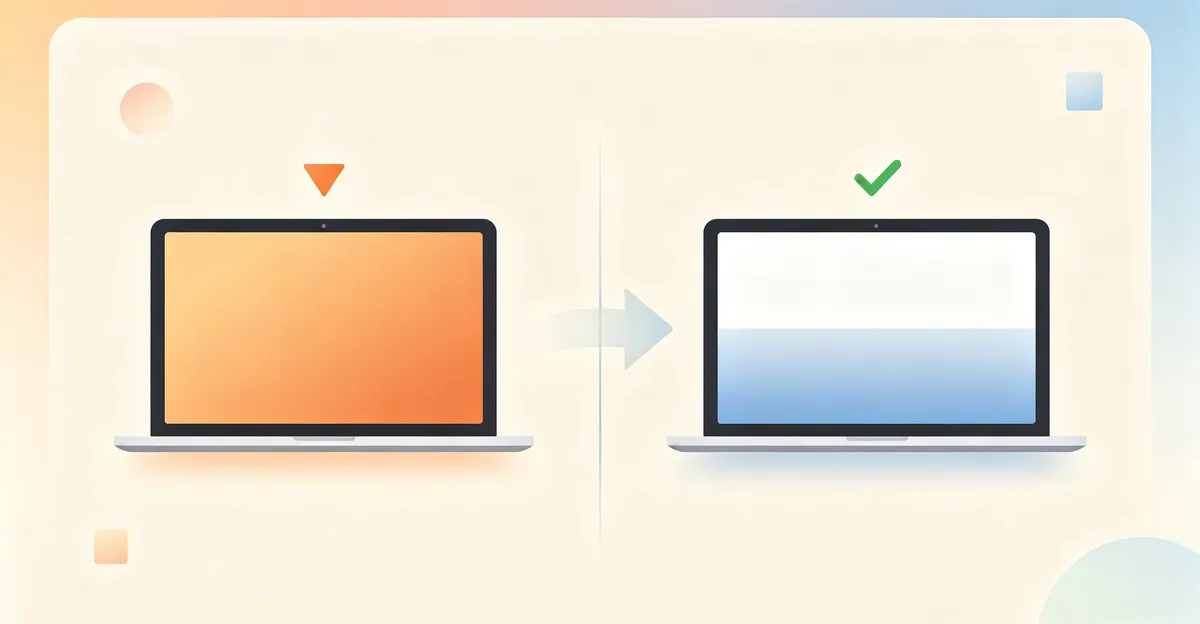
Fix 1: Disable Every Blue-Light Filter
This resolves the majority of orange-tint problems in under two minutes, but only if every active filter is turned off. Walking through the full list is essential.
Windows Night Light: Settings — System — Display — Night light — off. Also click "Schedule night light" and turn the schedule off so it does not re-enable itself.
HP Eye Ease: open HP Display Center — turn off Eye Ease. Also verify Windows Night Light as above.
Dell ComfortView Plus: on supported monitors, open the on-screen menu on the monitor itself and look for ComfortView or Low Blue Light. On business laptops with Dell PremierColor, open PremierColor and disable the color preset.
Lenovo Vantage Eye Care: Lenovo Vantage — Device — Display — turn off Eye Care mode. Then disable Windows Night Light as above.
ASUS Splendid / Armoury Crate: open ASUS Splendid or Armoury Crate, find Eye Care or Blue Light Filter, turn it off, and set the Splendid mode to Normal so no preset overrides the color profile.
macOS: System Settings — Displays — turn off Night Shift (and turn the schedule off), then turn off True Tone.
Third-party apps: open f.lux, Iris, Nox, or any other blue-light app installed on the system and disable or uninstall it. Check the system tray and the menu bar for hidden instances.
Fix 2: Reset the ICC Color Profile to sRGB
A corrupted or misconfigured color profile is the second most common software cause. Resetting the profile costs nothing and takes about a minute.
Windows:
- Press Win + R, type
colorcpl, press Enter to open Color Management - Select the active display from the device list
- Check "Use my settings for this device"
- Click Add and navigate to C:\Windows\System32\spool\drivers\color
- Select
sRGB IEC61966-2.1and click OK - Set sRGB IEC61966-2.1 as the default profile
- Click Apply and restart
macOS:
- Open System Settings — Displays
- Click the Color Profile dropdown
- Select the recommended profile (typically "Color LCD" on built-in displays, or the manufacturer's default profile on external displays)
- If the orange persists, verify Pro Mode and any custom calibration toggles are off
After resetting, take a screenshot of the screen. If the screenshot looks normal but the screen still looks orange, the problem is hardware — the ICC profile is correctly telling the operating system what to send, but the display panel is rendering it wrong.
Fix 3: Update or Clean-Reinstall the Graphics Driver
A driver reinstall resolves corruption issues without affecting personal data.
Using the manufacturer's validated tool (preferred on laptops):
- Dell: run Dell Command Update, which manages BIOS and display firmware together
- HP: use HP Support Assistant to install the validated graphics driver
- Lenovo: open Lenovo Vantage — System Update, install all pending display and BIOS updates
- ASUS: use MyASUS or Armoury Crate for validated drivers
Clean uninstall + manual install (for stubborn cases):
- Download the latest driver from the GPU vendor (NVIDIA, AMD, or Intel)
- Download Display Driver Uninstaller (DDU)
- Boot into Safe Mode
- Run DDU and select "Clean and restart"
- After restart, install the driver you downloaded
- Restart again and test
Fix 4: Run the Manufacturer's Built-In Display Diagnostics
Most laptop manufacturers ship a built-in display self-test that runs without booting the operating system. This is the cleanest way to confirm a hardware failure once software causes are ruled out.
Dell LCD BIST: power off, then hold the D key while pressing the power button. The screen cycles through solid colors. If orange appears during this test, the panel is failing.
HP LCD Diagnostic: power off, then press the power button and immediately press F2 repeatedly to enter the BIOS, then look for the Diagnostics option.
Lenovo Diagnostics: power off, then press the Novo button (a small pinhole button, usually on the left side or under the laptop) and select Diagnostics.
Apple Diagnostics: disconnect all external devices, shut down, then press and hold the power button. Apple Diagnostics runs automatic tests including display color.
If the manufacturer diagnostic shows orange with no operating system running, the panel or its cable is confirmed defective. If the diagnostic shows normal colors, the problem is software and the fixes above will resolve it.
Fix 5: Reseat or Replace the Internal Flex Cable
Reseating the cable is a more advanced fix that can resolve orange-screen problems caused by a loose connector without needing a parts replacement. This requires opening the laptop case.
- Power the laptop down completely and unplug the charger
- If the laptop has a removable battery, remove it
- Use a plastic pry tool to remove the display bezel
- Locate the eDP or LVDS flat cable where it connects to the back of the panel
- Disconnect the cable gently by flipping up the connector latch
- Inspect the cable for visible damage, bent pins, or scorch marks
- Reconnect the cable firmly, making sure the latch clicks into place
- Power on and test before reassembling the bezel
If you are not comfortable opening the laptop, skip this fix and go to professional repair. The eDP cable runs near the hinges and improper handling can crack the panel itself.
Fix 6: Professional Repair for Hardware Damage
When all software fixes have failed and the BIOS or manufacturer diagnostic shows orange, the panel, backlight, or flex cable needs professional attention. See the next section for cost ranges and what to expect.
When Professional Repair Becomes Necessary
Seek professional repair when any of the following apply:
- The orange tint appears during the BIOS or boot screen, before the operating system loads
- The orange tint persists after each of the software fixes described above
- The tint is angle-dependent and changes when you move the lid
- Pressing near the hinge temporarily changes or removes the tint
- The external monitor also looks orange when connected
- The manufacturer's diagnostic test shows color distortion with no operating system running
- The orange tint is limited to one region rather than covering the entire screen
- The laptop was recently dropped, exposed to liquid, or suffered a physical impact
- The tint developed gradually over months or years and is accompanied by overall dimming (backlight aging)
2026 Repair Cost Ranges
Cost data comes from published 2026 repair-cost guides that survey real quotes from authorized and independent repair shops. Final pricing depends on the specific model, region, and parts availability.
| Repair Type | Laptop Range | Monitor Range | Notes |
|---|---|---|---|
| Flex cable replacement | $80 — $200 | N/A | Higher on MacBook and business ThinkPad |
| LCD panel replacement (13—14" TN/IPS) | $120 — $260 | $150 — $310 | Parts $60 — $150, labor $60 — $90 |
| LCD panel replacement (15—17" IPS/OLED) | $260 — $500 | $280 — $560 | Parts $120 — $400, labor $100 — $180 |
| Premium OLED with touch (17") | $500 — $860 | $550 — $900 | Includes bezel and digitizer work |
| Backlight repair (standalone) | $100 — $300 | $80 — $250 | Often bundled with panel replacement |
| Logic-board / GPU repair (older discrete-GPU laptops) | $200 — $500 | N/A | Common on 2010—2018 NVIDIA laptops |
Total project cost (parts + labor + diagnostic fee) typically ranges from $110 to $660, with most users paying around $310 for a standard 15-inch IPS panel replacement. Premium OLED touchscreen replacements can exceed $800. Some repair shops waive the diagnostic fee ($0 — $60) if you proceed with the repair.
Authorized Apple repairs use genuine parts but cost more than third-party services. For business-class ThinkPad and Dell Latitude units, on-site warranty service may be available through the IT department at no cost if the device is still under warranty.
Prevention Tips
Preventing an orange screen comes down to careful software management and physical handling.
- Disable automatic blue-light schedules unless you specifically want the warm filter at predictable hours. Many users prefer toggling Night Light manually rather than trusting the auto-scheduler, since Windows Update and macOS updates can re-enable a schedule without warning.
- Avoid stacking multiple blue-light filters. If Windows Night Light is on, do not also run f.lux, Iris, or your laptop brand's eye-care mode. The combined effect is an excessive warm tint that no single switch will remove.
- Keep graphics drivers updated through official channels. Use Dell Command Update, HP Support Assistant, Lenovo Vantage, MyASUS, or the GPU vendor directly. Avoid third-party "driver updater" utilities — every major manufacturer explicitly warns against them.
- Open and close the lid gently. Avoid aggressive one-handed opening that stresses the hinge mechanism. Hold the laptop base with one hand while opening with the other. On convertibles, avoid carrying the device by the lid or screen.
- Do not leave the laptop in hot cars or direct sunlight. Heat accelerates backlight degradation and can cause permanent panel discoloration, especially on OLED panels where the blue subpixel is the most heat-sensitive emitter.
- Use the laptop on hard, flat surfaces. Soft surfaces like beds and sofas block ventilation and cause heat buildup that ages the panel faster.
- Calibrate ICC profiles carefully. If you use DisplayCAL or similar tools, save your custom profiles and know how to revert to sRGB. Misconfigured profiles are a common and easily overlooked software cause.
- Keep vents and fans clear. A blast of compressed air every few months prevents heat-related damage to the display backlight and the GPU.
- Carry the laptop in a padded case. Pressure on a closed lid can damage the panel or stress the flex cable at the hinge.
- Run manufacturer diagnostics quarterly. Most include a panel test that catches aging issues before they become serious.
Related Guides
- Orange Screen on Laptop — Complete laptop orange-screen diagnosis and fixes with brand-specific notes
- How to Fix Orange Screen on Laptop — Step-by-step repair guide
- MacBook Pro Orange Screen — Specific fixes for MacBook Pro units
- Orange Discoloration MacBook — Diagnosing color shifts under macOS
- Monitor Color Problem — Color diagnosis for external displays
- Screen Flickering — Related display symptoms and fixes
- Dead Pixel — Pixel-level display issues
Conclusion
Your screen is orange because the blue color channel is being suppressed or has failed. The most common cause is a software feature designed to reduce blue light — Windows Night Light, macOS Night Shift, Dell ComfortView Plus, HP Eye Ease, Lenovo Eye Care, or ASUS Splendid — and most cases can be fixed at home in under two minutes by turning those features off. The second most common cause is a corrupted ICC color profile, which a profile reset to sRGB resolves. If the orange tint survives every software reset and appears during the BIOS or boot screen, the cause is hardware — typically the internal flex cable, the LCD or OLED panel, or the backlight — and professional repair may be needed.
Use our screen test tool to run a complete color diagnosis, identify exactly which channel is missing from your display, and confirm that the fix worked.
Sources
- HP — How to reduce blue light on your PC screen
- HP Support Community — How to disable low-blue-light mode on a monitor
- Dell — Latitude 7420 and ComfortView Plus
- Apple — Use Night Shift on your Mac
- Nox — Mac screen has a yellow tint: how to fix it
- LatestCost — Laptop screen repair cost guide 2026
- PhoneProbs — Laptop screen replacement cost breakdown 2026
- SID — 11.5L: Blue LEP-OLED with 30,000-hour lifetime
- AMOLED Wikipedia entry on blue OLED TADF design 100k hours
- Semantic Scholar — The effect of blue pixel aging on AMOLED color shift