Orange Smudge on MacBook Pro Screen: Why It Happens
An orange smudge on a MacBook Pro screen is a local stain, not a full-desktop warmer. It is usually keyboard oil on the glass, worn anti-reflective coating, or an LCD cloud that moves with gravity. This guide separates those three from the tiny orange privacy light near the camera, then tells you which marks wipe and which ones you should stop rubbing.
Google Suggest often rewrites this query as orange spot on MacBook Pro screen. People also type smudge marks, yellow spot, and orange dot. Those phrases collide. The job on this page is to sort them before anyone books a panel.
What an Orange Spot on a MacBook Pro Screen Actually Is
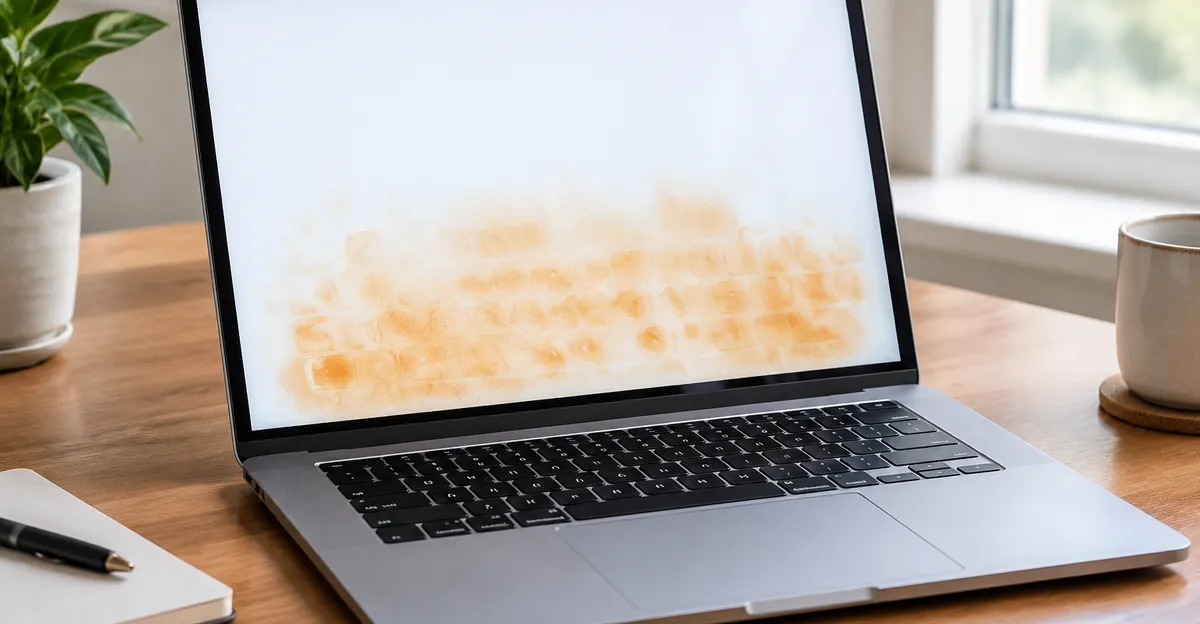
An orange spot on a MacBook Pro screen is any warm patch that sits in one physical place while the rest of the desktop stays neutral. SwitchingToMac treats spot, splotch, and smudge as one search. That is how people type. It is a bad way to diagnose. A fingerprint, a coating crater, and a migrating LCD stain share a color and almost none of the same fix.
The wipeable version looks like a fingerprint or a faint keyboard map. You see it on a dark wallpaper, at an angle, or with the lid nearly shut. AppleInsider's writeup of Apple's keycap patent quotes the filing directly: thinner notebooks put the display against the keycaps, and oil on those caps transfers to the glass as unsightly oil smudges at the points of contact. Dirt on the same caps can scratch. That is screen damage from the keyboard in the ordinary, daily sense, not a crushed diffuser.
The coating version looks oily too, which is why people keep wiping. MakeUseOf's Staingate explainer describes anti-reflective coating that wears off in blotches, most obvious when the screen is off, at low brightness, or in sunlight. Closed-lid pressure from keys and the trackpad is a common aggravator. The stain can grow when you scrub it. That growth is the coating leaving, not the oil spreading.
The hardware version is a cloudy orange or amber smear on bright white Pages, Mail, and Finder windows. Games and dark UI hide it. Apple Stack Exchange question 309577 is a late-2016 Touch Bar Pro whose left edge went orange after an hour upright in a backpack. Command-Shift-4 screenshots were clean. The user had to photograph the glass. The smudge sat on whichever edge was down, then drained away on a flat desk, as if something were flowing. Question 356224 is the same look on another Touch Bar Pro: a dark orange discoloration that appears, moves, and dissipates. bmike's answer compares it to a thin film of oil on water, diffraction as compressed layers reset.
Greg Samborski's 2017 15-inch Touch Bar log is the longest public diary. He pulled the Pro from a loaded camera backpack and saw an orange-yellow faded patch. A screenshot contained no spot. Commenters described oil on wet pavement. The patches migrated. They never really healed. SlashGear calls these discolored cloudy patches and puts the consensus on heat and pressure, with Apple's published window of 50°F to 95°F (10°C to 35°C). wikiHow repeats heat and pressure and notes the mark can get lighter or darker with how the laptop is stored.
A round, sharp-edged blotch that never wipes and never migrates is a local mark, not the full-desktop warmer on the orange screen hub. A warm cast across every window is orange discoloration, usually Night Shift. This page stays on smudges.
| Look | Where it sits | Screenshot | Typical cause |
|---|---|---|---|
| Keyboard-shaped oily print | Opposite the keys, often the lower half | File looks clean | Oil transferred from keycaps |
| Cloudy orange or yellow smear | One edge or corner, may move | File looks clean | LCD layer compression or heat |
| Patch obvious with the lid shut | Random blotches on dark glass | File looks clean | Anti-reflective coating wear |
| Tiny orange pip by Control Center | Top-right of the menu bar | N/A | Microphone privacy indicator |
People mix the rows because the queries fold together. Use the table, not the color name.
Keyboard Oil and Coating Wear vs the Orange Camera Indicator
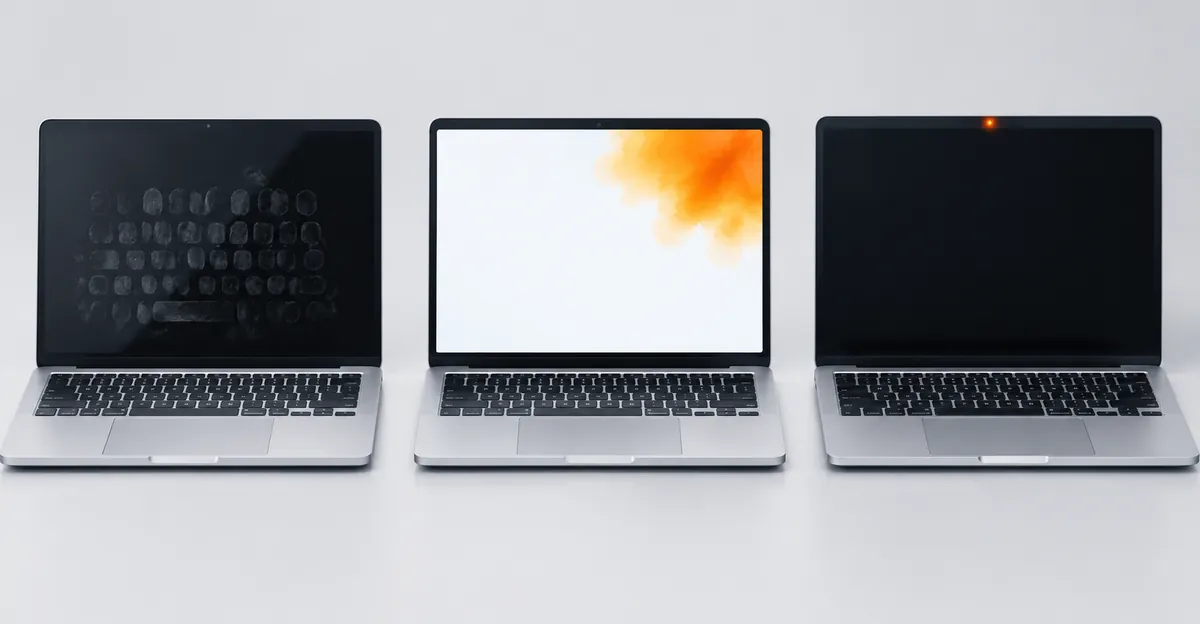
This is the split ranking pages skip. SwitchingToMac says not to get hung up on terminology. Keyboard-shaped marks that wipe partly away are grease on the coating. Clean those first. Apple's patent, via AppleInsider, goes further: oil transfer is a designed-in risk of a thin lid. Coating wear is what happens after months of that contact plus cleaning. The orange camera-area dot is a third object that shares the same Google Suggest rewrite, how to remove orange dot on Mac.
Start with the privacy light, because it is free and it is not a stain. Apple's menu-bar help is explicit. An orange dot next to the Control Center icon means the microphone is in use. A green dot means a camera is in use. A purple dot means system audio is being recorded. Only one privacy indicator shows at a time. If both mic and camera are on, you see green. 9to5Mac's Monterey note adds that the orange mic indicator appears even when the menu bar is hidden, still in the top-right corner. Open Control Center. The top of the window names the app. Quit that app, or revoke the microphone under System Settings, Privacy and Security. The pip vanishes. The glass does not need a cloth.
The hardware camera lamp is a different color. Apple's camera article says a green light beside the camera glows when FaceTime or Photo Booth has the sensor. There is no orange LED in that bezel for "camera on." If you see a warm blotch on the glass under the webcam, it is not the indicator. It is oil, coating, or an LCD cloud in the upper third.
Keyboard oil is the daily smudge. You type, sebum collects on the caps, you close the lid, the glass kisses the keys. The print is a grid of rounded rectangles, strongest where your fingers actually land, WASD, space bar, trackpad edge. AppleInsider's commenters describe the same grid on 14-inch M-series Pros and note that a silicone keyboard cover makes contact worse because the extra thickness presses more of the protector into the panel. Thick keyboard covers do the same: extra thickness presses the keys into the glass. Clean the keys as well as the glass, or the next close reprints the stain.
Coating wear is oil that learned to stay. MakeUseOf lists 2013 through 2017 Pro and 12-inch MacBook models that once had a four-year coating program. The stain is on the glass. It is uglier with the backlight off. A microfiber pass can turn one blotch into a larger cloudy field because you are polishing the coating off, not lifting grease. iFixit's Staingate guide even uses vinegar or Listerine to finish removing the layer on purpose. That is a coating job, and a risky one. It is not a recipe for an orange LCD cloud.
Apple support 102177 is the camera-cover warning that belongs in this heading. Closing a MacBook, Air, or Pro with a cover over the camera can damage the display because clearance is tight. Covers thicker than about 0.1 mm should come off before the lid shuts. Adhesive residue is its own smudge. If your orange mark sits exactly under a webcam sticker, you already have the cause.
If the mark is a full-screen orange MacBook screen cast, leave this heading. That is a color-temperature feature or a missing blue channel, not oil.
Why the Same Mark Looks Yellow
Why does my MacBook screen look yellow is the same stain under a different name. Samborski's first notes say orang-y yellow-y patches that look like pressure on an LCD or an oil drop on wet pavement. Stack Exchange 309577's owner had to boost the photograph to make the left-edge smear obvious. On a bright white window the smear reads peach or orange. On a dark desktop, or with the lid at a raking angle, the same physics looks yellow, tea-stained, or greasy.
Oil and worn coating both scatter short wavelengths. What remains toward your eye is warmer. That is why a fingerprint on dark glass looks yellow-brown and the same print on a white Pages page looks orange. It is not a new defect at sunset. It is the same film in a different surround.
A uniform yellow or orange desktop is not this mark. Night Shift and True Tone shift the whole white point. A screenshot of that desktop is equally warm on your phone. Our yellow tint on MacBook Pro guide and the orange discoloration page cover that stack. Turn the two toggles off in System Settings, Displays before you diagnose a smudge. If the yellow dies when the toggles die, stop cleaning.
An LCD cloud can look yellow along one edge and orange in the middle of the same blotch. Gravity plus a disturbed layer is the working theory those Stack Exchange and Samborski threads settled on. Park the Mac open and flat. Watch whether the yellow edge drains toward a new bottom overnight. A mark that migrates is not coating and not Night Shift. A mark that never moves, even after a weekend on a desk, is closer to a fixed pressure bruise or a coating crater.
Do not treat "yellow" and "orange" as two diseases that need two appointments. Photograph the panel on solid white and on solid black, once in daylight and once with the lid shut. If the shape matches the keyboard, you are in oil or coating. If the shape matches the downhill edge of however you stored the bag, you are in the LCD stack.
How to Get Rid of Smudge Marks on a MacBook Screen
How to get rid of smudge marks on a MacBook screen is a cleaning sequence, not a repair invoice, and only for marks that live on the glass.
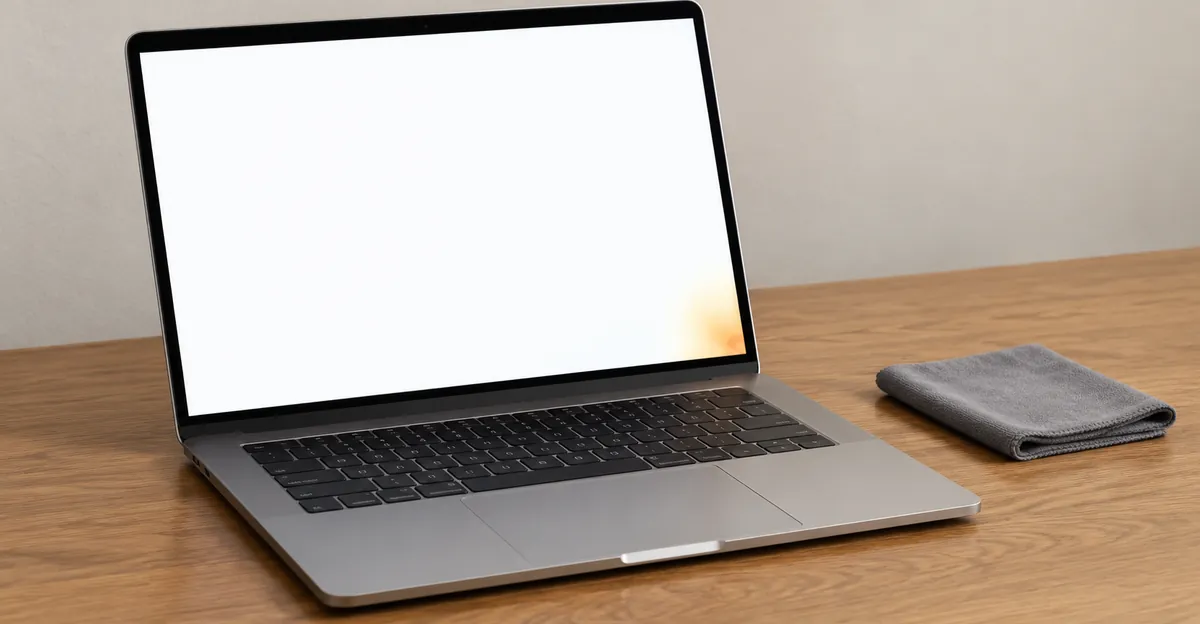
Shut the Mac down. Unplug the adapter. Apple's cleaning article is the floor. Use a soft, lint-free cloth. Avoid paper towels and anything abrasive. Do not spray liquid on the computer. Dampen the cloth with water only, then wipe the screen. For hard-to-remove smudges or fingerprints, moisten the cloth with a 70 percent isopropyl alcohol solution and wipe gently. Apple also lists 70 percent IPA wipes, 75 percent ethyl alcohol wipes, or Clorox Disinfecting Wipes for hard, nonporous surfaces, with a ban on bleach and hydrogen peroxide. The same article says avoid excessive wiping, which might cause damage. That sentence is the coating warning hiding in a cleaning page.
Tom's Guide walks the same order: dry microfiber for dust, a second cloth damp with water, then 70 percent IPA for what remains, never poured on the panel. Android Authority adds the useful stop rule: if a fingerprint takes more than a few slightly firm wipes, stop scrubbing and let the alcohol work. Elbow grease is how coating becomes Staingate.
Wipe the keyboard too. AppleInsider's patent quotes are about oil leaving the caps. A clean panel that closes onto greasy WASD reprints the grid overnight. A lightly damp cloth on the keycaps, moisture kept out of the mechanism, is the second half of getting rid of smudge marks.
If your Pro has nano-texture glass, Apple's separate nano-texture article says use the included polishing cloth, and use 70 percent IPA on that cloth only for infrequent stubborn smudges. Do not import a generic wet wipe onto nano-texture.
Power the Mac back on. Open a full-screen white field. If the orange smudge is gone, you are done. If a faint keyboard map is still visible only at an angle with the backlight off, you likely lifted the oil and are looking at early coating wear. Stop. More pressure will not restore the coating. If the smudge is still there on white, in the same place, as strong as before, it was never on the surface. Leave this heading.
Do not use window cleaner, ammonia, acetone, toothpaste, mouthwash, or baking soda on a mark you have not already classified as coating. MakeUseOf documents those DIY coating recipes and warns that mouthwash and toothpaste degrade the panel. iFixit's vinegar pass is for people who have decided to strip remaining anti-reflective film. Importing that onto an LCD cloud, SlashGear's "squish it away" habit, or a hairdryer, is how a cosmetic smear becomes a dead zone.
Tests That Separate a Wipeable Smudge from Panel Damage
Ranking cleaning pages stop at "your screen should look like new." Ranking orange-spot pages jump from a cloth to a Genius Bar. The afternoon in between is the test ladder.
Do the screenshot test first, and read it the way the hardware threads do, not the way SwitchingToMac inverts it. Capture the stained region with Command-Shift-3 or Command-Shift-4. Open the file on a phone or another Mac. Stack Exchange 309577's screenshots were perfectly normal. Samborski's 2018-08-06 shot had no spot. If the PNG is clean and the glass is still stained, the mark is on or in the panel, not in the framebuffer. If the PNG contains the orange patch, you have a setting, a filter, or an app overlay. Go back to Displays. Do not open the hinge.
Match the shape to the keyboard. Close the lid for ten seconds, open it, and look immediately, before body heat and fingerprints confuse the picture. A grid of keycap ovals is oil or coating. A round bruise the size of a USB receiver or a pen is a pressure mark, easiest to see on white or grey, with no software fix. A soft cloud along the edge that was down in the bag is the flowing LCD pattern.
Change brightness and power. Coating craters are ugliest with the backlight off or in sunlight, MakeUseOf's rule. LCD clouds are ugliest on bright white with the backlight up, SlashGear's observation about Mac app backgrounds. Oil is visible in both, and it moves when you wipe.
Change orientation on purpose. If you commute with the Pro on its left edge, park it open and flat. Stack Exchange 309577 watched the smudge drain over hours on a table. Samborski watched patches jump sides when he reversed the laptop in the bag. A migrating mark is liquid crystal or a compressed interlayer. A mark that never moves is a bruise or coating.
Connect an external display. SwitchingToMac uses this as a GPU veto: no orange on the external monitor means the built-in stack is the part. If both screens are warm, you missed Night Shift. If only the laptop has a local smear, the GPU is not painting it.
Run solid colors. Our screen test tool is built for white, black, red, green, and blue. An oily smudge is weakest on black and strongest as a greasy sheen. An LCD orange cloud stays as a warm blotch on white and often still tints blue. A stuck orange pixel, which SwitchingToMac separates from a blotch, is a pin-prick, not a palm-sized smear. Apple's pixel-anomaly note is for that pin-prick. Do not quote it at a backpack cloud.
Apple Diagnostics is the shop-language record, not a cure. wikiHow, citing Apple support 102488, limits Mac Resource Inspector and Display Anomalies to Apple silicon on macOS Sonoma 14.1 or later: hold power to startup options, then Command-D, then those two tests. Intel Macs still use D at boot. SlashGear walks the same session. A pass does not prove the smudge is imaginary. A migrating cloud can still pass. The value is a timestamp you can show a technician.
Photograph the white field, the black field, the screenshot that does not contain the stain, and the keyboard if the print matches the caps. Date the photos. That packet is what a Genius Bar visit lacked in Samborski's log, when later dents got treated as accidental damage.
When the Orange Smudge Will Not Wipe
When the cloth does nothing, stop using the cloth. The remaining causes are coating that you should not polish further, a pressure bruise, or an LCD layer that only a display assembly replaces.
Coating that will not wipe is still coating. It looks dirty-orange on dark glass. It may have grown during the last aggressive clean. MakeUseOf's eligible list, 2013 through 2017 Pros and 12-inch MacBooks, had a four-year purchase window. In 2026 that program is expired for almost every serial. Out-of-pocket coating work on those machines ran about $500 to $800 in that article, and Apple preferred a whole display. DIY baking soda or vinegar strips what is left of the anti-reflective layer on purpose. Afterward you own a glossier, more fingerprint-prone panel, which is why those guides tell you to fit a screen protector. That is a cosmetic choice, not a restoration of the original stack.
A pressure mark that will not wipe is a dent in the sheets behind the LCD. The usual causes are a tight bag, books stacked on the closed lid, a pen or earbuds in the keyboard well, and a thick keyboard cover. Light marks sometimes fade over days or weeks once the pressure is gone. Marks still there after a couple of weeks are usually permanent. There is no software fix. Pressing or massaging the area makes it worse, the same warning SlashGear gives for orange spots. Many people live with a faint mark because it is mostly visible on white.
A migrating orange smudge that will not wipe is the Stack Exchange and Samborski pattern. Hours on a flat desk can drain it. The next hot, sideways commute brings it back. bmike's advice on 356224 is not to repair until you will not abide the color shift, or until that region stops drawing an image. Waiting is a workaround. It is not a cure. Hairdryers and "push it off the glass" belong with the habits that turn a cloud into a dead zone. Do not copy those.
Heat without a bag still counts. SlashGear and wikiHow both list high temperature. Apple's operating window in the SlashGear piece is 50°F to 95°F. A Pro that failed to sleep in a sleeve, the heat-mark reading Louis Rossmann gave Samborski, can leave the same orange-yellow smear as a crush. Let the chassis cool. Confirm sleep actually engaged. Do not diagnose a thermal mark with the machine still in the backpack.
M1, M2, 14-inch, and 16-inch Pros are not magically immune. SlashGear is explicit that M-series Airs and Pros show up in the same reports, just less often than 2016 through 2018 Intel Touch Bar units. Treat model year as a prior, not a proof. Mini-LED 14-inch and 16-inch panels add blooming, a halo around bright objects on black. That is how those screens work, not a smudge. Do not quote blooming at an orange keyboard print.
If the mark is black instead of orange, you are on a different path. Black is a different layer failure.
Repair Cost, AppleCare, and When to Stop Rubbing
Software oil is free. Coating is a judgment call. LCD clouds and pressure bruises are a display assembly. There is almost no middle repair on a bonded Retina panel.
AppleCare and the standard warranty cover manufacturing defects. They do not cover liquid, a closed lid on a camera cover, a backpack crush that left a dent, or coating you stripped with vinegar. AppleCare+ on recent MacBooks prices accidental screen damage at a flat fee in the same band our internally cracked MacBook writeup cites from Apple's fee table, around $99 per incident depending on year and region. Out of warranty, Apple display assemblies run roughly $400 to $1,100 depending on size and XDR, with 14-inch and 16-inch Liquid Retina XDR at the high end. Samborski tallied commenters who went to Apple for the orange-spot look: about 40 percent paid nothing, which he guessed was AppleCare or an admission of defect, and about 60 percent of those who paid landed around $800. MakeUseOf's $500 to $800 coating quotes sit in the same neighborhood because Apple would rather replace the whole display than recoating glass.
wikiHow lists three shops: Apple, an independent repair provider, and self-service parts. Independent repair can void remaining coverage. Self-service on a modern bonded assembly is how True Tone calibration and the eDP cable get destroyed. Prefer Apple or an authorized shop if the serial is still in any coverage window. Bring the photos, the clean screenshot, the diagnostics session, and a sentence about bag orientation and whether you closed the lid on a cover or a keyboard skin.
Stop rubbing when the last pass did not move oil and the mark is either growing or unchanged on white. Apple's own cleaning page already warned against excessive wiping. Each extra circle on a failing coating makes the smear larger. Each press on an LCD cloud risks a dead zone. The rational paths left are live with it, use an external display, or fund the assembly. bmike's jar-of-cash framing still holds.
A faint keyboard print that returns every Monday is not a repair. It is a cleaning habit plus, if you want it, skipping the silicone cover and giving the Pro its own sleeve so chargers are not pressing the lid. Apple's 102177 camera-cover rule is the same idea at the webcam. Prevention is clearance, not a stronger solvent.
Related Guides
- Orange Screen Hub: Full-desktop warm cast vs a local smear
- Orange Discoloration on MacBook: Night Shift, True Tone, and migrating LCD clouds
- Why Is My Screen Orange: Causes across Windows, Mac, and monitors
- Orange Screen on Laptop: Windows Night Light and hinge-cable orange
- Yellow Tint on MacBook Pro: The milder full-screen warmer
- Screen Discoloration: Color-shift map for phones and monitors
Conclusion
An orange smudge on a MacBook Pro screen is usually oil from the keys, coating the keys keep wearing off, or an LCD cloud that backpacks and heat leave behind. The orange dot beside Control Center is a microphone light. Screenshot, shape-versus-keyboard, and one careful Apple-approved wipe separate those. Do not vinegar a migrating crystal. Do not pay a panel price for fingerprints.
Run a free MacBook screen test on white, black, red, green, and blue before you book a counter visit. The pattern on those four fields is the difference between a cloth and a display.