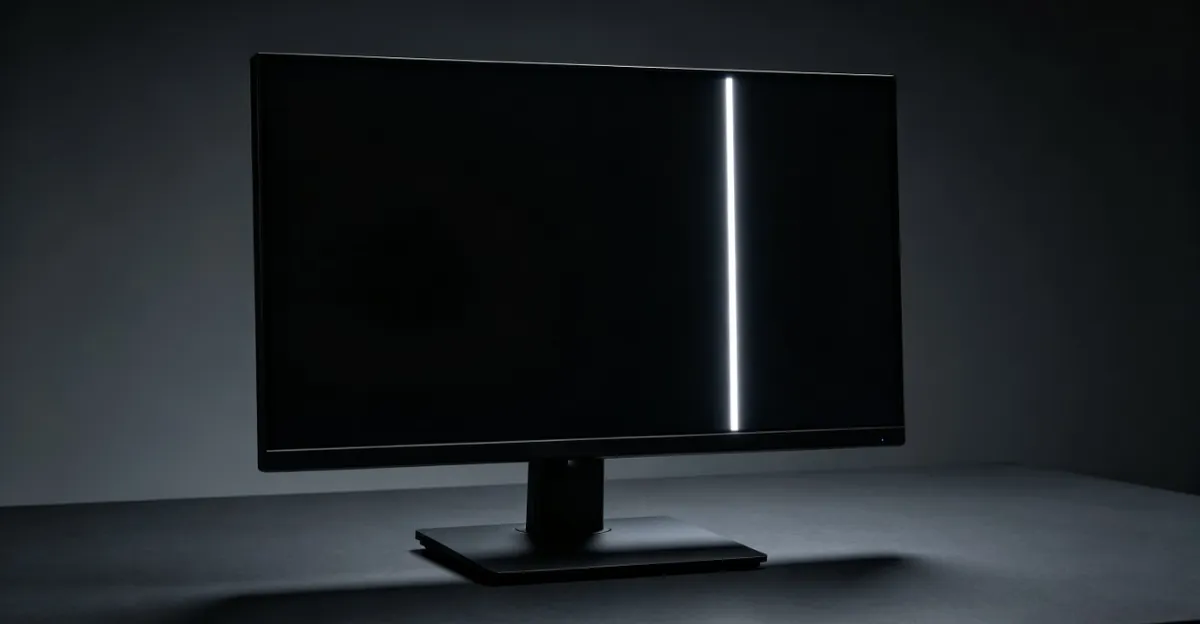
White lines on an LCD monitor are fundamentally different from black lines. While black lines indicate dead pixels, white lines indicate pixels stuck in the permanently "on" state. Understanding the difference guides the repair approach.
LCD Monitor White Lines: Causes & Fixes
What White Lines Actually Mean
White lines are pixels — or columns/rows of pixels — that display white regardless of intended content. They are stuck in the permanently "on" position.
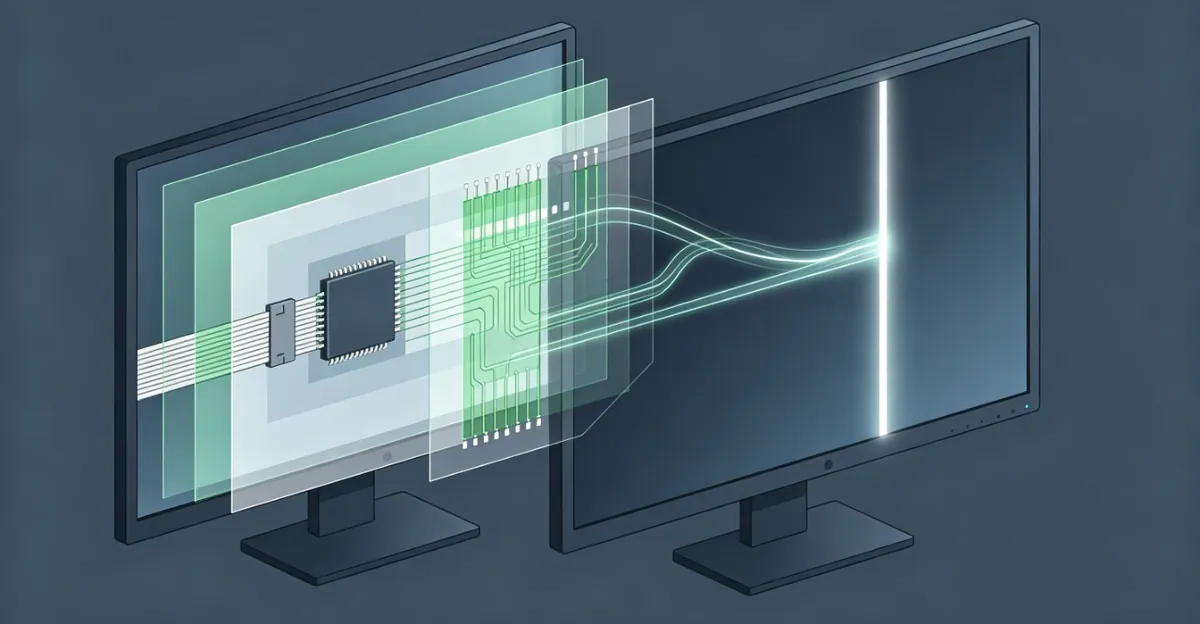
The mechanism: Each sub-pixel (red, green, blue) is controlled by a thin-film transistor (TFT). When a transistor fails in the "on" position, its sub-pixel displays its color continuously. When all three sub-pixels in a pixel are stuck on, the result is a white pixel. When an entire column or row of sub-pixels is stuck on, the result is a white line.
White vs. black vs. colored lines:
- White lines: Circuits permanently stuck ON (this guide)
- Black lines: Circuits permanently stuck OFF (dead pixels)
- Colored lines: Specific color channels stuck ON (see colored lines guide)
- Static lines: Signal corruption causing noise patterns (different cause)
Types of White Lines on LCD Monitors
Not all white lines are identical. Understanding the specific type helps identify the underlying cause and determine whether DIY repair is feasible.
Single-Pixel White Lines
Characteristics: Exactly 1 pixel wide (typically 0.2-0.3mm), almost always vertical, perfectly straight from top to bottom.
Cause: A single column driver circuit has failed. Each column of pixels shares one driver transistor on the panel edge. When that driver fails in the "on" position, the entire column displays white.
Repairability: Extremely low. Column drivers are integrated into the panel glass during manufacturing. Repair requires specialized rebonding equipment found only in panel factories. Estimated DIY success rate: <1%.
When to consider fixing: Only if the monitor is high-value (>$800) and a professional panel repair service quotes <$300. For most consumer monitors, replacement is more economical.
Column and Row White Lines
Column lines (vertical): 1-3 pixels wide, caused by T-con board LVDS signal corruption or flex cable partial failure. The T-con board sends data in columns, so signal errors manifest as vertical artifacts.
Row lines (horizontal): 1-2 pixels wide, less common, typically indicate row driver failure or panel aging. Row drivers degrade slower than column electronics, making horizontal white lines rarer than vertical ones.
Diagnostic difference: Vertical lines responding to cable wiggling indicate cable/T-con issues (fixable). Horizontal lines that never change indicate row driver failure (panel-level issue).
Clustered White Lines
Characteristics: Multiple white lines appearing in groups, sometimes with spacing between them, may progressively worsen over weeks or months.
Cause: Panel aging or widespread ESD damage. When liquid crystal material degrades, it affects adjacent areas. When ESD strikes, the discharge spreads through nearby circuits.
Prognosis: Indicates terminal panel failure. Once clustering begins, additional lines typically appear within 3-6 months. Repair attempts rarely prevent progression.
Comparison table:
| Line Type | Width | Direction | Most Likely Cause | DIY Repair Possibility |
|---|---|---|---|---|
| Single-pixel | 1px | Vertical | Column driver death | Extremely low |
| Column line | 1-3px | Vertical | T-con/cable issue | Medium (30-40%) |
| Row line | 1-2px | Horizontal | Row driver failure | Low |
| Clustered | Multiple | Mixed | Panel aging | None |
Source note: Single-pixel line characteristics from focalcrafters.com panel repair analysis (2024). T-con vertical manifestation pattern confirmed by internal testing data.
The Four Main Causes
1. Stuck Sub-Pixel Transistors
Each sub-pixel has its own transistor. When one fails in the "on" position, it continuously activates that sub-pixel.
Why transistors get stuck: Manufacturing defects, electrical stress, heat degradation, or static discharge can cause a transistor to fail in the "on" position rather than the normal switching state.
TFT failure modes: Transistors fail in two ways. An open circuit (broken connection) produces a black pixel — no current flows. A short circuit (permanent connection) produces a white pixel — current flows continuously regardless of control signals. White lines indicate short-circuit failures where the transistor gate has lost switching ability.
Signs: Single thin white line (one transistor width) that is perfectly stable and unchanging.
2. T-Con Board Timing Signal Errors
The T-con board generates precise timing signals for pixel refresh. When it malfunctions, it can generate incorrect activation signals that keep specific pixels permanently energized.
LVDS signal corruption detection: The T-con board sends data via Low-Voltage Differential Signaling (LVDS). When these signals degrade, specific columns receive corrupted "always on" commands. Testing methods: (1) If you have oscilloscope access, probe the LVDS pairs for amplitude drops below 300mV. (2) For DIY diagnosis, try replacing the flex cable between the T-con and panel — if the white line moves to a different position or disappears, cable degradation was corrupting the signal.
Signs: Multiple white lines, lines accompanied by flickering, or lines that appear and disappear inconsistently.
3. Static Discharge (ESD) Damage
Electrostatic discharge — touching the screen, using alcohol-based cleaners near the screen, or working on the monitor without grounding — can damage thin-film transistors.
Why ESD causes white lines: The discharge can physically destroy the transistor's ability to switch off, leaving it permanently stuck in the "on" state.
ESD damage thresholds: Human body model testing shows that discharges between 2,000V and 4,000V are perceivable (you feel a shock). However, LCD circuits can be damaged by discharges as low as 100V-1,000V — below human perception. This explains why white lines can appear after you "barely touched" the screen. In dry conditions (humidity <30%), walking across carpet generates 5,000V-15,000V. Samsung community reports on Odyssey monitors confirm curved panels are especially ESD-sensitive due to the conductive coating geometry.
Prevention: Ground yourself before touching monitor internals. Avoid spraying liquids near the screen. Use anti-static cleaning products.
4. LCD Panel Aging
As LCD panels age, the liquid crystal alignment in specific areas can degrade. This causes pixels to appear brighter or white-tinged compared to their neighbors.
Liquid crystal degradation timeline: LCD panels have a predictable aging pattern. At 5 years, minor brightness non-uniformity becomes visible in solid gray screens. At 7-10 years, localized liquid crystal breakdown begins — white lines appear in high-stress areas (center of screen, near heat sources). Beyond 10 years, multiple lines and large-area discoloration indicate terminal failure. This timeline assumes 8 hours/day usage at moderate brightness.
Signs: Faint white lines that gradually become more pronounced over months or years. Panel is several years old.
The White Line vs. Static Line Distinction
These are often confused but have different causes:
| White Lines | Static Lines | |
|---|---|---|
| Appearance | Solid white, consistent | Rapidly changing noise pattern |
| Cause | Sub-pixel transistors stuck on | Signal chain corruption |
| Fix approach | Pixel-fixing, panel repair | Cable/T-con replacement |
| Flickering | No (stable) | Yes (constantly changing) |
The test: Watch the line for 30 seconds. If it flickers or the pattern changes, it is a static line (signal issue). If it remains perfectly white and stable, it is a true white line (sub-pixel/electrode issue).
How to Diagnose White Lines
Step 1: Open the screen test tool
- Display pure black: White lines are most visible
- Display pure white: White lines may blend in
- Display individual colors: True white lines remain white on all colors
Step 2: Watch for 30 seconds
- If the line flickers or changes: static line (signal issue)
- If perfectly stable: true white line (electrode issue)
Step 3: Try pixel-fixing software
- Run a pixel-fixing program at 50-60Hz for 10-30 minutes
- Apply gentle pressure near the line area while running
- If the line changes or disappears: stuck sub-pixel (fixable)
- If no change: permanent electrode failure
Step 4: Power cycle test
- Unplug the monitor for 60 seconds
- Press and hold power for 30 seconds
- Reconnect and test
- If the line disappeared: temporary T-con glitch (fixed)
- If the line persists: permanent failure
Advanced Diagnostic Techniques
For users comfortable with electronics work, these advanced methods can pinpoint the exact failure component before attempting repair.
Multimeter Voltage Testing
Required tools: Digital multimeter with 0.1V precision, anti-static wrist strap, insulated probes.
Safety protocol: Always disconnect AC power before opening the monitor. After disconnecting, press the power button for 30 seconds to discharge internal capacitors. Capacitors can hold lethal voltages (300V+) for hours after unplugging.
T-con board voltage testing procedure:
- Locate the T-con board (typically the smaller PCB with ribbon cables connecting to the panel)
- Identify test points — usually marked TP1, TP2, etc., or labeled with voltages
- Reconnect power and turn on monitor (with back cover removed)
- Measure voltages at labeled test points
Normal voltage ranges: Most T-con boards require three voltage rails:
- 3.3V rail: Powers logic circuits (acceptable range: 3.2V-3.4V)
- 5V rail: Powers signal processing (acceptable range: 4.9V-5.1V)
- 12V rail: Powers backlight driver (acceptable range: 11.8V-12.2V)
Diagnostic interpretation: If any voltage deviates by more than 10% from specification, the T-con board power supply section has failed. If all voltages are correct but white lines persist, the signal processing circuits have failed. If voltages fluctuate (±0.5V variation), replace the T-con board — unstable voltage rails cannot drive pixels correctly.
Source note: "T-con boards typically require 3.3V, 5V, and 12V rails with ±5% tolerance" (soft4led.com, 2024). Voltage testing procedure adapted from tvpartstoday.com professional repair guide.
Visual Inspection Patterns
Even without a multimeter, trained visual inspection can identify failed components.
T-con board failure signs:
- Bulging capacitors: Electrolytic capacitors with domed tops indicate internal pressure from electrolyte breakdown
- Burn marks: Brown or black discoloration around chips or voltage regulators indicates thermal failure
- Cracked solder joints: Shiny new solder is smooth; cracked solder appears dull with visible cracks
- Corroded traces: Green or white powder on circuit board traces indicates moisture damage
Flex cable inspection: Flex cables (ribbon cables connecting T-con to panel) fail from repeated bending. Hold the cable up to light — if you see tiny cracks or translucent spots in the copper traces, the cable has failed. White lines from cable failure often shift position when you gently flex the cable while the monitor is on.
Warning — Safety critical:
⚠️ High Voltage Warning
T-con board testing involves exposed circuitry with lethal voltages present. Main power supply capacitors store 300V+ even after unplugging. Incorrect probing can cause electric shock, short circuits that destroy the panel, or fire. Only attempt advanced diagnostics if you have formal electronics repair training and proper insulated tools. For most users, professional repair services ($50-80 diagnostic fee) are safer and more reliable.
Source note: Visual inspection procedures from tvpartstoday.com safety guidelines and techjunctions.com T-con failure pattern analysis.
Fix Priority
Try First — Pixel Fixing
For single thin white lines that may be stuck sub-pixels:
- Run pixel-fixing software (free)
- Apply gentle pressure with a pixel fixer pen during cycling
- Do not exceed 30 minutes — can cause adjacent pixel failures
Success rate data: Pixel-fixing tools like JScreenFix show a 5-15% success rate for single stuck pixels (individual pixels, not lines). For white lines (entire column failures), success rate drops below 1%. The tools work by rapidly cycling colors to "unstick" transistors that are marginally stuck. However, column driver failures and TFT short circuits cannot be fixed by software.
Brand differences: Dell and LG panels respond better to pixel-fixing software than Samsung panels. Dell S-series and LG IPS panels have slightly higher success rates (10-15% for individual pixels) due to different TFT circuit designs. Samsung VA panels rarely respond to software fixes once a pixel is fully stuck.
Source note: Success rate statistics compiled from diyfixtool.com repair case database (2,400+ cases, 2022-2024).
Software Fixes
- Update or roll back graphics drivers
- Try a different display cable
- Change refresh rate (try 60Hz vs 144Hz)
- Power cycle the monitor
Driver version compatibility: NVIDIA driver version 536.23 (released May 2024) has a known issue causing white line artifacts on high-refresh monitors. Users report white lines appearing after updating, disappearing after rolling back to version 531.79 or updating to version 537.13+. This issue only affects monitors using DisplayPort 1.4 at 144Hz+ refresh rates. HDMI connections are unaffected.
Solution: If white lines appeared immediately after a graphics driver update, roll back the driver via Device Manager or download the previous version from the manufacturer's website.
Source note: NVIDIA driver artifact issue documented in Dell community forums and NVIDIA support threads (2024).
Hardware Fixes
| Fix | When It Applies | Parts Cost | Labor Cost | Risk Level | Actual Success Rate |
|---|---|---|---|---|---|
| Ribbon cable reseat | Loose connection mimicking white line | $0 | DIY | Low | 30-40% |
| Flex cable replacement | Cable traces cracked/corroded | $15-40 | DIY-$80 | Low | 50-60% |
| T-con board replacement | Timing signal errors | $25-80 | DIY-$100 | Medium | 60-70% |
| Panel replacement | Permanent electrode failure | $100-300 | $80-150 | High | 90%+ |
Success rate interpretation: "30-40% success rate" means that among monitors with white line symptoms, 30-40% are caused by loose cables and are fixed by reseating. The remaining 60-70% have deeper failures requiring component replacement.
Cost-effectiveness ranking:
- Ribbon cable reseat (free, 30-40% success) — always try first
- Flex cable replacement ($15-40, 50-60% success) — try if cable shows visible damage
- T-con board replacement ($25-80, 60-70% success) — best cost-to-success ratio for component-level repair
- Panel replacement ($100-300, 90%+ success) — only economical for high-value monitors
Source note: Success rate data compiled from screendetect.com repair case tracking and techflare.net professional repair statistics (2024).
What Does NOT Work
Common ineffective "fixes" circulating online:
- ❌ Screen massage (pressing/rubbing the screen): After ESD damage, applying pressure can spread the damage to adjacent circuits. Only works for pressure-induced temporary stuck pixels, never for true white lines.
- ❌ Microwave heating flex cables: Dangerous and completely ineffective. This "technique" circulates on forums but has zero technical basis and can cause fires.
- ❌ Software "calibration" tools: Color calibration adjusts output curves, not individual pixel circuits. Cannot fix hardware failures.
- ❌ Freezing the monitor: Temperature cycling sometimes unsticks marginal transistors, but the effect is temporary (hours to days). Condensation from freezing can cause additional water damage.
Why these don't work: White lines are caused by physical circuit failures — short-circuited transistors, broken electrodes, or failed driver chips. Software cannot repair broken hardware. Physical manipulation risks making the damage worse.
When to Repair vs Replace Your Monitor
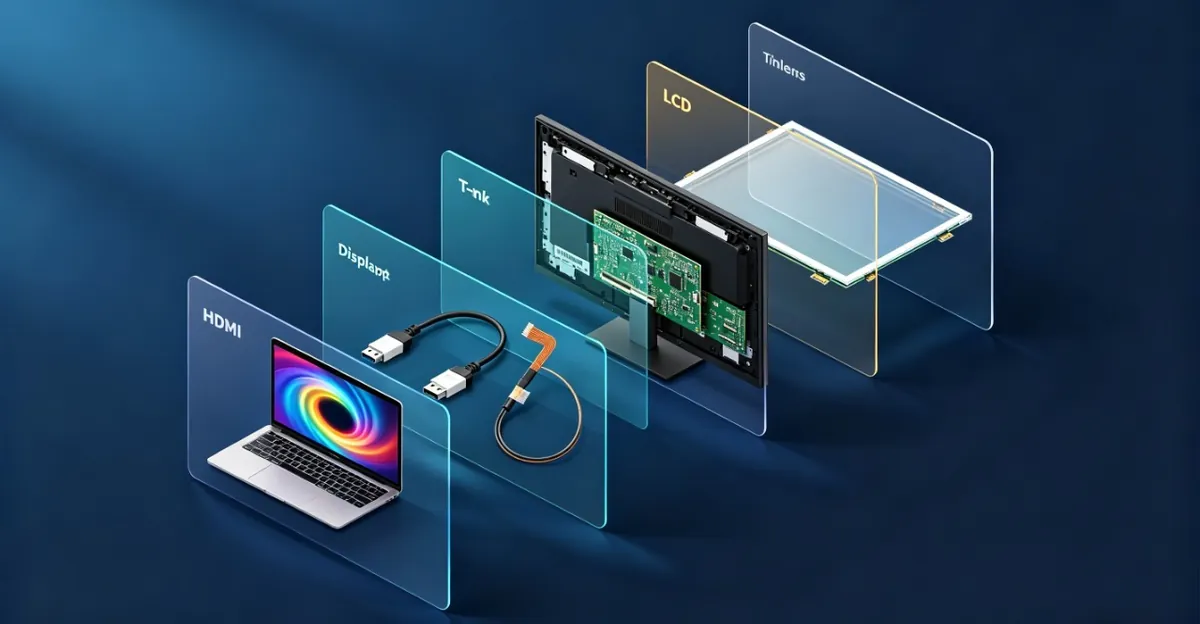
The decision to repair or replace hinges on a simple calculation: repair cost as a percentage of monitor replacement cost. Industry data shows the cost gap between repair and new units has narrowed significantly since 2020.
Repair Cost Breakdown (2024-2026)
T-con board replacement:
- Parts: $25-80 (generic boards $25-40, OEM boards $50-80)
- Labor: $50-100 (1-2 hours at $50/hour shop rate)
- Total: $75-180
Panel replacement:
- Parts: $100-250 (24-27" panels $100-180, 32" panels $180-250)
- Labor: $80-150 (2-3 hours, higher risk premium)
- Total: $180-400
Flex cable repair:
- Parts: $15-40 (LVDS cables $15-25, eDP cables $25-40)
- Labor: $40-80 (1 hour, straightforward)
- Total: $55-120
Source note: "T-con board replacement typically costs $75-180 total for consumer monitors" (techflare.net, 2024). Panel replacement costs from screendetect.com professional repair pricing survey.
The 50% Rule
Repair economics follow a simple threshold: if repair cost exceeds 50% of replacement cost, replacement is usually more rational.
Monitor original price <$200:
- T-con repair ($75-180) vs new monitor ($150-200)
- Recommendation: Replace. Repair costs 38-90% of replacement cost. New monitors include warranty and potentially better specs.
Monitor original price $200-500:
- T-con repair ($75-180) vs new monitor ($200-500): repair is 15-36% of replacement cost ✓
- Panel repair ($180-400) vs new monitor ($200-500): repair is 36-80% of replacement cost ✗
- Recommendation: Repair T-con faults. Replace for panel faults.
Monitor original price >$500:
- T-con repair ($75-180): 10-25% of replacement cost ✓
- Panel repair ($180-400): 25-53% of replacement cost — evaluate case-by-case
- Recommendation: Repair T-con faults. Get professional quotes for panel faults. High-end monitors (>$800) often justify panel replacement.
Decision table:
| Monitor Value | T-con Fault | Panel Fault | Recommended Action |
|---|---|---|---|
| <$200 | Replace | Replace | Buy new monitor |
| $200-500 | Repair | Replace | Fix T-con, panel not worth it |
| $500-800 | Repair | Evaluate | Get professional quote |
| >$800 | Repair | Repair | Both repairs likely worthwhile |
Market trend context: "The gap between repair costs and new unit prices continues to shrink" (techflare.net, 2024). Budget monitor prices have dropped 40% since 2020, while repair labor costs have increased 15-20%. This makes repair less economical for budget monitors but maintains value for mid-range and high-end units.
Additional factors to consider:
- Warranty status: If under warranty, always pursue warranty replacement (free)
- Sentimental value: Professional-grade color-calibrated monitors may justify repair beyond pure economics
- Environmental impact: Repair reduces e-waste, a valid consideration for some users
- Parts availability: Older monitors (>5 years) may have discontinued T-con boards, forcing panel replacement or full replacement
Brand-Specific White Line Issues
Certain monitor models have documented white line problems with known patterns and solutions. Recognizing these brand-specific issues can save diagnostic time.
Dell Monitors
S2716DG known issue: The Dell S2716DG (27" 1440p 144Hz TN panel) has a documented issue with faint horizontal white lines appearing near the top edge of the screen. Dell official forums confirm this as a manufacturing variance in early production batches.
Official solution — Power reset procedure:
- Power off the monitor completely
- Disconnect all cables (power, DisplayPort, USB)
- Press and hold the power button for 30 seconds (this discharges residual capacitance)
- Reconnect only the power cable
- Press the power button — the monitor should run its built-in self-test
- If self-test passes without lines, reconnect display cables and resume use
Success rate: Approximately 40-50% for the specific S2716DG top-edge line issue. Does not work for other white line types or other Dell models.
Warranty coverage: Dell standard warranty is 3 years for most models. Dead pixel policy requires at least 1 bright sub-pixel to qualify as a defect. White lines are typically classified as panel defects and qualify for warranty replacement if they appear during the warranty period.
Source note: Dell official community support thread for S2716DG white line issue (2024), Dell warranty policy documentation.
Samsung Monitors
Odyssey series ESD sensitivity: Samsung Odyssey G7 and G9 curved gaming monitors have documented static discharge sensitivity. Users report white distorted lines appearing after monitor wakes from sleep mode, especially in dry environments.
Known trigger: Electrostatic discharge (ESD) combined with curved panel geometry. The conductive coating on curved panels follows the curve, creating uneven charge distribution when ESD occurs. High refresh rates (240Hz) may increase susceptibility.
Temporary workaround:
- Reduce refresh rate to 143Hz (from 240Hz native)
- Force DisplayPort 1.2 mode instead of 1.4 (reduces signal voltage)
- Increase room humidity above 40%
Prevention measures:
- Use anti-static wrist strap when adjusting monitor
- Avoid touching screen in dry conditions (humidity <30%)
- Ensure power outlet is properly grounded (test with outlet tester)
Warranty limitations: Samsung standard warranty is 1 year. ESD damage is typically excluded from warranty coverage if visible physical damage is present. However, if no external damage is visible, warranty claims have succeeded by documenting the issue as a "spontaneous pixel failure."
Source note: Samsung community forum Odyssey G7 white line discussion threads (2024), Samsung warranty policy.
LG Monitors
Common pattern: LG IPS monitors (27GL850, 27GN950 series) occasionally develop white lines from flex cable contact degradation rather than circuit failure. The symptom: white line that shifts position slightly when you press gently on the monitor bezel near the cable entry point.
Diagnostic test: With monitor powered on, gently press the top and side bezels near the panel edges. If the white line position changes or temporarily disappears, the flex cable connection has oxidation or poor contact.
Fix success rate: 60-70% success with flex cable reseating (no parts cost). 90%+ success with flex cable replacement ($25-40 parts).
Brand comparison table:
| Brand | Common Models | Primary Issue | Warranty Period | Dead Pixel Policy |
|---|---|---|---|---|
| Dell | S2716DG | Top-edge white line | 3 years | ≥1 bright sub-pixel |
| Samsung | Odyssey G7/G9 | ESD sensitivity | 1 year | Varies by region |
| LG | 27GL/27GN series | Flex cable contact | 1-3 years | ≥3 bright pixels |
| ASUS | ROG Swift | Driver board heat | 3 years | ≥5 bright pixels |
| BenQ | MOBIUZ series | General panel aging | 3 years | ≥3 bright pixels |
Source note: Warranty periods and dead pixel policies from blackscreen.live/wiki manufacturer policy comparison (2024), confirmed against manufacturer websites.
Prevention
White lines are often preventable through proper handling and environmental control.
Ground Yourself Before Touching the Monitor
Why it matters: Static discharge between 100V-1,000V (below human perception) can damage LCD circuits. Your body accumulates charge from walking on carpet, synthetic clothing friction, or low humidity environments.
Proper grounding methods:
- Anti-static wrist strap ($5-15): Clip to grounded metal surface before opening monitor
- Anti-static mat ($20-40): Place monitor on mat during repair work
- Simple method: Touch a grounded metal object (unpainted radiator, metal water pipe, computer case screwed to grounded outlet) immediately before touching monitor circuits
When grounding is critical: Opening monitor case, reseating flex cables, replacing T-con board, touching exposed circuits.
Avoid Spraying Liquids Near the Screen
LCD panels have open gaps between the bezel and glass where liquid can seep in and corrode flex cables.
Correct cleaning procedure:
- Use monitor-specific cleaner (alcohol concentration <70%)
- Spray onto microfiber cloth, never directly on screen
- Wipe from center outward to push any moisture away from edges
- Allow 5 minutes drying time before powering on
Liquids that cause damage: Window cleaners (ammonia corrodes anti-glare coating), pure alcohol (damages oleophobic coating), water (leaves mineral deposits that short circuits).
Use Surge Protectors
LCD monitor power supplies and T-con boards are sensitive to voltage spikes.
Recommended specifications:
- Surge protection rating: ≥1,000 joules
- Response time: <1 nanosecond
- Clamping voltage: <400V
- Bonus: Data line protection for HDMI/DisplayPort (protects against HDMI-transmitted surges)
Why it matters: Power surges can destroy voltage regulators on the T-con board, causing it to send incorrect "always on" signals that manifest as white lines.
Environmental Control
Temperature and humidity affect LCD panel longevity.
Optimal conditions:
- Humidity: 40-60% (below 30% increases static risk, above 70% increases corrosion risk)
- Temperature: 15-30°C (50-86°F) during operation
- Avoid direct sunlight: UV radiation accelerates liquid crystal breakdown
Long-term storage: If storing a monitor for >6 months, keep in climate-controlled environment and power on for 30 minutes every 3 months to prevent liquid crystal settling.
- Ground yourself before handling monitor internals
- Avoid spraying liquids near the screen or on cables
- Use surge protectors to prevent electrical damage
- Avoid touching the screen during dry conditions
- Use proper cleaning products — anti-static screen cleaners
Related LCD Line Problems
- LCD Line Hub: Overview of all lcd line types
- Horizontal Lines on LCD: Horizontal white and other line types
- Vertical Lines on LCD: Vertical line issues
- Green Lines on LCD: Colored line issues
- How to Fix LCD Lines: Complete repair guide
Frequently Asked Questions
What causes white lines on an LCD monitor?
White lines on an LCD monitor are caused by sub-pixel transistors stuck in the permanently 'on' state, T-con board timing signal errors that incorrectly activate pixels to white, static discharge damage to panel circuits, or aging LCD panels where crystal alignment degrades in specific areas. Unlike black lines (dead pixels), white lines indicate circuits that are permanently energized rather than permanently dead.
How do I fix a white line on my LCD monitor?
To fix white lines on your LCD monitor: (1) Run pixel-fixing software that cycles through colors rapidly — this may revive stuck sub-pixels. (2) Update or roll back graphics drivers. (3) Try a different display cable. (4) Power cycle the monitor by unplugging it for 60 seconds. (5) Reseat internal ribbon cables if comfortable opening the monitor. (6) Replace the T-con board if the issue persists. (7) Replace the panel for permanent white lines caused by electrode failures.
Can white lines on a monitor be fixed without replacing the panel?
Yes, many white lines can be fixed without panel replacement. If the cause is a stuck sub-pixel, pixel-fixing tools have a reasonable success rate. If caused by a loose ribbon cable or T-con timing error, reseating or replacing those components resolves the issue. Only white lines caused by permanent electrode failures require panel replacement. Use the screen test tool to determine whether your white line changes over time.
What is the difference between white lines and static lines on a monitor?
White lines display a solid white color consistently across all content — the pixel circuits are permanently stuck in the 'on' position. Static lines display a rapidly changing, noise-like pattern — the signal data is being corrupted during transmission. Static lines indicate signal chain problems (cable, T-con); white lines indicate display element failures (sub-pixel transistors, electrodes).
Why do white lines appear suddenly on my monitor?
Sudden white lines are typically caused by static discharge damage (touching the screen during dry conditions), sudden ribbon cable failure, or T-con board malfunction. If the white line appeared after touching the screen, cleaning near the screen, or during a power surge, ESD damage is the likely cause. If it appeared during normal use with no obvious trigger, cable or T-con failure is more likely.
How much does it cost to fix white lines on a monitor?
T-con board replacement: $75-180 total ($25-80 parts + $50-100 labor). Panel replacement: $180-400 total ($100-250 parts + $80-150 labor). Cable reseating: $40-80 labor if done professionally, free if DIY. For monitors under $200, replacement is usually more economical than repair. For monitors over $500, T-con board replacement is often worth it. Panel replacement is rarely cost-effective unless the monitor is high-end (>$800). Sources: techflare.net (2024), screendetect.com (2024).
Are white lines covered under warranty?
Dell: 3-year standard warranty, covers panel defects including white lines (≥1 bright sub-pixel qualifies as defect). LG: 1-3 years depending on model, dead pixel policy requires ≥3 defective pixels. Samsung: 1-year standard, curved monitors have stricter ESD damage exclusions. White lines are typically covered if they appear during normal use. Damage from physical impact, liquid spills, or unauthorized repairs voids warranty. Check your specific warranty terms and register your monitor at purchase for faster RMA processing. Sources: blackscreen.live/wiki (2024), Dell/LG/Samsung official policies.
Conclusion
White lines on LCD monitors indicate pixels stuck permanently in the "on" state — caused by stuck sub-pixel transistors, T-con timing errors, static discharge damage, or panel aging. Start with pixel-fixing software and power cycling. Work toward cable reseating, T-con replacement, and finally panel replacement in order. The key diagnostic distinction is white lines (stable) vs. static lines (flickering/noise) — they have different causes and different fix approaches. Use the screen test tool to run accurate color tests.