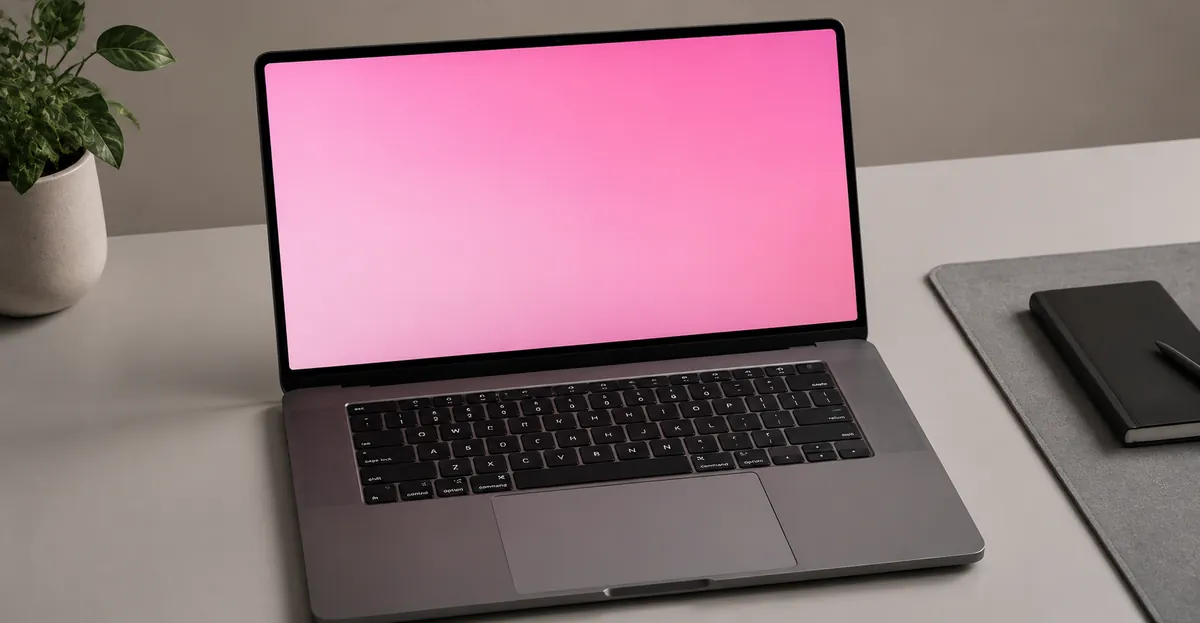
A pink laptop screen can be alarming, especially if you're not sure what caused it. The pink tint can range from a subtle color shift to a completely pink display, and it can significantly impact your ability to use the computer. Understanding the causes of a pink screen is essential for determining the right fix.
Why Is My Laptop Screen Pink
Symptoms of a Pink Laptop Screen
A pink screen can appear in several ways:
- Full pink tint: The entire screen displays a pink or magenta color
- Partial pink areas: Pink coloration limited to certain areas of the screen
- Intermittent pink: The screen turns pink occasionally, then returns to normal
- Pink with flickering: Pink tint accompanied by screen flickering or unstable display
Each symptom pattern can help identify the underlying cause. Intermittent issues often point to cable problems, while persistent pink usually indicates hardware or driver issues.
Most Common Causes
Loose or Damaged Display Cables
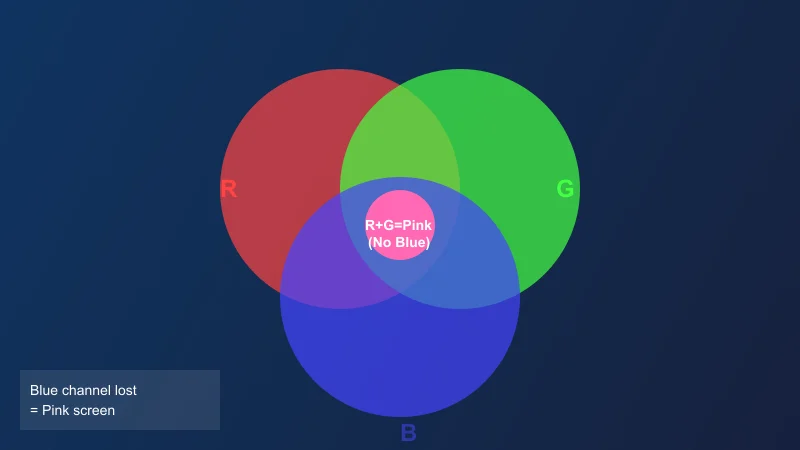
The most common cause of a pink laptop screen is a loose or damaged display cable. The display cable carries video signals from the motherboard to the screen, including the red, green, and blue (RGB) color channels. When the cable is loose or damaged, the blue channel signal may be weakened or lost, resulting in a pink tint.
This issue is particularly common in laptops that have been:
- Opened for repairs or upgrades
- Subjected to frequent opening and closing
- Dropped or experienced physical shock
- Used for extended periods without maintenance
Dell support documentation notes that cable issues are among the most frequent causes of display color problems in laptops.
Display Driver Issues
Outdated, corrupted, or incompatible display drivers can cause color rendering problems, including pink tints. When the graphics driver fails to properly communicate color information to the display, various color distortions can occur.
Display driver issues can result from:
- Incomplete driver updates
- Corrupted driver installations
- Conflicts with new software
- Windows updates that reset driver settings
Hardware Damage to Display Panel
Physical damage to the LCD panel can cause pink coloration. This damage may result from:
- Dropping the laptop
- Pressing on the screen
- Closing the laptop with objects on the keyboard
- Age-related deterioration of display components
When the sub-pixel structure of the LCD is damaged, certain color channels may fail, leading to persistent pink or other color tints.
Color Calibration Issues
Incorrect display settings or color calibration can also cause a pink tint. This is more common when:
- Display settings have been changed accidentally
- Third-party color calibration software has been installed
- The laptop has been connected to an external monitor with different color settings
Graphics Card Problems
In some cases, the graphics processing unit (GPU) itself may be malfunctioning, causing color rendering issues. This is often accompanied by other symptoms such as:
- Screen artifacts or distortion
- System crashes or blue screens
- Overheating of the laptop
- No display output at all
How Manufacturers Define Acceptable Display Defects
When a pink screen or color defect appears on a new or relatively new laptop, understanding the manufacturer's defect policy can help you determine whether your device qualifies for a free repair or replacement.
The ISO 9241-307 Standard
The ISO 9241-307 standard (which replaced the older ISO 13406-2) classifies flat-panel display defects into three types. Type 3 defects — stuck sub-pixels that are permanently on in one color — are the most relevant to pink tint issues, since a stuck red or magenta sub-pixel contributes to the overall pink appearance. Under Class II (the most common classification used by laptop manufacturers), up to 5 Type 3 defects per million pixels are considered acceptable. On a standard 1920×1080 display with approximately 2 million pixels, this means a small number of sub-pixel defects may fall within the manufacturer's tolerance.
Manufacturer-Specific Policies
Most major laptop manufacturers do not publish exact pixel-defect thresholds for pink tints specifically, since a pink tint that affects the entire screen is typically more severe than an isolated sub-pixel defect. However, repair communities on sites like iFixit and forums frequently report that an entirely pink screen almost always qualifies for repair under warranty, whereas a subtle warm color shift may not. Dell's Premium Panel Exchange policy covers panels with any visible defects for the warranty period, and HP's standard warranty covers manufacturing defects that affect the display's intended use. Samsung historically offered a zero-dead-pixel guarantee on some monitor lines within six months of purchase, though this policy varies by product line. Apple covers displays with visible defects under its standard AppleCare warranty. If your laptop is under manufacturer warranty and shows a persistent pink tint, contact support with your model number and purchase date — many warranty teams will approve a panel replacement without requiring you to first prove the defect meets a specific threshold.
When Pink Is Covered vs. Not Covered
A pink tint that appeared within weeks or months of purchase is almost always considered a manufacturing defect and is covered. A pink tint that developed after physical damage, liquid exposure, or long-term use is generally not covered. Cosmetic color shifts that resolve when you adjust the lid angle are typically treated as a loose cable issue, which may be covered if the laptop is still under warranty.
How to Diagnose the Problem
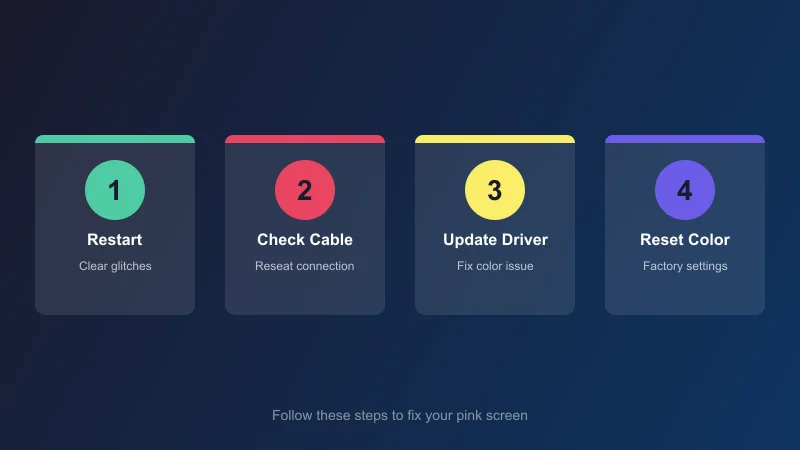
Follow these steps to identify the cause of your pink screen:
- Restart your laptop: A simple restart can resolve temporary software glitches
- Connect an external monitor: If the external display shows normal colors, the issue is with your laptop screen or cable
- Check for recent changes: Consider whether the issue started after a driver update, software installation, or physical event
- Test in safe mode: Booting in safe mode can help determine if software is causing the issue
- Observe the pattern: Note whether the pink tint is constant, intermittent, or localized
- Check cable connections: If comfortable opening the laptop, check the display cable connection
The Lid Angle Test
One of the most diagnostic actions you can take is gently adjusting the laptop lid through its full range of motion while watching the screen. If the pink tint brightens, dims, or flickers as you move the lid, the internal display cable is almost certainly the culprit. This is because hinge movement stresses the ribbon cable that routes through the hinge assembly, and a partially cracked conductor in the blue channel will produce exactly this behavior. If the tint does not change with lid movement, the cable is less likely but not ruled out — a completely severed cable channel can produce a constant pink.
Screenshot Test
Take a screenshot using your laptop's screenshot tool and view it on an external monitor or another device. If the screenshot shows normal colors when viewed externally, the issue is isolated to the display panel or its backlight system. If the screenshot itself shows pink, the graphics pipeline — driver, GPU, or color profile — is the root cause.
Repair Cost Ranges by Device Type
Understanding realistic cost ranges helps you decide whether to repair or replace your laptop.
Standard Laptop (13–15 inch)
Display cable replacement: $15–$40 for the part, $30–$80 in labor. Screen panel replacement: $50–$150 for an OEM panel, $100–$300 for a premium display such as OLED or high-brightness IPS. Professional labor adds another $50–$120.
Gaming Laptop
Gaming laptops typically use higher-specification panels with higher refresh rates and brightness ratings. Replacement panels cost $120–$350, with cables in the $25–$60 range. Professional repair for gaming laptops is generally higher due to the complexity of disassembly, with total repair costs of $150–$500.
MacBook
Apple's integrated design means display repairs on MacBooks are more complex. Apple Store screen replacements for MacBook Air models typically run $300–$500, while MacBook Pro screen replacements can reach $600–$1,000 through official channels. Third-party repair shops may offer lower rates for out-of-warranty MacBooks, but part quality and technician experience vary. Ribbon cable issues on MacBooks are relatively common due to the thin cable routing through the hinge.
External Monitor
If you are diagnosing a pink tint on an external monitor rather than a laptop, the issue is less likely to be cable-related and more likely to be the monitor's T-con board (timing controller) or the display panel itself. T-con board replacement costs $25–$80 for the part plus $40–$100 in labor. Panel replacement on external monitors ranges from $80–$400 depending on size and resolution.
Step-by-Step Fixes
Software Solutions
1. Update Display Drivers
The first and easiest fix to try is updating your display drivers:
For NVIDIA graphics:
- Open NVIDIA Control Panel
- Go to Device > Device Settings
- Select the display adapter
- Click Update Driver
For AMD graphics:
- Open AMD Radeon Software
- Go to the Drivers tab
- Select Check for Updates
For Intel graphics:
- Open Intel Graphics Command Center
- Go to Drivers > Check for Updates
For all laptops:
- Visit your laptop manufacturer's website
- Download the latest graphics drivers for your specific model
- Install and restart
2. Reset Color Settings
If the pink tint appeared after changing display settings:
- Go to Settings > Display (Windows)
- Click on Color Calibration
- Run the calibration wizard
- Reset to default settings
3. Roll Back Display Driver
If the pink tint started after a driver update:
- Open Device Manager
- Expand Display Adapters
- Right-click your graphics card
- Select Properties
- Go to the Driver tab
- Click Roll Back Driver
- Restart your laptop
4. Check Windows Display Settings
- Go to Settings > Display
- Check Night Light settings (can cause color shifts)
- Verify display scaling is set correctly
- Try adjusting color profile
Hardware Solutions
5. Reseat Display Cables
For loose cable issues:
- Power off the laptop completely
- Disconnect the power adapter
- Ground yourself to discharge static
- Remove the screen bezel carefully
- Locate the display cable connection
- Disconnect and reconnect the cable firmly
- Reassemble and test
Note: If you're not comfortable opening your laptop, consult a professional technician.
6. Check for Physical Damage
Inspect the screen and cables for visible damage:
- Look for cracks in the screen
- Check for bent or damaged cable connectors
- Examine the cable for wear or exposed wires
- If damage is visible, professional repair is needed
Professional Repair Options
7. Cable Replacement
If the display cable is damaged:
- Purchase a replacement cable specific to your laptop model
- Professional installation recommended
- Costs typically range from $20-$50 for labor plus cable cost
8. Screen Replacement
If the display panel itself is damaged:
- Purchase a compatible replacement screen
- OEM screens recommended for best quality
- Professional installation advised
- Costs range from $50-$300 depending on laptop model
When Professional Repair Is Needed
Seek professional help if:
- Software solutions don't resolve the issue
- You notice physical damage to the screen or cables
- The pink tint is accompanied by other problems
- Your laptop is under warranty
- You're not comfortable opening the laptop yourself
Prevention Tips
Preventing pink screen issues:
- Handle with care: Avoid dropping or physically impacting your laptop
- Check before closing: Always ensure the keyboard is clear before closing the lid
- Regular maintenance: Periodically check cable connections if you've opened the laptop
- Quality repairs: Use reputable repair services for any hardware work
- Protect during travel: Use a padded laptop bag
How to Document a Pink Screen for a Warranty Claim
If your laptop is still under warranty and you need to file a claim, proper documentation can speed up the approval process significantly.
What to Record
Before contacting the manufacturer or retailer, gather the following information. First, photograph the screen from multiple angles in a well-lit room, showing the pink tint clearly. Use your phone camera and capture both close-up detail shots and wider shots that show the full screen. Second, note the exact model number and serial number of your laptop — this is found on a label on the bottom of the device or in the system settings under About. Third, record the date when you first noticed the problem and any events that preceded it, such as a driver update, a fall, or moving the laptop. Fourth, if you performed the lid angle test, note whether the tint changed with lid movement — this is strong evidence of a cable issue.
How to Submit Your Claim
Most manufacturers accept warranty claims through their support website or by phone. HP and Dell both allow you to enter your serial number on their support pages to check warranty status and initiate service requests. Lenovo provides a diagnostic tool that can be run from a bootable USB drive to generate a hardware report. When submitting your documentation, attach the photos of the pink screen, include the model and serial number, and describe whether the tint is constant or intermittent. Mention the lid angle test result if applicable. If the tint is intermittent, note how often it occurs and what conditions seem to trigger it.
What Happens After Approval
Once a warranty claim is approved, most manufacturers will arrange a courier pickup of the laptop for repair, or direct you to an authorized service center. Repair turnaround times vary by region and workload — typical estimates range from 5 to 15 business days. The manufacturer will repair or replace the affected component (typically the display panel or the internal cable) and return the laptop with a service report. Keep the courier tracking number and any confirmation emails until you receive the laptop back and verify the issue is resolved.
Screen Test Tool
The Screen Test Tool helps diagnose pink screen issues:
- Displays full-screen colors to identify which color channel is affected
- Helps determine if the issue is software or hardware-related
- Allows you to test display calibration
- Available for all laptop brands
Related Screen Issues
Pink screens can be related to other color problems:
- Pink Screen: Comprehensive guide to pink screen issues
- Orange Screen: Orange tint issues on laptop displays
- Red Screen: Red screen problems and solutions
- Blue Screen: Blue discoloration on screens
- Display Issues: General guide to display color issues
Conclusion
A pink laptop screen is usually caused by loose display cables, display driver issues, or hardware damage to the display panel. Start with software solutions like updating drivers or resetting color settings before assuming it's a hardware problem.
Use the Screen Test Tool to help diagnose whether the issue affects specific color channels. If software fixes don't work, check cable connections or consult a professional technician for hardware repair or screen replacement.
If you suspect a loose cable is the cause and you have experience working with laptop hardware, you can reseat the display cable yourself by removing the screen bezel and checking the connector on the motherboard. If the issue persists after reseating or if you see visible damage to the panel or cable, visiting a certified repair shop is the safest option. For most users, the cost of professional panel replacement repair does not exceed the value of the laptop itself, so a replacement should be considered when the warranty has expired and the device is more than three years old. In all cases, document the problem with photos and a clear description of the failure behavior before deciding between repair and replacement.