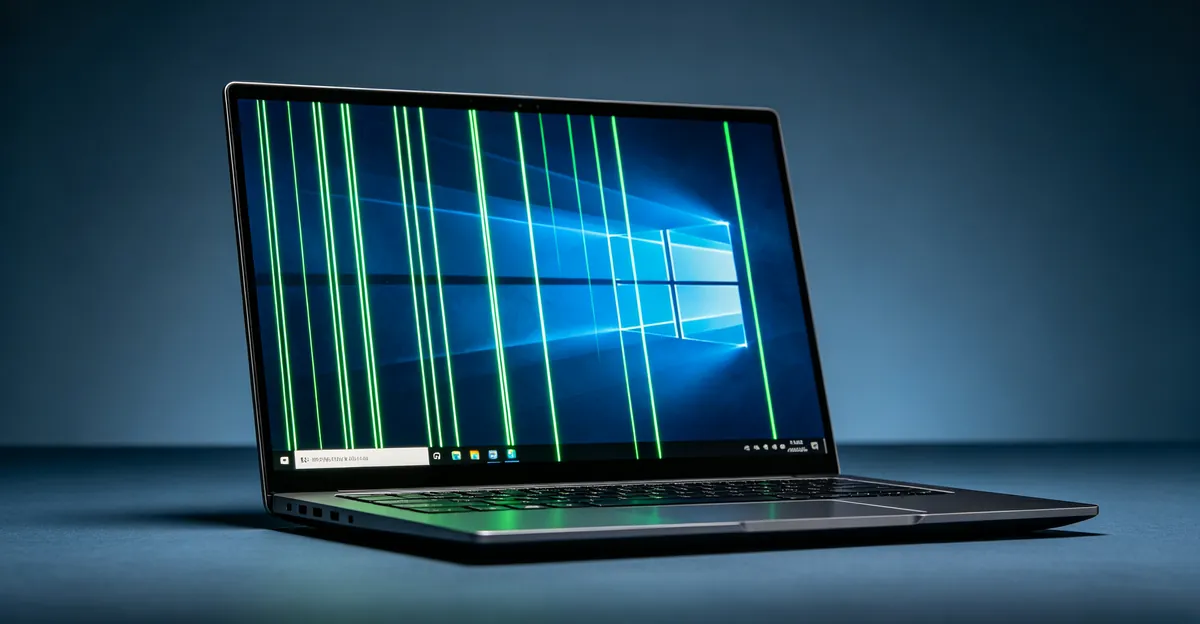
Windows 10 is particularly prone to display artifacts like a green tint or green lines due to its aggressive automatic driver update policy. The good news: most Windows 10 green tint and green line issues are software-related and often fixed without hardware repair.
Windows 10 Green Tint or Green Lines: Solutions
Why Windows 10 Is Different
Windows 10 has one unique characteristic that makes it more prone to display issues: automatic driver updates.
Microsoft's Windows Update can automatically install new graphics drivers without asking permission. While this helps security, it can break display functionality if the new driver has compatibility issues with your hardware.
Common Windows 10-specific triggers:
- Automatic Windows Update installing new GPU drivers
- Feature update (like 21H1, 22H2) changing display settings
- Fresh Windows installation with default generic drivers
- Third-party software conflicting with display services
Quick Diagnosis: The Screenshot Test
For Windows 10 green lines:
- Press Windows + Shift + S to open Snip & Sketch
- Select Rectangular or Full-screen capture
- Capture the screen with the green line
- Open the screenshot in Photos or Paint
Interpret results:
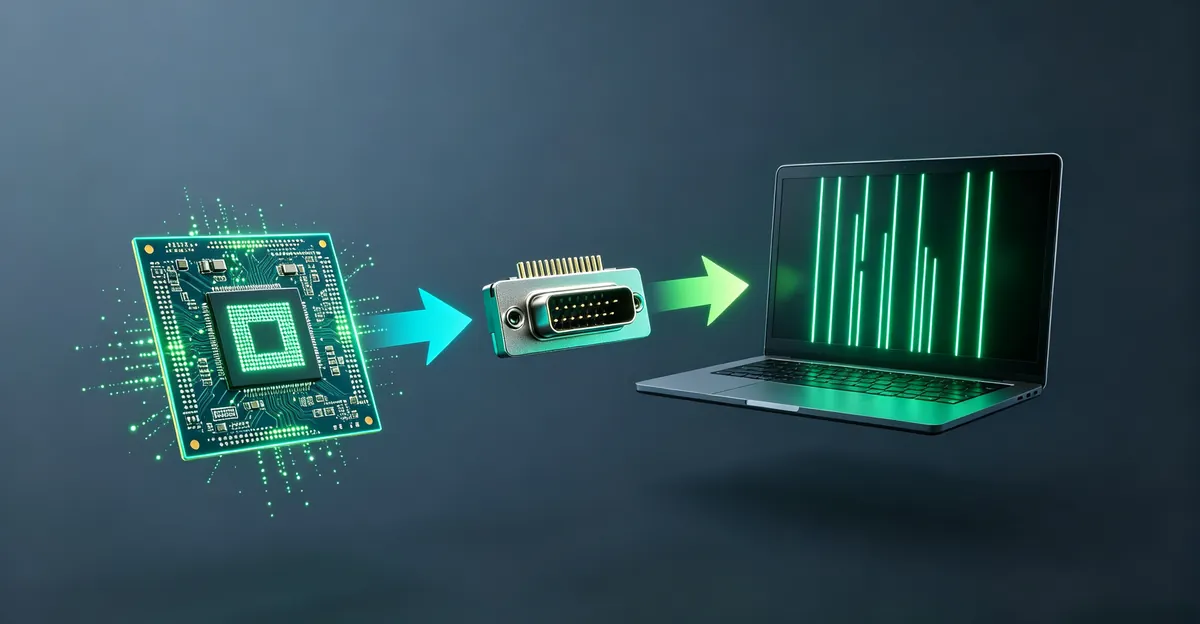
- Line visible in screenshot → Software/GPU issue (driver problem or graphics card failing)
- Line NOT in screenshot → Monitor hardware issue (cable, panel, or T-con)
This test is crucial on Windows 10 because it immediately tells you whether to focus on software (drivers) or hardware (cables/screens).
Quick emergency fix (before full diagnosis):
If green lines just appeared, try restarting the graphics driver without rebooting:
Press Windows + Ctrl + Shift + B
Your screen will go black for 1-2 seconds and you'll hear a beep. This resets the graphics driver in memory. If the green line disappears, the issue is definitely driver-related, not hardware. If the line persists, continue with the full diagnostic below.
Windows 10 Specific Causes
Cause 1: Automatic Driver Update Gone Wrong (Most Common on Windows 10)
Windows 10 automatically installs driver updates through Windows Update. Sometimes these updates install beta drivers, incompatible versions, or drivers with bugs that cause green lines.
According to user reports, Windows 10 pushes graphics driver updates approximately every 2-4 weeks through Windows Update, often without clear notification. When these updates contain incompatible code for specific GPU models or conflict with existing system configurations, display artifacts like green lines can appear immediately after the update or upon the next restart.
Real-world example: Multiple users reported green lines appearing after Windows 10 automatically installed NVIDIA driver version 456.71 in October 2020. The lines only appeared in desktop mode and certain applications, not in BIOS. Rolling back to the previous driver (456.55) or manually installing version 457.30 resolved the issue for most affected users.
Symptoms:
- Line appeared after a Windows Update
- Line only appears in desktop mode, not in BIOS
- Line changes when using different applications
- Line disappears after rolling back driver
- Windows Update history shows a recent display driver update
The fix: Roll back the graphics driver (free, 10 minutes)
Cause 2: Corrupted or Outdated Graphics Driver
An older corrupted driver or one that doesn't match your current Windows version can cause display artifacts. Driver corruption can occur when Windows Update is interrupted, when third-party cleaning software deletes driver components, or when conflicting driver versions are installed simultaneously.
Symptoms:
- Line appeared after uninstalling other software
- Line appeared after system cleanup utility
- Problem has existed since Windows was installed
- Line only affects certain applications
- Device Manager shows a yellow warning triangle next to the display adapter
The fix: Update to the latest drivers (free, 15 minutes)
Cause 3: Display Scaling and Resolution Issues
Windows 10's display scaling feature can cause artifacts when set incorrectly. This is particularly common on high-DPI displays (4K monitors, high-resolution laptops) where Windows automatically sets scaling to 150% or 200%. When scaling conflicts with the graphics driver's own scaling system, rendering errors can produce colored lines or artifacts.
Symptoms:
- Line only appears at certain zoom levels
- Line appears after connecting a second monitor
- Problem started after changing display settings
- Line only appears in specific applications
- Line position shifts when changing scaling percentage
The fix: Reset display settings to recommended values
Cause 4: Third-Party Display Overlay Software
Software like screen recorders (OBS Studio, Bandicam), color calibration tools (f.lux, Night Light alternatives), and gaming overlays (Discord overlay, Steam overlay, NVIDIA GeForce Experience overlay, MSI Afterburner) can interfere with display rendering by injecting code into the graphics pipeline.
Symptoms:
- Line only appears when specific apps are running
- Line appears when opening full-screen applications
- Multiple color artifacts visible
- Problem started after installing new software
- Line disappears when you close the overlay application
The fix: Uninstall or disable overlay software
Cause 5: Windows 10 Feature Updates Breaking Display Drivers
Windows 10 feature updates (20H2, 21H1, 21H2, 22H2) sometimes treat the installation as a fresh Windows setup, which can replace working graphics drivers with generic Microsoft Basic Display Adapter drivers. These generic drivers lack optimization for specific GPU models and can cause display issues including green lines.
Symptoms:
- Green lines appeared immediately after a major Windows 10 update
- Display resolution is limited to 1024x768 or looks incorrect
- Device Manager shows "Microsoft Basic Display Adapter" instead of your actual GPU
- Graphics performance is noticeably slower
The fix: Reinstall manufacturer-specific GPU drivers after the feature update completes
Step-by-Step Solutions for Windows 10
Solution effectiveness ranking based on diagnostic patterns:
| Solution | When to use | Typical time | Success rate |
|---|---|---|---|
| Driver Roll Back | Lines appeared after Windows Update | 10 min | High (85%+) |
| Fresh Driver Install (NVIDIA/AMD/Intel) | Persistent artifacts, out-of-date driver | 15 min | High (80%+) |
| DDU Clean Install | Roll Back greyed out, multiple driver conflicts | 30 min | Very High (90%+) |
| Driver Cache Cleanup | DDU insufficient, registry errors persist | 25 min | Moderate (60-70%) |
| Uninstall Windows Update | Lines appeared immediately after specific update | 20 min | High (75%+) |
| Reset Display Settings | Artifact only at specific resolution/scaling | 5 min | Low (30-40%) |
Solution 1: Roll Back Graphics Driver (Most Likely Fix)
If green lines appeared after a Windows Update:
- Right-click Start → Device Manager
- Expand Display adapters
- Right-click your graphics card → Properties
- Driver tab → Roll Back Driver
- Select reason (or "A previous driver is working better")
- Click Yes to restart
If Roll Back is greyed out:
- The previous driver may have been deleted
- Continue to Solution 2 (fresh driver install)
Solution 2: Update Graphics Driver Properly
For NVIDIA GPUs:
- Visit nvidia.com/Download
- Select your GPU product type, series, and model
- Download the Game Ready or Studio driver (not the OS update driver)
- Install and restart
For AMD GPUs:
- Visit amd.com/support
- Select your product automatically or manually
- Download the recommended driver (not the optional one)
- Install and restart
For Intel GPUs:
- Visit intel.com/support
- Search for your GPU product
- Download the DCH driver (Windows 10 optimized)
- Install and restart
Solution 3: Clean Install Driver (DDU Method)
For persistent driver issues:
- Download Display Driver Uninstaller (DDU) from guru3d.com
- Boot into Windows Safe Mode:
- Settings → Update & Security → Recovery → Advanced startup → Restart
- Troubleshoot → Advanced options → Startup Settings → Restart
- Press 4 or F4 for Safe Mode
- Run DDU and select "Clean and restart"
- Install fresh driver after Windows restarts
Common DDU errors and fixes:
- "DDU cannot delete driver files" → Disable antivirus temporarily, run DDU as Administrator
- "Safe Mode won't boot" → Try Safe Mode with Networking instead
- Screen stays at low resolution after DDU → This is normal until you install the new driver
DDU removes driver files, registry keys, and driver store entries that Windows Update and Device Manager cannot touch. This creates a completely clean state for fresh driver installation, which resolves most stubborn green line cases where roll back or update alone failed.
Solution 4: Reset Display Settings
- Right-click desktop → Display settings
- Click Advanced display settings
- Click Reset (if available) or manually set:
- Resolution: Recommended
- Orientation: Landscape
- Refresh rate: 60 Hz (try 144Hz if needed)
- Apply and test
Solution 5: Uninstall Problematic Updates
If lines appeared after a specific Windows Update:
- Settings → Update & Security → Windows Update
- View update history
- Uninstall updates (link at top of page)
- Find the update that coincided with the problem
- Uninstall and restart
Solution 6: Check for Display Overlay Conflicts
Disable recently installed overlay software:
- Press Ctrl + Shift + Esc to open Task Manager
- Look for running overlay apps (NVIDIA GeForce Experience, Discord overlay, Steam overlay, etc.)
- Right-click → End task to test
- If line disappears, the software was causing the issue
Advanced Troubleshooting for Windows 10
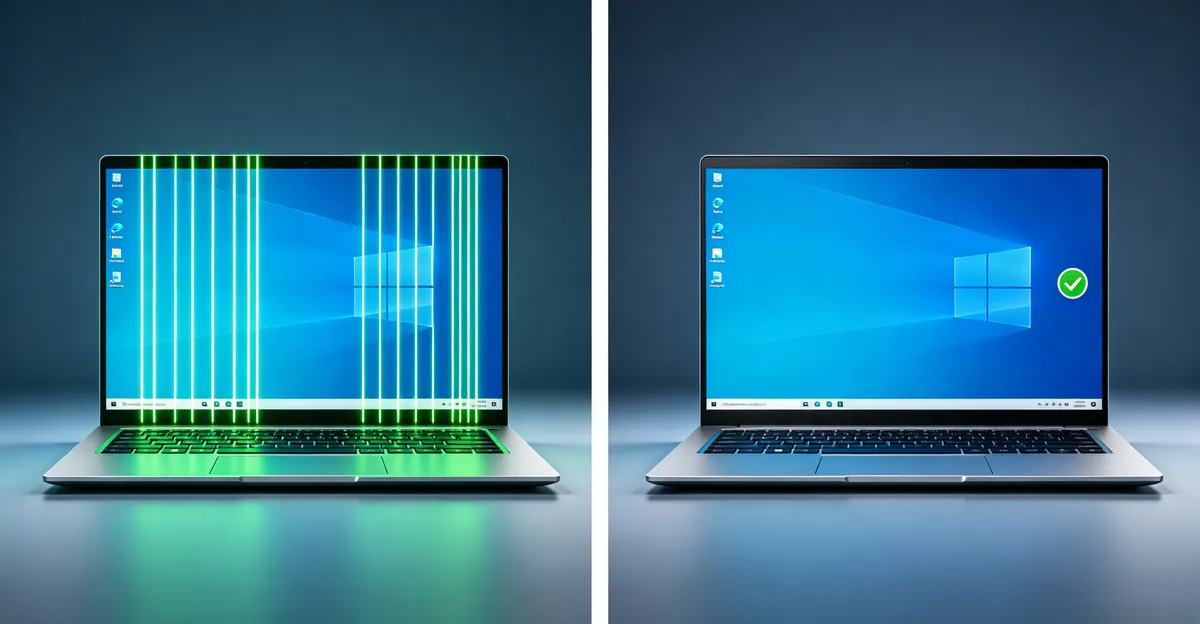
When standard driver fixes don't resolve green lines on Windows 10, these advanced techniques target deeper system-level issues:
Rebuild Windows Driver Store
The driver store (C:\Windows\System32\DriverStore\FileRepository\) can accumulate corrupted driver packages over time, especially if Windows Update has installed and rolled back drivers multiple times. When DDU cleans the active driver but corrupted store entries remain, green lines can reappear after Windows automatically reinstalls a driver from the store.
Steps to clean driver store:
- Boot into Safe Mode
- Open Command Prompt as Administrator
- Run:
pnputil /enum-driversto list installed driver packages - Find your graphics driver entries (look for nvidia, amd, or intel in the provider name)
- For each problem driver package, run:
pnputil /delete-driver oem##.inf /uninstall /force(replace ## with actual number) - Restart and install fresh driver
Warning: Only delete graphics driver packages, not other system drivers. Incorrect deletion can prevent Windows from booting.
Run Windows Update Troubleshooter
Windows 10 includes a built-in troubleshooter that can detect and fix update problems that may have corrupted display drivers:
- Settings → Update & Security → Troubleshoot → Additional troubleshooters
- Select Windows Update → Run the troubleshooter
- Let it detect and fix problems
- After completion, check Settings → Update & Security → View update history
- If corrupted updates are detected, use "Uninstall updates" to remove them
The troubleshooter can repair Windows Update components (wuauserv service, update database files) that may have caused driver installation failures leading to green lines.
System File Checker and DISM
Corrupted Windows system files can prevent drivers from loading correctly. Two Windows tools can repair system file integrity:
System File Checker (SFC):
- Open Command Prompt as Administrator
- Run:
sfc /scannow - Wait 10-30 minutes for completion
- If SFC found and fixed corruptions, restart
Deployment Image Servicing and Management (DISM):
Run DISM if SFC reports it cannot fix certain files:
- Open Command Prompt as Administrator
- Run:
DISM /Online /Cleanup-Image /CheckHealth(quick check) - If issues detected, run:
DISM /Online /Cleanup-Image /RestoreHealth(15-30 min) - After DISM completes, run SFC again:
sfc /scannow - Restart Windows
DISM repairs the Windows component store that SFC uses as its reference, creating a chain of repairs that can resolve driver loading issues causing green lines.
Disable Automatic Driver Updates
If Windows keeps reinstalling a problem driver that causes green lines, you can block automatic driver updates for your graphics device:
- Press Windows + R, type
sysdm.cpl, press Enter - Go to Hardware tab → Device Installation Settings
- Select No (your device might not work as expected)
- Click Save Changes
Alternative method for specific devices:
- Open Device Manager
- Expand Display adapters
- Right-click your graphics card → Properties
- Go to Driver tab → Driver Details
- Note the
.inffilename (e.g.,nv_dispi.inf) - Open Command Prompt as Administrator
- Run:
reg add "HKLM\SOFTWARE\Policies\Microsoft\Windows\DeviceInstall\Restrictions\DenyDeviceIDs" /v 1 /t REG_SZ /d "PCI\VEN_10DE*" /f(for NVIDIA; adjust VEN_ID for AMD: 1002, Intel: 8086)
After blocking updates, manually install driver versions that work correctly with your system.
Hardware Solutions (When Software Fails)
If Windows-level fixes don't resolve the green line, the issue may be hardware. However, even hardware problems can have different severity levels - from a simple loose cable (fixable at home) to a failing GPU (requires professional repair or replacement).
External Monitor Test
This is the single most important hardware diagnostic test for Windows 10 green line issues:
- Connect to external monitor via HDMI or DisplayPort
- Press Windows + P and select "Duplicate" or "Extend"
- Observe both screens carefully
Result interpretation:
- Line appears on external monitor too → GPU hardware issue or GPU driver producing the artifact at hardware level. The problem is upstream of the physical display.
- External is clean, laptop/primary screen has line → Laptop screen panel, display cable, or display connector issue. The GPU is outputting correctly.
- Line appears on both but changes position → GPU memory corruption or VRAM issue
- Line only on primary, same position always → Display panel hardware defect (stuck column driver)
If the external monitor is clean, the issue is isolated to the display hardware, not the GPU. This is actually good news on a desktop (replacing a monitor is simpler than replacing a GPU), but on a laptop it means the screen or internal cable may need replacement.
Check Display Cables (Desktop)
- Power off computer and monitor completely
- Unplug and carefully replug all video cables at both ends
- Try a different cable if available (DisplayPort cables can degrade over time)
- Try different port (HDMI vs DisplayPort vs DVI)
- Check cable for visible damage, particularly near connectors
- If using adapters (USB-C to HDMI, DVI to HDMI), try removing the adapter and use a native cable
Cable-specific issues on Windows 10:
- DisplayPort cables can cause artifacts when they don't fully support the resolution/refresh rate combination Windows is requesting. Try reducing refresh rate from 144Hz to 60Hz in Display Settings.
- HDMI 2.0 vs 2.1 compatibility issues can cause green lines at 4K@60Hz+. Check if your cable and monitor both support the bandwidth your Windows settings require.
Check Internal Cables (Laptop)
Warning: This requires opening your laptop. Proceed only if comfortable with hardware and if your warranty allows.
- Power off and unplug laptop
- Remove the battery if removable
- Remove bottom panel (check laptop-specific guides for your model)
- Locate the display ribbon cable (flat flex cable connecting motherboard to display)
- Gently disconnect and reconnect the cable at both ends (motherboard connector and display panel connector)
- Check for any visible cable damage, especially in the hinge area where the cable bends
- Reassemble and test
Hinge damage symptoms: If green lines appear or disappear when you move the lid to certain angles, the ribbon cable is likely damaged where it passes through the hinge. This is a common failure mode on laptops that have been opened/closed thousands of times.
Windows 10 Display Settings Checklist
Before assuming hardware failure, verify these Windows 10 settings. Even if driver fixes haven't worked, incorrect display settings can interact with drivers to produce artifacts:
Essential Display Settings
- Resolution: Set to "Recommended" (native resolution). Non-native resolutions require scaling that can introduce artifacts.
- Refresh rate: Try 60Hz instead of 144Hz. High refresh rates can expose cable bandwidth limitations or driver bugs.
- Color calibration: Reset to default. Third-party calibration can conflict with driver color management.
- Night light: Try turning off. Night light shifts color temperature; bugs in its implementation have caused green tint issues.
- HDR: Turn off if enabled on non-HDR monitor. HDR tone mapping errors can produce color artifacts including green lines.
- ClearType text: Try resetting. ClearType uses sub-pixel rendering that can be affected by driver issues.
- Scale: Set to 100% or recommended. Custom scaling (115%, 135%) can trigger driver rendering bugs.
Advanced Graphics Settings (Windows 10 specific)
Graphics Performance Preference:
Windows 10 allows apps to choose between integrated and dedicated graphics. Incorrect settings can cause conflicts:
- Settings → System → Display → Graphics settings
- Check if problem apps are listed
- Try changing from "Power saving" to "High performance" or vice versa
- Restart the app
Variable Refresh Rate (if applicable):
On laptops/monitors with VRR (G-Sync/FreeSync):
- Right-click desktop → Display settings → Advanced display settings
- Scroll to "Variable refresh rate"
- Try toggling ON/OFF
- Test if green line behavior changes
VRR can interact badly with certain driver versions, producing artifacts at specific frame rates.
Multiple Display Configuration:
If you ever use multiple monitors (even if not connected now), Windows 10 retains multi-monitor settings that can conflict with single-monitor operation:
- Settings → System → Display
- Check for "phantom" displays (disconnected displays still showing)
- If found, select each phantom display and choose "Disconnect this display"
- Restart
Related Guides
- Green Lines on Monitor - External monitor-specific guide
- Green Line on Laptop Screen - Laptop-specific guide
- Screen Flickering in Windows - Related Windows display issues
- Screen Test Tool - Full diagnostic tool
Conclusion
Windows 10 green lines are most commonly caused by automatic driver updates or corrupted graphics drivers - both easily fixed. Start with the screenshot test to confirm the category, then roll back recent driver updates (most common fix). If that doesn't work, try a clean driver install. Most Windows 10 green line issues resolve without hardware repair.
If you need a comprehensive diagnostic tool to test your display for other potential issues, use our Screen Test Tool to identify dead pixels, color accuracy problems, and other display defects.