Green lines on a monitor can be alarming, but they're usually caused by something simple - like a loose cable or outdated driver. This guide walks you through quick diagnostics and proven fixes, starting with the easiest solutions.
Green Lines on Monitor: Causes and Quick Solutions (2026)
Quick Start: The Screenshot Test
Before diving into causes, run this 30-second test to identify your problem category:
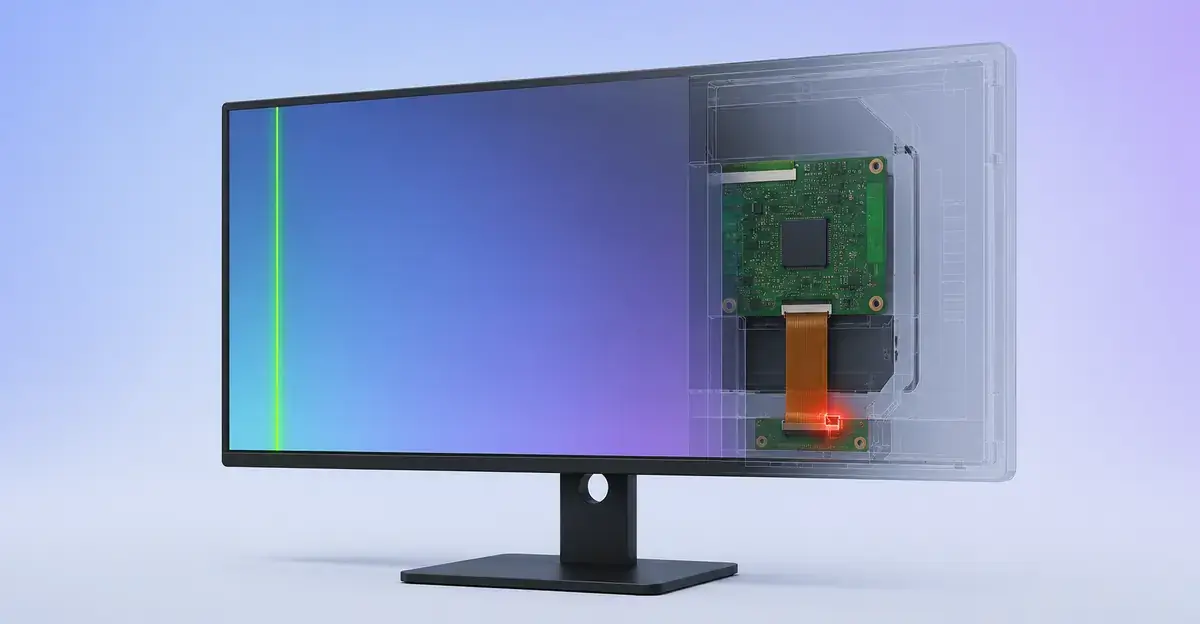
On Windows: Press Windows + Shift + S to take a screenshot, then view it in your photo app.
On Mac: Press Command + Shift + 3 to save a screenshot to your desktop.
Interpret results:
- Green line visible in screenshot → Software or GPU issue (driver problem or graphics card failing)
- Green line NOT in screenshot → Monitor hardware issue (cable, panel, or T-con board)
This one test narrows your troubleshooting to exactly half the possible causes.
Top 5 Causes of Green Lines on Monitors
Cause 1: Loose or Damaged Video Cable
How it happens: HDMI and DisplayPort cables carry digital video signals. When the connection loosens or the cable develops internal damage, the signal becomes corrupted, causing color artifacts like green lines.
Signs it's the cable:
- Line appeared after moving the monitor or computer
- Line flickers or changes when you touch the cable
- Line changes when you adjust the monitor's position
Fix:
- Turn off your computer and monitor
- Unplug the cable from both ends
- Inspect for bent pins or debris
- Reconnect firmly
- Try a different cable if the problem persists
Cause 2: Graphics Driver Problems
How it happens: The graphics driver translates software instructions into display signals. When it becomes corrupted, outdated, or incompatible, it can cause the GPU to misrender portions of the display.
Signs it's the driver:
- Line appeared after a Windows or driver update
- Line only appears after waking from sleep
- Line disappears in Safe Mode
Fix:
- Open Device Manager
- Expand Display adapters
- Right-click your graphics card → Update driver
- Or: Right-click → Uninstall device → Restart (Windows reinstalls automatically)
Cause 3: Dead or Stuck Pixels
How it happens: LCD panels contain millions of pixels, each with three sub-pixels (red, green, blue). When a row of green sub-pixels becomes permanently stuck "on," it displays as a green line.
Signs it's stuck pixels:
- Line is very thin (1-3 pixels wide)
- Line stays in exactly the same position
- Line is visible on all content including solid colors
Fix:
- Run an online pixel fixer tool for 10-20 minutes (sometimes unsticks pixels)
- If it doesn't work, the panel has physical damage requiring replacement
Cause 4: Graphics Card Problems
How it happens: A failing GPU can send corrupted color data to the monitor, manifesting as green lines, flickering, or random artifacts. This commonly occurs with aging cards, overheating, or cards with defective memory.
Signs it's the GPU:
- Line appears on multiple monitors
- Artifacts spread or change while using the computer
- Random crashes or blue screens accompany the issue
- Problem worsens during gaming or GPU-intensive tasks
Fix:
- Check GPU temperatures (overheating causes artifacts)
- Clean dust from the card and fans
- Reseat the graphics card firmly in its slot
- Update or roll back GPU drivers
- If problem persists, the GPU may be failing
Cause 5: Physical Monitor Damage
How it happens: Impact, pressure, or sustained stress on the monitor panel can damage internal circuits, causing permanent display defects including green lines.
Signs it's physical damage:
- Line appeared after dropping or hitting the monitor
- Line is thick and very prominent
- Line is accompanied by other defects (black spots, color distortion)
Fix: Unfortunately, physical damage is irreversible. Monitor replacement is typically the only solution.
Step-by-Step Troubleshooting Sequence
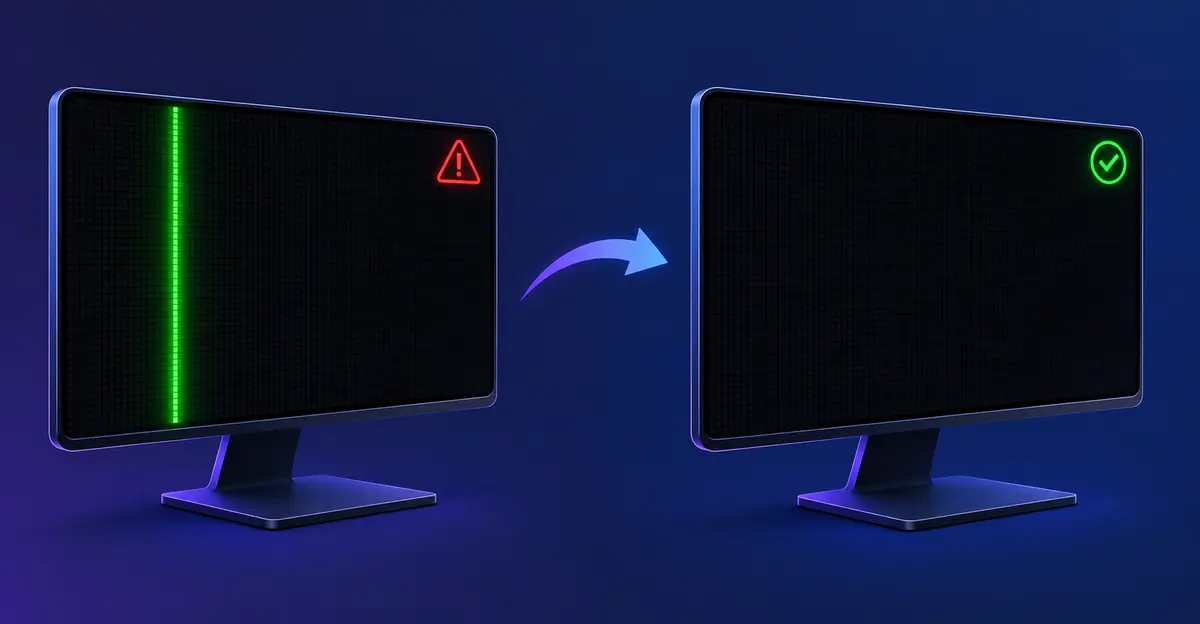
Follow these steps in order - each eliminates common causes before moving to more complex fixes.
Step 1: Reseat the Video Cable
- Power off computer and monitor
- Unplug the video cable from both ends
- Check for bent pins or debris in the connectors
- Reconnect firmly, ensuring a snug fit
- Try a different port if available (e.g., switch HDMI to DisplayPort)
- Power on and test
Step 2: Try a Different Cable
Cables fail more often than monitors. If reseating doesn't work:
- Use a different cable of the same type (HDMI-HDMI or DP-DP)
- Try a different cable type if available (HDMI vs. DisplayPort)
- Test the cable with another device to confirm it's working
Step 3: Test on a Different Device
- Connect the monitor to a different computer or laptop
- Use the same cable if possible
- If green lines persist → Monitor hardware issue
- If green lines disappear → Original computer's GPU or drivers
Step 4: Update Graphics Drivers
NVIDIA users:
- Visit nvidia.com/Download
- Select your GPU series and product
- Download and install the latest driver
AMD users:
- Visit amd.com/support
- Select your GPU product
- Download and install the latest driver
Intel users:
- Visit intel.com/content/www/us/en/support.html
- Search for your graphics product
- Download and install the latest driver
Step 5: Roll Back Recent Updates
If lines appeared after a driver update:
- Device Manager → Display adapters
- Right-click graphics card → Properties
- Driver tab → Roll Back Driver
- Follow prompts and restart
Step 6: Check Monitor's Internal Menu (OSD)
Access your monitor's on-screen display menu:
- Press the menu button on your monitor
- Navigate through the OSD while observing the screen
- If green line appears over the OSD menu → Internal hardware (T-con or panel)
- If line disappears under the OSD → Signal/cable issue
Step 7: Test in Safe Mode
Booting into Safe Mode loads only essential drivers:
- Press Windows key + I → System → Recovery
- Under Advanced startup, click Restart now
- After restart: Troubleshoot → Advanced options → Startup Settings → Restart
- Select Safe Mode with Networking
- If line disappears → Software/driver conflict
- If line persists → Hardware issue
When to Replace vs. Repair
Consider Replacement If:
- Monitor is over 5-7 years old
- Repair cost exceeds 50% of replacement cost
- Multiple issues are present (lines, flickering, color problems)
- The monitor was already repaired once
Repair May Be Worth It If:
- Monitor is relatively new
- Only one issue is present
- Repair cost is under $100
- You have a high-end or specialized monitor
Prevention Tips
Keep your monitor healthy:
- Don't bend cables sharply - route cables with gentle curves
- Use surge protectors - power surges can damage monitors
- Clean dust regularly - dust buildup affects cooling
- Avoid physical impacts - handle with care
- Use quality cables - cheap cables fail more often
Quick Reference Table
| Symptom | Most Likely Cause | Quick Fix |
|---|---|---|
| Line flickers when cable touched | Loose cable | Reseat cable |
| Line appeared after driver update | Driver issue | Roll back driver |
| Line visible on all content | Stuck pixel row | Pixel fixer tool |
| Line on multiple monitors | GPU problem | Check/replace GPU |
| Line thick and prominent | Panel damage | Replace monitor |
| Line only at one resolution | Resolution mismatch | Set native resolution |
Related Guides
- How to Fix Laptop Screen Lines - Lines on laptop vs. external monitor
- Screen Test Tool - Full diagnostic for all screen issues
- Monitor Color Problems - Other monitor display issues
- Display Troubleshooting - General monitor repair guide
Conclusion
Green lines on a monitor are usually caused by loose cables or driver problems - both quick and free fixes. Start with the screenshot test to identify your category, then work through the troubleshooting sequence. Most monitor green lines resolve without repair costs. Only persistent hardware issues require monitor replacement.