Monitor Privacy Screen: Size, Fit, and When to Buy
A monitor privacy screen fails in two ordinary ways. The sheet is the wrong shape, so a strip of the desktop stays readable from the next chair. Or the sheet is the right shape and the person standing behind you is still inside the viewing cone. Kensington’s size FAQ asks for the diagonal of the lit glass, bezel excluded, and for the aspect ratio, because a 24-inch 16:9 filter and a 24-inch 16:10 filter are different parts. This page covers that measurement, the mount that stays on a thin bezel, brightness and blue-light claims that do not match each other, curved panels, 3M against Kensington MagPro, and the desks where a built-in privacy mode makes the add-on the wrong purchase.
What a Monitor Privacy Screen Actually Blocks
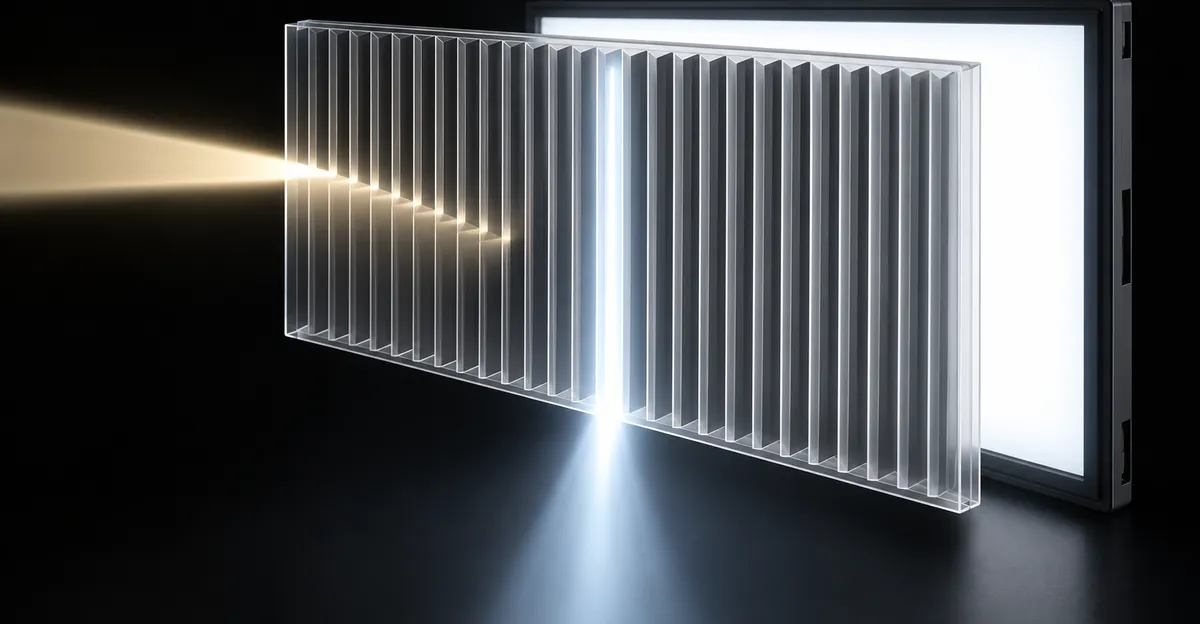
A monitor privacy screen is a plastic sheet, usually polycarbonate or acrylic, with a dense row of microscopic louvers. ViewSonic describes them as angled slats inside the film. Light from the panel gets through when you face the glass. Off to the side the slats intercept it, and the image goes dark or collapses toward a single muddy color. Kensington’s product FAQ puts the common cutoff beyond plus or minus 30 degrees from the center line. 3M’s High Clarity pages describe the same geometry as a 60-degree blackout, meaning the picture blacks out once you leave a 60-degree cone. Targus states its 4Vu curved sheet the same way, 30 degrees to either side of center. Those phrases are one specification written three ways. A listing that says 60 degrees is not twice as private as a listing that says plus or minus 30.
The cone is soft at the edge. ViewSonic notes there is no hard line between hidden and visible, so a shallow angle can still show part of a window, a name, or a number. Treat “black from the side” as the design target past that cutoff, not as a guarantee at 20 degrees.
The cone also explains cameras. A phone held out at the side, past the cutoff, records a dark panel. A phone held in front of the user, or a webcam aimed at the middle of the glass, sits inside the cone and records the same image the user sees. Someone standing directly behind your chair and looking over your shoulder is close to the center axis too. The neighbor one desk over is the person the louvers are built to stop. The person behind you is not. Visual hacking, in the Ponemon Institute experiment sponsored by 3M and summarized by Healthcare IT News in 2016, succeeded in 91 percent of 157 trials across 46 companies. Fifty-two percent of the sensitive material came from employee screens, almost half of the first successes took under 15 minutes, and staff failed to notice the attempt in 68 percent of cases. A filter narrows one path. It does not stop a photo taken from the chair you are sitting in.
Two-way filters, the kind Kensington labels on its 34-inch curved sheet, restrict left and right. A glance from above a cubicle wall is a different axis. If your leak is a standing visitor looking down, read the product for four-way or 360-degree coverage before you assume a standard side-only sheet handles it. Kensington’s privacy explainer distinguishes side-limiting filters from wider protection. Most desktop parts in the MagPro and 3M High Clarity lines are sold as the side-limiting kind.
If the panel is already dark when you sit square to it and the filter is off, the film is not the cause. A panel that blacks out on one half needs a different diagnosis, the same path as a half-black screen. A panel that stays black from the chair, filter removed, belongs with a screen that goes black.
What Size Privacy Screen a 24 or 27 Inch Monitor Needs
Diagonal inches are the start of the measurement, not the order. Kensington’s FAQ says to measure corner to corner on the lit area and to leave the plastic frame out, then to check 16:9, 16:10, or 4:3. The active area that follows from those two numbers is ordinary geometry. Width is the diagonal times the width part of the ratio, divided by the square root of the sum of the squares of both parts. Nobody needs to memorize that. The practical result is that two panels with the same diagonal and different ratios are different rectangles.
A 24-inch 16:9 panel has a lit area of about 20.9 by 11.8 inches. A 24-inch 16:10 panel is about 20.4 by 12.7 inches, narrower and taller. A 23.8-inch 16:9 panel, often marketed in the same “24-inch class,” is about 20.7 by 11.7 inches. A 27-inch 16:9 panel is about 23.5 by 13.2 inches. These figures are calculated from the stated diagonal and ratio. They are not a tape measurement of one brand’s bezel.
Kensington’s MagPro line splits those rectangles into separate part numbers. The literature list runs K58356WW for 23.8-inch 16:9, K58357WW for 24-inch 16:9, K58358WW for 24-inch 16:10, and K58359WW for 27-inch 16:9. Dell’s listing for K58359WW gives the filter itself as 26.90 inches wide and 17.30 inches high. That is larger than the 23.5 by 13.2 inch glass because the product size includes the magnetic border. Do not order by comparing that border size to a ruler on the outer plastic of the monitor.
3M splits the same way. HC240W9B is the High Clarity filter for a 24-inch 16:9 monitor. HC270W9B is the 27-inch 16:9 High Clarity part. The edge-to-edge magnetic line uses different numbers. PF240W9EM is 24-inch 16:9 with COMPLY magnetic attach. PF270W9EM is the 27-inch 16:9 magnetic part. PF240W1EM is the 24-inch 16:10 magnetic part. A High Clarity page and a COMPLY page are not interchangeable SKUs with the same mount.
| Panel you measured | Lit area, calculated | Kensington MagPro | 3M part to compare |
|---|---|---|---|
| 23.8 in, 16:9 | about 20.7 x 11.7 in | K58356WW | 23.8 in 16:9 filter, not the 24 in part |
| 24 in, 16:9 | about 20.9 x 11.8 in | K58357WW | HC240W9B or PF240W9EM |
| 24 in, 16:10 | about 20.4 x 12.7 in | K58358WW | PF240W1EM |
| 27 in, 16:9 | about 23.5 x 13.2 in | K58359WW | HC270W9B or PF270W9EM |
Buying the 16:9 sheet for a 16:10 panel leaves a bright band at the top or bottom, and that band is readable from the side because it has no louvers over it. The sheet can also overhang the sides and catch the joystick or the power button on a thin bezel. The reverse mistake, a 16:10 sheet on a 16:9 panel, covers the glass vertically and falls short at the left and right edges. Those edges are exactly where a neighbor looks.
The 23.8 versus 24 gap is smaller, about two tenths of an inch in width, and it still matters for an edge-to-edge adhesive sheet. A magnetic frame can hide a sliver. An adhesive film that stops short leaves a luminous strip. Read the on-screen information menu or the manual for the true diagonal and the ratio before you match a part number. “About 24 inches” on a product title is how the wrong sheet gets ordered.
Ultrawide 21:9 panels are another rectangle. Kensington says its largest listed monitor filters go to 34 inches, and that an ultrawide only matches when the filter dimensions match the glass. A 34-inch 21:9 lit area calculates to roughly 31.3 by 13.4 inches before any curve is added. A 27-inch MagPro will not stretch to cover it.
Adhesive, Magnetic, or Clip: What Keeps the Filter On
The mount decides whether you can take the filter off for a meeting. Kensington’s FAQ lists four attachments. Tabs click on and off. Adhesive strips are the semi-permanent option. Magnetic strips let the sheet come off without tools. Magnetic direct-attach is built into some laptop bezels and snaps on with no extra hardware. The laptop guide’s own comparison is blunt. Magnetic sheets are reusable and suit a desk that switches between private work and a shared look. Adhesive sheets are meant to stay, and Kensington marks them not reusable.
ViewSonic sorts the same choice by how often you collaborate. Hangers come off when a second person needs the panel. Stick-on tabs stay on the monitor while the filter itself can still lift out. Permanent adhesive behaves like a phone screen protector. It is the right call only when the panel should stay private every hour it is on.
3M’s COMPLY line is the magnetic answer aimed at that on-and-off habit. The PF270W9EM page describes ultra-strong magnets that click the edge-to-edge sheet onto the display and come off again for screen sharing. MagPro is Kensington’s equivalent pitch for slim and edge-to-edge bezels. The strip is the product. A plastic bezel does not hold a magnet by itself. The kit has to include strips that stick to the frame, and those strips need enough flat frame to land on. If the bezel is a knife edge, the strip has nowhere to sit, and the sheet will not stay. Forcing it with household glue on the glass is how you stain the coating and still fail to get a flat louver plane. If residue is already on the glass, clean the monitor before any strip goes down. Press the frame and the tabs, not the middle of the panel. A hard push in the center is how pressure marks start, and a privacy film will not hide them once you notice the bruise under the louvers.
Installation order is the same across the adhesive guides. Power the panel off so dust shows. Wipe with a dry microfiber cloth. Kensington’s cleaning note for the filter itself is a lightly damp microfiber cloth or a screen-safe cleaner, with no abrasive and no strong chemicals. Align the sheet to the lit area, not to the outer plastic. Seat it from one edge so you can see a gap before the last tab sticks. A bubble at a corner is a leak. Side light escapes through any lift, and dust under the film becomes a permanent shadow.
Touchscreens need a sheet that sits on the glass and is labeled for touch. Kensington says to look for the touchscreen-friendly mark. A clip or hanger that holds the film off the panel will not pass a finger press. Do not assume every MagPro part is a touch part. The line is sold for monitors first.
Take the filter off when two people must read the same screen, when you are grading color, or when you are in a room with a door. Leaving a louver sheet on for a design review makes everyone stand in a queue at the center line. That is the adhesive tradeoff Kensington calls out. If you share the panel several times a day, buy the magnetic part so removal is a pull, not a peel.
Brightness, Glare, Blue Light, and Eye Strain
The louvers that block the side also throw away some of the light aimed at you. Kensington’s FAQ says a privacy screen can slightly reduce brightness and can change color accuracy, and that raising the display brightness offsets the dimming. The laptop guide adds the practical consequence. The loss shows up more in a dim room and on dark content, and on a laptop the higher brightness setting costs battery. “Slightly” is the maker’s word. It is not a measured nit drop for every SKU.
One product in this set does publish a transmittance. StarTech’s 34C29 filter for the Dell P3424WE curved monitor lists 65 percent light transmittance. About a third of the light does not reach the front viewer on that sheet. Do not paste 65 percent onto a MagPro or a 3M High Clarity filter. Those pages do not state it. 3M’s separate Bright Screen family, a different line from HC240W9B and HC270W9B, lists 85 percent transmission and says it is on average 25 percent brighter than other black privacy filters. That comparison is useful only as a warning. Standard black privacy films are dimmer than 3M’s own bright line, and the 85 percent figure belongs to Bright Screen, not to the High Clarity parts most 24- and 27-inch buyers are comparing.
Glare is a coating, not the louver. MagPro and the StarTech curved sheet are reversible. One face is matte to cut reflections and fingerprints. The other is glossy and keeps more of the panel’s contrast. Kensington tells you to flip the matte side out when the room is bright. Use the glossy side when you care more about a clear image and the room is already controlled. REEDEE’s glare-versus-privacy split matches that physics. A glare filter diffuses reflected room light and keeps a wide viewing angle, with only a small brightness cost from the matte surface. A privacy filter darkens the front view because the louvers limit angle. You can have a matte privacy sheet. You do not get privacy from a glare sheet.
Blue-light numbers are where the listings fall apart, even inside one brand.
| Where the percent is printed | What it claims |
|---|---|
| Dell listing for MagPro K58359WW and for K58357WW | Blue light reduced by up to 22 percent |
| Kensington MagPro literature PDF | Up to 22 percent in the intro, up to 30 percent in a bullet on the same family |
| Kensington AU MagPro page, and the 34-inch curved filter page | Up to 52 percent |
| Kensington laptop privacy guide | Up to 30 percent, stated for laptop filters |
| StarTech 34C29 datasheet | 40 to 51 percent of blue light from 380 to 480 nm, plus the 65 percent transmittance |
| Targus 4Vu 34-inch curved | Nearly 40 percent blue light, and a separate claim of up to 12.4 percent more brightness than competing privacy screens |
| 3M HC240W9B and HC270W9B | “Helps reduce blue light,” no percent on the product page |
A 22 percent claim and a 52 percent claim for the same MagPro idea cannot both be the number you shop on. Targus’s 12.4 percent is a comparison with unnamed competitors, not your monitor’s remaining nits. 3M High Clarity instead says the filter has nearly 20 percent more clarity than 3M’s own standard black privacy filters. That is a relative clarity claim against another 3M film, not a transmittance, and not a blue-light percent. None of these sentences prove the filter rests your eyes.
Eye comfort splits in two. The matte face can reduce glare from a window, which is the part that actually helps a bright office. The louver dim pushes the brightness control up, which is the part that works against a dark room and against a panel already near its limit. If the job is long hours and nobody can see the screen, an anti-glare filter matches the complaint better and keeps the viewing angle. If the job is keeping the next desk from reading account numbers, accept the dim, raise brightness, and pick the matte face when the ceiling lights are the second problem. Do not buy the privacy sheet as a blue-light device. The percent on the box is not stable enough to be the reason.
Privacy Screen vs Anti-Glare Filter vs a Screen Protector
Kensington’s comparison table and ViewSonic’s explainer land on the same buying test. A privacy screen’s job is to limit who can see the pixels. An anti-glare filter’s job is to scatter reflections. Anti-glare keeps the wide angle. Privacy costs more because of the louvers, and it is the wrong premium when the only complaint is a window behind you. ViewSonic adds the price warning in plain language. If anti-glare is enough, skip the privacy premium. If privacy is the goal, confirm the sheet actually specifies a narrow angle, such as the 60-degree cone on ViewSonic’s own VSPF series, and do not stop at the word “filter.”
A plain screen protector does neither privacy job. Clear film and tempered glass stop scratches. They do not add louvers, so the person beside you still reads the panel. Marketing that says “privacy screen protector” on a phone-sized sheet is a different product with a different diagonal. It will not cover a 24- or 27-inch monitor, and cutting a large filter down to force a fit is a last resort ViewSonic discourages. The sizes already exist, a cut can void the warranty, and slicing the louver layer can wreck the image. Measure, then buy the part number.
Scratch protection is a side effect, not a reason to choose. Kensington lists scratch and dust protection among the benefits, and StarTech’s matte face adds a fingerprint-resistant coat. That is real, and it is still cheaper to solve with care and a cloth if privacy is not the problem. The filter also needs its own cleaning. Abrasives and strong chemicals damage the surface, which is the same rule as cleaning the panel underneath. When you remove the sheet, clean both faces and the glass before you store the filter. A dirty louver looks like a failing panel.
Do Privacy Screens Work on Curved Monitors
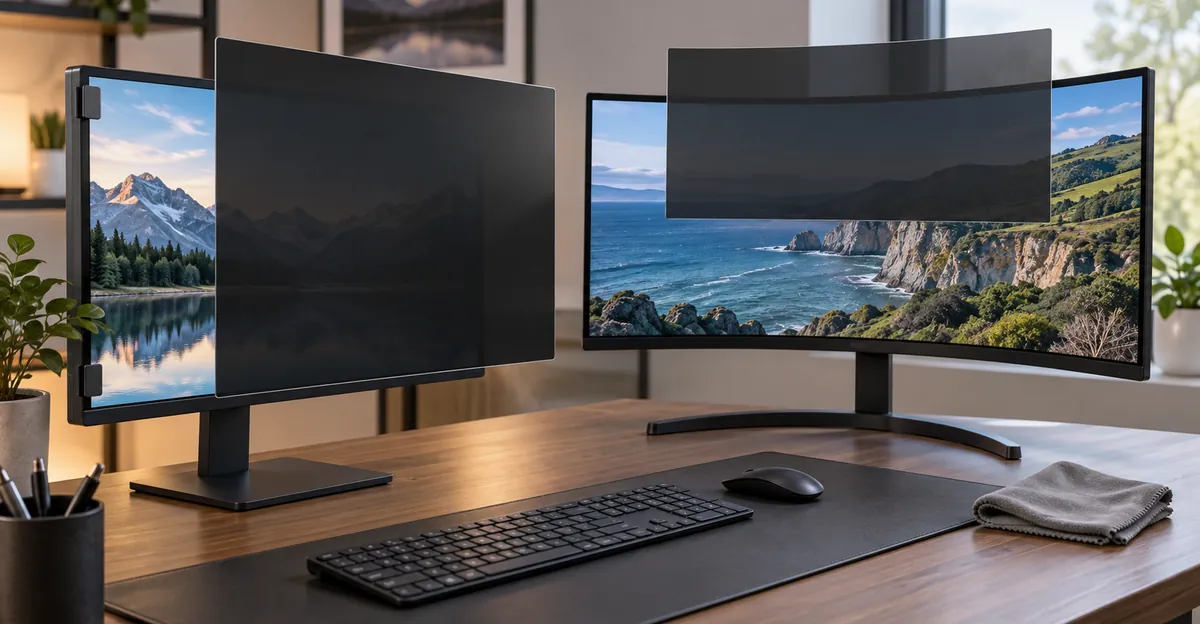
They work when the sheet was built for that curve. Kensington’s FAQ is direct. Only a privacy screen designed for curved monitors fits. A curved panel needs a wider sheet because the arc is longer than the straight width of a flat panel with the same diagonal. Flat-panel filters are often too short to cover the whole active area. Kensington’s current curved offer in that FAQ is a filter for the Dell 34-inch P3424WE.
Other 34-inch 21:9 curved sheets exist, and they are still not a universal curve. Targus 4Vu, model AST082GLZ, is specified for 34-inch curved monitors at 21:9, with a 30-degree limit to either side, reusable silicone adhesive strips, and dimensions of about 32.07 by 13.54 inches. The page listed it at $224.99. StarTech 34C29 is narrower in intent. It is custom for the Dell P3424WE, 21:9, about 32 by 13.5 inches, adhesive strips plus optional slide tabs, plus or minus 30 degrees, 65 percent transmittance, and a stated blue-light cut of 40 to 51 percent between 380 and 480 nm. Kensington’s own 34-inch 21:9 curved filter uses double-sided tape or tabs, is reversible, and carries the “up to 52 percent” blue-light line. The MagPro brochure also lists K52503WW as a 34-inch 21:9 magnetic part without calling that SKU curved. A flat 34-inch ultrawide and a curved 34-inch ultrawide can share a diagonal and still need different sheets.
A 27-inch curved gaming monitor, whatever its radius, is not those products. The aspect is usually 16:9, the arc is tighter or looser than a 34-inch 21:9 office panel, and a flat K58359WW was cut for a flat 27-inch rectangle. Bending it on follows the failure Kensington already described. The sheet comes up short, the corners lift, and the lift is both a viewing leak and a dust pocket. Wrinkles also break the louver direction, so the blackout becomes patchy. If the product page does not say curved, and does not name a size and ratio that match the panel in front of you, leave the flat sheet in the catalog.
3M vs Kensington MagPro for a Desktop Monitor
Shop the rectangle and the mount first. Brand is the third question, and only after the part numbers above match the panel.
3M High Clarity, HC240W9B and HC270W9B, leads with image quality. Both pages promise a 60-degree blackout, nearly 20 percent more clarity than 3M’s standard black privacy filters, blue-light reduction without a published percent, and a glossy, high-contrast look. They are made in the USA and described as TAA compliant. The pages do not sell COMPLY magnets as the feature. If you need the sheet off for a standup, you are on the other 3M line.
3M COMPLY magnetic, PF240W9EM, PF270W9EM, and the 16:10 PF240W1EM, is built to cover edge to edge and to click off. The PF270W9EM description centers on that. Full-screen coverage so you are not hunting an alignment gap, magnets strong enough for repeated sharing, the same 60-degree blackout, and blue-light reduction stated without a number. This is the 3M part that competes with MagPro on attachment, not the High Clarity part.
Kensington MagPro K58357WW (24-inch 16:9) and K58359WW (27-inch 16:9), plus K58358WW for 24-inch 16:10, use a slim magnetic strip aimed at thin bezels. The viewing limit is plus or minus 30 degrees, the same cone as 3M’s 60-degree wording. The sheet flips between matte and glossy. Dell listed K58359WW at $110.99 with a two-year warranty, anti-glare, and the 22 percent blue-light sentence. Kensington’s own pages, as the table above shows, have also printed 30 percent and 52 percent for MagPro-family filters. Buy MagPro for the reversible faces and the thin-bezel magnet. Do not buy it because one brochure’s blue-light percent beat another brand’s silence.
A practical pick looks like this. Fixed desk, glossy panel, privacy on all day, and you like a clearer front image. Start with 3M High Clarity in the matching diagonal and ratio. Desk that shares the screen several times a day, or a nearly frameless monitor. Start with PF270W9EM or PF240W9EM, or with MagPro if you want the matte face available without buying a second sheet. Color-critical work. Skip both, or mount a magnetic sheet you will remove before you judge color. Kensington already says the filter can shift color accuracy. A privacy film is a bad permanent layer on a grading display.
Warranty and origin differ and rarely decide the fit. 3M highlights USA manufacture and hand inspection on the High Clarity pages. MagPro’s Dell listing says Taiwan and a two-year limited warranty. Neither fact corrects a 16:9 sheet on a 16:10 panel.
When a Built-In Privacy Mode Is Enough
Some notebooks already contain the louver idea, and a clip-on sheet duplicates it. HP Sure View is not software you install on a monitor you already own. HP’s 2016 announcement and the Sure View whitepaper describe a privacy option built into specific EliteBooks. Press Fn+F2 and the panel switches. The stack is a 3M light-control film plus a proprietary backlight and system logic. In privacy mode the backlight aims light through the film toward the center. HP states that this cuts up to 95 percent of visible light when the screen is viewed at an angle. Turn the mode off and a second lighting path opens the wide angle again so a colleague can look. Later Sure View Reflect, using RealD’s reflective privacy, is a different generation. RealD’s 2020 announcement says that mode blocks 99.7 percent of light at 45 degrees or greater and is designed so the person in front keeps color, contrast, and brightness. That claim belongs to Reflect-equipped notebooks, not to a film you stick on a desktop.
AMD Privacy View is the actual software product in this comparison. It is an Adrenalin feature, powered by eye tracking, that spotlights the region you are looking at and blurs or dims the rest. AMD says it runs on Ryzen 5000 processors with integrated graphics and newer, and on Radeon RX 6000 graphics and newer, under Windows 10 or 11. It does not run on OEM systems from HP, Dell, or Lenovo. It can span up to three monitors. Read that limit against an open office. The neighbor sees blur only in the regions you are not looking at. The paragraph you are reading stays lit, and that is the paragraph they wanted. Gaze dimming is a different tool from a louver that blacks the whole panel out past 30 degrees no matter where your eyes are.
Use the built-in mode when you already have Sure View or Sure View Reflect and you can turn it off for a meeting without peeling plastic. Use AMD Privacy View only on a supported non-OEM desktop or mini PC, and only when hiding the parts of the screen you are not watching is enough. Buy a physical monitor privacy screen when the display is a desktop panel with no privacy backlight, when the laptop is an OEM machine AMD will not support, or when the whole image must go dark from the side even in the region you are staring at. A hotkey can be left off. A louver sheet cannot forget to enable itself.
The filter is also the wrong first step when the room can be changed. ViewSonic’s list before any product is still the cheap layer. Turn the panel away from the aisle. Sleep it when you leave. Put paper with the same data off the desk, because a louver does nothing for a printout. Partitions beat film when the floor plan is the leak. A private office with a door does not need MagPro or a 3M sheet. Kensington’s own disadvantage list says the same thing. Data protection is high, and it is unused in a room where nobody else can stand.
Conclusion
Match the lit diagonal and the aspect ratio before you compare brands. A 24-inch 16:9 monitor takes a different sheet from a 24-inch 16:10 monitor, and a 23.8-inch panel is its own part. Pick magnetic attach when the sheet must come off, adhesive when it should stay, and a curved-specific 34-inch sheet only when the panel is actually that curve. Expect a dimmer front image, treat blue-light percentages as unstable marketing, and use the matte face for glare rather than buying the filter as eye care. A camera in front of you still sees the screen. So does a colleague looking over your shoulder along the center line.
If a dark patch remains after the filter comes off, stop shopping for another sheet and test the panel. The screen test runs solid fields in the browser so you can see whether the corner was the film sitting crooked or the display itself.
Sources used for the figures above.
- Kensington privacy-screen FAQ and size rules: https://www.kensington.com/c/products/data-protection/privacy-screens/
- Kensington on magnetic versus adhesive, brightness, and blue light: https://www.kensington.com/news/security-blog/laptop-privacy-screens/
- Dell listing for MagPro K58359WW, including the 22 percent blue-light line and the 26.90 by 17.30 inch product size: https://www.dell.com/en-us/shop/security-locks-privacy/apd/kensington-magpro-270-monitor-privacy-screen-with-magnetic-strip-black/nn9n76/k58359ww
- 3M High Clarity 24-inch and 27-inch pages, and COMPLY magnetic PF270W9EM: https://www.3m.com/3M/en_US/p/d/v000583283/ and https://www.3m.com/3M/en_US/p/d/v000580773/ and https://www.3m.com/3M/en_US/p/d/v101315400/
- ViewSonic on visual hacking, soft cutoffs, and anti-glare versus privacy: https://www.viewsonic.com/library/tech/screen-privacy-how-to-protect-yourself-from-visual-hacking/
- REEDEE glare filter versus privacy filter: https://reedee.com/glare-filter-vs-privacy-filter-guide/
- Targus 4Vu 34-inch curved: https://us.targus.com/products/4vu-privacy-screen-for-34-inch-curved-monitors-ast082glz
- StarTech 34C29 transmittance and blue-light band: https://media.startech.com/cms/pdfs/34c29-privacy-screen_datasheet.pdf
- Ponemon and 3M visual-hacking results as reported by Healthcare IT News: https://www.healthcareitnews.com/news/visual-hacking-bigger-threat-security-professionals-might-think
- HP Sure View: https://www.hp.com/us-en/newsroom/press-releases/2016/hp-introduces-worlds-only-notebooks-with-integrated-privacy-scre.html
- AMD Privacy View requirements: https://www.amd.com/en/products/software/adrenalin/amd-privacy-view.html