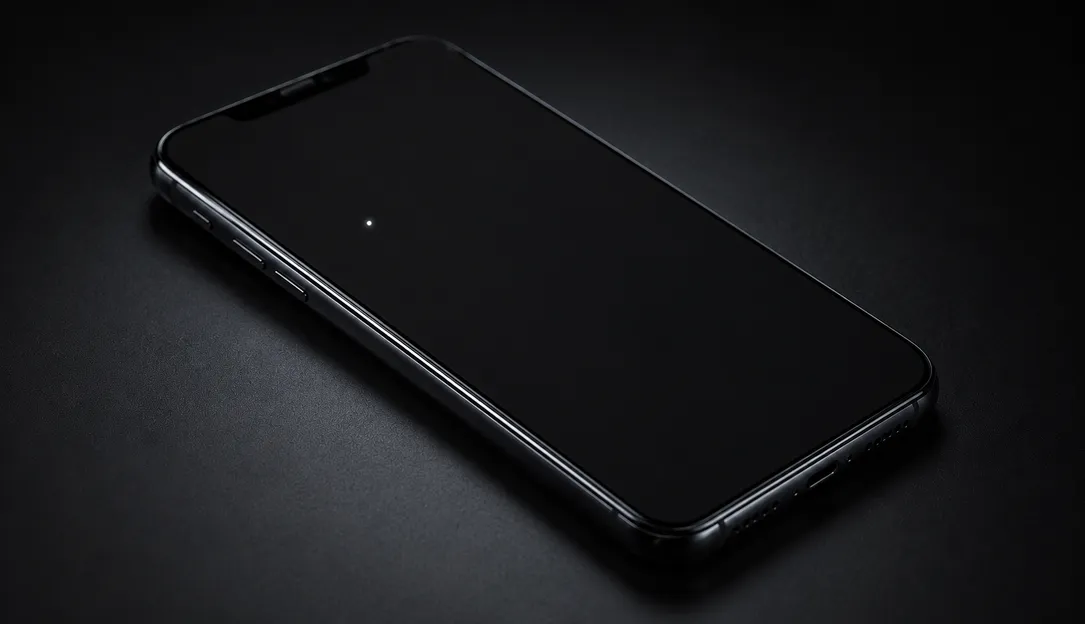
White spots on a mobile screen are bright areas that glow more intensely than surrounding pixels. They can affect both LCD and OLED phone displays. This guide covers the causes, diagnosis, and practical advice for dealing with white spots on phones and tablets.
White Spots on Mobile Screen: Why They Appear and What to Do
What Are White Spots on Mobile Screens
White spots are display defects where a specific area of the screen emits excess light compared to the rest of the display. Unlike dead pixels, which produce no light, white spots actively glow brighter. Unlike bright spots that can be yellow or off-white, white spots specifically display pure white or near-white brightness.
White spots range in size from barely perceptible pinpoints to large patches that cover significant portions of the screen. They are most visible on dark backgrounds and may be nearly invisible on bright screens. Some appear only when the screen is heated up after several minutes of use; others are visible from the moment you unlock the phone.
The underlying cause determines whether a white spot is fixable, whether it will spread, and what repair options are available. Understanding the difference between a backlight issue, a pressure mark, a stuck pixel, and a delamination defect is the first step toward choosing the right fix. The diagnostic section later in this guide walks you through identifying which category your spot falls into.
White spots are sometimes confused with several related but distinct display defects. A stuck pixel is a single subpixel that is permanently lit, often appearing as a tiny red, green, or blue dot rather than a true white spot. A bright spot is similar in appearance but tends to be more yellow or off-white, often caused by localized OLED degradation rather than pressure damage. A backlight bleed is a wider, diffuse bright region usually near the edges of an LCD panel, caused by the backlight escaping around the bezel — this is technically a different defect but can produce a similar visual result to a white spot in the corner region. A pressure mark is the specific term used by the repair community for white spots caused by localized force on the display, and it is the most common type of white spot seen on modern smartphones.
Most Common Causes of White Spots on Mobile Screens
Physical Pressure Damage
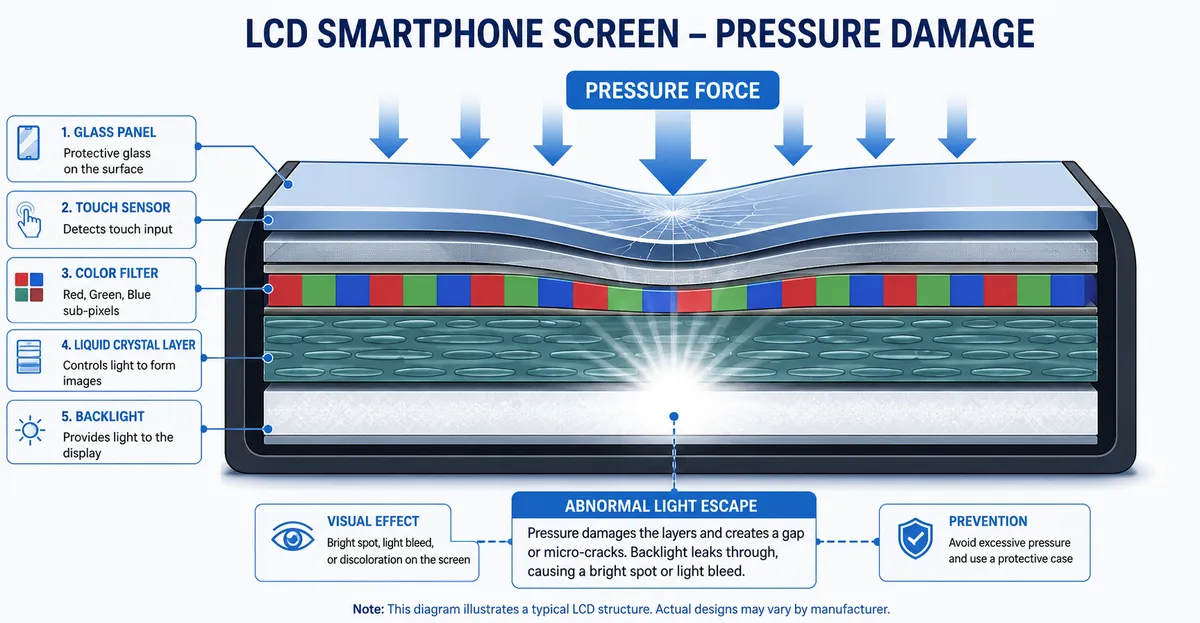
Physical pressure is the leading cause of white spots on phone screens. When force is applied to the display — from dropping the phone, sitting on it, or pressing on the screen — the internal display layers compress and damage in that specific area.
Pressure damage commonly occurs when:
- The phone is placed in a back pocket and the user sits down
- A heavy object presses against the phone inside a bag
- The phone is dropped onto a hard surface
- Force is applied to the screen during use or cleaning
- The phone is accidentally stepped on or squeezed
- The phone is carried in a tight waistband or athletic band
The pressure damages the backlight diffuser layer on LCD screens or the pixel circuitry on OLED screens, causing that area to display abnormally bright. Pressure damage is permanent and cannot be repaired without replacing the display. Repair communities such as iFixit and Reddit consistently report that pressure marks are the single most documented cause of localized bright spots on modern smartphones.
The visible shape of a pressure mark often reveals how the force was applied. A small circular spot usually indicates a pointed impact such as a drop onto a corner or a press from a single key or coin. An elongated streak or oval typically suggests sustained pressure along an edge, such as sitting on the phone in a back pocket. A cloud-shaped soft patch usually means the display was compressed against a flat surface for several minutes. Recognizing the shape can help confirm the cause and rule out other possibilities like backlight failure or OLED pixel issues, which tend to produce more uniform geometric bright regions.
Backlight Issues on LCD Screens
Most smartphone screens use LCD technology with LED backlights. The backlight sits behind the display panel and illuminates all pixels uniformly. When a backlight component fails or degrades, light can concentrate in one area, creating a visible white spot.
Backlight causes include:
- LED failure: A single failing LED in the backlight array creates a brighter spot in its area
- Light guide damage: The light guide plate distributes light across the screen; damage causes uneven distribution
- Reflective layer damage: Impact or pressure can damage the reflective backing, causing light to concentrate abnormally
- Adhesive failure: The layers holding the backlight assembly together can separate, creating bright spots
- Brightness sensor interference: On some phones, the ambient light sensor sits behind the display; a faulty sensor can cause local brightness anomalies
Backlight-related white spots glow more intensely at higher brightness settings and are most visible against dark backgrounds. They tend to grow slowly over weeks or months as the underlying backlight component continues to degrade.
Manufacturing Defects
Some white spots are factory defects in the display panel. These may be caused by:
- Dust trapped between display layers during manufacturing
- Uneven adhesive application creating light-scattering differences
- Subpixel driver circuits that are slightly over-driven
- Layer delamination that was not detected during quality control
- Misaligned polarizer film causing localized brightness shifts
- Contamination in the LCD fluid or OLED organic layer
Manufacturing defects typically appear in specific areas (often the corners or edges) and may only be visible under certain conditions. If discovered within the warranty period, manufacturer repair or replacement is typically free. Apple, Samsung, and Google all maintain separate warranty pathways for display defects that manifest within the first 12 months of ownership, although exact terms vary by region.
Moisture and Liquid Damage
Water or other liquids reaching the display layers can damage the internal components in ways that create white spots. As moisture evaporates, minerals left behind can create localized areas of altered light transmission.
Liquid damage white spots may:
- Spread over days or weeks as moisture affects more of the display
- Appear alongside other issues (flickering, color distortion, touch problems)
- Change in visibility as the phone dries out
- Be accompanied by visible corrosion around ports or openings
- Show a faint rainbow pattern at the edges as light refracts through residual moisture
- Trigger persistent touch sensitivity in the affected area even after the visible water dries
Even brief exposure to steam from a hot shower, sweat from exercise, or condensation from moving between temperature extremes can introduce enough moisture to cause localized bright spots over time.
Modern phones carry an IP67 or IP68 water resistance rating, but this rating applies to fresh water under specific test conditions. Salt water, chlorinated pool water, soapy water, and hot steam all degrade the water-resistant seals faster than the rating suggests. Once a microscopic gap forms in the adhesive seal around the display, repeated exposure can carry moisture deeper into the backlight and polarizer layers, where it leaves mineral deposits that permanently scatter light. This is why phones that survive a single dunk may still develop white spots months later after repeated low-level exposure.
OLED Pixel Issues
On OLED screens (used in many premium smartphones), white spots can result from pixel-level issues:
- Individual pixel malfunction: Certain OLED pixels can fail to dim properly, appearing brighter than neighbors
- Image retention: Static images displayed for extended periods can cause uneven pixel wear, creating bright spots where content was displayed
- Voltage driver issues: The circuits controlling pixel brightness in one area can malfunction
- Burn-in progression: Long-term uneven pixel wear leaves some subpixels dimmer than others, making surviving subpixels appear abnormally bright
- Organic layer degradation: The organic compounds that emit light can degrade unevenly, producing localized bright patches
OLED-related white spots tend to be smaller and more pinpoint-like than LCD white spots. They are also more likely to appear in regions that display bright UI elements frequently — the status bar, navigation buttons, and notification area.
How to Diagnose White Spots on Mobile Screens
Step 1: Identify When It Appeared
Think carefully about when you first noticed the white spot:
- Immediately after a drop or impact event — physical damage
- Gradually over weeks of use — backlight aging or manufacturing defect
- After liquid exposure — moisture damage
- Since you first got the phone — manufacturing defect (check warranty)
- After a software update — possible OLED driver or firmware issue
- After the phone overheated — thermal damage to backlight or OLED layer
Step 2: Test With Full-Screen Colors
Use the Screen Test Tool to display solid white, gray, and black backgrounds:
- Black background: Backlight spots glow brightly; panel spots appear as lighter patches
- White background: Spots may be less visible
- Gray background: Often the most revealing — mid-tones show both types of spots clearly
- Color backgrounds: Note whether the spot changes color or stays white
- Dark gray gradient: Reveals subtle backlight inconsistencies that pure black can mask
Step 3: Brightness Test
Adjust the screen brightness to maximum and minimum:
- If the spot becomes much more visible at high brightness: backlight issue
- If the spot stays at the same relative visibility: panel issue
- If the spot changes in intensity when you press gently on the screen: cable or backlight component loose
- If the spot only appears above a certain brightness threshold: LED degradation rather than full LED failure
- If the spot fades after the screen has been on for 5-10 minutes: thermal expansion is masking the defect, often a sign of delamination
Step 4: Check for Other Symptoms
Examine whether the phone has additional issues alongside the white spot:
- Does touch responsiveness work normally in the spotted area?
- Are there any visible cracks in the glass?
- Is the spot growing over time?
- Are there other display artifacts (lines, color changes)?
- Does the phone get unusually warm in the spotted region?
- Does the spot appear in the exact same place after restarting or only after extended use?
Multiple symptoms indicate more widespread damage. A single isolated spot without other symptoms is the most repair-friendly case.
For an even more rigorous diagnosis, document the spot with a photograph under controlled lighting. Set the phone to display a pure black image, dim the room, set the camera to manual exposure, and capture a photo directly perpendicular to the screen. The resulting image preserves the size, location, and intensity of the spot for comparison after any attempted fix. This documentation is also useful evidence if you decide to file a warranty claim or insurance report later.
How to Fix White Spots on Mobile Screens
Fix 1: Software Troubleshooting
Before assuming hardware damage, rule out software causes:
- Restart the phone: Some temporary display glitches resolve after a restart
- Safe Mode (Android): Boot into Safe Mode to rule out app conflicts
- Update software: Install the latest OS update
- Factory reset: As a last resort, back up data and factory reset to rule out software entirely
- Disable accessibility color filters: Some Android color correction features can mimic the appearance of bright spots
- Clear the system cache partition: On Android, a corrupted cache can cause display anomalies that resemble hardware defects
Fix 2: Dry Out Liquid Damage
If moisture is suspected:
- Power off the phone immediately
- Do not charge the phone
- Place in a sealed bag with silica gel packets for 24-48 hours
- Power on and test
- If spots persist after thorough drying, the damage is permanent
- Avoid the common myth of putting the phone in rice — silica gel is more effective and rice dust can enter ports
- Do not apply external heat (hair dryers, ovens) which can warp adhesives and worsen delamination
Fix 3: Professional Repair Assessment
Visit a repair shop for a proper diagnosis. Ask specifically:
- Is this a panel issue or backlight issue?
- Can the backlight be repaired separately from the panel?
- What is the exact part needed for replacement?
- Does the shop use OEM-grade replacement panels or aftermarket parts?
- What is the warranty on the repair itself?
Professional diagnosis costs $0-30 at most shops. Reputable independent shops often provide this assessment free if you proceed with the repair. Authorized service centers may charge a flat diagnostic fee that is waived if you authorize the repair.
Fix 4: Screen Replacement
For permanent physical damage:
- iPhone: Apple Store or Apple Authorized Service Provider — $100-350 depending on model; third-party — $40-150
- Samsung Galaxy: Samsung Service Center — $100-300; third-party — $40-200
- Google Pixel: Google Store repair — $100-250; third-party — $40-180
- Other Android brands: Third-party — $30-150
- iPad tablets: Apple Authorized Service — $200-500; third-party — $100-300
These ranges reflect 2026 market pricing gathered from authorized service centers and independent repair shops. Pricing varies by region, model, and whether the replacement panel is OEM or aftermarket. Always request a written quote before authorizing work.
If the phone is older than three years and the quoted screen replacement cost exceeds 60% of the phone's current resale value, replacing the phone is usually the more economical choice. Use this rule of thumb as a quick decision aid before committing to a repair. For older devices, the repair cost plus the risk of an aftermarket panel failing within six months often outweighs the benefit of restoring a phone that will be replaced anyway within a year or two.
When to Seek Manufacturer Warranty Repair
Manufacturer warranty repair is worth pursuing when the phone is less than 12 months old, the spot appeared without any drop or liquid exposure, the device was purchased directly from the manufacturer or an authorized retailer, and you have proof of purchase. Apple's standard one-year warranty covers manufacturing defects but explicitly excludes accidental damage. Samsung and Google offer similar terms. In some regions, consumer protection laws extend coverage beyond the manufacturer's stated warranty for defects that manifest early in the product's life.
Before visiting an authorized service center, back up the phone, disable Find My iPhone / Factory Reset Protection, and remove your SIM and any memory cards. The technician will typically run diagnostics, confirm the defect, and either repair or replace the device. Repairs under warranty are usually free; out-of-warranty accidental damage is not.
If the warranty claim is denied and you believe the defect is covered under consumer protection law in your region, you can escalate to the manufacturer executive customer relations team, file a complaint with your national consumer protection agency, or pursue the matter through small claims court. Documentation is the key — keep the original receipt, photographs of the spot, and a written record of every contact with the manufacturer.
When Hardware Repair Is Needed
Seek professional repair when the spot appeared after physical impact or liquid exposure, the spot is large and in your primary viewing area, the spot is spreading or worsening over time, the phone is under warranty and the spot is a defect, or touch functionality is affected in the spotted area.
Prevention Tips for Mobile Screen Health
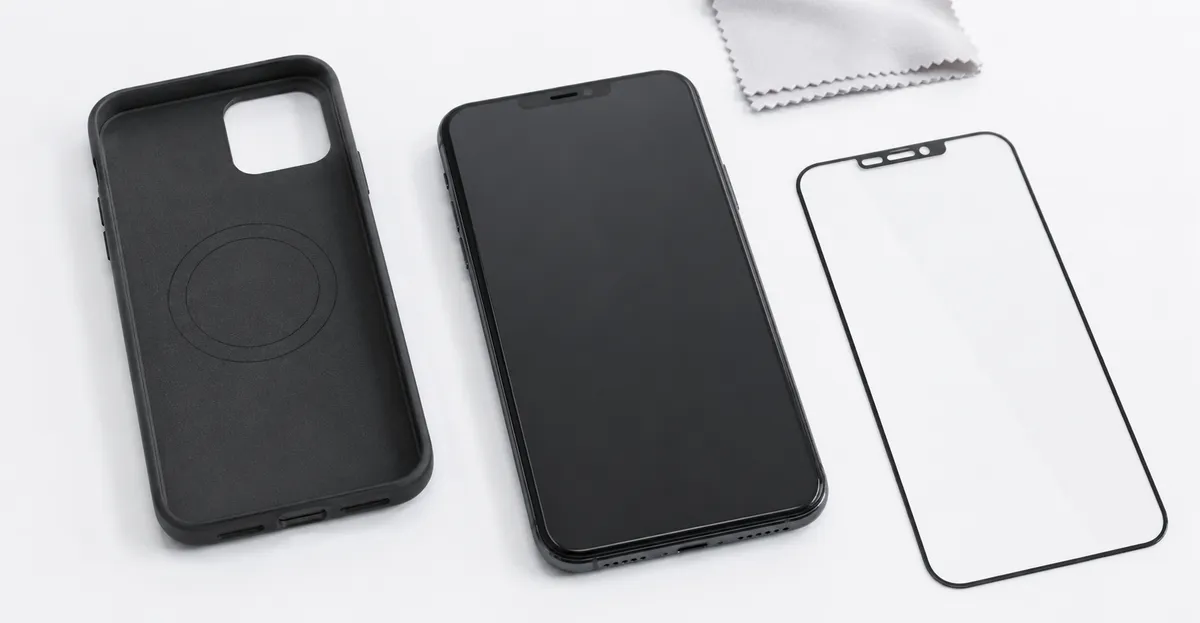
- Use a protective case with shock absorption and raised edges
- Apply a tempered glass screen protector
- Never put your phone in a back pocket
- Remove keys and coins from pockets before putting your phone in
- Avoid placing heavy objects on top of your phone
- Keep phones away from sinks, pools, and wet environments
- Handle with care during physical activities
- Avoid leaving the phone in direct sunlight or hot cars, which accelerate backlight and OLED degradation
- Use auto-brightness to reduce constant full-brightness backlight stress
- Replace the screen protector every 12-18 months; worn protectors can trap debris that creates pressure points
Related Guides
- White Spots on Mobile Screen (Main Guide): Comprehensive guide to white spot issues on phones
- Bright Spot on Phone Screen: Distinguishing bright spots from white spots
- LCD Bright Spots: Technical details on bright spot causes for LCD technology
- Dead Pixel Diagnosis: Learn the difference between dead pixels and white spots
- Screen Test Tool: Free tool to test your phone display
Conclusion
White spots on mobile screens are most commonly caused by physical pressure damage from drops or impacts, followed by backlight issues on LCD panels. Software glitches and moisture damage are less common but possible causes. The diagnostic process — identifying when the spot appeared, testing with screen colors, and checking brightness sensitivity — quickly narrows down the cause. Permanent white spots from physical damage require screen replacement; temporary spots from software glitches or moisture may resolve on their own. Prevention focuses on protective cases, careful handling, and avoiding pressure on the screen. For warranty-covered devices, contact the manufacturer before seeking third-party repair. Run a quick screen test to confirm whether the spot is still visible after the fixes above and document the result for any future warranty claim.