MacBook Screen Internally Cracked: Causes and Repair Options
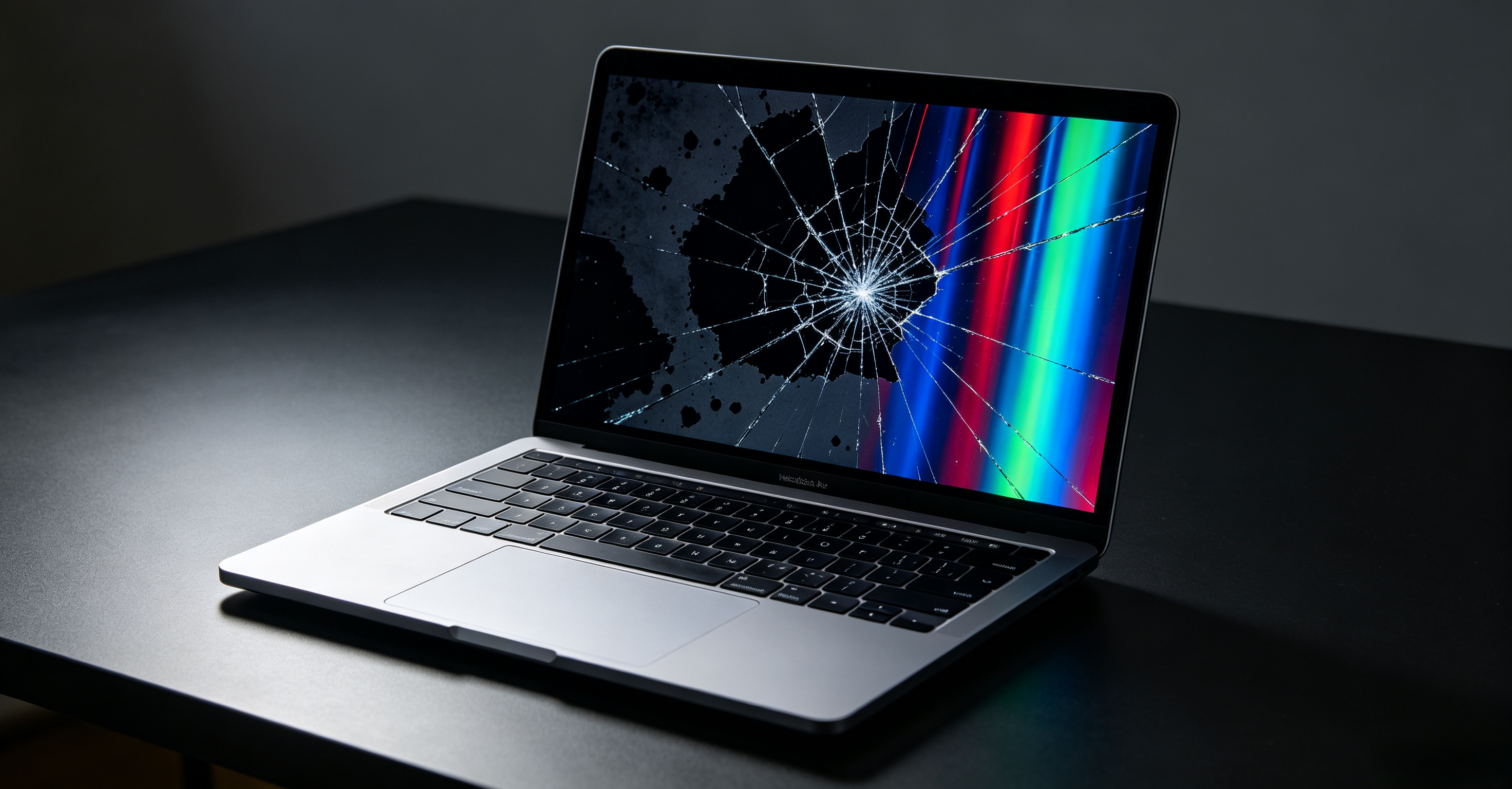
A MacBook screen that looks cracked inside but has no visible damage on the glass surface is failing at the LCD layer underneath the laminate, not on the protective cover glass. The display still powers on, the menu bar still appears, and the touchpad still works, but dark spider-like cracks, spreading black spots, colored lines, or flickering patches have appeared across the image. This guide explains what an internal crack on a MacBook screen actually means, how it differs from a broken outer glass panel, what causes it on each MacBook model, how to diagnose it in under five minutes, what your realistic repair options cost in 2026, and how Apple's warranty and AppleCare+ coverage apply to this specific failure.
What Does MacBook Screen Internally Cracked Mean
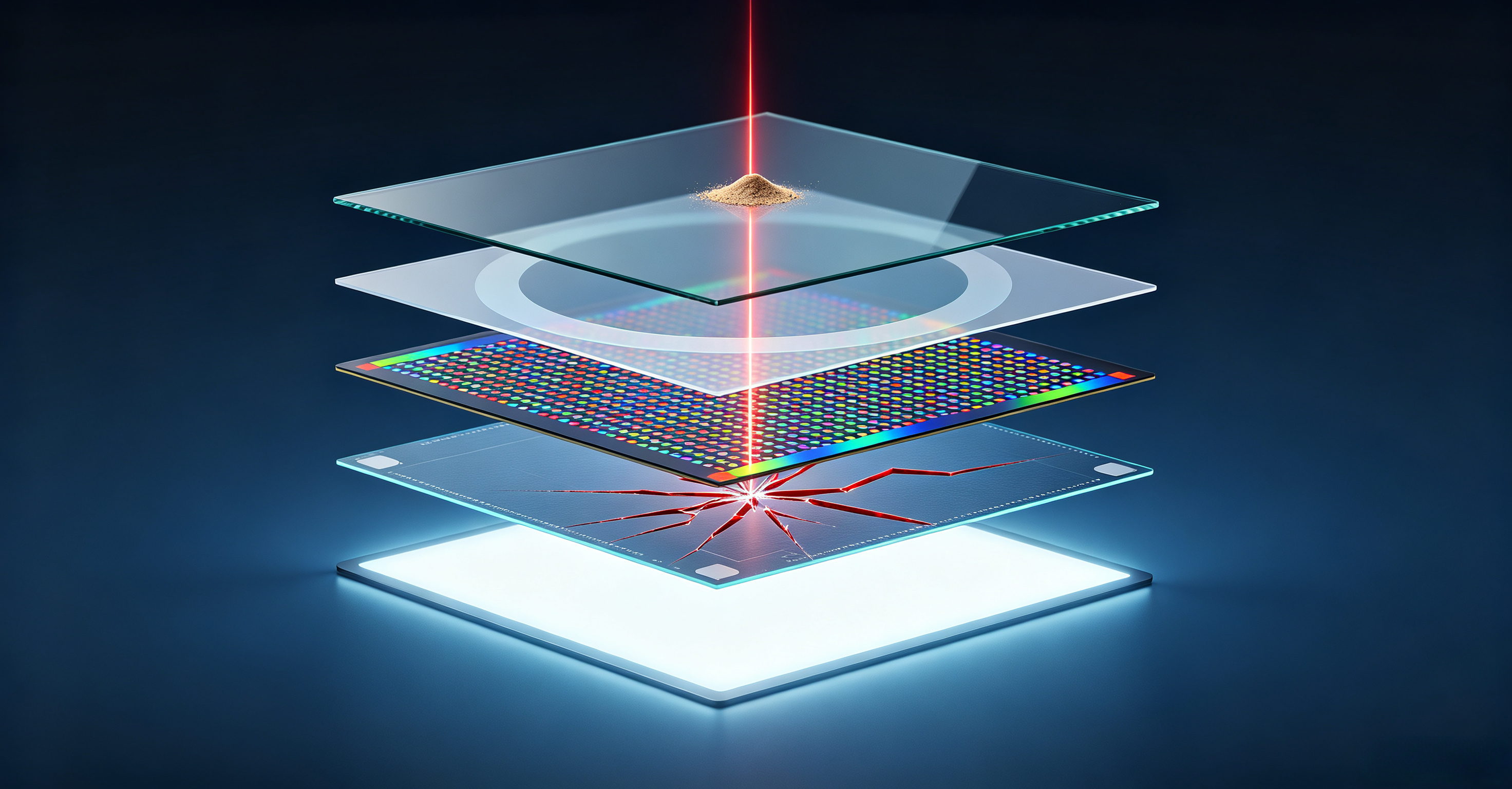
The phrase "MacBook screen internally cracked" describes damage to the liquid crystal layers that sit underneath the protective cover glass, not to the glass itself. Every modern Retina and Liquid Retina MacBook display is built as a laminated stack: a top cover glass, an optical bonding adhesive layer, a circular polarizer, a color filter array, a thin-film transistor (TFT) substrate holding the liquid crystal, and a backlight unit. When any of these layers fractures, the image below the glass develops visible defects while the surface above it stays smooth and unbroken.
The visual signature of an internal crack is different from a broken cover glass. Users usually see one or more of the following patterns inside the display area:
- Ink-like black spots that look like drops spreading under the glass
- Vertical or horizontal colored lines in red, green, blue, pink, or white that stay fixed in position as you move windows
- Spiderweb cracks radiating from a single point inside the panel, with no chips or pits on the outer glass
- Flickering zones or brightness dropouts that change when you adjust the lid angle
- Localized dead pixel clusters that grow larger over weeks rather than staying constant
Modern MacBook displays are tightly integrated, which is why a single internal layer fracture usually cannot be repaired in isolation. The cover glass, polarizer, and LCD are optically bonded so dust, color, and brightness stay consistent across the panel. Separating them at home or in a non-specialist shop typically destroys the optical bond, introduces dust contamination, and breaks the True Tone calibration that matches the display to its specific backlight output.
Internal vs External MacBook Screen Cracks
Telling the two apart matters because the repair path and cost are very different. A broken cover glass on a MacBook Pro 14-inch or 16-inch can sometimes be replaced as a standalone part on older Intel unibody models, while an internal LCD crack on the same machine requires a full display assembly swap that Apple quotes at $700 to $1,100+ out of warranty.
Three checks reliably separate the two failure modes.
Check 1: The Screenshot Test
Press Command + Shift + 4 and capture the cracked region, then AirDrop the screenshot to your phone or another computer and open it. macOS captures the rendered image from the GPU pipeline before it reaches the display panel. If the screenshot is clean but the screen still shows the crack, the damage is in the LCD layer, the flex cable, or the backlight, not in your operating system or graphics driver. If the screenshot also shows the crack, the problem is upstream of the panel and may be a macOS rendering bug or a GPU fault, both of which are far less common.
Check 2: The Surface Inspection
Turn off the display and look at the glass under a bright desk lamp at a low angle. External cover glass cracks show up as sharp fracture lines, pits, or spiderweb patterns etched into the surface. Internal LCD cracks are invisible on the glass itself. The damage only becomes visible when the backlight turns on and illuminates the fractured layers behind the polarizer.
Check 3: The Hinge Pressure Test
Open and close the lid slowly while watching the screen. If the crack pattern, lines, or dark zones change intensity at certain lid angles, or if pressing gently on the bezel near the hinge temporarily changes the image, the issue is the eDP flex cable running through the hinge or the cable connector behind the lower bezel. This is a Flexgate-style failure on 2016 to 2018 MacBook Pro 13-inch models, a known design defect covered briefly under an Apple repair program that has since expired for most units.
What Causes a MacBook Screen to Crack Internally
Internal screen cracks on MacBooks come from six distinct mechanisms. Most cases involve more than one cause acting together over time.
Cause 1: Lid Pinch Pressure from Small Objects
The single most common cause across all modern MacBook models is closing the lid with a small object left on the keyboard. The MacBook Air M2 (A2681) is particularly exposed because the gap between the keyboard deck and the display panel is less than half a millimeter. A single grain of sand, an earbud tip, a webcam cover, or a silicone keyboard protector can transfer hundreds of newtons of force into one spot on the LCD stack when the lid closes. The glass may survive, but the polarizer, color filter, or TFT substrate directly underneath the pressure point fractures.
Cause 2: Drop or Impact Transmitting Force to the LCD
A drop from desk height, even with the lid closed, can crack the LCD layers underneath an unbroken cover glass. The MacBook's aluminum chassis absorbs most of the kinetic energy, but the rigid glass-and-LCD stack inside the lid does not flex the same way. Force traveling through the hinge concentrates at the upper corners of the panel, where it can fracture multiple internal layers simultaneously without leaving any chip or pit on the outer glass.
Cause 3: Repeated Hinge Stress on 2016-2018 MacBook Pro
The 2016 and 2017 MacBook Pro 13-inch and 15-inch Touch Bar models, and some 2018 units, shipped with a backlight flex cable routed too tightly across a sharp metal edge inside the hinge. Every lid open-and-close cycle bends the cable over that edge. After several thousand cycles, the copper traces inside the cable crack. The first symptom is usually the stage light effect, a bright bar of light along the bottom edge of the display, followed by complete backlight failure as more traces break. Apple quietly offered a repair program limited to the 2016 MacBook Pro 13-inch with Two Thunderbolt 3 ports; 2016 15-inch, 2017, and most 2018 owners were not covered.
Cause 4: Thermal Cycling and Layer Delamination
MacBook displays operate across a wide temperature range, from below freezing in a parked car to over 40°C on a hot summer desk. The cover glass, optical adhesive, polarizer, and TFT substrate each expand and contract at slightly different rates. Over several years, this repeated thermal cycling can delaminate the optical bond between layers, creating faint haze or color shifts before producing visible crack patterns. This is more common on early Retina MacBook Pro models from 2012 to 2015 but does still occur on newer units.
Cause 5: Liquid Damage Accelerating Internal Failure
A small spill that does not reach the keyboard can still reach the display through the bezel gap. Mineral deposits left behind after the liquid evaporates etch the polarizer over weeks, eventually producing internal discoloration that looks like a crack but is actually chemical corrosion. Apple does not cover liquid damage even when the spill is small enough that the user never noticed it at the time.
Cause 6: Manufacturing Defect in the LCD Stack
A small percentage of MacBook displays ship with latent defects in the TFT substrate or color filter. These defects can manifest as faint vertical lines or dead pixel clusters within the first year of use. Apple treats in-warranty manufacturing defects as covered repairs under the standard one-year warranty and, if purchased, AppleCare+. After the first year, an out-of-warranty replacement is required.
MacBook Models Most Affected by Internal Screen Cracks
Not every MacBook is equally vulnerable. The table below summarizes the most affected models based on repair data from independent shops and Apple's own service programs.
| MacBook Model | Years | Internal Crack Risk | Common Failure Mode | Apple Coverage Status |
|---|---|---|---|---|
| MacBook Air M2 (A2681) | 2022-2024 | Very High | Lid pinch pressure cracks | Out of warranty only |
| MacBook Air M3 (A3113) | 2024+ | High | Lid pinch, hinge area impact | Out of warranty only |
| MacBook Pro 13-inch Touch Bar | 2016-2017 | Very High | Flexgate backlight cable | 2016 model only, expired |
| MacBook Pro 15-inch Touch Bar | 2016-2017 | High | Flexgate backlight cable | Not covered |
| MacBook Pro 13-inch Intel | 2018-2020 | Moderate | Flexgate variant, lid pinch | Partial 2018 coverage |
| MacBook Pro 14-inch and 16-inch | 2021+ | Moderate | Stage Light effect | Covered 4 years from sale |
| MacBook Neo (entry tier) | 2025+ | Moderate | Lid pinch, layer delamination | Standard 1-year warranty |
The MacBook Air M2 stands out because its redesigned lid has almost no clearance above the keyboard deck. Independent repair data collected by repair shops consistently shows it as the single most-cracked MacBook model in 2023 and 2024. The 14-inch and 16-inch MacBook Pro models from 2021 onward are not as prone to lid pinch cracks, but they do develop Stage Light effect, a different internal failure caused by backlight cable routing rather than LCD layer fracture.
How to Diagnose an Internal MacBook Screen Crack
Six steps separate a confirmed internal LCD crack from a software glitch, a cable fault, or an external glass fracture.
Step 1: Confirm the Surface Is Smooth
Turn off the MacBook and inspect the glass with a bright desk lamp at a low angle. If the surface is smooth with no chips, pits, or fracture lines, the crack is internal. If you see visible damage on the glass itself, you have a cover glass crack that may or may not also have internal LCD damage.
Step 2: Run the Screenshot Test
Press Command + Shift + 4 and capture the affected area. View the screenshot on another device. A clean screenshot with a cracked screen confirms the display panel itself is the source.
Step 3: Connect an External Monitor
Use USB-C, Thunderbolt, or HDMI to connect a known-good external display. If the external display shows the same cracks, lines, or flickering, the problem is in the GPU or logic board. If the external display is clean, the problem is in the MacBook's internal display assembly or its eDP cable.
Step 4: Test the Lid Angle
Slowly open and close the lid through its full range. If the crack pattern, lines, or flickering appears only at certain angles and disappears at others, the eDP flex cable running through the hinge is damaged. This is the Flexgate signature on 2016-2018 Intel MacBook Pro models.
Step 5: Boot Apple Diagnostics
Shut down the MacBook. On Apple Silicon models, press and hold the power button until "Loading startup options" appears, then press Command + D. On Intel MacBooks, hold D during startup. Apple Diagnostics will report any display panel, backlight, or sensor failure it detects, though it can miss internal layer cracks that do not affect the diagnostic test patterns.
Step 6: Photograph the Crack in a Dark Room
Set the MacBook to display a solid white image (our free screen test tool generates this in fullscreen) and photograph the panel in a dark room. The backlight will illuminate the crack pattern from behind, making it sharply visible even when it is barely noticeable in normal lighting. Save the photo for reference when you describe the issue to Apple or a repair shop.

Repair Options for an Internally Cracked MacBook Screen
The realistic options in 2026 are Apple out-of-warranty replacement, AppleCare+ flat fee, third-party repair, or micro-soldering cable-only repair on 2016-2018 MacBook Pro 13-inch. The table below summarizes each path.
| Repair Path | Typical Cost | Turnaround | Warranty on Repair | Best For |
|---|---|---|---|---|
| Apple Store out of warranty | $400-$1,100+ | 3-7 days | 90 days | Any MacBook, any model |
| AppleCare+ flat fee | $99 per incident | 3-7 days | Remaining AppleCare+ term | Covered MacBooks |
| Apple Authorized Service Provider | $350-$900 | 2-5 days | 90 days | Models not carried at local Apple Store |
| Independent third-party shop | $200-$800 | 1-3 days | 30-90 days | Out of warranty cost savings |
| Micro-soldering cable-only repair | $199-$350 | 3-7 days | 30-90 days | 2016-2018 MacBook Pro 13-inch Flexgate only |
| DIY replacement | $150-$400 parts | Self | None | Not recommended |
Apple's out-of-warranty screen replacement for MacBook Air M2 starts around $400 to $600 and rises to $700 to $1,100+ for MacBook Pro 14-inch and 16-inch with Liquid Retina XDR panels. Third-party shops typically undercut Apple by 30% to 50%, though the savings come with a trade-off: aftermarket Retina assemblies sometimes lose True Tone calibration, show brightness inconsistencies, or develop cable instability within the first year.
DIY replacement is technically possible on older unibody MacBook Pro models where the LCD panel is sold separately from the cover glass. On any Retina or Liquid Retina MacBook, the laminate stack makes glass-only or LCD-only replacement impractical. DIY attempts on modern MacBooks frequently damage the eDP flex cable, short display power circuits on the logic board, or break the True Tone sensor pairing that ties the panel to its calibration data.
Apple Warranty and AppleCare+ Coverage for Internal Cracks
Apple's coverage for internal screen cracks depends entirely on the cause and the model.
Standard One-Year Warranty
The standard one-year limited warranty covers defects in materials and workmanship. A spontaneous internal crack with no impact, pressure, or liquid event is usually treated as a manufacturing defect and replaced at no cost. The user must show that the damage was not caused by accidental damage, which Apple determines during the Genius Bar diagnostic.
AppleCare+ Coverage
AppleCare+ extends coverage to three years from purchase and adds accidental damage coverage with a flat deductible. For most MacBooks, the screen damage deductible under AppleCare+ is $99 per incident. The deductible is per-incident, so two separate screen damage events require two separate fees. AppleCare+ does not cover loss or theft of the MacBook itself.
Flexgate Repair Program (Expired)
Apple's Flexgate repair program covered eligible 2016 MacBook Pro 13-inch models with Two Thunderbolt 3 ports for four years from the original sale date. The program has expired for most owners in 2024, but a small number of late-2016 units may still qualify if they were sold in late 2019 or early 2020. Owners should check Apple's support site with their serial number before paying for a Flexgate repair out of pocket.
Stage Light Repair Program
Stage Light effect, where a bright bar of light appears along the bottom edge of the display, is covered on MacBook Pro 14-inch and 16-inch models from 2021 onward for four years from the original sale date. Unlike Flexgate, this program does not require the MacBook to have been sold within a specific window.
How to Maximize Your Apple Coverage
Three practical tips improve the odds of getting an internal crack covered:
- Describe the symptom, not the cause. Saying "the screen cracked" implies impact damage. Saying "vertical colored lines and spreading black spots appeared spontaneously" describes a defect and aligns with Apple's coverage language.
- Bring the MacBook to the Genius Bar without cosmetic damage. A pristine chassis with a cracked display is more likely to be treated as a defect than a MacBook with dents or scratches.
- Check Apple's coverage page with your serial number before scheduling. Apple has multiple overlapping repair programs, and the support site will identify which one applies to your specific model and purchase date.
Prevention Tips to Avoid Internal MacBook Screen Cracks
Most internal cracks are preventable with a small number of consistent habits.
Always Clear the Keyboard Before Closing
The single most effective habit. Check the keyboard for earbuds, paper clips, stylus tips, crumbs, sand grains, and webcam covers before closing the lid. On MacBook Air M2 and M3, even a grain of sand can produce a pressure crack because of the minimal lid clearance.
Avoid Webcam Covers and Silicone Keyboard Protectors
Webcam covers press against the LCD layer when the lid closes. Apple's official position is that webcam covers can damage the display, and Apple Genius Bar staff routinely refuse service for internal cracks caused by third-party webcam covers. Silicone keyboard protectors, particularly thick or non-standard models, transfer pressure to the LCD layer through the same mechanism.
Use a Hard-Shell Case for Transport
A hard-shell MacBook case adds a layer of foam or rubber between the keyboard and the closed display. This absorbs the impact of small objects left on the keyboard before they reach the LCD stack.
Open and Close the Lid Gently
Use two hands when opening or closing the MacBook. One-handed operation puts uneven torque on the hinge and stresses the eDP flex cable that runs through it, contributing to Flexgate-style failures on Intel MacBook Pro models.
Avoid Extreme Temperatures
Do not leave the MacBook in a parked car overnight in winter or summer. Repeated thermal cycling between extreme temperatures accelerates layer delamination, especially on older Retina models.
Run Apple Diagnostics Periodically
Apple Diagnostics can detect some display layer issues before they become visible cracks. Running it every few months catches aging problems while they are still covered under warranty or AppleCare+.
Clean the Bezel Edges Carefully
Use a soft microfiber cloth lightly dampened with water to clean the bezel edges where the lid meets the keyboard deck. Avoid compressed air, which can push moisture deeper into the panel gap.
Conclusion
A MacBook screen that is internally cracked is failing at one or more of the laminated layers underneath the cover glass, not on the glass itself. The visual signature is ink-like black spots, spiderweb crack patterns, colored vertical or horizontal lines, or flickering zones that change with lid angle. The most common cause is closing the lid with a small object left on the keyboard, particularly on MacBook Air M2 and M3 models where the lid clearance is minimal.
Diagnosis takes five minutes with the screenshot test, hinge pressure test, and Apple Diagnostics. Once confirmed, repair options range from AppleCare+ flat fee of $99 per incident on covered MacBooks to full out-of-warranty assembly replacement at $400 to $1,100+ depending on the model. The 2016 MacBook Pro 13-inch Flexgate program has expired, but the Stage Light effect on MacBook Pro 14-inch and 16-inch from 2021 onward remains covered for four years from the original sale date.
Use our screen test tool to display a fullscreen white image and photograph your cracked panel in a dark room. The photo will show the crack pattern clearly when you bring it to a Genius Bar appointment, which makes it easier to describe the failure and faster for Apple to confirm the repair path. If you are still inside your AppleCare+ window or your MacBook matches an active repair program, schedule a Genius Bar visit before paying for an out-of-warranty replacement.